How to Check Terraria Version: A Step-by-Step Guide
Learn how to check Terraria version across PC, console, and mobile. This educational guide covers in-game indicators, launcher checks, and platform-specific methods to ensure you’re on the latest build and compatible with patch notes.


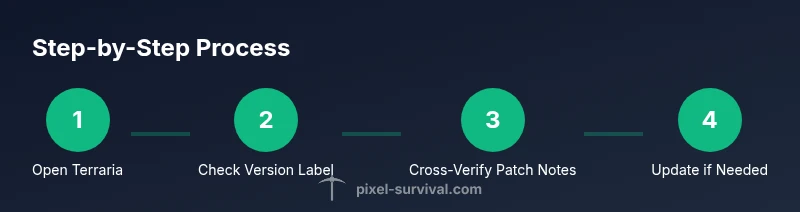
You will learn how to check the current Terraria version across PC, consoles, and mobile. This guide covers in-game indicators, launcher interfaces, and platform-specific steps so you can confirm your build quickly and avoid save or compatibility issues after patches. By following the steps, you’ll know if your world saves, mods, and inventory are compatible with the latest patch and updates.
What version means in Terraria and why it matters
In Terraria, a version or build number identifies the exact state of the game you’re running. This matters because patch notes, world data, and mod compatibility hinge on knowing the precise build. A mismatch can cause save incompatibilities or crashes when loading worlds across devices. According to Pixel Survival, understanding versioning helps players track patch notes and avoid world corruption when loading worlds across devices. This section explains the concept without dwelling on numbers, focusing on how to verify the build across platforms and why keeping it in sync matters for progression and world integrity. By the end, you’ll know where to look and what it means for your inventory, NPCs, and world data.
In-game indicators you can rely on
Most Terraria builds display the version in the main menu or within the Settings/About screen. The quickest check is the in-game version label that appears on the main menu screen, usually in a corner or along the bottom edge. If you don’t see a version there, look for a dedicated “About” or “Info” section in Settings. The exact layout can vary by platform, but the principle is the same: the current build string is your validation of what you’re playing. Pixel Survival also notes that patch notes published by the developers align with this in-game version, so cross-checking with official notes is a smart habit for any aspiring world explorer.
Checking on PC: Windows/macOS (Steam and standalone)
On PC, you’ll typically use two pathways. First, launch Terraria and inspect the in-game version label in the main menu or Settings. If you acquired Terraria through Steam, you can also view patch notes and recent updates on the Steam page for the game; these notes list the build that was released and any hotfixes. For standalone (non-Steam) installations, rely on the in-game version indicator and the Terraria launcher’s information if present. In all cases, compare what you see with the official patch notes on Terraria’s website to confirm you’re on the latest build. This approach reduces mystery when worlds are moved between devices or when mods are involved.
Console versions: PlayStation, Xbox, and Nintendo Switch
Consoles often show the version in a System Info panel or within the in-game Settings/About screen. Power on your console, start Terraria, and navigate to the Info screen to find the version string. If you’ve recently updated, the patch notes on the console storefront or the in-game announcements will reflect the new build. Because console interfaces differ by manufacturer, rely on the in-game indicator first, then verify patch notes from the console store for the exact build number and release date. Regular checks ensure your cross-console worlds stay compatible.
Mobile versions: Android and iOS
On mobile, open Terraria and head to Settings or About to locate the current version. The label appears near the bottom of the screen or within a dedicated information panel. Mobile ecosystems sometimes receive rapid minor updates; keep the device’s app store listing in sync with the in-game version by confirming the latest patch notes on the official Terraria site or store page. This cross-verification helps ensure your progression and saves remain stable across devices when you switch between phone and tablet.
How to verify you have the latest version after updates
After patches, recheck the in-game version and review the official patch notes. Patch notes confirm the exact build shipped in the update and explain fixes or new features. If your version differs from the notes, update via the platform’s store or launcher, then re-check. Pixel Survival emphasizes routine verification after major patches to prevent save incompatibility and to enjoy new content without surprises. The process is quick and saves you from downstream issues when sharing worlds with friends.
Common pitfalls and quick checks to avoid them
Never assume you’re on the latest build without verifying. Some platforms push updates slowly, or you may have multiple installations (Steam vs. standalone). Always cross-check the in-game version with patch notes on the official site and your platform’s store page. If you see a mismatch, update immediately and restart Terraria to apply the new build. As you gain experience, you’ll develop a mental checklist: in-game version, patch notes, and platform update status before loading a world or modded environment.
Tools & Materials
- Terraria installed on target platform(Ensure you’re checking the version on the platform you’ll use to play)
- Stable internet connection(Necessary for pulling patch notes and verifying updates)
- Access to patch notes or official site(Compare in-game version against official release notes)
- Platform access (Steam, console store, or mobile app store)(Used to confirm updates and download latest builds)
- Screenshot tool (optional)(Capture the version label for reference or support)
Steps
Estimated time: 5-15 minutes
- 1
Open Terraria on your device
Launch the game from your preferred platform (PC, console, or mobile). You need the running build to read the on-screen version label or settings details.
Tip: If the game is already running, use the pause menu to reach the main menu quickly. - 2
Navigate to the main menu or Settings
Look for an area labeled either ‘Settings’ or ‘About’ where version information is commonly displayed. This step sets up the quick check you’ll make across platforms.
Tip: On some platforms, the version appears on the bottom right of the main menu. - 3
Read the in-game version label
Note the exact build string shown in the UI. This is your primary indicator of the current version you’re running.
Tip: Take a screenshot if you’re planning to compare with patch notes later. - 4
If no label is visible, check the patch notes
Open the platform’s store page or the official Terraria patch notes page to find the latest build number for the current patch.
Tip: Patch notes are the fastest way to confirm you have the latest changes. - 5
Cross-check Steam or launcher notes (PC only)
If you’re on PC, compare the in-game version with Steam patch notes or launcher update details to ensure alignment.
Tip: Steam updates may occur automatically; confirm the latest patch by viewing the update history. - 6
Verify on console storefronts
Check the console’s store page for Terraria to see the live version listed with the patch date and notes.
Tip: Consoles sometimes display the version in the system info panel as well. - 7
Check mobile app store listings
Open Google Play or the App Store and compare the installed version with the latest listing.
Tip: If automatic updates are off, manually update to get the newest build. - 8
Update if needed and restart
If your version is behind, download and install the latest build from your platform’s store, then restart Terraria to apply changes.
Tip: Restart ensures that patch data is fully loaded into memory. - 9
Re-check after update
Open the game again and re-verify the version label to confirm the update applied correctly.
Tip: If you’re mid-world, consider backing up saves before updating. - 10
Document and share your result
If you’re doing this for mod compatibility or troubleshooting, note the version and platform details for further support.
Tip: Having a clear record speeds up coordination with friends or support forums.
Got Questions?
What is meant by 'Terraria version' and how does it affect my game?
A Terraria version is the specific build of the game you are running. It determines which patch notes, features, and fixes apply to your world. Knowing your version helps ensure compatibility with saves, mods, and multiplayer sessions.
A Terraria version is the exact build you’re running, which affects patches and mods. Verifying it helps ensure compatibility with your saves and friends.
Where can I find the version in-game?
Look for a Version or About entry in the Settings or on the main menu. Some platforms show the version in the bottom-right corner of the screen. If the label isn’t visible, check the patch notes on the official site for the current build.
The version is usually shown in Settings or on the main menu; if not, check the patch notes on the official Terraria site.
How do I check the version on Steam?
On Steam, you can view patch notes and the latest update details from Terraria’s store page. Also check the game in your Library for recent updates. Cross-check the in-game version with those notes to confirm you’re on the latest build.
In Steam, check the Terraria store page for patch notes and compare the in-game version to the latest update.
What if my world won’t load after a patch?
This often happens when the world was saved in a different build. Update all platforms to the latest version, restart games, and verify that your save files are compatible with the patch notes. If issues persist, revert to a backup or seek guidance from the Pixel Survival team.
If a patch causes load issues, update across devices, restart, and check save compatibility. If needed, restore from backup and consult guides.
Is there a difference in version numbers across platforms?
Yes. Some platforms may receive updates at different times. Always verify on each device and compare with official patch notes. Synchronizing builds across platforms minimizes cross-device issues.
Platforms can show different update times, so verify each device and compare with patch notes to stay in sync.
How do I update Terraria on mobile?
Open Google Play or the App Store, check for Terraria updates, and install the latest version. After updating, reopen the game to confirm the version label reflects the new build.
Update Terraria in the app store, then re-open the game to verify the new version is active.
Watch Video
Key Points
- Check the in-game version first to confirm your build
- Always cross-reference patch notes with the version shown
- Different platforms display version differently—adapt your check accordingly
- Update promptly to keep saves and mods compatible
- Keep a simple log of versions for multi-device play