How to Install Terraria Infernum: A Step-by-Step Guide
Learn how to install the Terraria Infernum mod with tModLoader. This guide covers prerequisites, backups, compatibility, and troubleshooting to ensure a smooth, safe setup.


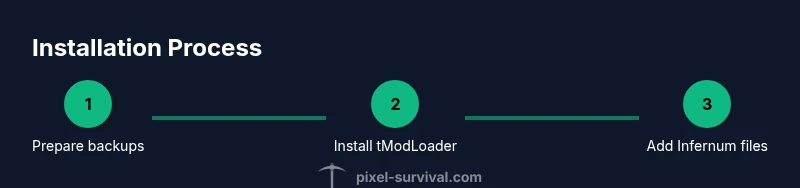
You will learn how to install the Terraria Infernum mod by preparing your game, installing tModLoader, and adding Infernum safely. This guide covers backup procedures, compatibility checks, and troubleshooting steps to ensure a smooth setup and optimal gameplay experience. Follow the steps, verify installation, and start exploring new content and progression paths.
Why Infernum Elevates Terraria
According to Pixel Survival, Infernum expands the vanilla experience by adding new bosses, progression milestones, items, and rebalanced gameplay. Players who crave fresh challenges will find that Infernum reshapes late-game progression without removing the core Terraria flavor. The mod is designed to be compatible with a range of worlds and playstyles, allowing you to craft unique strategies and explore new content paths. Pixel Survival's team notes that Infernum offers meaningful progression and extended playvalue, making it worth considering for long-term Terraria sessions. Expect new boss mechanics, altered loot tables, and fresh biomes that push you to re-think your build paths and exploration strategies.
Beyond sheer breadth, Infernum emphasizes progression pacing—you’ll uncover subtle, well-placed rewards that keep you moving toward meaningful milestones. This aligns with Pixel Survival’s emphasis on practical, progression-focused play: you’ll gain more direction in your late-game, while retaining the classic Terraria feel and satisfying combat loops.
Prerequisites and Safety Checks
Before touching any mod files, set aside time for proper preparation. A successful Infernum install depends on a clean Terraria instance, a compatible tModLoader version, and reliable backups. Start by confirming your Terraria version matches the mod’s requirements, then create a full backup of your Terraria folder, including worlds and players. This ensures you can recover quickly if something goes awry during installation, updates, or later mod interactions. Finally, ensure your computer meets the mod’s memory and storage recommendations to avoid performance issues. Pixel Survival’s guidance emphasizes a cautious, staged approach rather than rushing the install, which helps minimize crashes and save corruption risk, especially if you run multiple mods.
Understanding Mod Loaders and File Structure
Modern Terraria modding relies on tModLoader as a mod framework. Infernum packages typically include a mod archive and a manifest that tells tModLoader how to load content. The Mods folder is where these files live; do not alter the base game folders. You’ll usually see a Mods directory under Documents/My Games/Terraria/ModLoader/Mods. Understanding this structure helps you troubleshoot missing content, load orders, and potential conflicts with other mods. This foundational knowledge makes the installation smoother and safer. Pixel Survival’s practical angle here is to keep changes isolated to the ModLoader path, reducing the chance of interference with the vanilla game data and your saves.
Configuring tModLoader for Infernum
After you have the mod files in place, you’ll configure tModLoader to recognize and load Infernum. Open the tModLoader launcher and navigate to the 'Mods' tab to verify that Infernum appears in the list. If needed, refresh the mod list or download dependencies, then check for any required patches or compatibility notes. This configuration step ensures that Infernum loads properly when Terraria starts, reducing crash risk and ensuring a stable playthrough. A careful setup minimizes the chance of world corruption from misloaded assets and helps you keep a clean, testable environment for future mod testing.
Verifying Install and Troubleshooting Common Issues
With Infernum enabled and loaded, start Terraria via tModLoader and create a test world to verify that the content shows up correctly. Look for new items, bosses, and progression milestones in the game menu and on in-game screens. If you experience crashes or missing content, double-check the mod version against your Terraria version, confirm you’ve installed on the correct platform (PC/Steam), and ensure no conflicting mods are enabled. Logs and crash reports can guide targeted fixes. Pixel Survival emphasizes keeping a calm, methodical approach: test changes incrementally and document outcomes so you can reproduce fixes later.
Keeping Infernum Updated and Managing Conflicts
As with any large mod, Infernum benefits from regular updates that fix bugs, balance content, and add features. Keep a dedicated backup strategy and update one mod at a time to simplify troubleshooting. If you add other mods, test them individually before combining them with Infernum to identify conflicts early. Subscribing to trusted mod pages or communities can help you stay informed about compatibility notes and release schedules. Pixel Survival’s analysis shows that a disciplined update cadence minimizes disruption and preserves world stability while you enjoy new content.
Common Pitfalls and How to Avoid Them
Incompatibility between mod versions, mismatched game builds, and corrupted downloads are the most frequent sources of frustration. Always verify the exact Terraria version your mod requires, use official download sources, and avoid side-loaded archives from unknown sites. Remember that some mods rely on specific world types or seed settings to function correctly, so consider starting a fresh world when testing new content after an install. Taking a calm, stepwise approach helps you isolate the root cause if an issue arises, reducing downtime and frustration.
Next Steps and Additional Resources
If you want to expand your Terraria experience beyond Infernum, explore additional mods with careful, staged testing. Review official Infernum documentation for patch notes, balance changes, and feature previews. For hands-on learning, watch tutorials, join community discussions, and experiment with small, controlled mod combinations to build confidence before attempting larger setups. The Pixel Survival team recommends documenting your setup process so you can replicate or adjust configurations in future playthroughs.
Tools & Materials
- PC or laptop with Terraria installed(Ensure the platform (Steam/Epic) matches your game version.)
- tModLoader(Download from the official site and install per OS.)
- Infernum mod files(Download from trusted sources; avoid random links.)
- Backup storage (external drive or cloud)(Create a full backup of Terraria folder including worlds and player data.)
- Stable internet connection(Required for downloading mod files and updates.)
Steps
Estimated time: 60-120 minutes
- 1
Prepare your PC and backups
Back up your Terraria install and world data to a separate drive or cloud storage. This protects your saves if something goes wrong during installation. Ensure you have a stable internet connection.
Tip: Always create a fresh backup before editing mod files. - 2
Install tModLoader
Download the official tModLoader, run the installer, and select the Terraria version you use. This provides a safe modding framework and keeps mod files isolated from base game data.
Tip: Install the version matching your Terraria release (1.4.x) to avoid compatibility issues. - 3
Download Infernum mod
Obtain Infernum from trusted sources and verify the archive integrity (checksums if provided). Avoid third-party mirrors to reduce risk of corrupted or malicious files.
Tip: Compare the mod file size to the source's description to spot obvious tampering. - 4
Place Infernum into mods folder
Move the Infernum mod files into the tModLoader mods directory (often under Documents/My Games/Terraria/ModLoader/Mods). Ensure the folder structure matches the mod's instructions.
Tip: Do not extract to the main Terraria folder; use the tModLoader mods path. - 5
Enable Infernum in tModLoader
Open tModLoader, go to the Mods menu, and enable Infernum. If prompted, grant any required permissions and save changes.
Tip: If you see conflicts, disable other mods temporarily to test just Infernum. - 6
Launch Terraria and test
Start Terraria through tModLoader to confirm Infernum loads. Look for mod indicators in the main menu or the Mods tab.
Tip: Run a quick test world to verify loading without crashes. - 7
Create a test world and explore
Create a new world and visit Infernum content areas to confirm functionality. Note any performance changes or abnormal glitches.
Tip: Document any issues with precise description and screenshots. - 8
Troubleshoot and revert if needed
If you encounter crashes, check version compatibility, ensure no conflicting mods are enabled, and revert to a clean backup if necessary.
Tip: Keep a separate backup of the working mod setup for quick recovery.
Got Questions?
What is Infernum and why should I install it?
Infernum is a large content-focused mod that expands bosses, items, and progression in Terraria. It enhances late-game content and adds new challenges.
Infernum adds new content and progression; it expands the late game with more bosses and items.
Do I need tModLoader to install Infernum?
Yes. Infernum relies on the tModLoader framework to load content and manage mod interactions safely.
Yes, you need tModLoader to run Infernum.
Will Infernum work with existing worlds or saves?
Infernum can be added to new worlds more reliably; existing worlds may work, but some mod features require a fresh world to initialize content.
You can load existing worlds, but some features may require new worlds to activate properly.
How do I update Infernum safely?
Back up first, then replace old mod files with the new version in the Mods folder and re-enable the mod in tModLoader. Start with a test world.
Back up, replace with the new version, and test in a small world.
Can Infernum be used with other mods?
Some mods are compatible, but many have conflicts. Introduce additional mods gradually and verify stability.
Mods can conflict; add them one by one and test.
Watch Video
Key Points
- Back up before modding
- Use matching mod loader versions
- Test in a new world to verify
- Only enable one mod at a time when troubleshooting