Can You Play Terraria on Mac? A Complete Setup Guide
Learn how to play Terraria on Mac with a clear, step-by-step setup. This Pixel Survival guide covers official support, installation options, performance tips, and common issues for a smooth Mac gaming experience.


Yes—can you play terraria on mac? Yes. You can play Terraria on Mac using Steam on macOS or via Rosetta 2 on Apple Silicon, with a straightforward setup. This quick answer previews installation, performance expectations, and common issues. If you’re wondering can you play terraria on mac, the short answer is yes.
Can Terraria Run on Mac? Compatibility and Official Support
Terraria has long offered macOS support, and modern Macs can run the game alongside Windows and Linux players in cross-platform worlds. The Pixel Survival team notes that the Mac version updates in parallel with other platforms, so you won’t be left behind on new content. In practice, can you play terraria on mac? The answer hinges on your macOS version, whether you’re using Intel or Apple Silicon, and how you obtain the game. If you’re using Steam on macOS, Terraria will download the Mac build automatically after purchase or activation, and you can jump into a world with friends right away. If hardware is modest, adjust in-game settings to maintain stable framerates; in most cases, the Mac experience is very approachable for Terraria veterans.
System Requirements and Performance Expectations
Terraria is not a graphically heavy game, so most Macs can run it well with sensible settings. Performance depends on your CPU, GPU, available RAM, and the number of background processes. Pixel Survival analysis, 2026, suggests broad compatibility across common macOS configurations, with smoother results on Apple Silicon devices when running through compatible launchers. If you’re aiming for consistently high frame rates, close unnecessary apps and use a stable macOS build; this helps prevent stuttering during busy combat or large builds.
Installation Options and Setup on Mac
The primary route to playing Terraria on Mac is through Steam on macOS. You’ll need a Steam account, Steam for macOS installed, and a copy of Terraria accessible from your library. After launching Steam and signing in, locate Terraria, click Install, and let the Mac build download. Apple Silicon users should be aware that some early versions perform best when launched via Rosetta 2; if you encounter startup issues, switching the Steam app to run under Rosetta can resolve compatibility hiccups. For most players, this is a seamless setup that aligns with how you’d install other cross-platform titles.
Performance Tuning: Mac-Specific Settings
To maximize Terraria on Mac, start with the in-game graphics set to a balance that suits your display and power envelope. Enable V-Sync if you notice screen tearing and cap the frame rate to match your monitor’s refresh rate for a smoother experience. Lowering textures and turning off unnecessary effects can improve stability on older Macs, while keeping resolution close to native prevents excessive GPU load. If you’re using an external monitor, test both your primary display and the external option to find the sweet spot for input latency and frame pacing.
Troubleshooting Common Mac Issues
Crashes on launch, black screens, or stuttering can happen on Mac due to drivers, macOS updates, or Steam configuration. Start by verifying game files in Steam, updating macOS, and ensuring Steam is up to date. If you’re on Apple Silicon and see compatibility problems, try launching Terraria through Rosetta 2 or adjusting Steam's compatibility settings. Mod conflicts can also trigger instability; disable mods to verify whether performance improves. When in doubt, re-download the game through Steam to ensure a clean installation.
Tips for a Smooth Mac Experience
- Close background apps before launching Terraria to allocate more resources.
- Keep Steam and Terraria updated to the latest versions for the best Mac compatibility.
- If you play with friends, confirm that all players are on compatible versions to avoid world syncing issues.
- Use a wired network connection when possible to minimize latency during multiplayer sessions.
- Backup your save files regularly to avoid loss from crashes or updates.
Tools & Materials
- Mac computer (Intel or Apple Silicon)(Ensure macOS is up to date and capable of running Steam for macOS.)
- Steam for macOS(Create or sign in to Steam, then access Terraria in your library.)
- Terraria on Steam(Purchase or own Terraria to download the Mac build.)
- Stable internet connection(Needed for initial download, updates, and multiplayer.)
- Optional: Rosetta 2 (for Apple Silicon)(Use if you encounter compatibility issues with certain builds.)
- Keyboard/Mouse or Controller(Configure your preferred input method for comfort and precision.)
Steps
Estimated time: 15-25 minutes
- 1
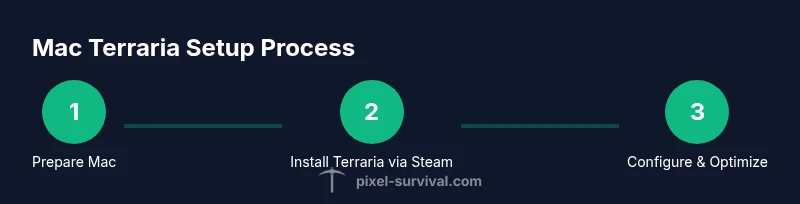
Prepare your Mac
Update macOS to the latest stable version and install Steam for macOS. This ensures compatibility with the Mac build of Terraria and provides a smooth download experience. If you’re on Apple Silicon, have Rosetta 2 available but don’t enable it yet unless you encounter issues.
Tip: Pro tip: close other apps before downloading large game files to speed up the process. - 2
Acquire Terraria on Steam
Open Steam, search for Terraria, and purchase or locate it in your library. Click Install and let the Mac build download completely. You can monitor progress in your Steam Library > Terraria > Local Files.
Tip: Pro tip: using Steam’s download scheduler can help manage network bandwidth during peak times. - 3
Launch and configure first run
Start Terraria from Steam. On first launch, adjust graphics to a balanced preset; enable V-Sync if you see tearing, and ensure the display resolution matches your monitor. Save your preferences before creating or loading a world.
Tip: Pro tip: start with a small world to test performance before diving into larger maps. - 4
Optimize for Apple Silicon (if applicable)
If you’re on an Apple Silicon Mac and encounter performance issues, enable Rosetta 2 for the Steam launcher or switch to a compatible launcher mode. Test both native and Rosetta modes to determine which gives you steadier frame pacing.
Tip: Pro tip: after switching modes, restart Steam for changes to take effect. - 5
Create a world and adjust controls
Create a new world or load an existing one. Map controls to your preferred layout, test combat and building flows, and adjust sensitivity. Consider enabling quick-save features and setup hotkeys for frequent actions.
Tip: Pro tip: customize hotkeys for inventory, building, and combat to speed up exploration. - 6
Maintain performance over time
Periodically verify game files after updates, monitor macOS resource usage, and keep drivers/Steam up to date. If performance drops, reduce texture detail or disable extra effects temporarily to regain smooth play.
Tip: Pro tip: keep a saved profile with different presets for laptop vs. desktop usage.
Got Questions?
Can Terraria run on Mac without extra software?
Yes. Terraria runs on Mac primarily through Steam on macOS, with no additional software required beyond Steam for access. If you encounter issues on Apple Silicon, Rosetta 2 may help with compatibility.
Terraria runs on Mac through Steam on macOS; no extra software is necessary unless you hit compatibility issues on Apple Silicon.
Do I need Rosetta 2 to play on Apple Silicon Macs?
Not always. Some builds run natively on Apple Silicon, but Rosetta 2 can improve compatibility with older game versions or launchers. If you experience crashes, try launching through Rosetta 2.
Rosetta 2 can help if you have compatibility problems, but many users play fine without it.
What performance can I expect on Mac?
Performance varies by hardware and settings. Most players can achieve steady play by using moderate graphics, enabling V-Sync, and closing background apps. Experiment with presets to find a balance between visuals and smoothness.
Expect variable performance depending on your Mac; start with balanced settings and adjust as needed.
Can I play with Windows friends on Mac?
Yes. Terraria supports cross-platform play between Mac, Windows, and Linux, so you can join friends in the same world as long as you’re all on compatible game versions.
Terraria supports cross-platform multiplayer, so Mac players can join Windows friends in the same world.
Are mods supported on Mac?
Mods can be used on Mac, but they may cause instability or crashes if they aren’t updated for your Terraria version. Disable mods to test stability and only re-enable after confirming compatibility.
Mods exist for Mac, but they can cause issues; test carefully and disable if problems arise.
Is there a direct Mac App Store version of Terraria?
Terraria on Mac is predominantly distributed through Steam for macOS. If you don’t use Steam, check the official Terraria site for your region and alternative channels, but Steam remains the most reliable path.
Steam is the primary way to get Terraria on Mac; other channels may vary by region.
Watch Video
Key Points
- Terraria runs on Mac via Steam; Apple Silicon users may benefit from Rosetta 2 if needed.
- Start with balanced settings to balance visuals and performance.
- Keep Steam and Terraria updated to minimize compatibility issues.
- Mods can offer enhancements but may introduce instability on Mac.