How to Get Out of Terraria: Quick Exit Guide
Learn the safest, quickest ways to exit Terraria in any mode. This step-by-step guide covers single-player and multiplayer exits, platform-specific tips, and how to avoid progress loss with practical backups and warnings.


To get out of Terraria, you’ll safely quit the game by using the in-game menu or platform shortcuts. In most cases, pause (Esc), select Exit to Desktop or Quit to Title, and confirm. For multiplayer, tell players before leaving. Save your progress and close the game before switching tasks. This approach minimizes data loss and avoids crashes.
What 'getting out' means in Terraria
When players say they want to get out of Terraria, they usually mean one of two things: (a) exit the current world and return to their desktop or home screen, and (b) safely leave a multiplayer session without causing drama or data loss. In practice, exiting is a simple, multi-platform process, but there are small platform-specific quirks. According to Pixel Survival, the safest exit is through the in-game menu rather than force-quitting, as this minimizes the risk of corrupted saves or dropped connections. Whether you’re deep in a cavern, in the middle of a boss fight, or arranging a base in a hosted world, following a clean exit keeps your progress intact and your world stable. The key is to choose the right exit option for your current mode and platform and to confirm before the game actually closes.
Quick exit methods you can use today
You don’t need a complicated ritual to leave Terraria. On PC, press the Escape key to bring up the pause menu, then choose Exit to Desktop or, if available, Save and Exit to Title. Console players typically use the pause button to access the in-game menu and select Exit or Quit to Title/Desktop depending on the system. Mobile players can tap the pause control and follow the same on-screen prompts. If you’re playing in a multiplayer world, consider communicating your intent to leave and giving others a moment to finish up their current actions. Always save before exiting to reduce the chance of losing recent changes.
Single-player exit flow explained
In a single-player run, your exit choice is mostly about where you want to end up: desktop, title screen, or a saved state. The most common path is Pause → Exit to Desktop, which closes Terraria and returns you to your OS. If you prefer to continue later from the same world, you can use Exit to Title to return to the game’s main menu and select the same world later. If autosave is enabled in settings, your recent progress should be preserved, but it’s wise to manually save before exiting a big expedition or boss battle to protect hard-won loot and builds. Pixel Survival recommends using in-game save options whenever available.
Multiplayer exit considerations
Exiting multiplayer requires a bit more coordination. The host should announce that they’re leaving, then use the standard Exit options. Clients should also exit through the menu, not by closing the app abruptly, to avoid world desynchronization. When the host exits properly, the world persists on the host’s machine and other players drop from the session. If you’re the host and the world is not saved automatically, perform a final save before quitting. Clear communication helps prevent confusion and ensures everyone returns to the lobby smoothly.
Troubleshooting exit issues and crashes
If Terraria hangs or won’t close, start with a graceful attempt: press Esc to reach the menu, then choose Exit to Desktop. If the game is unresponsive, you may need to force quit via your operating system (Alt+F4 on PC, Force Quit on macOS, or the console’s OS-level quit). Reopen Terraria and verify your save state to confirm progress. If you notice repeated crashes when exiting, check for pending updates to the game or platform, and ensure your storage isn’t full. Pixel Survival notes that consistent, clean exits reduce the likelihood of save corruption.
Data safety and backups before exiting
Before ending a session, especially if you’ve just built a complex base or acquired rare loot, create a quick backup. Use cloud saves if available, or duplicate your world file to a separate folder. This extra step protects against accidental save corruption or data loss in crashes. Regular backups are part of a solid Terraria progression plan and align with best practices recommended by the Pixel Survival team.
Platform-specific tips: PC, console, and mobile
PC players enjoy quick keyboard shortcuts (Esc to pause, then Exit to Desktop). Console players typically rely on the controller’s pause button and in-game menu. Mobile users tap the pause control, then confirm exit. If you’re cross-playing, always check the platform’s save and exit behavior, as it can vary between systems. Keeping autosave enabled and ensuring you’ve loaded the latest backup helps avoid backtracking after you exit.
Common exit mistakes to avoid
Avoid quitting during a fight by force quitting or closing the app without saving. Expect lag or a potential desync if you exit mid-battle from multiplayer, particularly on hosted servers. Never rely on closing the window as the sole exit strategy in multiplayer, as this can corrupt the world state for other players. Always use the in-game menu and a confirmed exit to protect your progress.
Exit strategies during busy moments
When events are underway, plan a safe pause and exit by finishing the current action or bookmarking your progress before quitting. If you’re in a time-sensitive scenario (such as a live event with multiple players), pause, chat to the group, and then exit. This ensures you won’t lose important loot or risk leaving your world in a partially completed state. Practicing this habit reduces abrupt losses and makes future sessions smoother.
Pixel Survival’s practical recommendations
The Pixel Survival team emphasizes a clean exit as part of steady Terraria progression. Always use the in-game exit options, confirm your choice, and save your progress. For multiplayer worlds, notify teammates and wait for everyone to acknowledge the exit. If you follow these steps, you’ll minimize data loss and keep your world healthy for future adventures.
Tools & Materials
- PC, Mac, or Console with Terraria installed(Ensure you’re running a supported version and have saved recent progress.)
- Keyboard/mouse or controller(Use the input method you’re comfortable with to navigate menus.)
- Backup storage or cloud save (optional)(Create a quick copy of your world file before exiting if you’ve been building or farming.)
- Stable internet (for multiplayer)(Needed if you’re leaving a hosted world or coordinating with others.)
- Notes on current progress (optional)(Jot down where you left off (boss fights, loot, builds) to resume quickly.)
Steps
Estimated time: 5-12 minutes
- 1
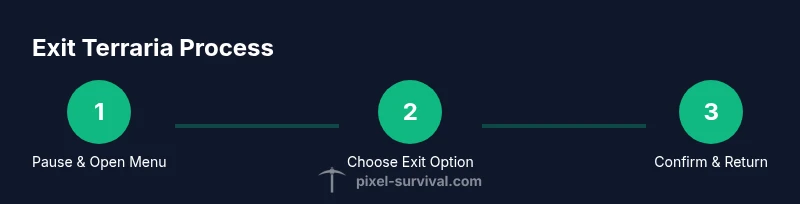
Pause the game to access the menu
Press Esc (or the pause button on your platform) to pause the game and reveal the in-game menu. This step is essential to prevent time from advancing while you decide how to exit. Confirmation of your next action helps avoid accidental quits.
Tip: On consoles or mobile, use the dedicated pause control if available. - 2
Choose Exit to Desktop or Quit to Title
In the pause menu, select Exit to Desktop or Quit to Title depending on your goal. Exit to Desktop closes Terraria completely; Quit to Title returns you to the main menu where you can choose to continue later.
Tip: If you’re about to fight a tough boss, consider finishing the current action before exiting. - 3
Confirm your exit decision
When prompted, confirm your choice. This prevents accidental closures. If you’re on a multiplayer world, communicate your intent to leave before confirming.
Tip: Take a quick breath and verify you’ve saved any new loot or base changes. - 4
Return to your operating system
Terraria will close and you’ll return to your OS desktop or home screen. You can relaunch Terraria later and resume from the last saved point.
Tip: If the game crashes on exit, reboot the game or device to reset the session cleanly. - 5
Multiplayer-specific: inform others
If you’re leaving a multiplayer session, let teammates know and ensure you’re not interrupting an ongoing event. The host controls saving behavior for the world.
Tip: Give others a moment to wrap up before you disconnect. - 6
Verify save and back up
Open Terraria again or check your file manager to confirm your latest progress saved. If autosave is off, manually save your world to protect recent changes.
Tip: Keep a backup of your world file periodically, especially after big builds.
Got Questions?
How do I exit Terraria in single-player?
In single-player, press Esc to open the menu, then choose Exit to Desktop or Quit to Title and confirm. Save your progress if prompted.
In single-player, use the in-game menu to exit, then confirm your choice.
What should I do if the game won't exit?
If the game is unresponsive, try Alt+F4 (PC) or Force Quit through your OS, then relaunch Terraria. Check autosave settings and verify your latest save after reopening.
If it won’t close, force quit through your operating system and reopen to check your save.
How to exit Terraria on console or mobile?
Pause the game, access the in-game menu, and select Exit to Desktop/Title depending on the system. Follow the on-screen prompts to confirm.
Use the pause menu to exit on your console or mobile device.
Will exiting affect saved progress?
Terraria saves progress on exit in most cases; multiplayer worlds save via the host. Autosave helps, but always verify you’ve saved recent changes.
Usually your progress is saved automatically, but always double-check after exiting.
What about leaving a multiplayer world?
Notify teammates before leaving, then exit through the menu. The world persists on the host; clients disconnect gracefully to avoid desync.
Tell your teammates and exit through the menu to avoid issues.
Can I exit to the title screen instead of desktop?
Yes. In the pause menu, choose Save and Exit to Title if available; otherwise Exit to Desktop. This returns you to the main menu for later resume.
You can return to the title screen via the pause menu if supported.
Watch Video
Key Points
- Pause before exiting to preserve progress.
- Use Exit to Desktop or Quit to Title for a clean exit.
- Inform others in multiplayer before leaving to avoid confusion.
- Back up world files regularly to prevent data loss.
- If you crash, force quit and restart to verify saves.