Terraria Without a Mouse: Keyboard-First Guide for PC
Learn to play Terraria without a mouse using keyboard and controller inputs. This step-by-step guide covers control remapping, hotkeys, inventory handling, combat, and map navigation for mouse-free play.


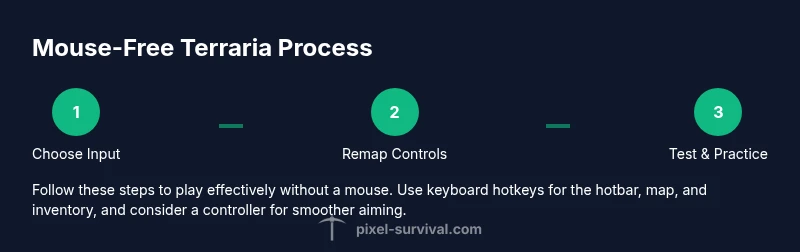
By using keyboard- or controller-based input and careful remapping, you can comfortably play Terraria without a mouse. This guide shows how to move, attack, access items, and build using hotkeys, controller sticks, and in-game shortcuts. It emphasizes practice, accessibility-friendly layouts, and step-by-step setup to help beginners and veterans alike. Pixel Survival provides practical strategies and tested configurations.
Why play Terraria without a mouse?
Terraria rewards quick thinking and precise timing, not just aiming. Playing without a mouse trains your sense of keyboard shortcuts, hotkeys, and controller input. According to Pixel Survival, keyboard-centric setups can unlock smoother movement, faster item cycling, and more resilient combat rhythms, especially in tight biomes or boss fights. By embracing a mouse-free workflow, you also gain consistency across different play environments—a laptop, a living room setup, or a cramped dorm desk.
A mouse-free approach isn't about eliminating precision; it's about rethinking how you interact with the world. With a well-chosen input method (keyboard or controller) and a thoughtfully mapped hotbar, you can react to enemies, place blocks, and collect loot with deliberate, repeatable actions. In practice, mouse-free play reduces the risk of mis-clicks during frantic moments and helps you maintain focus on movement, resource management, and terrain control. Pixel Survival's community-tested layouts emphasize reliability and comfort for long sessions.
Trade-offs exist. You lose the instant cursor-based targeting that a mouse provides, so you lean on attack cooldowns, weapon range, and your ability to switch items rapidly. The key is to build a robust hotbar and practice basic sequences until they feel natural. If you commit to a mouse-free setup, you’ll discover that Terraria remains as deep and satisfying as ever, just with a different control philosophy.
Keyboard vs. controller: choosing your input method
When deciding how to play mouse-free, the two main paths are keyboard-only and controller-based play. Keyboards typically deliver the fastest item switching through number keys and quick-press actions, but require deliberate finger placement and muscle memory. Controllers offer analog aiming with sticks, comfortable long-session play, and a natural grip that reduces wrist strain. If your goal is accessibility and fatigue reduction, a controller can be a strong starting point; if you want maximum keybind flexibility, keyboard-first is ideal.
Your choice shapes remapping, hotbar layout, and combat tempo. If you already own a modern console, a gamepad can translate well to Terraria on PC via Steam or other platforms; many players report smoother exploration and easier platforming with a controller. Conversely, keyboard layouts can be optimized with remappings so that critical actions stay within reach of your strongest fingers. The goal is consistency—stick with a setup that keeps your hands relaxed and your attention on the game world rather than button gymnastics.
Core control mappings for keyboard-only play
A practical starting point is a consistent, ergonomic layout. Move with WASD, jump with Space, and use items with a comfortable secondary key. Here’s a recommended baseline:
- Movement: WASD
- Jump: Space
- Attack / Use item: F or J (bind to main button)
- Place block / Interact: B
- Inventory: I
- Quick access (hotbar): 1–9
- Map: M
- Pause: Esc
- Drop item / Throw: X
Why this works: it keeps your primary actions on the left hand and your hotbar cycling on the right hand, reducing the need to move your hands away from the primary movement keys. If you prefer a controller, map the same logical actions to the face buttons and shoulder triggers, maintaining similar spacing. Practice with this baseline for 15–20 minutes before diving into exploration or combat.
Combat and ranged attacks without a mouse
With mouse-free control, you’ll rely on weapon ranges, attack cooldowns, and smart positioning. For melee, time your swings to your enemy’s wind-up to maximize hit chance; for ranged, choose weapons with predictable patterns and long reach. Bind your attack to a key you can press smoothly while moving, such as F or J, and assign evasion or retreat to another accessible key.
Aiming can be done by pre-aiming based on enemy location or using a controller’s stick if you choose gamepad input. For weapons that require charging or repeated activation, hold the bind to continuously fire while advancing or retreating to stay safe. Remember to use terrain for advantages—ledges, walls, and pillars can give you opportunities to strike without precise cursor placement. Practice in a quiet biome before attempting boss encounters to calibrate timing and reaction speed.
Inventory, crafting, and hotkeys
Managing gear without a mouse means making hotkeys count. Keep your most-used items on 1–5 for fast access, with 6–9 reserved for second-tier tools or consumables. Use I to open inventory and then Arrow keys to navigate; Enter to equip or Craft. If available, enable quick-craft shortcuts and pre-built recipes to save keystrokes.
Crafting in Terraria often requires materials scattered across the world; you can streamline this by assigning a dedicated hotbar row to essential resources and frequently-crafted items. The crafting interface can be controlled with keyboard bindings; you’ll want to memorize common combos and shortcuts so you don’t hunt each recipe with the mouse. Regular practice will make the inventory feel like an extension of your hands rather than a barrier.
Navigating the world and map with keyboard/controller
Map navigation is a critical part of mouse-free play. Toggle the map with M, then use Arrow keys or the right stick to pan your view, zoom using control schemes if available, and place markers with a dedicated key to track routes. Quick access to the map should be separate from combat actions to avoid accidental openings during fights. When spelunking, keep your movement keys in a comfortable layout to maintain forward momentum, and use the map to strategize routes toward resources and landmarks.
Map interpretation becomes easier as you play. Learn to recognize biome cues, ore veins, and enemy spawn patterns without relying on precise pointer control. On controllers, the analog stick provides intuitive camera control; on keyboards, frequent hotkeys to center the camera and re-center on your character help maintain situational awareness.
Practice routine and progression plan
Set a weekly practice schedule that focuses on one skill per session. Day one: refine movement and hotbar proficiency. Day two: emphasize combat rhythm against basic enemies using your chosen weapon. Day three: inventory navigation and crafting efficiency. Day four: map navigation and route planning. End the week by testing a short run in a cave biome to check how well your setup handles real scenarios.
Record a short gameplay clip to analyze reaction times, hotkey usage, and unnecessary keystrokes. Adjust remaps as needed, then repeat the cycle. As you grow more confident, introduce boss practice sessions with tempered expectations and appropriate gear. The key to success is consistency and deliberate practice rather than sheer speed.
Accessibility considerations and future improvements
Accessibility is a core consideration for mouse-free play. Start by enabling any built-in accessibility features in your PC or controller, such as key-repeat settings, sticky keys, or UI scale adjustments to reduce strain. Consider labeling keys with color-coded stickers to reduce mis-presses and improve muscle memory. If you have a friend with a similar goal, compare hotkey layouts and share tweaks that improve reaction times. Finally, plan for periodic reassessments—your comfort and speed will improve as you refine your setup and develop a routine that fits your playstyle.
Tools & Materials
- Keyboard (full-size or compact)(Movement with WASD; hotkeys 1-9; inventory access)
- Controller (Xbox/PlayStation) optional(Analog aiming and comfortable long sessions)
- Terraria installed on PC(Mouse-free layout relies on keyboard/controller input)
- Labeling aids (keycaps or stickers)(Helps with quick recognition under pressure)
- Comfortable desk setup(Stable, ergonomic for long play sessions)
Steps
Estimated time: 45-60 minutes
- 1
Choose input method
Decide whether you’ll rely primarily on keyboard or a controller. This choice will anchor all subsequent remapping and hotkey assignments.
Tip: Pick a method you can sustain for long sessions. - 2
Open controls menu and review defaults
Launch Terraria, pause, and open the Controls panel. Take note of which actions map to which keys.
Tip: If the default feels awkward, plan to remap. - 3
Remap primary actions to accessible keys
Assign movement to WASD or a controller, and rebind actions like attack, use item, and jump to easy-to-reach keys.
Tip: Place the most-used actions on keys within easy reach. - 4
Bind hotbar shortcuts (1–9)
Ensure your hotbar items are bound to number keys and that you can switch without looking.
Tip: Label keys if needed. - 5
Configure map and inventory shortcuts
Map, inventory, and pause controls should be on keys that won't disrupt your current action.
Tip: Keep map toggling discrete from combat. - 6
Test basic movement and combat in a safe world
Enter a calm area and practice moving with WASD, attacking with your chosen key, and changing items quickly.
Tip: Start with a basic weapon to build timing. - 7
Practice inventory navigation and crafting
Learn to scroll, craft, and equip items using only your keyboard or controller.
Tip: Use audio cues to confirm actions. - 8
Save a preset and iterate
Save your control scheme as a preset and adjust based on comfort and performance in real gameplay.
Tip: Keep a backup scheme in case of fatigue.
Got Questions?
Can Terraria be played effectively without a mouse?
Yes. With careful remapping and practice, you can move, attack, use items, and build using keyboard or controller. The key is consistency and a well-structured layout.
Yes, you can play mouse-free with the right setup and practice.
What input method is best for beginners?
It depends on your preference. Many beginners start with a controller for analog aiming, then gradually switch to keyboard for faster hotkey access.
Start with a controller if you like aiming with a stick; keyboard can be learned later.
How do I remap controls in Terraria on PC?
Open Settings > Controls and rebind actions to keys you find comfortable; save as a preset for future sessions.
Open Settings, remap, and save your preset.
Is map navigation possible without a mouse?
Yes. Use the map toggle key and arrow keys to pan. Practice to maintain awareness while moving.
Yes, you can navigate the map with keyboard shortcuts.
Will Boss fights be possible mouse-free?
Yes, with the right setup, weapon choices, and practiced rhythm. Expect longer learning curves at first.
Boss fights are doable with practice and good planning.
What are common mistakes when going mouse-free?
Overloading hotkeys, forgetting presets, and not practicing enough. Start simple and iterate.
Common issues are overcomplicating the hotkeys and skipping practice.
Watch Video
Key Points
- Define your input method early
- Remap controls for comfort and speed
- Leverage hotkeys to keep hands productive
- Practice with a structured routine