Terraria with a Trackpad: Practical Guide
Learn practical, step-by-step strategies to play Terraria using a laptop trackpad. Map controls, improve aiming, and optimize comfort for long sessions.


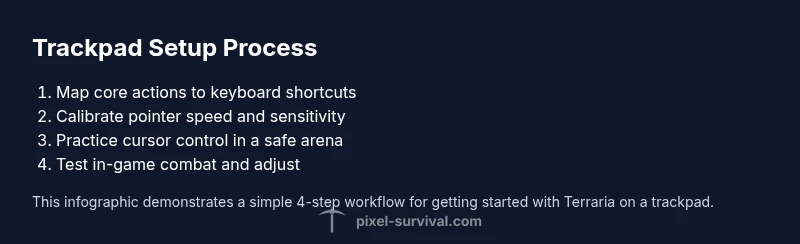
Terraria can be played effectively with a trackpad by re-mapping controls for comfort, calibrating sensitivity, and using keyboard shortcuts to augment aiming and inventory management. This quick setup helps you move, fight, and build without a mouse, while staying within natural wrist range and minimizing strain. Follow these steps to start strong on a trackpad today.
Why Terraria on Trackpad Works
Terraria on a laptop trackpad is more viable than many players expect. For terraria with a trackpad, you can navigate the world, craft items, and fight bosses with a careful setup that respects the limitations of a touch-style pointing device. According to Pixel Survival, the key is to re-map actions, calibrate sensitivity, and practice precise cursor control; with these tweaks, the trackpad becomes a capable input method rather than a hurdle. The goal is comfortable, reliable movement and accurate combat without a dedicated gaming mouse. In this section we explore why a trackpad can work, what trade-offs to expect, and how to structure your practice so you can progress through Terraria’s early and mid-game challenges without switching to a mouse. You’ll see how thoughtful layout choices, deliberate pacing, and mindful ergonomics convert a modest input into solid in-game performance. While some players may miss the tactile feedback of a physical mouse, a well-tuned trackpad setup keeps you in control during exploration, mining, and combat, while reducing wrist strain over long sessions.
Essential control mappings for trackpad players
A trackpad primarily handles the cursor, while the keyboard should drive most in-game actions. Start with a simple, repeatable layout: move with WASD, jump with Space, and use the number keys 1–9 to switch hotbar items. Use the trackpad to aim when opening chests, using items, or fighting enemies, and rely on keyboard shortcuts for inventory management. If your trackpad supports two-finger tapping, map that gesture to a primary action like attack or use. The goal is to minimize finger motion between two different input surfaces and build muscle memory for core tasks. Remember that the trackpad’s precision improves with a steady hand and a calm, consistent pace rather than frantic, rapid swipes. As you adjust, keep a close eye on how you grip the device—looser wrists reduce fatigue and improve accuracy over long sessions. Pixel Survival’s guidance emphasizes consistency in control layouts, especially when adapting to new input devices.
Setting up your keyboard and trackpad for Terraria
Successful play starts with a solid setup. Begin by enabling basic trackpad functions such as tapping to click (if supported) and ensuring your pointer speed is comfortable. Bind essential actions to easy-to-reach keys: Jump (Space), Attack (left-click via trackpad), Inventory (I), Quick Access (Q), and Hotbar selection (1–9). In-game UI scaling can help you see targets and items clearly on smaller screens, reducing the need for frantic cursor movements. Try a two-layer approach: the trackpad handles aiming and cursor navigation, while the keyboard handles movement, ability usage, and inventory management. For longer sessions, adopt a consistent rhythm: move, aim, act, pause, breathe, and reassess your setup after every gaming session. Pixel Survival’s research notes that players who standardize their mappings report smoother progression and fewer wrist strain moments over time.
Aiming and combat techniques with a trackpad
Aiming with a trackpad requires deliberate micro-movements and steady pacing. Start by practicing with basic enemies in calm environments to build confidence before facing bosses. Keep your cursor near the center of the screen and use short, controlled swipes to adjust your aim rather than long, sweeping motions. Combine keyboard actions with cursor movements: press jump or dodge while adjusting your aim with the trackpad, and use hotbar items quickly to gain the upper hand. For ranged weapons, practice leading targets slightly before firing; for melee, time your strikes with predictable enemy patterns. If your trackpad feels imprecise, slow your movement speed, increase pointer accuracy, and rely on projectiles or safer attacks while you refine grip and wrist posture. Pixel Survival’s analysis supports gradual, deliberate practice as the fastest path to proficiency.
Navigation, building, and inventory management on trackpad
Building and navigating vast Terraria worlds on a trackpad requires clear organization and predictable actions. Use the trackpad for cursor control while handling building materials with keyboard shortcuts. Map each hotbar item to a number key, and keep essential tools like your pickaxe and axe in easily reachable slots. When moving through inventories, use the trackpad to select items and the keyboard to transfer or equip them quickly. Consider enabling grid snapping in your mind and aligning blocks with the cursor’s position to minimize misplacements. Regularly save your progress and create quick access menus for frequently used items to avoid excessive mouse movement. The goal is to reduce time spent hunting items and increase focus on exploration and combat, letting you progress through biomes with confidence.
Quality-of-life tweaks and potential mods
Quality-of-life tweaks can make trackpad play more comfortable without sacrificing performance. Prefer OS-level settings that enhance cursor precision and reduce acceleration, and tailor in-game UI scale to your screen size. If you test mods, choose ones that explicitly support customizable controls or cross-input configurations, and back up your worlds before installing anything new. A practical approach is to start with small, reversible tweaks rather than large, sweeping changes. Trackpad-focused tweaks include adjusting pointer speed, enabling tap-to-click where available, and using hotkeys to cut down on pointer travel. Always verify compatibility with your Terraria version and avoid mods that alter core combat mechanics in ways that could make the game less predictable on a trackpad. Pixel Survival’s guidance underscores cautious experimentation and incremental improvements.
Troubleshooting common issues and safety notes
Trackpad gaming can lead to wrist strain if you push too hard for long periods. Take frequent breaks, keep wrists straight, and ensure your desk and chair support your posture. If you experience jittery cursor movement, try reducing pointer speed and enabling a more consistent movement rhythm. Some players find that a light external mouse temporarily helps during intense boss fights, but you can often succeed by refining your trackpad technique and control mappings. Ensure your trackpad’s driver is up to date and that any gaming overlay or input helper isn’t conflicting with Terraria. Lastly, remember to adjust in-game brightness and UI size to prevent eye strain and make long sessions more comfortable. Pixel Survival’s team stresses that comfort and consistency beat flashier setups every time.
Practice routines and progression plan
Progress with a trackpad comes from consistent, deliberate practice. Start with a 20-minute daily routine focusing on movement, target acquisition, and basic combat against low-tier enemies. Gradually increase session length, aiming for 30–60 minutes of focused practice while rotating through challenges like mining, building, and boss attempts. Create a small practice arena where you can repeatedly attempt simple fights, block placement, and item usage without distractions. Track your improvements in a notebook or digital log, noting changes to sensitivity, key mappings, or grip. Revisit your settings weekly to ensure they still support your goals. The Pixel Survival team recommends a steady, measured progression—improve one mapping at a time, and celebrate small wins as you push toward mid-game goals.
Tools & Materials
- Laptop with trackpad(Ensure trackpad is functional and not blocked by external devices)
- Keyboard(For mapping core actions and hotbar controls)
- Terraria installed and up to date(Keep game version consistent with your mods (if any))
- External mouse (optional)(Helpful for testing precision or fallback during practice)
- USB numeric keypad (optional)(Can speed up hotbar access for complex builds)
- Ergonomic desk setup(Wrist support and proper chair height reduce strain)
Steps
Estimated time: 60-90 minutes
- 1
Define baseline control scheme
Choose a core set of actions mapped to keyboard keys and a simple cursor setup for aiming. This step builds the foundation for consistent play and reduces confusion during combat.
Tip: Start with movement on WASD, jump on Space, and primary actions on 1–9; keep a single canvas for cursor control. - 2
Calibrate trackpad sensitivity
Adjust pointer speed and acceleration so that short movements produce precise cursor shifts. Test in both neutral areas and combat scenarios.
Tip: Incremental changes are better; small tweaks win long sessions. - 3
Map essential actions to hotkeys
Bind inventory, use item, and quick swap to accessible keys. This reduces hand travel and preserves trackpad accuracy for aiming.
Tip: Keep hotkeys in easy-to-reach positions and avoid crowding more than 5-6 core actions. - 4
Enable tapping/click simulation (if available)
Turn on tap-to-click or button mapping for primary actions to ensure reliable input with the trackpad.
Tip: Test multiple trackpad gestures to find a comfortable click pattern. - 5
Practice movement in a safe arena
Create a flat, obstacle-free area to practice sprinting, dodging, and vertical movement without threat.
Tip: Aim for a consistent movement rhythm rather than frantic bursts. - 6
Practice aiming and basic combat
Face non-boss enemies first to refine cursor control, then add ranged or melee timing with keyboard actions.
Tip: Lead targets slightly and pace your attacks to gauge cursor response. - 7
Build a small practice area
Set up a simple base or obstacle course to test real-world combat and building with trackpad precision.
Tip: Document settings changes and revisit them after any major game updates.
Got Questions?
Can Terraria be played effectively with only a trackpad?
Yes, with careful control mapping and a keyboard-driven workflow; expect slower aiming but steady progress through early to mid-game.
Yes, with careful mappings and practice you can progress.
Should I enable an external mouse for trackpad play?
An external mouse can improve precision during tough fights, but you can still succeed with a trackpad after practice and tuning.
An external mouse helps, but you can do well with practice.
What is the best way to map actions for trackpad players?
Bind movement to keyboard, jumping to Space, and core actions to keys 1–9; use the trackpad for cursor control.
Bind keys for core actions and use the trackpad for aiming.
Are there accessibility features that help trackpad play?
Yes, adjust pointer speed and enable gestures if available; use OS features to reduce strain and customize input.
Yes, adjust speeds and use gestures to ease strain.
How long does it take to get proficient with a trackpad in Terraria?
Progress varies by practice; expect several focused sessions to feel comfortable with core combat and building.
Progress depends on practice; expect several sessions to improve.
Watch Video
Key Points
- Map core actions to keyboard for quick access.
- Calibrate trackpad sensitivity for precise aiming.
- Practice in a safe arena before engaging enemies.
- Consider a mouse temporarily for high-precision tasks if needed.
- Maintain an ergonomic setup to reduce fatigue over long sessions.