How to See Terraria Seed: Find Your World Seed Easily
Learn how to see your Terraria world seed across PC, console, and mobile with step-by-step guidance. Pixel Survival explains why seeds matter and how to share them.


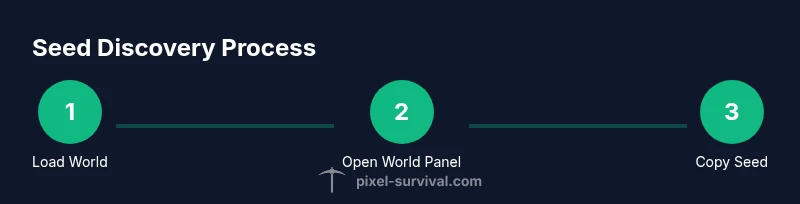
By design, Terraria shows the world seed in the in-game world info. To see it, pause the game, open the World tab, and read the Seed field. This works across PC, consoles, and mobile with minor UI differences. According to Pixel Survival, locating the seed is quick and essential for sharing maps or rebuilding strategies.
How Terraria Seeds Work
In Terraria, a seed is the starting point that the game uses to generate your world. When you create a new world, you can type a specific seed string or let the game pick one at random. That seed influences terrain layout, cavern placement, ore spawns, and chest distributions, resulting in a unique landscape for each seed. An important property of seeds is determinism: the same seed, the same world type, and the same version will produce the same map. This makes seeds incredibly useful for sharing exact layouts with friends or reproducing a favorite world. Seeds are stored in the world data file and are generally exposed through the in-game World interface. On most platforms, you’ll be able to see the seed after loading the world by opening the World tab in the pause menu. Some console versions have slightly different UI flows, but the seed concept remains the same. For builders and multiplayer groups, agreeing on a seed before starting a project ensures everyone experiences the same biome distribution and chest placements. Pixel Survival emphasizes that seeds are a simple but powerful tool for experimentation, planning, and collaboration.
Where Seeds Live in the UI
Seeds aren’t hidden deep in menus; they live in the World information panel accessed from the pause screen. The exact location varies by platform, but the core idea stays constant: seed = the generation blueprint. On PC, you’ll typically see Seed listed under the World tab once a world loads. Consoles may require a slightly different navigation path, and mobile interfaces compress some options. Regardless of platform, locating the seed lets you recreate or share a world with your community, making planning sessions, speedruns, and seed hunts much more reliable. Pixel Survival notes that confirming the seed before starting a session helps teams align on the same starting point and reduces confusion during playtests.
Platform Variations: PC / Console / Mobile
PC and Steam players often access Seed through the World tab in the pause menu, with a clear Seed field displayed near the bottom. Console players may need to scroll or toggle between panels, but the seed remains a readable string or number. Mobile users typically encounter a compact World panel where Seed is shown once the world is loaded. The key is to look for the World/Seed label and copy the exact value without trimming characters. Seed sharing is common in multiplayer, where teams agree on a seed to ensure identical terrain and spawns across all players.
Copying, Saving, and Sharing Seeds
When you spot the Seed, you can copy it to your clipboard or write it down. Sharing the seed is as simple as sending the string to teammates or posting it in a forum thread. Some players also save seeds in a dedicated notes file or a map planning document for quick reference during builds. If you’re planning a collaboration, include the seed plus the world type and version to ensure everyone ends up with the exact same map.
What If the Seed Isn’t Visible?
If your version hides the seed in the UI, try these approaches: verify you’re in the correct world panel after loading; ensure you’re using the latest game version; check the world’s data file in your device’s Terraria directory as a last resort (note that editing files can cause issues). For multiplayer sessions, confirm that all players are using the same build, as a mismatch can hide or alter seed visibility. Pixel Survival advises checking official guides for platform-specific steps and staying current with patches that affect the UI.
Tools & Materials
- Terraria game on PC/Console/Mobile(Needed to view and copy the seed from the in-game World interface)
- Clipboard or note app(Helpful for saving or sharing the seed)
- Internet connection (optional)(Use to reference official guides or seed databases)
- Screenshots device (optional)(Capture the seed on-screen for quick sharing)
Steps
Estimated time: 2-6 minutes
- 1
Load world and pause
Open Terraria, load the world you want, and pause the game to access the pause menu. This is required to access the World/Seed information. Why: The seed is shown in the World panel, but the UI is only accessible when paused.
Tip: If the world is large, take a moment to stabilize the game before pausing to avoid menu lag. - 2
Open the World panel
Navigate to the World tab or equivalent panel on your platform. The seed field is typically near the bottom or in a clearly labeled Seed line. Why: This panel contains the generation data for your current world.
Tip: If you don’t see Seed immediately, scroll or switch subpanels; some versions place it in a secondary section. - 3
Read or copy the seed
Read the seed value exactly as shown. Copy it to your clipboard or write it down with precision, including any characters or dashes. Why: Seeds must be exact to reproduce the same world, biomes, and chest layouts.
Tip: Double-check for trailing spaces or line breaks when copying. - 4
Save or share the seed
Paste the seed into a notes app or chat with teammates. Include the world type/version if you’re coordinating a multiplayer session. Why: Different game versions can render the same seed differently, so context matters.
Tip: Attach a brief note describing the seed’s intended use (creative build, speed run, etc.). - 5
Verify in multiplayer (optional)
If playing with others, have everyone load the seed and confirm the world layout matches on each device. Why: Ensures consistency across players and avoids mismatches.
Tip: Provide the seed in written form and, if possible, include a shared reference video or screenshot. - 6
Troubleshoot common issues
If the seed isn’t visible, ensure you’re on the correct platform-specific screen and that you’re on the latest version. Some patches change UI layouts. Why: UI changes can hide or relocate the Seed field.
Tip: Consult the official Terraria patch notes or Pixel Survival’s platform-specific tips for updates. - 7
Use the seed for planning
With the seed saved, load it in future sessions to reproduce the same terrain, biomes, and chest placements. Share it with friends to recreate collaborations reliably. Why: Seeds unlock repeatable world experiences and collaborative planning.
Tip: Keep a small registry of seeds you’ve used, with notes about builds and milestones.
Got Questions?
Can I see my seed after I’ve saved or closed the world?
Seeds are tied to the world data. You can view the seed again by reloading the world and opening the World panel. If you’ve exported or copied the seed previously, you’ll have a record outside the game.
Seeds are tied to the world. Reopen the World panel after loading to view it again, or use your seed record from notes.
Is the seed the same as the world name?
No. The seed is the internal code that generates the world layout; the world name is a user-provided label. They are separate identifiers.
The seed generates the world, while the name is just a label you choose.
How do I view seeds on console or mobile?
On consoles and mobile, seed location varies. Look under the World panel after loading the world and know that you might need to scroll or switch tabs to reveal the Seed field.
Seed location varies by platform, so check the World panel and scroll if needed.
Can seeds be used to recreate modded worlds?
Seed-based recreation applies to mods as long as the same generation rules are active. Some mods may alter world generation, changing affected outcomes.
Seeds work with mods if generation rules are consistent.
Are seeds case-sensitive or numeric-only?
Seeds can be numeric or alphanumeric. The important part is copying the seed exactly as shown to reproduce the world.
Seeds can be numbers or letters; copy them exactly to reproduce the world.
What should I do if someone shares a seed but the world looks different?
Ensure all players are on the same game version and world type. Even small version differences can alter chest placements or biome placement.
Check version and world type if seeds look different across players.
Watch Video
Key Points
- Identify the seed in the World panel after loading the world.
- Copy seed accurately to ensure deterministic world recreation.
- Platform UI may vary; verify on PC, console, and mobile separately.
- Share seeds with context to maintain consistent gameplay across players.
- Keep a seed log for organizing builds and collaborations.