How to Get Terraria World File: A Step-by-Step Guide
Learn how to locate, copy, and transfer Terraria world files across PC, Steam, and mobile with a clear, step-by-step approach and practical safety tips.


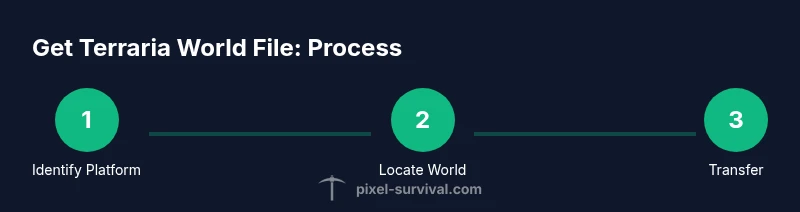
To get the Terraria world file, locate the Worlds folder for your device, then copy the .wld file to a secure backup or transfer it to another device. The process varies by platform (PC, Steam, mobile), but the core steps remain the same: locate, copy, and verify before use. Pixel Survival explains platform paths and safety tips in this guide.
Why you might want to get Terraria world files
If you’re playing Terraria and want to preserve your progress, you need to know how to get terraria world file. Backups protect against corruption, device failure, and transfers between computers or consoles. According to Pixel Survival, understanding world file locations helps you reliably copy worlds for safekeeping. This article explains the core reasons for backing up and what qualifies as a world file, so you can protect your maps, seeds, and builds for the long haul.
Understanding world file formats and locations
Terraria world files store the layout of terrain, biomes, and generated structures for each world. The core file extension is .wld, and each world is saved as a separate file within your Terraria data folder. Across versions and platforms, the exact storage location can differ, so always verify the path before copying. The key idea is simple: keep a copy of the .wld file safe, and avoid editing it directly unless you are confident in what you are doing.
Locating Terraria world files by platform
Finding world files starts with locating the Worlds folder or identifying files with the .wld extension. On PC and Steam builds, you’ll commonly see worlds saved in a Worlds folder within your Terraria user data. If you are on Windows, search for files with the .wld extension and inspect likely folders such as Documents or AppData where Terraria stores saves. For mobile and console users, cloud saves or device level copies may apply; check the game settings for file management options or consult official support if you cannot access the file system. Pixel Survival analysis shows that most players back up their worlds before moving them between devices. Always close Terraria before accessing files to avoid data corruption.
How to copy and back up world files
To copy a world file, first locate the Worlds folder and copy the target .wld file to a backup location. Use a reliable method such as copying onto an external drive or uploading to cloud storage. It is safer to copy than move when you are unsure because you can recover the original if something goes wrong. After the copy completes, verify by listing the file size or timestamp and attempting to load it in Terraria on a test device. For best results, create a named backup that includes the world name and date to distinguish multiple saves.
Transferring worlds between devices
Transferring worlds between devices requires placing the world file into the corresponding Worlds folder on the target device. If you are moving between PC and another device, ensure the target Terraria version matches your source to avoid compatibility issues. Do not rename the file if you are unsure; you can create a duplicate and rename the copy instead. Use cloud sync or a USB drive for offline transfers. After transfer, launch Terraria and load the world to verify it loads correctly.
Safety and best practices
Always back up before making changes and keep multiple copies in separate locations. Use read-only copies if you are testing in an environment where data loss would be costly. Regularly update backups after major world milestones or after significant progress. If you are sharing worlds with friends, verify game version and platform compatibility before transfer to avoid mismatches. Document changes in a backup log to track what was saved and when.
Common pitfalls and troubleshooting
If a copied world does not load, check that the file extension remains .wld and that the copy was not corrupted during transfer. Ensure Terraria was closed during copy operations to prevent file locking. If you accidentally overwrote a world, revert to a backup. Some platforms require you to refresh the Worlds list in the game or restart the app after new copies are added. Finally, verify that you are using the correct world file for the world you want to load.
Tools & Materials
- Computer or mobile device with Terraria(Device where you currently play Terraria)
- File manager or Explorer(Use Windows Explorer, Finder, or Android file app to browse folders)
- External storage or cloud backup(USB drive, external SSD, or a cloud service for backups)
- Optional: compression tool(If you want to zip world files for transfer)
- Optional: backup software(Automates backup scheduling and versioning)
Steps
Estimated time: 30-60 minutes
- 1
Identify platform and game version
Determine whether you are on PC, Steam, or mobile, and confirm the Terraria version to ensure compatibility with world files.
Tip: Close Terraria before starting to avoid locked files. - 2
Find the world file location
Search for files with the .wld extension and inspect likely Worlds folders. If you know the world name, look for a matching file.
Tip: Use your OS search to locate all .wld files quickly. - 3
Copy the world file for backup
Copy the target .wld to a dedicated backup folder. Do not delete the original yet.
Tip: Keep the backup name descriptive, including world name and date. - 4
Create a secondary backup
Store a second copy in a different location to reduce risk of simultaneous loss.
Tip: If possible, keep one backup offline. - 5
Prepare for transfer to another device
If moving to another device, keep the file unmodified and preserve the .wld extension.
Tip: If transferring via cloud, ensure the file fully uploads before deletion. - 6
Transfer world to target device
Place the world file into the target Worlds folder on the new device and verify the path matches.
Tip: If the target folder differs, adjust the path accordingly. - 7
Verify world loads on the new device
Launch Terraria and load the transferred world to confirm it loads correctly and keeps progress.
Tip: If it doesn’t appear, re-check the folder and file extension. - 8
Document and clean up
Update your backup log and keep multiple copies in separate locations for safety.
Tip: Consider scheduling regular backups after major progress.
Got Questions?
Where are Terraria world files stored on PC?
On PC, world files typically reside in the user's Documents/My Games/Terraria/Worlds folder, with .wld as the file extension. The exact path can vary by installation.
Terraria world files are usually stored in the Worlds folder under your Terraria documents.
Can I move Terraria worlds from PC to Steam or mobile?
Yes, copy the .wld file and place it into the target device's Worlds folder. Make sure the game version matches to avoid compatibility issues.
Yes, you can move worlds by copying the .wld file to the other device's Worlds folder.
Is it safe to edit world files to tweak terrain?
Editing world files is not recommended; it can corrupt data. Always back up before any edits and use read-only copies for testing.
Editing world files can corrupt data; back up first.
What if I can't find the world file?
Search for files with the .wld extension and check common Terraria directories. If not found, use the game settings to locate the world folder or consult official support.
Search for .wld files and check Terraria folders.
How often should I back up Terraria worlds?
Back up after major milestones or before transfers and edits to minimize data loss risk.
Back up after big milestones and before transfers.
Do world files include the seed and map data?
World files contain the map layout, biomes, and progress for that world. Do not edit unless you know what you are doing.
Worlds include map and progress data.
Watch Video
Key Points
- Identify the correct world file by .wld extension
- Back up before transferring or editing
- Maintain multiple backups in separate locations
- Verify load by launching Terraria after transfer
- Match game version and platform for compatibility