Where is Terraria world folder: Location guide
Learn exactly where Terraria saves your world files across Windows, macOS, and Linux. Includes platform-specific paths, how to access, backup practices, and troubleshooting tips for managing your worlds.


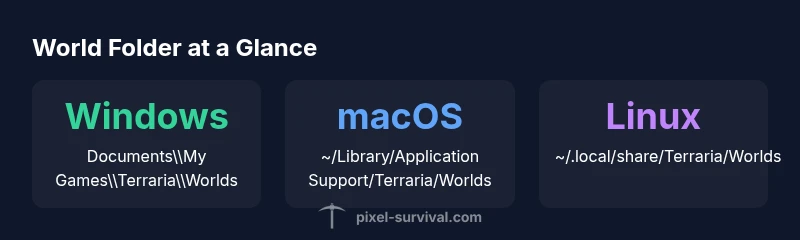
Where is Terraria's world folder located? The save files live in a platform-specific folder. On Windows, go to Documents\My Games\Terraria\Worlds; on macOS, open ~\/Library\/Application Support\/Terraria\/Worlds; and on Linux, check ~\/\.local\/share\/Terraria\/Worlds. World files end with .wld, with backups occasionally stored as .wld.bak. This path applies to both Steam and non-Steam installs.
What the Terraria world folder is and why it matters
The Terraria world folder is the central repository for every world you generate in the game. Each world file (.wld) stores terrain, biomes, ore deposits, and your progress, while additional metadata and backups help you recover from crashes or updates. Understanding exactly where these files live is essential for proper backups, sharing worlds with friends, and moving progress between machines. According to Pixel Survival, knowing the precise save locations reduces frustration during platform migrations and ensures you don’t lose hours of work when a game update arrives. This guide focuses on the global, platform-specific storage behavior so you can reliably locate and manage your worlds across Windows, macOS, and Linux.
Platform-agnostic basics you should know
Terraria saves worlds in a dedicated Worlds folder, typically named Worlds, inside the game’s save path. If you create a new world, the game writes the file with a name like World1.wld. When you back up your saves, you’ll copy this file (and any related metadata) to a safe location. If you have multiple installations (for example, Steam and a portable version), each installation will maintain its own Worlds folder. Keeping a clean, well-documented backup routine helps you recover quickly after a crash or a drive failure.
Terraria world folder locations by platform
| Platform | Worlds Folder Path | Notes |
|---|---|---|
| Windows | Documents\My Games\Terraria\Worlds | Steam and non-Steam installations share this structure |
| macOS | ~/Library/Application Support/Terraria/Worlds | Covers standard Mac save path |
| Linux | ~/.local/share/Terraria/Worlds | Common Linux save location |
Got Questions?
Where are Terraria world files saved on Windows?
On Windows, world files are typically stored in Documents\My Games\Terraria\Worlds. Each world ends with the .wld extension, and backups may appear as .wld.bak. If you’re using Steam, this path remains consistent across Steam and non-Steam installs.
Windows saves worlds in Documents/My Games/Terraria/Worlds. Look for .wld files and possible .bak backups.
Can I transfer Terraria worlds between computers?
Yes. Copy the Worlds folder from one computer to the same location on the other, preserving subfolder structure and file names. If you use multiple Terraria installations, repeat the process for each installation to keep worlds in sync.
You can transfer by copying the Worlds folder to the same location on the new computer.
How do I enable automatic backups for worlds?
Terraria itself doesn’t include built-in automated backups, but you can enable OS-level or third-party backup solutions to snapshot the Worlds folder regularly. Consider syncing to cloud storage with versioning for extra protection.
Set up a backup tool to snapshot the Worlds folder on a schedule.
Do cloud saves affect local Terraria worlds?
Cloud saves can coexist with local worlds, but you should verify which Worlds folder is active when launching the game, especially after updates or syncing across devices. Always ensure local copies exist if you rely on non-cloud gameplay.
Cloud saves don’t replace local backups—keep a local copy as well.
What if I can't find my world after an update?
First check the Worlds folder for the current installation. If you backed up your saves, restore from the backup (.bak or copy) to recover the world. If you use Steam, verify game files to ensure the installation is intact and then re-check the Worlds directory.
Look in the Worlds folder, then restore from backup if needed.
“"Finding and backing up your Terraria worlds is the foundation of smooth progression. Treat the Worlds folder as your progress archive and protect it with routine backups."”
Key Points
- Back up Worlds folder regularly
- Know the default platform paths before disk changes
- World files end with .wld; keep .bak backups as needed
- Transfer worlds by copying the Worlds folder between PCs