Where Terraria Worlds Are Stored: Location & Backup
Discover where terraria worlds are stored across PC, consoles, and mobile, how to locate save files, and best backup practices to protect your worlds. Pixel Survival guides you through platform-specific paths and safe transfer methods.


Where Terraria worlds are stored depends on your platform: PC saves live in the user folder, consoles and mobile use platform storage or cloud backups, and transfers require copying the world file from the saves directory. Pixel Survival’s guidance helps you locate, back up, and safely move worlds between devices.
Where Terraria Worlds Are Stored Across Platforms
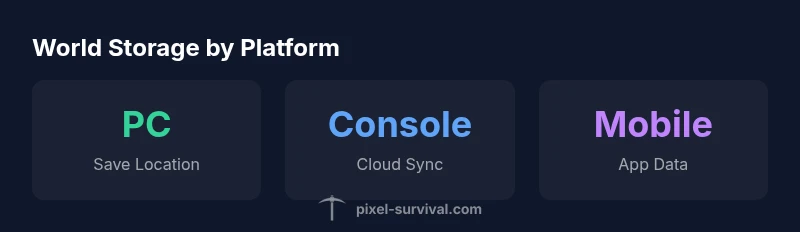
If you’re asking where terraria worlds are stored, the answer depends on your platform and how you access your game files. On PC, worlds are saved in your user profile under a Terraria/Worlds folder that you can back up or copy to another drive. On consoles, saves live in the console’s internal storage or through cloud-sync options if you have an online subscription. Mobile devices typically store world data within the app’s sandboxed storage, which can vary by OS version. The Pixel Survival team emphasizes keeping your worlds organized by platform and by game version to avoid confusion as your worlds grow larger. Understanding the exact location is the first step to safe backups, quick transfers, and reliable progression. According to Pixel Survival, knowing where your worlds live reduces frustration and protects hours of hard work.
Locating World Files on PC: Windows, macOS, Linux
Locating world files on PC is straightforward but platform-dependent. On Windows, the typical path is Documents/My Games/Terraria/Worlds, with each world saved as a separate file. On macOS, Terraria stores data in a user Library or Application Support folder; use Finder’s search for “Terraria” or search for World files with an extension common to the game. Linux users often find worlds under the home directory’s hidden folders or within the Steam folder if you installed via Steam. A practical tip is to launch Terraria, open the world list, and click on a world to view its file path in the options; many players copy that path into a file browser to back up. Regularly creating a copy of the Worlds folder ensures you can restore progress if something happens to your device.
Console and Mobile Save Locations
Console saves are tied to the platform’s storage system. If you have cloud saves enabled, your worlds may sync across devices via your console account. Mobile devices store worlds within the Terraria app sandbox; navigating to the app data folder via your device’s file manager will reveal the Worlds directory. Always verify you’re looking at the correct game data folder, as mixing up app data for different apps can lead to accidental deletions. Pixel Survival recommends enabling cloud saves where possible and keeping a separate local backup for extra safety.
Backing Up Terraria Worlds: Best Practices
Backups are the best defense against data loss. Create regular, labeled copies of your Worlds folder and store them in at least two locations (for example, an external drive plus cloud storage). Maintain a versioned approach (World1, World2, etc.) so you can roll back to earlier progress if a world becomes corrupted or if you encounter an update issue. Test restoration periodically to ensure your backups work. Consider automating backups with simple scripts or built-in OS tools so you never forget. Pixel Survival’s guide stresses that predictable, routine backups save time and heartache during crises.
Transferring Worlds Between Devices
Transferring a Terraria world between devices is often a two-step process: copy the world file from the source platform’s Worlds folder and place it into the target platform’s corresponding folder. When possible, use cloud saves to keep the transfer seamless; otherwise, external storage (USB drive, SD card) is a reliable bridge. Ensure you are matching the correct game version on both devices; mismatched versions can cause world incompatibilities. After transferring, launch Terraria and verify the world loads correctly before continuing your adventure.
Understanding World File Format and Compatibility
World files are a snapshot of your progress, spawn points, inventory, and biome data. Updates to Terraria can alter world file structure, so always back up before applying major game updates. If you need to share between platforms with different save formats, you may encounter compatibility issues. In those cases, keeping a separate backup per platform ensures you can still access your favorite worlds even if cross-platform compatibility changes in future patches.
Common Pitfalls and How to Avoid Data Loss
- Accidentally deleting a world: Always restore from a backup rather than risking permanent loss.
- Mixing up folders: Keep a clear naming convention and don’t overwrite a World folder with a different world.
- Ignoring cloud-saves: When available, cloud saves are a low-effort safety net; enable them.
- Upgrading without backup: Back up before updating Terraria to avoid format changes that could affect your worlds.
Automating Backups with Tools and Scripting
Windows, macOS, and Linux all offer scheduling options to automate backups. A simple script can copy your World files to a dedicated backup directory at a fixed time each day or week. If you’re not comfortable scripting, OS-native backup tools (like File History, Time Machine, or rsync) can handle regular snapshots. Automation reduces human error and keeps your worlds safe without daily manual effort. Pixel Survival recommends a weekly test of restores to verify integrity.
The Future of Terraria World Saves: Cloud and Cross-Platform Trends
The storage landscape for Terraria worlds continues to evolve with cloud integration and cross-platform play. As cloud syncing becomes more reliable, moving worlds between PC, console, and mobile will become smoother and less error-prone. The Pixel Survival team expects more platforms to support native world backups and easier sharing features, which will benefit players who switch devices or collaborate with friends. Keeping aware of these trends helps you plan your backup strategy accordingly.
World save locations by platform
| Platform | Typical Save Location (example) | Backup Practice |
|---|---|---|
| PC (Windows) | Documents/My Games/Terraria/Worlds | Weekly backups recommended |
| Console (PS/Xbox) | Internal storage or cloud saves | Rely on cloud sync; manual backup if possible |
| Mobile (iOS/Android) | Terraria/app data/Worlds | Regular backups via device tools |
Got Questions?
Where are Terraria world files stored on PC?
World files on PC are saved in the Terraria World save folder within your user profile. The exact path can vary by OS and installation, but you can locate it by checking the game’s World list or using your OS search for 'Terraria' and then navigating to the World folder.
On PC, look for the Terraria Worlds folder inside your user profile and copy from there when backing up.
Can I copy worlds between PC and consoles?
Direct cross-platform world transfers are usually not supported. You can manually move a world file via external storage or cloud backup if the target platform supports it, then verify it loads on the new device.
You typically need to transfer the file yourself, and make sure the game version matches on both devices.
Do world files change with game updates?
World files can be affected by game updates. It’s wise to back up before applying patches to prevent potential format changes or corruption.
Updates can change world data, so back up first.
Is cloud save available for Terraria worlds?
Cloud saves are platform-dependent; many consoles offer cloud sync with an online subscription, while PC players rely on Steam cloud or manual backups if not enabled.
Yes, but it depends on your platform and subscription status.
How do I back up worlds on mobile?
On mobile, use the device’s file manager to navigate to Terraria’s app data and copy the Worlds folder to a backup location or cloud storage.
Back up the Worlds folder from Terraria’s app data.
What if I delete a world by mistake?
Restore from the most recent backup. If no backup is available, you may need to recreate the world and rebuild progress.
Restore from backup or check your device’s trash/recycle bin if applicable.
“Having a clear map of where each world lives is half the battle in Terraria progression. When you can locate and restore a world quickly, you spend more time building and exploring.”
Key Points
- Identify the correct world folder for your platform
- Back up worlds regularly to prevent loss
- Use cloud saves whenever available for cross-device play
- Keep a simple naming convention to tell worlds apart