How to Save Terraria on Cloud: Step-by-Step Guide (2026)
Learn how to save Terraria on cloud across PC, mobile, and consoles. This 2026 guide covers cloud storage options, setup, syncing, and safety tips to keep your progress intact.


Save Terraria progress to the cloud to carry your worlds across devices. This guide walks you through selecting a cloud service, locating the saves folder, and syncing safely for PC, mobile, and consoles. According to Pixel Survival, a reliable cloud setup minimizes data conflicts and keeps you playing with confidence.
What cloud saving means for Terraria
Cloud saving stores your Terraria world and character data in a remote location that syncs to all devices. Instead of manually copying files, a cloud provider detects changes and updates saves across PC, mobile, and consoles. This approach is especially valuable for players who switch between laptops, tablets, or travel and want to preserve progress without fuss. The Pixel Survival team notes that cloud-based saves reduce the risk of losing a run due to a single device failure, and they emphasize understanding the folder structure on each platform to map saves properly. Before you begin, grasp two core ideas: save location and sync cadence. The save location is where Terraria writes its progress files; sync cadence is how often the cloud service checks for changes. If you set a conservative cadence, you minimize conflicts but may see brief update delays. Expect platform-specific quirks; the goal is a seamless, automatic flow that keeps worlds intact.
Cloud storage options and compatibility
Choosing the right cloud storage service is the foundation of a robust cross-platform save. Look for services with strong client apps on PC, macOS, Android, iOS, and any consoles you use. Pixel Survival analysis shows that reliability, version history, and cross-device support correlate with fewer save conflicts and smoother recovery after outages. Tools like automatic backup, selective sync, and offline access help you tailor cloud behavior to Terraria’s save cadence. In general, Google Drive, OneDrive, Dropbox, and iCloud offer broad compatibility, but you’ll get the best results by verifying how each service handles folder-level sync and file locking for game saves. Also consider bandwidth limits and data caps, since Terraria saves are typically small but occur more often than you expect during long sessions.
Locating and structuring your Terraria save folder
Each platform stores Terraria saves in a specific location, and those locations can differ between PC, mobile, and console builds. Start by locating the primary saves folder on each device: on Windows, look for the My Documents/My Games/Terraria folder (or the equivalent in your installation path); on macOS, search the Terraria folder inside your user Library; mobile versions place saves in app-specific directories that the OS or cloud client can access. The key is to create a single, cloud-synced folder that you designate as the central saves vault. Within that vault, maintain a consistent subfolder structure (e.g., Worlds, Characters, and Logs) to prevent mismatches when syncing across devices. Do not mix legacy and current saves in the same folder to avoid accidental overwrites.
Step-by-step setup for cloud saves
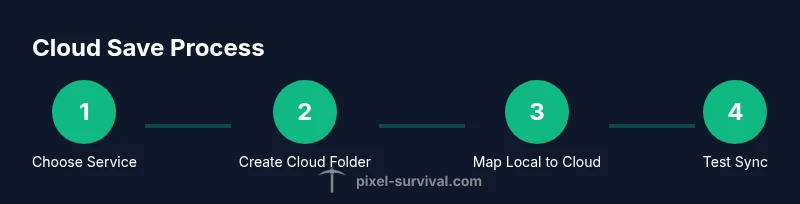
Set up cloud saving with a clear plan: pick a cloud service, create a dedicated Terraria saves folder in the cloud, map local saves to that cloud folder, and configure syncing rules so only the saves folder is synchronized. This approach minimizes conflicts and ensures a single source of truth for all devices. Start by creating a CloudTerrariaSaves folder in your cloud drive, then point each device’s local Terraria save path to this cloud folder (via symbolic links, shortcuts, or a dedicated sync rule). Enable version history or file restore if available, so you can revert to previous saves if needed. Finally, test the flow by saving on one device, waiting for sync, and loading the same world on another device to confirm consistency.
Handling platform differences and conflicts
Platform differences can create subtle conflicts if two devices write to the same save simultaneously. To avoid this, enforce a single active device during a save operation, and use the cloud’s conflict resolution features (keep both versions or choose the latest). Regularly monitor sync status and avoid playing while a large sync is in progress. Some cloud clients allow you to pause syncing for a moment during intense in-game sessions, which can prevent partial saves. If a conflict occurs, use the cloud history to compare versions and manually merge changes if needed. Establish a simple rule: never edit the same save on two devices at once.
Backups and data integrity strategies
Backups are your safety net. Maintain three layers: the live cloud-synced saves, a local backup folder on each device, and an external backup (USB drive or secondary cloud). Schedule automatic backups during off-peak hours to minimize bandwidth usage. Enable version history so you can revert to a known-good save if corruption or an accidental deletion occurs. Periodically verify that the cloud copy and local copy contain the same worlds and characters, especially after major world events or after importing mods that alter save data.
Common pitfalls and how to avoid them
Common pitfalls include save conflicts, poor folder mapping, and assuming cloud syncing is instant. To minimize issues, always confirm that the cloud service is fully synced before starting a new session on another device. Use a single, clearly named cloud folder for Terraria saves and avoid mixing different game states (world vs. character) in the same folder. When possible, disable automatic syncing during peak gaming times to prevent halfway-updated saves. Finally, keep a recent local backup as a roll-back option if the cloud copy becomes corrupted.
Realistic testing and maintenance plan
Treat cloud saves as a project: document your folder structure, test cross-device saving weekly, and update backups whenever you install a new Terraria update or mods that modify saves. Create a quick check routine: 1) save on device A, 2) ensure it appears in the cloud folder, 3) load the same save on device B, 4) play for 10–15 minutes, 5) confirm the world state matches. Schedule a quarterly review of your cloud setup to refresh folder mappings and review storage limits. By building this practice, you keep progress intact while enjoying Terraria across platforms.
Tools & Materials
- Cloud storage account (Google Drive, OneDrive, iCloud, or Dropbox)(Choose a service with solid cross-platform apps and offline access; enable desktop/mobile clients.)
- Terraria installed on target devices(Make sure you can launch and load saves on each device you plan to use.)
- Cloud storage client/app on each device(Install the official app and sign in to enable real-time sync.)
- Dedicated terraria-saves folder in cloud(Create a single root folder like Terraria Saves; keep Worlds, Characters, and Logs inside.)
- Backup location (external drive or secondary cloud)(Optional but highly recommended for extra redundancy.)
- Stable internet connection(Essential for timely syncing and preventing partial writes.)
Steps
Estimated time: 45-60 minutes
- 1
Choose a cloud service
Select a cross-platform cloud service that offers reliable syncing, version history, and offline access. Confirm that it works well on all devices you own and that it supports folder-level sharing for the Terraria saves folder.
Tip: Pick one service to avoid split-brain saves; centralize all Terraria saves in a single cloud root. - 2
Create a central cloud saves folder
In your cloud drive, create a dedicated folder named Terraria Saves. Inside, establish subfolders for Worlds, Characters, and Logs to keep data organized and easy to restore.
Tip: Use a consistent naming convention and avoid nesting saves too deeply, which can complicate syncing. - 3
Map local saves to the cloud folder
On each device, point Terraria’s local save path to the cloud folder. This can be done via OS-level shortcuts, symbolic links, or a cloud plugin that allows folder mapping.
Tip: Test mapping with a small file first to ensure the sync pipeline recognizes changes. - 4
Configure syncing rules
Set the cloud client to sync only the Terraria Saves folder to minimize unnecessary data transfer. Enable version history or backups in case a rollback is needed.
Tip: Turn on selective sync to keep other documents private and reduce bandwidth usage. - 5
Set up automatic backups
Create an automatic backup routine that copies the cloud saves to a local backup and, if possible, to a secondary cloud. Schedule these backups for off-peak hours.
Tip: Keep at least one backup that predates major in-game changes or updates. - 6
Test cross-device syncing
Save a small test world on one device, wait for the cloud to sync, and load it on another device to confirm parity. Repeat across at least two device pairings.
Tip: If conflicts appear, pause activity on other devices and use cloud history to merge changes. - 7
Resolve conflicts
When the cloud flags a conflict, compare the versions and choose the correct one. Keep the conflicting files for a short grace period to review changes.
Tip: Document the resolution process so you can follow the same steps next time. - 8
Document and maintain security
Create a simple guide for yourself or teammates outlining folder structure, sync cadence, and backup schedules. Review security settings and device access regularly.
Tip: Use strong authentication and enable two-factor authentication where available.
Got Questions?
Can cloud saves work across PC and mobile?
Yes. With a cloud service and a centralized saves folder, you can access the same worlds and characters on PC and mobile. Be mindful of platform-specific save paths and test the flow after each major device change.
Yes. Cloud saves enable cross-device access between PC and mobile, but always test after changes.
What platforms are supported for cloud saves?
Most major cloud services support Windows, macOS, iOS, and Android. Some consoles may require additional steps or apps to integrate Terraria saves with cloud storage.
Most platforms can use cloud saves, but you may need platform-specific steps for consoles.
What should I do if saves get out of sync?
Pause activity on all devices, check cloud history for recent versions, and restore the correct save from the latest verified version. Avoid playing while a sync is in progress.
Pause, check versions, and restore the correct save if syncing gets out of sync.
Is cloud saving safe for Terraria saves?
Cloud saving is generally safe when you use trusted services, enable backups, and maintain strong authentication. Regular backups add an extra layer of protection against data loss.
Cloud saves are generally safe with backups and strong security.
How do I restore a previous save from cloud?
Use the cloud service's version history to restore a prior save file, then replace the current save on all devices with the restored version. Verify integrity after restoration.
Use version history to restore earlier saves and verify integrity afterward.
What if I accidentally delete a save?
Check the cloud's trash or version history. Restore from there if possible, then pull the restored save onto all devices to resume.
If deleted, restore from the cloud's history and sync everywhere again.
Watch Video
Key Points
- Choose a cross-platform cloud service with offline support.
- Centralize saves in a dedicated cloud folder.
- Map local saves to the cloud folder consistently.
- Enable version history and backups for safety.
- Test across devices and maintain a rollback plan.