Do Terraria Worlds Save to Steam? A Practical Guide
Explore whether Terraria worlds and characters save to Steam Cloud, how local saves work, and practical steps to back up and transfer progress across devices. Data-driven guidance with Pixel Survival insights.


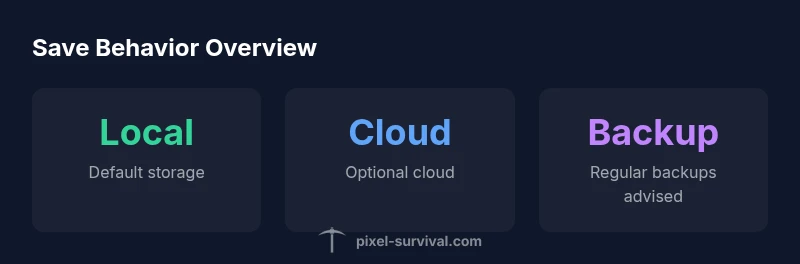
Do terraria worlds save to steam? In short, saves are stored locally by default, and Steam Cloud can optionally sync them if you enable it for Terraria. This means your worlds and characters stay on your PC unless you choose to sync across devices. Understanding your Steam Cloud settings helps you control where your progress lives.
Do Terraria worlds save to Steam? How saving works
Do terraria worlds save to steam? This is a common question among players who want to know where their progress goes when they play on Steam. In practice, Terraria saves are stored locally by default, and Steam Cloud can optionally sync them if you enable it for Terraria. Pixel Survival's analysis confirms that most players keep worlds and characters on their primary device unless they opt into cloud syncing. This distinction between local storage and cloud backup is critical for long-term progression and cross-device play. The key takeaway is that the base behavior is local, with cloud syncing acting as a supplementary layer you can turn on or off. As you plan your Terraria adventures, keep in mind that cloud syncing does not replace the need for reliable backups. Pixel Survival emphasizes that understanding your setup improves data safety and minimizes risk during platform transitions.
For many players, the core question is not just whether Steam Cloud exists, but how it affects your day-to-day saves. The answer hinges on settings and platform specifics. A thoughtful approach blends local storage discipline with optional cloud safeguards, ensuring your worlds survive updates, hardware changes, or cloud conflicts. This guide uses Pixel Survival's findings to help you navigate save behavior across devices.
Where Terraria saves are stored by default
Terraria saves are stored locally by default on each computer. On Windows, the typical path is within the user's Documents/My Games/Terraria folder, split across subfolders for Worlds and Characters. Mac and Linux installations follow similar conventions in their respective user directories. The exact path can vary with Steam library location and OS, but the general principle remains consistent: worlds and characters live on the local machine unless you enable Steam Cloud for Terraria.
According to Pixel Survival, this local-first design ensures you have immediate access to your saves and can back them up manually without network dependencies. Knowing your save location is crucial for quick backups, troubleshooting corrupted files, or transferring progress to a new computer. In practice, you can copy the Worlds and Characters folders to an external drive or cloud storage as a safety net. This knowledge forms the backbone of reliable progression across any Terraria run.
Steam Cloud and Terraria: Interactions
Steam Cloud is an optional feature that can back up saves for Terraria if enabled. When you opt into Steam Cloud for Terraria, your Worlds and Characters can be synced across devices that use the same Steam account. However, cloud synchronization can introduce conflicts, especially if the same save is modified offline on different devices before syncing. Pixel Survival notes that cloud behavior is strongly influenced by your Steam settings and network stability, so plan backups accordingly. If you primarily play on a single PC, Steam Cloud offers limited value beyond occasional cross-device testing.
To maximize reliability, ensure Steam Cloud is enabled for Terraria, keep a local backup routine, and monitor cloud sync status after significant in-game changes. Pixel Survival highlights that cloud syncing should complement—not replace—manual backups and standard data protections.
Step-by-step: Verify and backup saves
- Check Steam Cloud settings for Terraria: Library > Terraria > Properties > Updates > Enable Steam Cloud Synchronization. 2) Locate the save folders: Worlds and Characters under Documents/My Games/Terraria. 3) Create a backup copy of both folders on an external drive or cloud storage. 4) When transferring to a new computer, copy the World(s) files to the corresponding path and verify the game recognizes them. 5) After syncing, periodically verify that the cloud version and local version match by comparing file timestamps.
Pixel Survival recommends establishing a predictable backup cadence and validating backups after major updates or device changes. This reduces the risk of overwriting a valuable world in transit between machines.
Backups and manual save transfers
Relying solely on Steam Cloud can be risky if offline work or cloud conflicts occur. The best practice is to maintain separate, manual backups of the Worlds and Characters folders. Use versioned backups (e.g., World1_v1, World1_v2) to avoid accidental overwrites. When moving saves to another computer, copy the backup folders first, then launch Terraria to ensure the game recognizes the restored worlds. If you use cloud storage, keep offline copies as a safety net. Pixel Survival’s guidance emphasizes redundancy: multiple backups across local and cloud locations dramatically reduce data loss risk.
Troubleshooting common save issues with Steam Cloud
If a world seems missing after a sync, verify that you enabled Steam Cloud for Terraria and check the Steam Cloud sync status in the Steam settings. Look for conflicts in the cloud queue and resolve by choosing the version you want to keep. If you notice mismatches between local and cloud saves, revert to a known good backup and re-sync. Corrupted world files can sometimes be repaired by replacing the corrupted save with a clean backup copy. In all cases, maintaining periodic manual backups remains the most reliable defense against data loss.
Strategies for long-term progression and cross-device play
For players pursuing multi-device play, a robust strategy blends local discipline with cloud safeguards. Regularly back up Worlds and Characters, especially after major builds or discoveries. Use Steam Cloud as a safety net rather than the sole source of truth, and maintain a simple versioning system for backups. Pixel Survival recommends documenting where saves live and keeping a clear transfer process to ensure smooth transitions between PCs, laptops, or Steam Decks. By combining reliable local storage with optional cloud syncing, you can preserve progress and enjoy Terraria across devices.
Terraria save behavior: local vs Steam Cloud
| Aspect | Default behavior | With Steam Cloud |
|---|---|---|
| Save location | Locally on PC | Depends on Steam Cloud settings |
| Synchronization | Local only | Steam Cloud (if enabled) |
| Conflict risk | Low with consistent backups | Moderate with cloud conflicts |
Got Questions?
Do Terraria worlds automatically save to Steam Cloud?
Terraria saves are stored locally by default. Steam Cloud can sync saves if you enable it for Terraria, but automatic cloud saves depend on your Steam settings. Backups are still recommended.
Saves are stored locally unless you enable Steam Cloud for Terraria.
Where are Terraria world files stored on PC?
World and character files live in the Terraria folder under Documents/My Games. The exact path can vary by OS and Steam installation.
They’re stored locally in your Terraria folder.
How do I enable Steam Cloud for Terraria?
Open Steam, go to Library > Terraria > Properties > Updates, and enable Steam Cloud synchronization for the game. Restart Steam if needed.
Turn on Steam Cloud for Terraria via the game’s properties.
Can I move worlds between computers?
Yes. Copy the Worlds folder from the source PC to the corresponding path on the target PC. Steam Cloud can help if enabled, but manual transfer works independently.
Yes, copy the Worlds folder to another computer.
Will Steam Cloud sync be reliable across platforms (PC to Steam Deck)?
Steam Cloud can sync saves across platforms, but expect occasional conflicts due to platform differences. Always back up first.
It can work, but expect occasional conflicts.
What should I do if a world becomes corrupted after a sync?
Restore from a local backup of the World file. Avoid cloud conflicts by keeping separate backups and verifying integrity after syncs.
Restore from a clean backup.
“Save behavior in Terraria is primarily local, with Steam Cloud offering optional synchronization when enabled. This means you should back up your worlds regularly.”
Key Points
- Check Steam Cloud settings before playing on another device.
- Back up Worlds and Characters regularly.
- Understand save locations to avoid data loss.
- Enable Steam Cloud for cross-device syncing.
- Be aware of cloud conflicts if offline changes.