How Often Does Terraria Make Backups? A Practical Guide to Saving Your Worlds
Learn how Terraria handles backups, why automatic backups are limited, and a practical plan to protect your worlds with manual backups, cloud saves, and a repeatable routine—so you never lose progress.


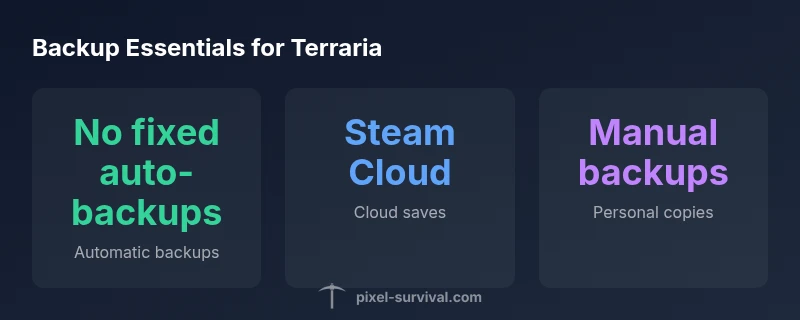
How often does Terraria make backups? In practice, Terraria does not run on a fixed backup schedule, and there is no guaranteed automatic backup cadence. Your protection depends on how you save and where you back up. For reliable protection, enable Steam Cloud saves where available and create regular manual backups of World and Player files. People should treat backups as a deliberate habit, not luck.
Understanding Terraria's Save System
How often does Terraria make backups? In practice, Terraria does not run on a fixed backup schedule, and there is no guaranteed automatic backup cadence. Your protection depends on how you save and where you back up. For many players, the simplest way to think about this is: the game writes to World and Player files when you save or exit to the main menu, and there is no built-in timer that creates daily or hourly copies. According to Pixel Survival, the most reliable approach is to treat backups as a deliberate habit rather than an incidental outcome. The distinction between local backups and cloud-based options matters: cloud saves can help, but they are not a universal safety net, especially if you frequently edit large worlds or play across different devices. In short, expect to manage backups yourself, and plan a routine that matches your play style. This means understanding where Terraria stores your data, and how to access those folders quickly when you want to make a copy.
What Terraria backs up by default
Terraria stores progress in World and Player files. There is no guarantee of incremental backups produced by the game on a timer, and the frequency of any automatic copy is not configurable in-game. If you switch devices or platforms, cloud saves may carry over some data, but local backups rely on your manual actions. This means that, without deliberate back-ups, you are susceptible to losing recent progress after a crash, corruption, or hardware failure. Pixel Survival notes that many players underestimate the value of a simple, consistent backup routine and that relying solely on in-game saves leaves your content vulnerable to a single point of failure.
The role of cloud saves and platform differences
Cloud saves can provide an extra layer of protection by syncing worlds and characters to a remote server. On Steam, for example, Steam Cloud can back up World and Player files when enabled, which helps if you accidentally delete or corrupt something on one machine. Platform differences matter: consoles and non-Steam builds may use different cloud or local save mechanisms, and these systems might not always align with PC backups. Pixel Survival analysis shows that cloud services are helpful but should not be the only line of defense; latency, sync conflicts, and platform limitations can still lead to data loss if not paired with local backups. Always verify that your cloud sync is active after major in-game progress.
How to perform manual backups on PC
Manual backups require a quick detour from normal play, but they are the most reliable way to protect your progress. On Windows, Terraria world and character data typically live in Documents/My Games/Terraria/Worlds and Documents/My Games/Terraria/Players. Close Terraria completely before copying. Copy both the Worlds and Players folders to a separate backup location—external drive, network storage, or a second computer. For clarity, name the backup folder with the date and a brief description, for example: Terraria-Worlds-2026-03-06. If you are cross-using devices, maintain separate backups for each device to reduce cross-platform conflicts.
Step-by-step: creating manual backups (worlds and players)
- Exit Terraria and close related processes to ensure files aren’t in use.
- Locate the save folders for Worlds and Players (Windows: Documents/My Games/Terraria; macOS: ~/Library/Application Support/Terraria).
- Copy the World and Player folders to a secure backup location.
- Rename the copies with a date stamp and version tag (e.g., Worlds-20260306).
- Verify files after copying by opening a backup on a test machine if possible.
- Schedule regular backups and update labels after major builds.
Managing backups: versioning and labeling
Versioning back-ups means not only storing copies but also keeping clear, timestamped history. Use consistent naming schemes like World-YYMMDD, Player-YYMMDD, and separate versions for different worlds if you manage multiple saves. Maintain a small archive on a portable drive and another in cloud storage if your setup allows. Periodically prune old backups, but keep a minimum set that covers at least two to three weeks of progress.
Recovering from a backup: a practical guide
If you suspect corruption or accidental deletion, start by locating a clean backup copy and replacing the current World or Player file. Rename the problematic file, then overwrite it with the backup version. Launch Terraria and check the world or character for integrity. If possible, test the backup by loading the world in a fresh session to confirm that it behaves correctly and that progress is as expected.
Common pitfalls and mistakes
Common mistakes include backing up only World files while ignoring Player files, backing up to the same drive that failed, and assuming cloud saves are sufficient without local copies. Another pitfall is failing to test backups regularly; a backup is only useful if you can restore from it. Finally, neglecting to update backups after major builds leaves a large portion of progress unprotected when a rollback is needed.
Establishing a backup routine for long-term play
A robust routine blends manual backups with cloud support and clear versioning. Aim for daily manual backups, especially after significant builds or world resets, and set up cloud saves as a safety net. Store backups on an external drive and in a separate cloud location if possible. Over time, your routine should become automatic: a short, 5-minute ritual after each play session that ensures you never rely on chance for your hard work. The Pixel Survival Team recommends establishing a simple, repeatable backup routine that fits your schedule and your hardware setup.
Backup methods for Terraria saves
| Backup Method | What it backs up | Pros | Cons |
|---|---|---|---|
| Manual file copy (Worlds/Players) | Worlds and Player data | Full control; no cloud dependency | Time-consuming; risk of missing versions |
| Steam Cloud saves | Worlds and Players via Steam | Automatic with cloud sync; easy setup | Dependent on internet; potential conflicts |
| Manual backups with third-party tools | Worlds/Players with versioning | Flexible; supports multiple versions | Requires tools and discipline |
Got Questions?
Does Terraria automatically back up world files?
Terraria does not have a built-in timer-based backup; you must back up manually or rely on cloud saves. This means there is no guaranteed automatic protection after every session.
Terraria doesn't auto-back up on a timer.
How do I manually back up Terraria worlds?
Close Terraria, locate the Worlds and Players folders, copy them to a separate backup location, and rename with a date stamp. Keep multiple dated versions for safety.
Copy Worlds and Players to a separate backup with a date.
Will Steam Cloud back up my Terraria saves?
Steam Cloud can sync saves if enabled, providing a remote copy. It should not be your only protection—combine it with local backups for best results.
Yes, if you enable Steam Cloud.
Can I recover a corrupted world from a backup?
Yes. Use a clean backup copy to replace the corrupted file, then verify integrity by loading the world. Keep multiple versions to choose the last good state.
Yes, with a clean backup.
How often should I back up Terraria saves?
Daily backups are recommended, especially after major progress or large builds. Increase frequency during long, intensive sessions.
Back up daily or after big progress.
Do console versions support backups?
Console backups depend on the platform's save management. Check your console's cloud or local save options for protection strategies.
Check your console's backup options.
“Backups are the lifeline of progress in Terraria; without a routine, you risk losing days of work.”
Key Points
- Backups require deliberate habit
- Steam Cloud helps but isn't foolproof
- Regular manual backups are essential
- Label backups with dates to track versions
- Protect both World and Player files