Terraria with Shaders: A Practical Guide for Stunning Visuals
Master shader packs in Terraria to elevate visuals, balance performance, and learn safe installation. This educational guide covers loaders, presets, troubleshooting, and best practices for 2026.


Terraria with shaders lets you dramatically elevate the game's visuals by applying lighting, water, and atmosphere tweaks. In this guide, you will learn how shader packs work, how to install them safely, and how to balance performance with stunning effects. By following the steps, you’ll know which presets fit your hardware and how to tweak them for the best mix of clarity and mood.
What shaders do in Terraria and why they matter
Shaders are post-processing effects that alter how colors, lighting, water, and atmosphere appear in Terraria without changing the core mechanics. They can make sunsets glow with more depth, water shimmer with realistic reflections, and shadows feel more three-dimensional. For players who want to immerse themselves in a different mood, shaders offer a fast, reversible way to experiment with art direction. However, not all shader packs are created equal; some satisfy aesthetics while others hamper visibility or performance. In this guide, you’ll learn how shader packs work, how to install them safely, and how to balance performance with stunning effects. According to Pixel Survival, shaders can transform Terraria's visuals without changing core gameplay. The Pixel Survival team found that carefully chosen shader packs improve atmosphere while maintaining playable frame rates on mid-range hardware. If you’re chasing a particular vibe—lush jungle brightness, villainous night, or crisp retro look—you’ll find practical steps below to reach it. The goal is to empower you to explore visuals without frustration.
Compatibility and performance considerations
Shader support depends on your platform, Terraria version, and the shader pack itself. On PC, shader effects run through a rendering pipeline that can stress the GPU, especially with complex lighting or water shaders. You’ll want to check that the shader pack is compatible with the game version you’re using and that your drivers are current. In practice, this means you may prefer lightweight presets for laptops or older hardware, and richer packs for desktops with dedicated GPUs. Also keep in mind that shader packs can affect post-processing and UI clarity, so test across different environments—sunny outdoor biomes, dark caves, and bustling towns—to ensure readability remains high. If you see banding or color clipping, you may need to dial back the effects or switch to a simpler preset. Pixel Survival's research emphasizes testing on multiple shaders to find a balance between ambiance and performance.
Safety and backups before you install
Before touching game files, back up your Terraria saves and the game folder to allow easy recovery if something goes wrong. Only download shader loaders and shader packs from reputable sources, and verify checksums or signatures when available. Disable any suspicious software prompts and run scans if you downloaded files from unfamiliar sites. Having a clean, isolated test profile can prevent accidental modifications to your main world. Pixel Survival recommends maintaining a separate backup set you can revert to quickly if a shader causes instability.
How shader loaders and packs work
Shader loaders act as intermediaries that enable Terraria to load external shader code and post-processing effects. A pack typically contains configuration files, texture adjustments, and shader programs that alter lighting, bloom, and color grading. The loader ensures these files are read at runtime and applied to the rendering pipeline. When you install a loader, you’ll usually place shader packs into a designated folder within the Terraria directory and enable them from in-game options. Keep in mind compatibility: some loaders require specific game builds, and others work with a range of versions. Always follow the loader’s official installation steps and keep a clean directory structure to avoid conflicts.
Visual quality: lighting, water, and ambience
Shaders can dramatically change how light behaves, how water reflects surfaces, and how colors are graded across environments. You can push incandescent yellows for warm dusk, cool blues for twilight, or high-contrast lighting for a moody dungeon. Water shaders add ripples and caustics that bring rivers and oceans to life, while ambient occlusion and bloom enhance depth and atmosphere. When selecting presets, consider readability: the vignette or glow should accentuate features you need to see, not hide enemies or items. Start with a moderate preset and gradually increase intensity, checking how details like ore veins, NPCs, and teased transitions look in biomes you frequent.
Popular shader packs and presets (beginner-friendly options)
For newcomers, choose beginner-friendly presets that minimize performance impact while offering tangible visual upgrades. Look for packs that provide sliders or presets labeled as “lite,” “balanced,” or “cinematic.” This makes it easier to learn how lighting and color grading affect perception. Avoid ultra-heavy packs on lower-end hardware until you’ve established a baseline. As you grow more confident, you can experiment with realistic lighting, fantasy tones, or retro CRT-era looks. Remember to keep a clean backup, so you can revert after trying something new without losing progress.
Troubleshooting common shader issues
If you encounter a black screen, jittery visuals, or artifacting, start with a safe rollback: disable the shader pack and loader, then re-enable them step by step. Check for version compatibility between Terraria, the loader, and the shader packs. If colors look washed out or improperly tinted, adjust the preset or switch to a lower-intensity option. Always test after every change to isolate the cause. Keep your graphics drivers up to date and ensure that your system isn’t throttling performance due to overheating or background processes.
Best practices for keeping Terraria stable while using shaders
Prioritize stability by maintaining backups, using trusted loaders, and applying shader packs in moderation. Keep a baseline set of settings you know run smoothly and create a separate profile for shader testing. Update all related software in tandem with Terraria patches to avoid compatibility gaps. Document your shader configuration so you can reproduce a successful setup later and avoid drifting away from preferred visuals when patch notes introduce new features.
Tools & Materials
- Terraria game (version 1.4+)(Ensure it is up-to-date before applying shaders)
- Shader loader/tool(Choose a trusted loader and follow its installation steps)
- Graphics driver(Keep drivers current for best shader compatibility)
- Shader packs(Source from reputable creators; test for compatibility)
- Backup utility or folder(Create and maintain separate backup copies of saves and game files)
- Documentation or playbook(Record your settings to reproduce a working setup)
Steps
Estimated time: 60-90 minutes
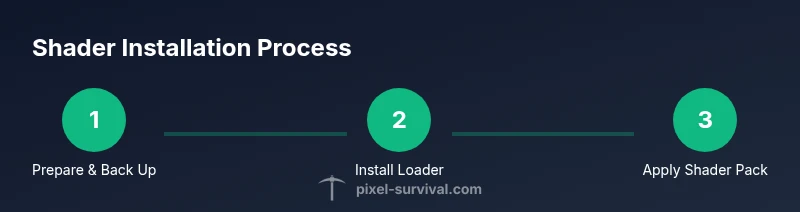
- 1
Prepare your environment
Create a dedicated shader testing folder and back up your Terraria saves. This protects your worlds from accidental changes and allows quick revert if something goes wrong. After backing up, verify you have stable drive space and an organized game directory for the upcoming modifications.
Tip: Always back up before touching game files. - 2
Update Terraria and drivers
Update Terraria to the latest compatible build for shaders and ensure your graphics drivers are current. A clean, up-to-date environment reduces chances of crashes and visual glitches when shaders load.
Tip: Update graphics drivers from the official vendor site. - 3
Install a shader loader
Install the shader loader according to its official guide, placing files in the correct directories. Verify the loader is functioning by launching Terraria and checking for a shader option in settings.
Tip: Follow the loader’s install steps precisely to avoid misplacements. - 4
Choose and install shader packs
Select beginner-friendly shader presets and place pack files in the designated shader folder. Activate the preset in-game and observe changes in several biomes to ensure readability and aesthetic balance.
Tip: Start with a lite preset to gauge performance. - 5
Enable shaders in-game and adjust
Turn on shaders in Terraria’s options, then adjust intensity, bloom, and color grading to suit your display. Make small adjustments and test in outdoor, cave, and dungeon scenes to avoid over-saturation or lost contrast.
Tip: Make iterative small changes for precise tuning. - 6
Test performance and troubleshoot
Run a short game session to monitor frame rate and stability. If you notice stutters or crashes, revert to a safer preset or adjust to a lighter configuration. Document results to build a reliable baseline.
Tip: Keep a rollback plan ready in case of instability.
Got Questions?
Do shaders affect performance in Terraria?
Yes, shaders can impact performance, especially with more complex lighting and water effects. Start with lighter presets, monitor frame rate, and gradually increase quality while checking stability.
Shaders can affect performance; begin with a lighter preset and monitor frame rate as you adjust.
Can shaders be used in multiplayer without issues?
Shaders can be used in multiplayer, but both clients must load compatible shader packs and loader versions. Inconsistent setups can cause visual glitches for players.
Multiplayer works with shaders if everyone uses compatible packs and loaders.
How do I uninstall shaders if they cause problems?
Disable the shader pack and loader in-game, then remove the shader files from the shader directory. Restore from backups if necessary and re-test with a default preset.
Turn off shaders and delete the shader files to revert.
Which shader presets are best for beginners?
Look for beginner-friendly presets labeled lite or balanced. They offer visible improvements with minimal performance impact while you learn the basics of lighting and color grading.
Start with lite or balanced presets to learn safely.
Are shaders compatible with all mods and game versions?
Shader compatibility depends on the loader and shader pack version, which must align with your Terraria version and any mods you use. Always check compatibility notes before installing.
Compatibility varies by version and mods; verify before installing.
Do shaders work on mobile or console versions of Terraria?
Shader support is primarily targeted at PC versions. Mobile and consoles have different rendering pipelines, so shader packs may not be available or supported there.
Shaders are mainly for PC; mobile and consoles may not support them.
Watch Video
Key Points
- Back up saves before any shader changes
- Choose compatible shader presets to balance visuals and performance
- Test across biomes to ensure readability and consistency
- Only use trusted shader sources and loaders
- Document your shader configurations for easy reuse