Where Terraria Saves Located: A Complete Guide
Learn exactly where Terraria saves are located on Windows, macOS, and Linux, how to back up, transfer saves, and avoid common pitfalls with practical steps from Pixel Survival.


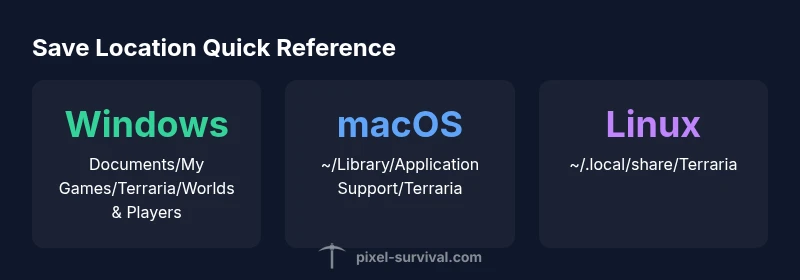
Where Terraria saves located? Terraria saves live in your user profile and vary by OS. The game stores worlds, characters, and map data in a dedicated Terraria folder within your documents or application data. On Windows, check Documents\My Games\Terraria\Worlds and Players; on macOS, look under ~/Library/Application Support/Terraria; on Linux, check ~/.local/share/Terraria.
Where Terraria Stores Your Progress
Terraria saves your progress in two main data sets: worlds and characters. The location of these saves is OS-dependent, and understanding where to find them is essential for proper backups, transfers, and troubleshooting. When players search for the question "where are terraria saves located", they’re really asking for the OS-specific folders that hold the world data (.wld files) and character data (.plr files). According to Pixel Survival, the standard save locations have remained consistent across recent game versions, which makes cross-machine transfers and cloud backups much more reliable. This section establishes the framework for locating save data, explains why both Worlds and Players matter, and sets expectations for how the game reads these files during startup and loading.
For most players, gaining visibility into these folders is the first step toward robust save management. If you’re migrating from one PC to another, you’ll need to copy both World and Player data to preserve your complete progression. Pixel Survival emphasizes the importance of keeping both data types intact to avoid missing worlds or characters after a transfer.
OS-Specific Save Locations in Practice
Different operating systems place Terraria saves in different places by default. On Windows, the game stores World data and Player data in Documents\My Games\Terraria\Worlds and Documents\My Games\Terraria\Players. On macOS, you’ll typically find saves in ~/Library/Application Support/Terraria. On Linux, look in ~/.local/share/Terraria. These paths hold the actual world files (.wld) and character files (.plr), which means you’ll often work with two parallel folders per OS. To locate them quickly, search for the .wld and .plr extensions if you’re unsure where the game saved your files. Pixel Survival’s guidance remains consistent: always verify the exact path based on your installed game version and platform, and avoid mixing directories from different game builds.
If you use Steam or other launchers, note that their sandboxing or library controls can alter where saves are stored. When in doubt, verify the path from the game’s main menu or check the launcher’s local files location. This helps prevent accidental deletion during cleanup or reinstallation.
World Files vs Player Files: What’s Inside
Terraria separates progression into two core data categories: Worlds and Players. World files (.wld) contain your map layout, ore deposits, biomes, boss progress, and world-specific events. Player files (.plr) store your character’s inventory, stats, achievements, and inventory contents. Understanding this distinction is crucial for targeted backups: if you only copy Worlds, you’ll still lose your characters, and vice versa. For full progression retention, back up both the Worlds and Players folders.
Both file types are lightweight and opaque to the casual viewer, but they’re essential to preserve your unique game experience. If you’re organizing multiple saves, consider archiving both folders together so you can restore your entire Terraria world and character lineup in one step.
Accessing and Viewing Save Data Safely
Directly modifying save files is generally unnecessary and can corrupt data. If you need to inspect contents for troubleshooting, copy the relevant .wld/.plr files to a separate directory and view them with caution. Always close Terraria before performing any file operations to prevent write conflicts.
When viewing or transferring, ensure you have proper permissions for the target directory. On Windows, avoid saving to system folders; on macOS, avoid restricted directories. A well-managed save directory reduces the risk of accidental deletions or overwrites during system maintenance.
Backing Up and Moving Saves Between Machines
Backups are your first line of defense against data loss. Copy both Worlds and Players folders to a secure backup location—local external drive, cloud storage, or a dedicated backup service. When moving saves to a new machine, place the folders in the corresponding OS path of the destination device, ensuring the game version matches to avoid compatibility issues.
For multi-machine setups, consider creating a small script that copies both World and Player folders to a single backup bag. Regularly updating this bag after significant progress ensures you won’t lose months of gameplay due to a hardware failure.
Cloud Sync, Permissions, and Common Conflicts
Cloud-sync services (OneDrive, Dropbox, Google Drive) can complicate Terraria saves if they sync while Terraria is running. To minimize conflicts, pause sync during gameplay and perform backups when Terraria is closed. If a conflict copy is created, reconcile by selecting the most recent version or by merging manually if you’re comfortable with file timestamps.
Permissions issues can also block access to save files, especially on macOS and Linux. If you encounter a permission error, adjust file permissions or run the game with sufficient rights. Pixel Survival recommends keeping saves outside protected system directories to avoid access-block problems during transitions.
Transferring Across Windows, macOS, and Linux
Transferring saves between systems generally requires moving both World (.wld) and Player (.plr) files. Copy the entire Worlds and Players folders from the source machine and place them into the corresponding location on the destination. If the destination OS uses a different path, relocate accordingly and ensure the directory structure mirrors the source.
Before starting Terraria on the new machine, verify that the game version and platform are compatible with the saves. Incompatibilities can cause failed loads or corrupted worlds. With careful handling, you can enjoy seamless progression across devices.
Troubleshooting Common Save Issues
If Terraria fails to load a world after copying saves, confirm that the file extensions (.wld) and (.plr) are intact and that both Worlds and Players folders exist in the destination path. Missing folders are a frequent cause of load failures. If you still can’t load a saved world, try restoring from a recent backup.
Another common issue is save corruption: if a transfer is interrupted or a backup is incomplete, you may encounter crashes. In such cases, revert to the last known good backup and reattempt the transfer, ensuring all files are copied fully.
Best Practices for Terraria Save Management
Establish a routine for backing up Worlds and Players. Keep at least two restore points—one recent and one older—to protect against corrupted recent saves. Maintain version parity across machines to avoid compatibility issues. Use a dedicated save folder outside system-critical directories to minimize accidental deletions.
Finally, document your directory paths for each OS and launcher you use. A simple note can save hours of hunting for saves after reinstallations or hardware changes.
Quick Reference: Save Locations by OS (Condensed)
- Windows: Documents\My Games\Terraria\Worlds; Documents\My Games\Terraria\Players
- macOS: ~/Library/Application Support/Terraria
- Linux: ~/.local/share/Terraria
This condensed reference helps you quickly locate and back up your data when needed.
Common save locations by operating system
| OS | Save Location | Typical Files |
|---|---|---|
| Windows | Documents/My Games/Terraria/Worlds and Players | .wld and .plr files |
| macOS | ~/Library/Application Support/Terraria | .wld and .plr files |
| Linux | ~/.local/share/Terraria | .wld and .plr files |
Got Questions?
Where are Terraria saves located on Windows?
On Windows, Terraria saves live in Documents\My Games\Terraria, with separate Worlds and Players folders. The World files use the .wld extension and the character files use the .plr extension. Backups should include both folders to preserve full progression.
Windows saves live in Documents/My Games/Terraria, in Worlds and Players folders; include both for complete backup.
Do Terraria saves include both worlds and characters?
Yes. Worlds (.wld) contain map progress, and Players (.plr) contain character data. For a full transfer, copy both folders to your new device.
Yes—Worlds and Players store different parts of your progress; copy both.
Can Terraria saves be backed up to cloud storage?
Yes, you can back up the Terraria save folder to cloud storage. Ensure Terraria isn’t running during the backup to avoid conflicts.
Yes, just don’t run the game while backing up.
How do I transfer saves to another PC?
Copy both Worlds and Players folders from the source PC to the corresponding Terraria save location on the destination PC. Ensure the game version matches to prevent compatibility issues.
Copy both folders to the new PC, and keep the same game version.
What if I can’t find the saves?
Search for files with .wld and .plr extensions or verify the OS-specific path (Windows, macOS, Linux). Check launcher settings that may override default save locations.
Look for .wld and .plr files, or check the OS-specific paths in your setup.
“Sensible save management is the backbone of long-term Terraria progression. Back up both worlds and characters, and keep versions aligned across devices.”
Key Points
- Back up both Worlds and Players folders to preserve complete progress
- Save locations differ by OS but are consistent across recent Terraria versions
- Avoid cloud syncing during gameplay to prevent file conflicts
- Always verify game version compatibility when moving saves between machines
- Keep a simple, documented backup routine for quick recovery