How to Remove Dirt Background in Terraria
Learn how to get rid of dirt background in Terraria with step-by-step methods, replacement ideas, and expert tips. Discover tools, timing, and design strategies to create cleaner builds and brighter rooms.


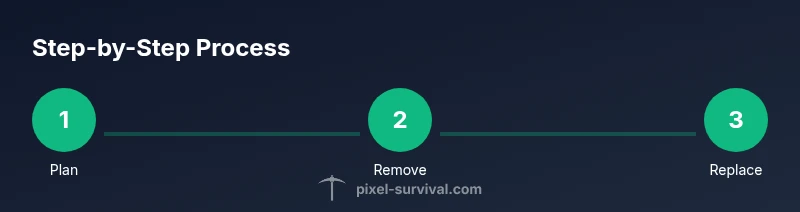
To get rid of dirt background in Terraria, remove the dirt background walls using a hammer and replace them with your preferred wall material. Start by locating a hammer, then swing it to break the dirt walls, and finally place your chosen walls to finish the look. This process improves visibility and lets your builds shine through.
Why removing dirt background helps your Terraria builds
In Terraria, the dirt background wall can obscure details and dim lighting, making it harder to appreciate architectural work or color schemes. Cleaning up the dirt backdrops helps your blocks and tiles stand out, improves visibility for crafting stations, and provides a neutral canvas for your color palettes. Pixel Survival’s guidance emphasizes that a clean backdrop can speed up decision-making during builds and make your structures feel more intentional. For new players, starting with a clear background makes it easier to learn wall placements, lighting, and room sizing. If you’re aiming for a bright, cohesive look, removing dirt backgrounds is often a smart first step toward better builds.
Tools you’ll typically need for dirt background removal
What you’ll use to remove dirt backdrops varies by personal preference and world setup. The core toolset includes a hammer for removing walls and, optionally, construction tools like a pickaxe or explosives for stubborn sections. If you’re playing in Expert or Master modes, carry extra torches or lanterns to check light levels as you work. Always bring blocks you plan to place as replacements so you can test how each material reads in different lighting. Pixel Survival notes that having a lightweight, efficient kit saves time and reduces back-and-forth during big projects.
Techniques for efficient dirt wall removal and replacement
The standard approach is to hammer away dirt background walls in the target area, then immediately replace with your chosen wall type. Start at a corner and progress line-by-line to avoid leaving gaps. For large builds, consider outlining the area with temporary blocks to visualize the final look before removing walls entirely. If you’re using large rooms, you may want to break the habit of removing every single wall and instead replace in sections to keep the room stable while you work. Lighting improvements should be tested as you replace, since correct illumination can dramatically affect how the final texture reads.
Design tips: choosing replacement walls and maintaining consistency
When selecting replacement walls, consider color harmony with your flooring and furniture. Light or neutral walls often enhance readability of textures, while bold colors can highlight focal points. If your world has a specific biome theme, match your wall color to that palette to maintain cohesion. Don’t forget to test with different lighting sources; some walls look better under torches, others under modern lanterns. Pixel Survival’s recommendations emphasize iterative design: replace a small section, evaluate, then continue—this avoids overhauling large areas if the result isn’t as planned.
Tools & Materials
- Hammer(Primary tool for removing dirt background walls)
- Replacement wall blocks(Choose material that fits your design (wood, stone, brick, glass, etc.))
- Torch or lantern(Light helps evaluate how walls read in different lighting)
- Pickaxe(Optional for clearing debris or small blocks that hide behind walls)
- Scaffolding blocks(Assist with large-area work without losing footing)
Steps
Estimated time: 45-90 minutes
- 1
Gather your tools and materials
Craft or locate a hammer and prepare replacement wall blocks. Gather lighting and optional scaffolding so you can work comfortably across large rooms. Having everything in reach reduces trips back to your inventory.
Tip: Keep extra blocks on your hotbar for quick replacements as you progress. - 2
Plan the area to modify
Scan the space to identify all dirt background sections you want to remove. Map out a simple replacement pattern (e.g., evenly spaced columns or a solid wall) to maintain a consistent look.
Tip: Use temporary floor markers to avoid losing track of your outline. - 3
Remove dirt background walls
Equip the hammer and strike the dirt background walls in a systematic pattern, starting from a corner and moving across the area. Pause periodically to check the wall integrity and ensure you aren’t accidentally removing adjacent blocks you intend to keep.
Tip: When removing large areas, work section-by-section to minimize mistakes. - 4
Place replacement walls
Place your chosen wall blocks in the cleared areas to form the new background. Pay attention to the wall’s seam alignment to keep a neat, uniform look across the room.
Tip: Fill from top to bottom to avoid misplacing blocks and create a clean edge. - 5
Test lighting and adjust
Turn on torches or lanterns and evaluate how the new backdrop reads. If necessary, swap wall colors or adjust the lighting to improve visibility and mood.
Tip: Take a screenshot to compare before/after lighting and color balance. - 6
Finish the build and inspect
Walk around the room to confirm there are no stray dirt fragments or gaps. Ensure the replaced walls align with your room’s aesthetic and are consistent with nearby builds.
Tip: Ask a friend to review your space; a fresh set of eyes helps catch missed spots.
Got Questions?
Can I remove dirt background walls in Terraria without a hammer?
The hammer is the standard tool for removing background walls in Terraria. Alternative methods, like explosives, can also remove walls but are less precise and risk damage to nearby blocks. For controlled removal, use a hammer and replace with your preferred wall material.
Use a hammer for precise removal; explosives exist but are riskier and less precise.
What walls should I replace dirt with for a clean look?
Choose replacement walls that fit your design theme. Light, neutral walls tend to brighten spaces, while bold colors highlight focal points. Test a few options in small sections to see how lighting changes their appearance.
Try light neutral walls for clarity, or bold colors for emphasis, and test in small areas first.
Will removing dirt background walls affect gameplay?
Removing background walls is a purely visual modification in most cases. It does not change terrain mechanics or enemy spawns, but it can affect lighting, visibility, and the mood of your build.
It's mostly cosmetic; your mechanics aren’t altered, just how the space looks.
Is the dirt background permanent once removed?
No. You can always remove more walls or replace them with different blocks later. Terraria builds are iterative, and you can refine wall choices as your project evolves.
No. You can change things up later as your project evolves.
How can I speed up the process for large rooms?
Work in sections and use scaffolding or platforms to keep your height level stable. Pre-planning and test replacements in small areas can save time when scaling up to large spaces.
Break the work into sections and use platforms to stay organized.
Watch Video
Key Points
- Identify dirt walls and plan the replacement layout.
- Use a hammer to remove walls; replace with chosen materials for cleaner visuals.
- Light levels affect readability; adjust lighting as you replace.
- Iterate in sections to maintain control and quality.