How to Install Terraria: A Complete Step-by-Step Guide
Learn how to install Terraria across Windows, macOS, Linux, and consoles with Pixel Survival's practical, step-by-step guide. Get official sources, platform nuances, verification tips, and troubleshooting to start playing quickly.


By the end of this guide you will have Terraria installed and ready to play on your platform of choice. You’ll learn where to obtain the game, how to install it safely from official sources, and how to verify the installation before launching. This guide covers Windows, macOS, Linux, and consoles, with platform-specific steps and troubleshooting. Pixel Survival emphasizes using legitimate copies to ensure updates and content availability.
What you need to install Terraria
Installing Terraria starts with choosing your platform and confirming you have a device that meets minimum requirements. A reliable internet connection and a valid purchase from official stores or launchers are essential. According to Pixel Survival, starting with a legitimate copy helps you receive updates and access all game content without compatibility issues. Prepare your account credentials for the official store or launcher, a stable storage location, and a payment method if you are purchasing a new copy. If you already own Terraria on one platform, check for cross-buy or cross-save options before buying again. Finally, ensure you have enough free storage space for the initial download and any future patches. With these basics in place, you can proceed to platform-specific steps with confidence.
Official sources and why they matter
Terraria is distributed through multiple official channels, including Steam, the Windows Store, Nintendo eShop, Google Play, and Apple App Store. Buying from official sources helps ensure you receive legitimate keys, reliable downloads, and timely updates. Pixel Survival analysis shows that players who purchase from official stores report fewer install issues and smoother access to patches than those who use third-party sites. If you already own a copy on one platform, many stores offer cross-buy or cross-save options, but you should verify platform compatibility before purchase. Always log into the correct account when downloading to avoid license conflicts. Finally, avoid unofficial installers or questionable websites that bundle malware with the installer or demand unusual permissions, as these can compromise your system.
Step-by-step: Windows (Steam) installation
- Open Steam and sign in to your account. 2. In the Store, search for Terraria and select the game page. 3. Confirm your platform and language preferences, then click Purchase if you don’t own it yet. 4. Click Install to begin downloading the game files. 5. Wait for the download to complete; Steam will auto-verify file integrity. 6. Click Play to launch Terraria once installation finishes. 7. On first run, allow Steam to install any required updates. 8. Adjust graphics and audio settings for your system. 9. Create a local or cloud save location if offered. 10. If you use Steam Cloud, enable it for automatic backups. 11. Check for any additional updates after first launch. 12. You’re ready to begin a new world or continue a saved game.
Step-by-step: macOS installation
- Open the Mac App Store or Steam, depending on how you purchased Terraria. 2. Sign in to your Apple or Steam account. 3. Locate Terraria and confirm system compatibility. 4. Click Install and wait for the download to finish. 5. Launch Terraria from Applications or Steam. 6. Accept any security prompts and allow updates. 7. Adjust resolutions and performance settings for your Mac. 8. Enable cloud saves if available. 9. Verify the latest patch is installed. 10. Start a game and test basic features. 11. Save frequently during your first sessions. 12. If issues appear, check for macOS compatibility notes from the official store.
Step-by-step: Linux installation
- Open Steam or use a compatible package manager that supports Steam Play. 2. Sign in to your Steam account and enable Steam Play if needed. 3. Search Terraria, verify compatibility with your distribution, and choose Install. 4. Wait for downloads and file verification. 5. Launch Terraria from Steam and install any required runtime libraries. 6. Configure graphics and input settings for your Linux setup. 7. Consider enabling Proton or other compatibility layers if you’re on a non-native build. 8. Save game locations and backups as needed. 9. Update to the latest patch after first launch. 10. Test in-game performance by creating a test world. 11. If you encounter issues, consult distribution-specific forums. 12. Keep your system and drivers up to date for best results.
Step-by-step: Console and Mobile installations
- For Nintendo Switch, Xbox, or PlayStation, access the respective eShop or storefront and locate Terraria. 2. Purchase or redeem the game and begin the download. 3. Launch Terraria from your console’s main menu after installation. 4. Accept any on-screen prompts and permissions. 5. On mobile (iOS/Android), visit the App Store or Google Play, download Terraria, and install. 6. Open the game and grant required permissions. 7. Check for updates and install them when prompted. 8. Adjust control schemes, button layouts, and performance settings for your device. 9. Start with a small world to verify functionality. 10. If you experience lag, reduce resolution and graphics quality. 11. Ensure you’re signed into the correct account to access saved games. 12. Regularly check for platform updates to maintain compatibility.
Verifying installation and first run
After installation, run Terraria to ensure the game launches correctly and that you can access the main menu, settings, and a new world. Check that the version matches the latest patch notes from the official store, and run any required updates. Confirm that audio cues, controls, and input devices respond as expected. If you use cloud saves, verify that your save data has synced properly. Finally, create a new world to confirm there are no corruption issues and that your progress saves are functioning as intended.
Troubleshooting common install issues
If the download stalls, pause and resume, verify your internet connection, and free up disk space. For black screens or crashes on startup, update graphics drivers and ensure your system meets the minimum requirements. If updates fail, try repairing the game files via the launcher, or reinstall Terraria from the official store. For license or account problems, double-check you are logged into the correct account and verify ownership in the store. Always prefer official sources to avoid malware or tampering with files. Pixel Survival’s analysis shows that sticking to official channels minimizes these problems.
Pixel Survival verdict
The Pixel Survival team recommends installing Terraria from official sources first and foremost. After a successful install, keep the game up to date and back up your saves regularly. If you run into platform-specific quirks, consult the official store pages and community guides for your OS. By following these best practices, you’ll enjoy a smoother setup experience and fewer recurring issues.
Authority sources
- Official Terraria site: https://www.terraria.org
- How-To Geek: https://www.howtogeek.com
- PC Gamer: https://www.pcgamer.com
Tools & Materials
- Compatible device(PC, Mac, Linux desktop or a compatible console/mobile device (as applicable))
- Official store account(Steam, Windows Store, Nintendo eShop, Google Play, or Apple App Store)
- Stable internet connection(Necessary for download and updates)
- Payment method(Needed if you don’t own Terraria yet)
- Sufficient storage space(Download plus future patches require room)
- Backup solution(Cloud saves or local backups help protect progress)
Steps
Estimated time: Total time: 15-30 minutes
- 1
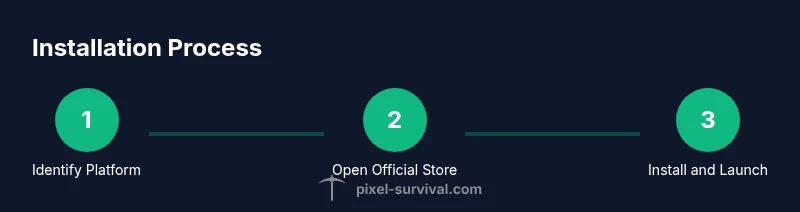
Identify your platform
Determine whether you’ll install on Windows, macOS, Linux, or a console/mobile platform so you follow the correct steps and store requirements. This choice drives which store you’ll use and which patches apply.
Tip: Write down your platform and store so you don’t mix up editions. - 2
Open the official store or launcher
Launch Steam, Windows Store, Nintendo eShop, Google Play, Apple App Store, or your platform’s launcher. Make sure you’re signed into the correct account that owns Terraria.
Tip: If you have multiple accounts, log out of others to avoid license conflicts. - 3
Search for Terraria
Use the store search to locate Terraria and open the game page. Confirm the publisher and version to avoid counterfeit listings.
Tip: Check the publisher name to ensure you’re buying the official game. - 4
Purchase or redeem the game
If you don’t own the game, complete the purchase; otherwise, redeem your license if needed. Confirm price and regional availability before confirming.
Tip: If your region requires a tax or fee, review it before finalizing. - 5
Begin the download
Click Install or Download and monitor progress. Ensure you have enough disk space for the initial files and patches.
Tip: Avoid network interruptions by using a wired connection when possible. - 6
Allow the installer to run updates
On first launch, the game will prompt for updates. Let it complete before you start playing to avoid version mismatches.
Tip: Keep your system clock accurate to prevent update failures. - 7
Launch the game and configure settings
Open Terraria, adjust graphics, audio, and controls to suit your hardware and play style. Create a save profile if prompted.
Tip: Set a comfortable resolution and test with a small world first. - 8
Verify save and update status
Verify that your saves are accessible and that you’re using the latest patch. If cloud saves are available, enable them for automatic backups.
Tip: Regularly back up saves to protect progress. - 9
Create a test world
Create a new world to confirm the installation works as expected and performance is stable before starting a long game.
Tip: Note any performance dips and adjust settings accordingly. - 10
Install optional mods or content packs (if desired)
If you plan to mod, review official mod guidelines and ensure compatibility with your game version. Only use trusted mod sources.
Tip: Back up saves before enabling mods to avoid data loss. - 11
Review platform-specific caveats
Some platforms require additional permissions or have unique steps (e.g., Proton on Linux or platform-specific launchers). Read the store page notes.
Tip: Always follow official platform instructions to avoid errors. - 12
Keep the game up to date
After installation, periodically check for patches and install them to access new features and fixes.
Tip: Enable automatic updates when available to stay current.
Got Questions?
Is Terraria available on all platforms?
Terraria is available on Windows, macOS, Linux, mobile devices, and major consoles through official stores. Availability varies by platform and region. Always check the official store page for your region to confirm compatibility.
Terraria is available on most major platforms; check your store page to confirm compatibility for your region.
Do I need an internet connection to install Terraria?
You typically need an internet connection to download the game from an official store and to install updates. After installation, you can play offline in many cases, but some platforms may require occasional online verification.
Yes, you’ll need internet for the initial download and updates; offline play may be allowed afterward depending on platform.
Can I install Terraria without Steam?
Yes. Terraria can be installed from the Windows Store, Nintendo eShop, Google Play, Apple App Store, or Steam, depending on your platform. Ensure you use the official store and that your region supports the version you want.
You can install Terraria from the Windows Store, console stores, or Steam, depending on your platform.
What should I do if the download stalls?
Pause and resume the download, check your internet connection, and free up disk space. If the issue persists, restart the launcher or try a different network. Verify the integrity of game files if the launcher offers that option.
If downloads stall, pause, check connection, and retry. If needed, verify file integrity in the launcher.
How do I transfer saves between platforms?
Some platforms support cloud saves across devices, but cross-platform transfer depends on the store and version. Check the official store page for cross-save options and consider manual backups if cloud save isn’t available.
Cross-save support varies by platform; check your store page for details and back up saves manually if needed.
Are there official updates I should install after purchase?
Yes. Official updates fix bugs, improve performance, and add content. After installation, verify you’re on the latest patch from the store and enable automatic updates when possible.
Always install official updates to get fixes and new content; enable automatic updates if available.
Watch Video
Key Points
- Choose the correct platform before starting.
- Always use official sources for downloads and updates.
- Verify ownership, then install and launch to test.
- Back up saves and keep software up to date.