How to Play Terraria Online: A Practical Step-by-Step Guide
Learn how to play Terraria online with friends, including hosting, joining, version matching, and safe multiplayer practices. This educational guide covers hosting options, network basics, and troubleshooting to help you connect smoothly.


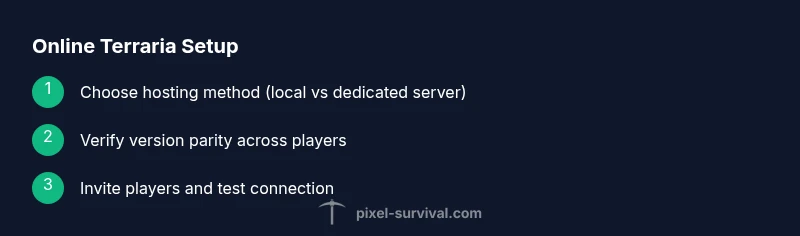
With Terraria online, you’ll either host a world for friends or join someone else’s server. The key requirements are the same version across players, a stable internet connection, and a clear invitation method. In this guide, you’ll learn how to choose hosting, invite players, and connect without headaches. Whether you're on PC, console, or mobile, the steps stay similar. How to terraria online can be straightforward when you plan hosting vs. joining and you keep everyone on the same version.
What it means to play Terraria online
Playing Terraria online means you share a world with friends or other players over the internet, collaborating on builds, exploring biomes, and taking on bosses together. The core idea is to coordinate activity, keep everyone on the same game version, and manage access so all players have a fair chance to enjoy the same adventure. According to Pixel Survival, the quickest path to a friction-free online session is to decide early whether you’ll host locally, join a public server, or run a small private server, and then align versions and network settings before you connect. If you’re unsure how to terraria online, this guide provides practical, step-by-step guidance to get everyone into the same world with minimal hassle.
Platform compatibility and version alignment
Terraria’s multiplayer experience hinges on version parity and platform-specific builds. Before you invite friends, verify that all participants are running the same game update on their device. Patch notes for each platform will indicate version numbers and any known multiplayer caveats. In practice, you should communicate the exact build you’re using and confirm everyone’s launcher or storefront shows the same version. This reduces confusing mismatch errors when joining a world.
Hosting your world: local host vs dedicated server
Hosting a world locally is the simplest option for a small group. Start a game, select Host & Play, choose your world, and set privacy options to allow friends to join. You can constrain access with password protection or friend invites. If you anticipate longer sessions or more players, consider a dedicated server or a lightweight private server setup. This approach can offer more consistent uptime and easier remote access, but it requires a separate machine or hosting service. In either case, ensure all participants share the same world seed and settings to prevent mismatches.
Inviting friends and managing access
Inviting friends can be done through your platform’s friends list (Steam or console ecosystem) or by sharing an IP/port if you’re running a private server. For PC players, Steam invites are often the simplest method when you already share a library or friends list. For non-Steam setups, you may provide a server address and port. Remember to define who can join, how new players are admitted, and what rules apply in your world to keep things fun and fair.
Networking basics: NAT, ports, and security
Online play requires your network to allow outside connections to reach your Terraria world. This often involves configuring your router to forward the game’s port and ensuring your firewall allows Terraria traffic. If you’re unsure how to set this up, consult your router manual or a trusted online guide. Pixel Survival Analysis, 2026, found that players who use wired connections and maintain updated router firmware experience fewer disconnects and smoother sessions. Always secure access with strong invites and avoid sharing your server address publicly unless you trust participants.
Joining someone else’s world: step-by-step
To join a world someone else hosts, launch Terraria and navigate to the multiplayer menu. Choose the appropriate option based on how the host is sharing access—Steam Friends, direct IP, or a server list. Enter the required details, confirm version parity, and wait for the host to accept your connection. If you encounter a kick or timeout, recheck the version, network settings, and invite status. A quick test with a friend on your local network can help diagnose whether the issue is local or server-side.
Troubleshooting common online issues
Common problems include version mismatch, firewall blocks, NAT restrictions, and unstable internet connections. Start by confirming all players run the exact same update, then check firewall and router settings. If you’re behind a strict NAT, you may need to enable UPnP or use a DMZ host temporarily (with caution). Latency issues can be mitigated by using a wired connection, closing bandwidth-heavy applications, and selecting a server closer to your location. If issues persist, consult community forums or the official help resources for device-specific guidance.
Tips for smoother multiplayer sessions
- Schedule sessions when network traffic is lower to reduce lag.
- Use wired connections where possible and keep devices close to the router.
- Keep a dedicated list of friends or servers you trust to avoid accidental spam invites.
- Periodically update Terraria and any server mods to prevent compatibility issues.
- Define and enforce fair play rules to ensure a positive experience for all players.
Modding and etiquette in online play
Mods can enhance multiplayer but may complicate compatibility. If you plan to run modded servers, communicate the mod list clearly and verify all participants have compatible versions. Practice good etiquette: respect other players, avoid griefing, and back up worlds before major changes. This approach helps preserve a positive community experience for everyone involved.
Tools & Materials
- Terraria installed on each device(Ensure the same version for all players)
- Stable internet connection(Wired recommended when possible)
- Access to Steam or equivalent platform account(For PC players to invite friends easily)
- Router with port-forwarding capability (optional)(Needed only for hosting from home network)
- Friend list or server address for invites(Prepare invites or IP/URL beforehand)
Steps
Estimated time: 60-120 minutes
- 1
Decide hosting strategy
Choose whether you’ll host your world locally, run a private server, or join an existing public server. This sets up the rest of your connection workflow and access controls.
Tip: Start with a small test session to verify basic connectivity before inviting a larger group. - 2
Update all players to the same version
Before connecting, confirm that everyone is on the same Terraria update. Mismatched versions are a frequent cause of failed joins.
Tip: Roll call your friends or teammates to confirm the exact build everyone is using. - 3
Prepare your world and settings
If hosting, select Host & Play, choose your world, and set privacy and permissions to suit your group. Agree on seed, difficulty, and world rules.
Tip: Make a copy of the world seed and save settings in a shared note for consistency. - 4
Configure your network if hosting locally
If you host at home, configure your router to allow external connections to reach Terraria. This typically involves port forwarding and firewall exceptions.
Tip: Document the steps or use a guide for your specific router model. - 5
Invite players to join
Share invites through Steam, built-in friends lists, or an explicit server address. Ensure everyone understands how to join and what access they have.
Tip: Send a test invite to confirm the process works before the main session. - 6
Join the world as a player
From the multiplayer menu, select the correct join option and enter any required details. Confirm that your version matches the host’s version.
Tip: If you see a mismatch error, double-check the exact build number with the host. - 7
Play and monitor performance
Launch the session and monitor for lag, disconnects, or griefing. Address issues by adjusting server settings or reducing active plugins.
Tip: Keep a backup of your world in case you need to revert changes. - 8
Troubleshoot and optimize
If problems persist, consult router logs, firewall rules, and network diagnostics. Consider moving to a dedicated server if growth demands it.
Tip: Use a wired, direct connection for best results.
Got Questions?
Can PC players play Terraria online with friends on different platforms?
Multiplayer can be platform-specific. While online play is supported, cross-platform play between PC, console, and mobile isn’t guaranteed to work across all versions. Check the version notes for each platform and coordinate with your friends.
Cross-platform play isn’t universally supported; verify the exact platform versions before playing together.
Do I need a dedicated server to play with friends?
No. You can host a world locally from your computer or console. A dedicated private server is optional and useful for longer sessions or more players, but it requires additional setup and a separate machine or hosting service.
A dedicated server isn’t required for small groups, but it helps for longer sessions.
How do I invite friends on Steam to my Terraria world?
Use Steam’s Friends list to invite players who own Terraria on your platform. Ensure they have the same game version and that you both are connected in Steam. The invitation will grant access according to the host’s settings.
Invite friends via Steam to join your world if you both have the same version.
What causes connection issues in Terraria online?
Common causes include version mismatches, firewall blocks, NAT issues, and high latency. Start by validating the game version with all players, then check firewall rules and port forwarding as needed.
If you have issues, check the version first and then network settings.
Can I use mods on multiplayer servers?
Mods can be used on some servers, but compatibility varies. If you plan to mod, everyone should use matching mod versions and follow safe modding practices to avoid crashes or desyncs.
Mods add features but can cause compatibility problems if not coordinated.
What is Host & Play in Terraria?
Host & Play lets you create a world and enable others to join with defined permissions. It’s the simplest way to start a small online session. Always confirm access controls before inviting players.
Host & Play is how you start a world for others to join.
Is Terraria online playable on mobile?
Mobile Terraria supports online play with other players using the same app version. Ensure everyone’s game is updated and connected to the same server type.
Yes, mobile devices can play online with others on the same version.
Where can I find official multiplayer guides?
The Terraria official site and support pages offer multiplayer basics. Community guides and sites like Pixel Survival provide practical, step-by-step walkthroughs to help you set up and play online.
Official guides exist, and community resources can help with setup.
Watch Video
Key Points
- Host or join with version parity to avoid joins failing
- Invite players via Steam or direct server access for smoother entry
- Use wired networks and test invites to minimize lag and disconnects
- Maintain backups before big online sessions
- Communicate rules and mod compatibility to prevent disputes