Terraria Mobile Multiplayer: A Full Step-by-Step Guide
Learn how to play Terraria on mobile with friends in multiplayer. Get setup tips, hosting vs joining, controls, and troubleshooting for seamless co-op on your device.


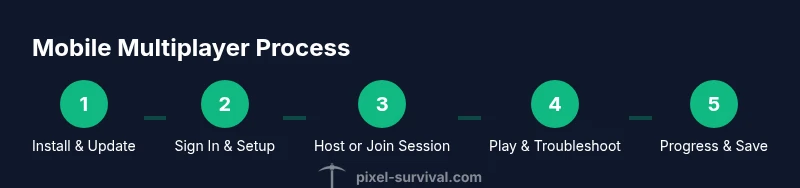
You can play Terraria on mobile with friends by setting up a shared online session or local network. Install Terraria on your device, sign in with your account, and choose to host or join a world. This guide walks you through setup, hosting, joining, and common fixes for a smooth start.
What you need to play Terraria on mobile multiplayer
To dive into mobile multiplayer, you’ll need a compatible mobile device with Terraria installed from Google Play or the Apple App Store, a stable internet connection (Wi‑Fi is preferred for long sessions), and a Terraria account linked to your device. Ensure your OS is up to date to minimize compatibility issues and verify that all players in your party are running the same game version. Pixel Survival highlights that a consistent setup across devices reduces connection problems and improves responsiveness; this guide builds on that insight to help you get online quickly.
Understanding cross-platform and cross-play on mobile
Terraria’s mobile multiplayer typically operates best within the same platform family. Cross-platform play (mobile to PC or console) may be limited or require specific server settings or updates, so plan multiplayer sessions with friends on mobile when possible. You’ll often connect via online servers or local networks; understanding these pathways helps you troubleshoot if a friend can’t join. Keep in mind that network quality and version parity strongly influence the experience, which the Pixel Survival team notes as a critical factor in smooth co-op sessions.
Setting up your device for multiplayer
First, decide whether you’ll use a local network or an online session. If you’re near each other, connect all devices to the same stable Wi‑Fi network and keep other bandwidth-heavy apps closed. For online play, ensure you have a reliable data plan or strong home Wi‑Fi. Log in to your Terraria account, confirm your friends list is up to date, and close background apps that could compete for bandwidth. If you encounter latency, try moving closer to the router or switching to a less congested channel.
Host vs join: choosing your multiplayer path
Hosting gives you control over the world, invites, and game settings, while joining lets you participate in someone else’s world. On mobile, hosting usually means starting a world and selecting online hosting options, then sharing access with friends. Joining requires selecting the hosted session from the in-game Friends or multiplayer menu. Consider your group size, expected playtime, and device stability when choosing host or join; a stable host makes the session smoother for everyone.
Creating or joining a world in mobile multiplayer
To create a world, launch Terraria on mobile, choose Create World, customize your seed and world options, and enable online hosting if available. To join, open the multiplayer menu, pick Join World, and select your friend’s session from the list or use a direct invite code if provided. Before launching, confirm the world settings (difficulty, modes, and permissions) match across players to prevent desyncs. If a player cannot see the session, refreshing the list or restarting the app often resolves the issue.
Controls and UI optimization on mobile
Mobile controls can feel cramped, so customize the layout if your device supports it. Enable larger touch zones, adjust aim sensitivity, and consider a controller or Bluetooth keyboard for precision. Turn on features like auto-pickup or quick shortcuts to speed up actions during hectic battles. Practicing in a quiet, well-lit area helps you get used to touch controls before coordinating with friends in a busy dungeon.
Common issues and how to fix them
If you can’t connect, verify version parity, restart the game, and check that all devices are on the same network for LAN sessions or have stable internet for online play. Connection drops can be caused by weak networks, high latency, or router restrictions; restarting the router or switching to a different network often helps. If invites don’t appear, refresh the multiplayer list, ensure your account is linked correctly, and confirm you’re using the same game region and language settings.
Best practices for progression in mobile multiplayer
Coordinate with your group to assign roles (builder, explorer, farmer) and set shared goals, so everyone contributes to the same progression path. Establish a scheduling plan for sessions, manage resource sharing with clear rules, and keep a shared map or note of progress. Regularly back up your world and communicate openly about updates or server changes to minimize surprises during co‑op play.
Safety and safety warnings for mobile multiplayer
Online multiplayer can expose you to strangers. Never share personal information, IP addresses, or passwords in public chats. Use in-game friend lists and private invites for a safer experience, and enable parental controls if children are playing. If you encounter toxic behavior, leave the session and report it through the platform’s tools; prioritize your safety and well‑being during long play sessions.
Authority sources
- https://www.pcgamer.com/gaming-security-tips-multiplayer/
- https://www.wired.com/story/online-gaming-safety-tips/
- https://support.google.com/android/answer/97750?hl=en
Tools & Materials
- Terraria mobile app(Install from Google Play Store or Apple App Store)
- Stable internet connection(Wi‑Fi recommended for best results)
- Compatible device(Android 6+ / iOS 12+ recommended)
- Your Terraria account login(Google Play / Apple ID linked to Terraria)
- Optional controller or Bluetooth keyboard(For easier navigation)
Steps
Estimated time: 40-60 minutes
- 1
Install and update Terraria on mobile
Download the Terraria mobile app from your device's store and install the latest update. Open the game and verify you are on the same version as your friends to avoid compatibility errors. If a update is pending, install it and restart the app.
Tip: Check for updates on all devices before starting a session to prevent version mismatches. - 2
Sign in and set up your multiplayer profile
Sign in with your platform account (Google Play or Apple ID) so friends can find you and invite you easily. Confirm your in-game privacy settings allow friends to see your sessions. If you use a shared device, make sure your profile is active for multiplayer.
Tip: Keep your account credentials secure and avoid sharing login details in chat. - 3
Decide hosting vs joining
Discuss with your group whether you’ll host the world or join someone else’s session. Hosting gives control over invites and world options, while joining is simpler for new players. Set expectations for session length and goals before starting.
Tip: If you’re hosting, enable online hosting and prepare a short invite list in advance. - 4
Create or join a world
Create a new world with desired seed and settings if you’re hosting, or select Join World and pick the session from the list if you’re joining. Ensure everyone’s world settings match to avoid desyncs. Share a private invite if your session uses direct invites.
Tip: For LAN games, ensure all devices are on the same local network and your firewall isn’t blocking traffic. - 5
Configure controls and ready your UI
Adjust touch controls to fit your play style. If available, switch to a controller or external keyboard for precise combat. Test basic movements, jumping, and item use before diving into a boss fight.
Tip: Save your control layout as a preset for quick future setups. - 6
Test the connection with a quick run
Start a short expedition to test stability. Check for lag, rubber-banding, or disconnects and adjust network settings or reduce active apps if needed. Communication with teammates helps coordinate fixes quickly.
Tip: If you see lag, try a shorter session or move closer to the router. - 7
Play with friends and save progress
Engage in cooperative exploration and build goals as a team. Regularly save and back up your world to prevent progress loss. Communicate plans to stay synchronized and avoid repeated resource farming.
Tip: Designate a leader to guide the group and keep everyone on the same page. - 8
Review and optimize after the session
After playing, review what went well and what could be improved. Update your device firmware if needed and share tips with the group to improve future sessions. Adjust settings for better comfort and performance.
Tip: Document any recurring issues to troubleshoot more efficiently next time.
Got Questions?
Can I play Terraria mobile multiplayer with players on PC or consoles?
Cross-platform play between mobile and PC/console has limited support and depends on game updates and servers. Plan multiplayer with players on the same platform family when possible.
Cross-platform support is limited; best to play with mobile friends or check the latest official guidance.
Do I need an internet connection to play Terraria multiplayer on mobile?
Online multiplayer requires an internet connection. Local multiplayer over the same Wi‑Fi network is also possible for nearby players.
Yes, you typically need internet; local Wi‑Fi works well for close friends.
How do I host a world on mobile?
Open Terraria on mobile, create a new world, and choose online hosting options. Share the invite with friends and ensure all players are on the same version.
Create a world and enable online hosting, then invite your friends to join.
Why can't I join my friend's world?
Check version parity, network stability, and that invites or session lists are up to date. Restart the game and re-try joining if needed.
Most issues come from version differences or network problems; reattempt after checking settings.
Is voice chat built into Terraria mobile multiplayer?
Terraria does not include built-in voice chat. Use your device’s native voice chat or a third‑party app to talk during sessions.
There isn’t in-game voice chat; use your phone’s or a separate app for talk.
Watch Video
Key Points
- Install and update Terraria on mobile
- Decide hosting vs joining early
- Optimize controls for touch
- Maintain stable network for best experience
- Know how to troubleshoot common issues