Terraria Mobile Server: Host a PC Server for Remote Play
Learn how to host a Terraria mobile server by using a PC-based Terraria server. This step-by-step guide covers prerequisites, network setup, connecting mobile devices, and tips for stable multiplayer on mobile.


Hosting a Terraria mobile server lets you play with friends beyond local LAN by running the PC server and connecting mobile clients. According to Pixel Survival, the simplest path is to host on a dedicated PC, ensure a stable network, and forward the right ports so players can join from anywhere. This quick guide shows the essential steps to get your mobile players online.
What a Terraria mobile server is
A Terraria mobile server refers to a multiplayer setup where mobile devices (iOS and Android) join a server that is hosted on a PC or dedicated machine rather than on the mobile device itself. In practice, most players run the official Terraria PC server on a computer and then invite mobile players to connect using the game’s multiplayer options. This arrangement leverages the stability of a wired host and the flexibility of cross‑platform play. For Terraria mobile server hosting, you’ll need a host machine with Terraria installed, a network connection that can handle multiple players, and a way to share the server address with friends. Pixel Survival emphasizes planning for latency, backups, and security to keep sessions smooth.
Architecture and connectivity
In a typical setup, the host runs a Terraria PC server that manages world data, player state, and world events. Mobile clients connect remotely by IP and port, depending on network configuration. The core challenges are ensuring the host can be reached from outside your local network (through port forwarding or a VPN) and keeping the server responsive under load. A well‑designed topology minimizes cross‑traffic, reduces lag, and prevents a single flaky connection from derailing an ongoing session. Always document the IP address, port, and any passwords for authorized players.
Planning prerequisites for a smooth launch
Before you start, inventory the basics: a PC capable of running Terraria, a copy of Terraria installed on the host, and a reliable internet connection. You’ll also need a router that supports port forwarding, a static or dynamic IP setup (with a dynamic DNS option if necessary), and at least one mobile device to test connectivity. Draft a simple player cap that fits your network speed, or you risk jittery gameplay and frequent disconnects. Finally, prepare a plan for world backups so you can restore progress if something goes wrong.
Hosting options: PC server vs local hosting on a device
Hosting on a PC is the most compatible approach for Terraria mobile players because the PC version provides official server software that is robust and well-supported. Local hosting on a phone or tablet is generally not recommended for longer campaigns due to resource constraints and reliability concerns. If you must host on a mobile device, you can explore game‑specific LAN options or commercial hosting services, but expect higher latency and limited features. For most players, a dedicated PC server paired with mobile clients offers the best balance of performance and accessibility.
Network fundamentals and security
A successful Terraria mobile server relies on a clean network path from host to client. You’ll need to manage your router’s port forwarding, ensure your firewall allows the Terraria server port, and consider a basic password for the server to prevent unauthorized joins. Security best practices include keeping the host OS and game files updated, using strong passwords for any admin accounts, and regularly backing up world data. If you’re new to networking, start with a local LAN test from a second device to verify that joining works before exposing the server to the internet.
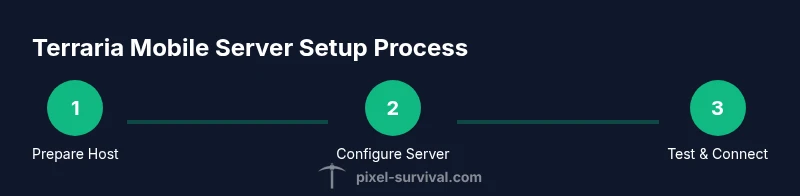
Step-by-step overview of the setup (high level)
- Prepare the host PC with Terraria installed.
- Locate and configure the TerrariaServer executable and serverconfig.txt.
- Start the server and confirm it’s listening on the correct port.
- Set up port forwarding on your router or use a VPN for remote access.
- Determine your public IP or configure a dynamic DNS service.
- Have mobile players join via IP and port from the Terraria multiplayer menu.
- Apply basic security measures (passwords, access control).
- Establish a routine backup plan for worlds and characters.
This overview will be expanded in the step-by-step section with explicit actions and tips.
Tools, materials, and prerequisites
Before you begin, gather these essentials:
- A computer with Terraria installed (Windows/macOS/Linux)
- A copy of Terraria Server (TerrariaServer.exe or equivalent)
- A stable wired or high‑quality wireless network
- A router with configurable port forwarding
- A static IP or dynamic DNS service for remote access
- At least one mobile device for testing
- A reliable backup solution for world data
Having these ready speeds up the installation and reduces the risk of mid‑setup interruptions.
Security and maintenance considerations
Security matters for multiplayer sessions. Use a server password, limit admin rights to trusted players, and monitor access logs. Regular backups are crucial; schedule automatic backups or perform manual saves after major world events. Maintain updates for both the host OS and Terraria itself to minimize compatibility issues. Consider enabling a firewall rule that restricts inbound connections to known ports and IP ranges when possible to reduce exposure to the wider internet.
Tools & Materials
- PC or laptop with Terraria installed(Windows/macOS/Linux compatible; ensure you have admin rights on the host.)
- TerrariaServer executable(Typically found in the Terraria installation folder; used to run the dedicated server.)
- Router with port forwarding(Access to the admin interface to forward the server port to your PC.)
- Stable internet connection(Wired Ethernet is preferred for consistency; Wi‑Fi acceptable for small groups.)
- Dynamic DNS service or static IP(Needed so players can reliably connect when your IP changes.)
- Public IP or domain for players(Share this with your friends so they can connect from anywhere.)
- Mobile devices for testing(iOS/Android devices running the Terraria mobile client.)
- World backup plan(External drive or cloud storage for periodic backups.)
Steps
Estimated time: 60-120 minutes
- 1
Prepare host PC and server files
Install Terraria on the host PC if not already present, then locate TerrariaServer.exe and the serverconfig.txt file. Create a dedicated folder for the server to keep world files organized. Confirm you have admin access to install and modify firewall rules.
Tip: Keep the server files on a separate drive if possible to simplify backups. - 2
Configure server settings
Edit serverconfig.txt to set the world name, max players, and security options. Ensure the port matches your router's forward rule and note the password if you set one. Save changes and close the editor before starting the server.
Tip: Document your configuration values so you don’t forget the port or password. - 3
Start the Terraria PC server
Run TerrariaServer.exe and monitor the console for a successful bind message. If the server starts but doesn’t show players, double-check the port and firewall settings. Leave the server window open and avoid closing it during play sessions.
Tip: Run the server in a dedicated window or as a background service for stability. - 4
Set up router port forwarding
Access your router’s admin page and forward the server port to your host PC’s local IP address. Use a descriptive rule name so you can identify it later. If you’re behind double NAT, consider a VPN or hosted gateway.
Tip: Test the port from an external network using online tools to confirm accessibility. - 5
Establish dynamic DNS or static IP
If your public IP changes, set up a dynamic DNS hostname to map to the current IP. Update your Terraria server config if needed and provide the hostname to players instead of the raw IP.
Tip: Choose a reputable DNS provider and enable automatic update clients on your host. - 6
Test on local network with a mobile device
From a mobile device on the same network, open Terraria and select Multiplayer > Join via IP. Enter the host’s local IP and port to verify a local connection works before attempting remote access.
Tip: If local join fails, recheck firewall rules and ensure the server is listening on the correct port. - 7
Test remote connectivity
Have a friend connect from a different network using the public IP or DNS hostname and the configured port. Confirm that the game joins and that gameplay is responsive.
Tip: If remote access fails, temporarily disable strict firewall rules during testing, then re-enable with targeted allowances. - 8
Implement security and backups
Set a server password, limit admin access, and schedule regular backups of world data. Document recovery steps so you can quickly restore if corruption occurs.
Tip: Backups should be stored offline or in a separate drive to protect against device failure.
Got Questions?
Can I host a Terraria mobile server directly on my phone or tablet?
Hosting directly on a mobile device is generally unreliable for long sessions due to resource limits. PC hosting is the recommended approach for stability and performance when mobile devices join remotely.
Hosting directly on a phone is usually unstable; use a PC server for best results when mobile devices join.
Do I need a static IP for remote play?
A static IP makes remote connections simpler, but a dynamic DNS service can achieve the same result by mapping a domain name to your changing IP.
Static IP helps, but dynamic DNS works too for remote play.
What about safety and who can join?
Use a server password and limit admin rights to trusted players. Maintain a whitelist of known players to prevent uninvited access.
Keep a password and only allow trusted players.
How many players can join a Terraria mobile server?
The practical limit depends on host hardware and network bandwidth. Start with a small group and gradually increase while monitoring performance.
Start small and scale up as you monitor performance.
What should I do if players keep disconnecting?
Check your router settings, confirm ports are open, and verify the server isn’t hitting network saturation. Reduce number of concurrent players if needed.
Check ports and performance; lower the player count if needed.
Is it safe to run automatic backups?
Yes. Automated backups protect progress and reduce the risk of data loss from corruption or crashes. Store backups offline when possible.
Automated backups are safe and recommended.
Watch Video
Key Points
- Host the server on a PC for best compatibility with mobile clients
- Configure your network carefully to ensure reliable remote play
- Always back up worlds before major changes
- Secure access with passwords and access controls
- Test locally before opening to the wider internet