How to Play Terraria Multiplayer: A Step-by-Step Guide
Learn how to play Terraria multiplayer with friends, covering LAN, online servers, cross-platform setup, hosting options, invites, and troubleshooting in this Pixel Survival guide.


How do you play terraria multiplayer? You host or join a world via LAN or online, ensuring everyone uses the same game version and world setup. Use the in-game multiplayer menu to invite friends or join a listed world, and keep a stable connection for smooth co-op play. This guide walks you through hosting, joining, and troubleshooting with friends.
How do you play terraria multiplayer
Terraria multiplayer opens a new layer of strategy and fun by letting you explore, build, and battle with friends in a shared world. The question how do you play terraria multiplayer is answered by three core approaches: hosting a world locally, joining another player's world online, or using a dedicated server. Each method has its own setup steps, costs, and caveats, but all rely on the same basic principle: synchronized versions and a stable connection. According to Pixel Survival, the most reliable multiplayer experiences come from a prepared group with clear roles and a shared plan. In practice, you’ll want to pick a hosting method that matches your group size and network capacity, confirm that everyone runs the same game version, and agree on rules for progression and resources. From there, enable multiplayer in the main menu, invite friends, and coordinate your efforts. The social dynamic matters as well—define roles, share resources, and establish a simple chat protocol to keep everyone informed during raids or boss battles. A well-structured session feels less chaotic and more like a coordinated adventure.
Core Requirements and Compatibility
To play Terraria multiplayer, you need a compatible platform setup and a common ground among players. All participants should be on the same game version and patch level, and ideally using the same seed or a consistent server configuration. You’ll also need access to a stable network—wired Ethernet is recommended for PC players, but a strong wireless connection can suffice. Ensure each player has a copy of Terraria and the appropriate account (Steam, PlayStation Network, Xbox Live, or Nintendo Online) for online play. While cross-platform multiplayer is supported in some scenarios, it varies by platform and version, so verify compatibility before inviting friends. Pixel Survival recommends confirming these basics first to minimize runtime issues and keep your session focused on exploration and progression.
Hosting Options: Local LAN vs Online Servers
Hosting choices shape your multiplayer experience. A local LAN game is quick to set up if all players are on the same network, requiring minimal configuration and no external server. Online play expands your group beyond local proximity but introduces variables like port forwarding, firewall rules, and latency. For online play, you can host a private server on your PC, rent a dedicated server, or use built-in online hosting in the game (where available). When hosting, plan for bandwidth use, especially during boss fights or large builds, and consider limiting player count to maintain performance. If you’re new to hosting, start with a small group on a home PC and gradually scale up as you gain confidence with network settings and server stability.
Creating or Loading a World for Multiplayer
In Terraria, a shared world requires alignment on world state. If you’re hosting, create or load the world you want to play in and ensure the world is saved in a location accessible to all players. When joining someone else’s world, the host’s world data must load correctly on your end; if you’re using a server, you’ll point clients to the server address or IP. Keep in mind that seed and world generation rules influence resource spawns and dungeon layouts, so coordinate these aspects in advance if your goal is a cohesive progression. Documentation from Pixel Survival emphasizes backing up your world before big sessions to prevent accidental data loss during raids or server restarts.
Connecting Players: Invites, Steam, and Cross-Platform Considerations
Inviting players is done through the in-game multiplayer menu or through platform-specific friends lists. Online sessions require network visibility and the correct permissions for inbound connections. For Steam users, ensuring Steam Friends are connected and visible can simplify invites, while console players may rely on platform-specific friend systems for access control. Cross-platform play is supported in many cases but not universally. Before starting, confirm which players can join from which platforms and share the exact server address or world invite code. With a clear invitation flow, players can jump into the shared world quickly and start collaborating on base-building, exploration, and boss strategies.
Setup on Different Platforms: PC, Console, Mobile
PC, console, and mobile builds each have distinct multiplayer flows. On PC, you typically have the most flexibility with host options, mods, and file access. Consoles often require a subscription and rely on the platform’s networking systems. Mobile players should ensure they are on a compatible version and that online play is allowed by the device’s settings. In all cases, keep the game updated to the latest patch to preserve compatibility and minimize connection issues. Cross-platform play may have limitations—check the official pages for your platform’s multiplayer rules and any required accounts.
Common Pitfalls and Troubleshooting
Multiplayer doesn’t always go smoothly. Common issues include version mismatches, firewall blocks, NAT restrictions, and unstable connections. If players can’t join, verify the exact version and patch, ensure correct server addresses, and test with a smaller group to isolate the problem. Lag and desync are often caused by high latency, insufficient bandwidth, or many players in a single base area. If you encounter persistent problems, restart the game, check router settings, and consider switching to a wired connection. Pixel Survival notes that documenting a simple error-logging process helps identify root causes quickly.
Advanced Tips for Smooth Multiplayer
For experienced groups, a dedicated server is the most reliable path to stable co-op play. Run server software on a dedicated machine or a rented host, set a fixed port, and enable automatic backups. Use consistent admin rules to manage world progression and item sharing to avoid conflicts. Optimize performance by designing base layouts that minimize pathing conflicts and by staggering boss encounters to avoid server strain. Enable quality-of-life features like centralized storage and clearly labeled zones for each player’s role. A pre-session checklist (version, server status, and backup) helps you avoid mid-session crashes and keeps the experience enjoyable for all players.
Authority Sources
This section provides external references for readers who want deeper dives into Terraria multiplayer practices. For official and industry perspectives, see:
- https://www.pcgamer.com/terraria-multiplayer-guide/
- https://www.ign.com/articles/terraria-multiplayer-guide
- https://kotaku.com/terraria-multiplayer-guide
Progression and Boss Fights in Multiplayer
Progression in multiplayer revolves around shared goals, resource management, and coordinated boss strategies. Teams often assign roles (miner, builder, healer, archer) to streamline progression through hardmode and events. Boss battles benefit from clear communication, timed debuffs, and shared inventories to pool resources efficiently. When you fight a boss together, assign a plan (who tanks, who DPS, who manages healing) and practice raid timings in shorter sessions before attempting tougher encounters. Multiplayer sessions offer dynamic, collaborative play that scales the challenge and rewards with your group’s coordination.
Tools & Materials
- PC or Console with Terraria installed(Ensure you have the latest patch installed on all participating devices.)
- A copy of Terraria for each player(Platform-specific versions must be equal for compatibility.)
- Stable internet connection(Wired Ethernet is preferred for PC, but strong Wi-Fi may suffice.)
- Platform accounts (Steam/Xbox Live/PSN/Nintendo Online)(Needed for online multiplayer on most platforms.)
- World seed or server address(Seed for a consistent world; server address for online hosting.)
- Optional: Voice chat app(Helpful for coordination, not required)
Steps
Estimated time: 20-60 minutes
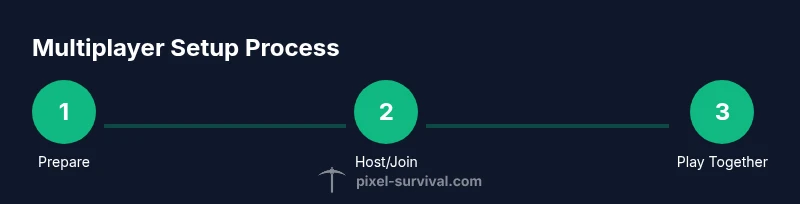
- 1
Prepare the game version and world
Confirm all players are on the same Terraria version and patch level. Decide whether you’ll use a shared seed or a dedicated server for consistency. If you’re hosting, back up your world before making changes.
Tip: Running a quick patch check together avoids mid-session updates that would disconnect players. - 2
Choose hosting method
Decide between a local LAN session or an online server. For larger groups or long-term campaigns, a dedicated server offers more stability and easier management.
Tip: Start small with 2–4 players to learn the hosting workflow before scaling up. - 3
Launch Terraria and load/create the world
Host loads the world and starts the session. Guests join via the in-game multiplayer menu using the server IP or hosting invite. If you’re using a seed, share it with everyone.
Tip: Test the world load with one guest before inviting the full group. - 4
Invite players and share details
Send invites through the game’s menu or share the server details. Ensure everyone knows the hosting platform, port (if needed), and any passwords or access controls.
Tip: Keep a short written call-sheet for invite codes and platform-specific steps. - 5
Tune settings and start playing
Configure difficulty, loot rules, and progression settings according to the group’s preference. Agree on resource sharing, base rules, and raid schedules to avoid conflicts.
Tip: Set up a shared storage system to reduce item fights and keep goals clear. - 6
Save, monitor, and adapt
Regularly save progress and monitor performance during sessions. If lag or disconnects occur, adjust world size, limit party size, or switch to a wired connection.
Tip: After-session debrief helps refine future multiplayer runs.
Got Questions?
What is the quickest way to start a Terraria multiplayer session?
Begin by choosing hosting or joining, confirm all players are on the same version, and use the in-game multiplayer menu to invite friends or connect to a server. Start with a small group to test connectivity and refine settings.
Start by picking hosting or joining, ensure everyone has the same game version, and invite friends from the multiplayer menu. Begin with a small test group to verify connectivity.
Can I play with friends on different platforms?
Cross-platform multiplayer is possible in some configurations, but it varies by platform and version. Check platform-specific guidance and ensure you’re using compatible builds.
Cross-platform play can work in some setups, but it depends on platforms and versions. Verify compatibility before inviting players.
Do I need a dedicated server to host many players?
A dedicated server provides stability for larger groups, but you can start with a local LAN session for smaller groups. Scale up as your needs grow.
A dedicated server helps with stability for many players, but you can start with LAN for smaller groups and upgrade later.
How do I invite friends to join my world in Terraria?
Use the in-game multiplayer menu to invite players or share the server address/IP. Ensure all players have access permissions based on the hosting setup.
Open the multiplayer menu and invite friends or share the server address. Make sure permissions are set for your host.
What causes connection problems in multiplayer?
Common causes include version mismatches, firewall blocks, NAT restrictions, and high latency. Troubleshoot by checking versions, router settings, and test with fewer players.
Problems usually come from version mismatches, firewalls, NAT, or latency. Check versions and router settings, then test with fewer players.
Is cross-platform play supported between PC and mobile?
Cross-platform support varies by version and platform. Verify current official guidance for your devices and consider using a common version to maximize compatibility.
Cross-platform between PC and mobile depends on version. Check official guidance to confirm compatibility.
Should I back up worlds before multiplayer sessions?
Yes. Backing up worlds before big sessions protects progress from crashes or corruption during raids and server restarts.
Always back up your world before long multiplayer sessions to prevent data loss.
What roles work best in a Terraria multiplayer team?
Common roles include miner for resources, builder for bases, healer or caster for support, and tank for boss fights. Clear roles reduce overlap and improve efficiency.
Assign roles like miner, builder, healer, and tank to keep the team organized and efficient.
Watch Video
Key Points
- Choose hosting based on group size and stability.
- Ensure identical game versions across players.
- Prefer wired connections for consistency.
- Establish clear roles and rules for progression.