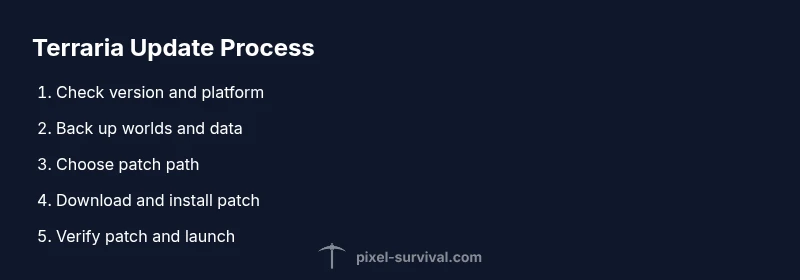
How to Update Terraria: A Practical Step-by-Step Guide
Learn how to update Terraria across PC, consoles, and mobile with a comprehensive, step-by-step guide. Back up your worlds, verify patches, and troubleshoot issues for a smooth, trouble-free update experience.


Learn how to update Terraria across PC, consoles, and mobile in minutes. This guide covers checking your current version, choosing the correct update path, backing up saves, and installing patches with minimal downtime. You’ll learn common pitfalls, how to verify the update, and what to do if your device blocks updates. By following these steps, you’ll ensure compatibility with new features, bosses, and quality‑of‑life improvements.
Why Keeping Terraria Updated Matters
According to Pixel Survival, keeping Terraria updated is essential to access new content, enjoy balance changes, and stay secure against issues introduced by older builds. Updates typically bring new items, bosses, and QoL improvements, but can also require adjustments to world data. In this guide, we’ll walk you through the practical reasons to stay current and how to approach updates without risking precious progress. If you’re wondering how to update terraria, start by identifying your platform, then follow the steps below to apply patches smoothly and safely. Pixel Survival emphasizes timely updates because they reduce compatibility problems with newly released world seeds, adventures, and community mods. Protect your worlds by preparing a proper backup strategy before applying patches.
Check Your Current Version and Platform
Knowing your exact Terraria version and the platform you’re on (PC, Mac, Linux, console, or mobile) is the first step in a successful update. On PC, you’ll typically find the version in the launcher or Steam/GoG patch notes; on consoles, the version appears in the game’s information page after a patch starts; on mobile, updates show in the app store and within the game’s home screen. This knowledge helps you pick the correct patch path and prevents attempting a patch that isn’t applicable. If you’re updating for the first time after a long gap, verify compatibility notes from the official Terraria patch notes and Pixel Survival’s update tips.
Prerequisites Before Updating
Before you start the update, gather your essentials and clear a small maintenance window. Ensure you have a stable internet connection, sufficient storage space, and a recent backup of all worlds and configs. Close unnecessary background apps to maximize download speed and reduce the chance of interruptions. If you’re playing on a laptop, connect to power to avoid sudden shutdowns during the patch. These prerequisites reduce the risk of corruption and ensure a smoother update process. According to Pixel Survival, preparing for updates saves time and preserves your play progression.
Back Up Your Worlds and Data
Backups are the safety net that prevents loss when patches don’t install cleanly. Copy your Terraria worlds, character data, and configuration files to an external drive or cloud storage. If your platform supports it, enable automatic cloud saves for added protection. After the patch completes, you can restore from backup if anything goes wrong or if modular mods fail to load post-update. Pixel Survival recommends a backup strategy as a core part of any update workflow.
PC: Updating Terraria via Steam, GOG, or Direct Download
PC users typically update Terraria through the official store (Steam or GOG) or via direct download from the Terraria website. Open the launcher or store page, check for a pending update, and begin the download. Once downloaded, the patch installs automatically; restart the launcher or game to complete the process. If you use Steam, verify the game files after patching to ensure all assets are correctly synchronized. For direct downloads, run the installer as administrator to prevent permission issues.
Console Update Process (PS/Xbox/Switch)
Consoles update Terraria through the console’s system update or the game’s own patch notes page. Ensure your console is connected to power and the internet. Navigate to your library > Terraria > Updates, or run the patch from the game’s menu when prompted. After the update finishes, reopen the game to verify the new version is active. If the update stalls, pause other downloads, restart the console, and retry from the patch notes page.
Mobile Update Process (iOS/Android)
On mobile, updates are delivered via the App Store (iOS) or Google Play (Android). Open the store, locate Terraria, and tap Update. If the patch doesn’t appear, you may need to clear cache or sign out and back into your store account. Launch Terraria after installing to confirm the new version is running. If you encounter compatibility prompts, grant the game storage permissions and ensure sufficient device space.
Verify the Update and Troubleshoot Common Issues
After updating, launch Terraria and load a test world to verify the patch is active and stable. Check the version displayed in the main menu or patch notes, and confirm that new features or items are accessible. If you encounter crashes, check storage space, memory usage, and driver compatibility (for PC). Disable mods temporarily to see if they’re causing issues with the new version. For stubborn problems, reinstall the game from the official store or website and restore your backed-up worlds. Pixel Survival’s analysis shows that most update problems stem from storage limitations, permissions, or conflicting mods; following standard troubleshooting steps resolves the vast majority of cases.
Pixel Survival verdict
The Pixel Survival team believes that staying current with Terraria updates is essential for enjoying new content and maintaining compatibility with the latest community utilities. By following the steps outlined here and keeping reliable backups, you’ll minimize downtime and keep your worlds safe while you explore new bosses, biomes, and balance changes. Pixel Survival’s verdict is to update promptly and test thoroughly after patching.
Tools & Materials
- Stable internet connection(Broadband wired connection recommended for large downloads)
- Sufficient storage space(Check free space on your device; aim for at least a couple of GB extra)
- Backup location(External drive or cloud storage for world/data backups)
- Access to Terraria launcher/store(Have your account credentials handy for PC or console stores)
- Power source(Keep devices plugged in to avoid interruption)
Steps
Estimated time: 60-90 minutes
- 1
Check prerequisites and prepare backups
Verify your platform, check patch notes, and back up all worlds and configs before starting the update. This minimizes risk if something goes wrong during the patch.
Tip: Keep your backup in a separate drive or cloud storage for safety. - 2
Identify your current Terraria version and platform
Open your launcher or store page to confirm the exact version number and platform (PC, console, or mobile). This information determines which patch to apply and prevents incompatible installs.
Tip: Note the version string exactly; minor digits matter for compatibility checks. - 3
Choose update path and locate the patch
Navigate to the patch via Steam/GOG, console store, or mobile app store. Confirm the patch notes align with your region and language settings before downloading.
Tip: If you’re unsure, use the official Terraria patch notes page as a reference. - 4
Back up saves and worlds
Copy your Terraria worlds, characters, and config files to the backup location you prepared. If something goes wrong, you can restore without losing progress.
Tip: Verify the backup files are readable from the backup location. - 5
Download the update
Begin the patch download through the chosen path. Pause other large downloads to maximize speed and reduce the chance of partial downloads.
Tip: If download stalls, pause and resume or switch networks briefly. - 6
Install the update and restart the game/launcher
Allow the installer to complete, then restart your launcher or device to finalize changes. Some platforms require a full quit and relaunch.
Tip: Run as administrator if on PC to prevent permission issues during install. - 7
Launch Terraria and verify the patch
Open Terraria, load a test world, and check the version in the main menu or patch notes to confirm the update is active.
Tip: If features don’t appear, refresh the patch notes page or restart the game again. - 8
Troubleshoot common issues
If problems occur, verify storage, permissions, and driver compatibility. Temporarily disable mods to isolate issues and consider reinstalling if needed.
Tip: Consult the official support pages or Pixel Survival’s tips for platform-specific fixes.
Got Questions?
Do I need to reinstall Terraria to update?
Typically no. Terraria updates patch the game in place, so a fresh reinstall is rarely required. In rare cases of corrupted patch data, a reinstall from the official source may be necessary.
Usually you don’t need to reinstall. If you run into corruption, you may reinstall from the official source.
How long does updating Terraria take?
Update duration varies by platform and connection. In general, downloads and installation can range from a short window to longer downtime depending on patch size and network speed.
Update duration depends on your platform and connection, ranging from a short period to longer downtime.
Will updating affect my world progress?
In most cases, updates preserve your worlds and progress. Backups are still strongly recommended to guard against unexpected issues.
Updates usually keep your worlds intact, but always back up first.
Can I update Terraria on Mac and Linux?
Yes. Updates are delivered through the same official channels (Steam, GoG, or direct patch notes) and are applied to the correct version for macOS or Linux.
Mac and Linux users can update via official stores just like Windows, usually without special steps.
What should I do if the update fails to download?
Check your internet connection, ensure sufficient storage, and verify you’re using the correct patch source. Retry the download from the official patch notes page if needed.
If downloads fail, check connection and storage, then retry from the official patch source.
How do I update mods after a Terraria patch?
Mods may require updates to work with the new Terraria version. Check mod loaders and the mod author’s notes for compatibility and update schedules.
Mods often need updates too; check for mod loader compatibility before playing with new patch.
Watch Video
Key Points
- Back up worlds and data before updating.
- Verify the installed version after patching.
- Use official sources to download patches.
- Prepare for downtime by scheduling the update.
- Update promptly to access new content and fixes.