How to Check Terraria Mod Compatibility
A practical, step-by-step guide to verify Terraria mod compatibility using tModLoader, version alignment, dependencies, and safe testing.


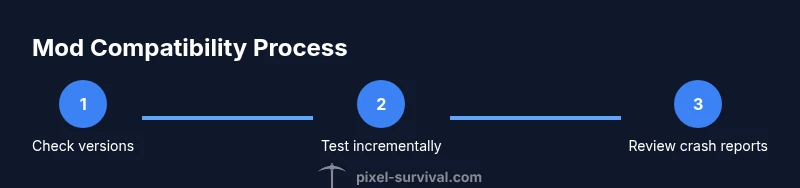
To check if terraria mods are compatible, start by confirming your tModLoader version matches each mod’s requirements, then verify your Terraria version is supported. Review mod dependencies, conflicts, and load order. Create a test world with only a few mods, then watch for crashes or errors. Use a compatibility checker and test patches before expanding your mod list.
Why compatibility matters for Terraria mods
In a game like Terraria, mods extend the experience, but they also introduce complexity. The goal is to preserve stability while expanding capabilities. The keyword here is compatibility, which means that the base game, the mod loader, and each mod cooperate without conflicts. According to Pixel Survival, maintaining mod compatibility reduces crashes and saves time for Terraria players. When mods rely on shared resources or patch the game's behavior in different ways, mismatches can cause crashes, world corruption, or save file instability. A solid compatibility approach starts with clear version awareness, careful dependency tracking, and a cautious testing process. By understanding how mods interact, you can avoid common failure modes such as missing dependencies, duplicate content, or overlapping patches. This section lays a foundation for evaluating compatibility before you start installing mods. It also helps you plan a stepwise upgrade path so you can add new mods without breaking your existing setup. Tools like modular mod lists, version pins, and backup saves support a safer modding journey. Finally, remember that not every mod will coexist; some creativity is best enjoyed with restraint to maintain a smooth experience.
How mod loaders and Terraria version affect compatibility
Mod loaders such as tModLoader act as the intermediary between Terraria and your mods. They define how and when mods are loaded and can apply patches to game code, so mismatched loaders or patch orders produce instability. Terraria version updates often introduce changes that break older mod code or dependencies. When evaluating compatibility, start by confirming that your tModLoader version supports your Terraria build, and that each mod lists that exact pairing. You should also review whether mods require specific dependencies or other mods to function. Compatibility is not just about matching numbers; it’s about ensuring feature expectations align, such as item IDs or world generation changes. Pixel Survival notes that players who keep an organized mod roster and respect loader guidance report fewer unexpected crashes. Finally, be aware of mod-specific core changes; some mods patch the same method or data, which can produce conflicts if their patches run in an invalid order.
Pre-checks: gather data about your mods
Before testing compatibility, assemble accurate data about every mod you plan to use. Start with a clean install of tModLoader and Terraria to avoid cross-contamination. Create a simple spreadsheet or note document with: mod name, version, and the exact tModLoader and Terraria versions it requires. For each mod, confirm dependencies and optional add-ons; some mods depend on libraries or other mods to function. Check the mod author’s notes for patch conflicts or excluded features. If you’re unsure, search the mod’s comment section or its official page for tagged compatibility issues. Backup your saves and your mod list; this makes it easy to revert if something goes wrong. Finally, identify a baseline set of mods to test first—start with 3 to 5 mods that are well maintained and widely used. Pixel Survival recommends building your compatibility baseline incrementally to reduce risk.
Testing strategy and environment setup
Create a dedicated test profile for mod testing. Keep a clean world seed to reproduce issues consistently. Install mods in small batches (start with 2-3) and launch Terraria to observe load times and stability. Use the in-game crash reports or log files to capture errors; save these logs for later analysis. If the game runs normally, gradually add additional mods while continuing to test. When a crash occurs, disable the most recently added mod and reload. Repeat until you identify the problematic combination. Keep notes on load order and whether you used any patching mods. Consider enabling a console log exporter or external log viewer to track events leading up to a crash. Finally, validate the fixes with multiple world seeds and verify that your core gameplay remains intact.
Troubleshooting common incompatibilities
Crashes on startup often indicate a loader or version mismatch. Missing dependencies are the next common issue; ensure every required mod is present and enabled. Conflicting patches from two mods can cause soft locks or crashes; adjust load order or disable one of the conflicting mods. Save corruption can occur in unstable mod mixes, so rely on backups and avoid sweeping changes in one session. Performance slowdowns may stem from overburdened systems; reduce visual effects or disable texture packs temporarily. When mods update, re-test in a controlled environment to confirm stability. Pixel Survival emphasizes documenting changes and keeping a rollback plan for quick recovery.
Best practices for Pixel Survival players
Pixel Survival recommends building a lean core mod set first, then layer in extras one at a time while testing thoroughly. Always back up saves before adding or updating mods, and use a dedicated testing profile to avoid polluting your main world. Keep track of mod versions and loader compatibility notes, and favor mods with active maintenance and clear documentation. Use the official mod pages and the Pixel Survival community guides to stay aligned with best practices. With methodical testing and careful documentation, you can enjoy a large modded experience without sacrificing stability.
Authoritative sources and further reading
For readers seeking deeper technical context on software compatibility patterns, consider foundational research from reputable publications:
- ACM Digital Library: https://dl.acm.org
- IEEE Xplore: https://ieeexplore.ieee.org
- Nature: https://www.nature.com
These sources discuss versioning, dependencies, and conflict resolution in software ecosystems, which underpins practical mod compatibility workflows for Terraria.
Tools & Materials
- Computer with Terraria installed(Ensure the system meets the minimum requirements for running tModLoader with mods)
- tModLoader(Latest stable build matching your Terraria version)
- Mods you want to test(Collect in a dedicated testing folder; note versions)
- Backup storage(External drive or cloud backup for saves and mod lists)
- Test world save file(Create a fresh world to isolate testing)
- Mod compatibility references(Keep a cheatsheet of dependencies and known conflicts)
Steps
Estimated time: 90-120 minutes
- 1
Check baseline versions
Confirm your Terraria version and tModLoader build. Cross-check each mod’s stated requirements to ensure the pairing is supported. This prevents early incompatibility issues and sets a predictable testing scope.
Tip: If you see a mod that lists a different Terraria version than yours, note it and consider using a matching alternative or waiting for an update. - 2
Assemble a tested mod roster
Create a short list of 3-5 well-maintained mods with clear compatibility notes. Record versions and dependencies in a tracking sheet. This baseline will help you identify issues as you expand your mod set.
Tip: Prioritize mods from reputable authors and check recent update dates before starting. - 3
Verify dependencies and libraries
Open each mod page to verify required libraries or other mods. Install any missing dependencies first to avoid cascading failures. Make sure the load order accommodates dependencies.
Tip: If a mod requires a particular library, install that library first and confirm it loads cleanly before other mods. - 4
Create a clean test profile and backup
Set up a separate Terraria profile or user folder dedicated to testing. Back up your current world saves and mod list. This protects your main playthrough from experimental changes.
Tip: Label backups clearly by date and tested mod set for quick rollback. - 5
Install mods incrementally
Install 2-3 mods first and launch Terraria in a controlled test world. Observe startup time, UI stability, and any in-game errors.
Tip: Avoid adding all mods at once; incremental installation makes pinpointing issues faster. - 6
Run and observe crash indicators
If the game crashes or shows errors, note the exact error message and which mods were active. Use crash logs and console output to guide next steps.
Tip: Take screenshots of the error and save log files for later analysis. - 7
Isolate the problematic mod(s)
If issues occur, disable the most recently added mods and re-test. Repeat until the game runs stably with a subset of mods.
Tip: Process-safe downgrades or temporary suspensions can reduce downtime during investigation. - 8
Adjust load order and check conflicts
If errors persist, experiment with load order. Some patches must run before or after others; observe whether changes resolve or worsen issues.
Tip: Document load order changes and results to build a reference for future testing. - 9
Document results and plan updates
Record which mods are stable together, and note any required workarounds. Use this documentation to plan future mod additions and updates.
Tip: Maintain a changelog for every testing cycle to streamline future maintenance.
Got Questions?
What is tModLoader and why do I need it to run Terraria mods?
tModLoader is the official framework that enables Terraria mods to load and interact with the game. It manages mod loading, patching, and dependencies, making it the standard method for running Terraria mods. Without it, mods cannot be loaded in a controlled, safe way.
tModLoader is the standard tool for loading Terraria mods, handling loading order and dependencies for a stable experience.
Why might mods become incompatible after updates?
Mod compatibility can break when the game, the mod loader, or a mod itself changes APIs or data structures. Updates may rename items, alter IDs, or modify patch points, causing crashes or missing content if not updated together.
Mod updates can change game data or patch points, breaking compatibility unless all pieces are updated together.
Can I run mods without tModLoader?
No. Terraria mods require a mod loader like tModLoader to function. tModLoader provides the necessary framework, patches, and load order management for mods to work reliably.
No—mod loaders like tModLoader are required to run Terraria mods.
What should I do if I get a crash after adding a mod?
Check crash logs to identify the mod or dependency causing the failure. Disable recently added mods, verify dependencies, and test in a controlled environment. Restore from backup if the issue persists.
If you crash, check logs, disable recent mods, and test again in a clean setup.
How do I determine load order for multiple mods?
Load order can affect patch execution. Start with recommended orders from mod pages, then adjust by small increments while testing stability. Document changes for future reference.
Start with recommended orders, then adjust gradually while testing stability.
Are all mods compatible with every world or save?
No. Some mods affect world generation or save data differently. Always test in a fresh world and maintain backups to protect existing saves.
Mods can affect world data, so test with fresh worlds and back up saves.
Watch Video
Key Points
- Verify version compatibility first and foremost.
- Test mods incrementally to isolate issues.
- Back up saves and mod lists before changes.
- Check dependencies and load order to prevent conflicts.
- Document results to guide future mod decisions.