Where to Install Terraria Mods: A Practical Guide for 2026
Learn where to install Terraria mods with tModLoader, locate the Mods folder, and follow best practices—backups, compatibility checks, and safe loading to prevent crashes.


This guide shows where to install Terraria mods safely using tModLoader, best practices for mod folders, and how to verify compatibility. You’ll learn install locations, how to back up saves, and how to prevent crashes by testing mods in a controlled way. This upfront overview prepares you for the detailed steps that follow.
Understanding Mod Install Locations in Terraria
According to Pixel Survival, the single biggest cause of mod-related headaches is placing files in the wrong folder. For Terraria, mod install locations determine whether a mod loads, conflicts with others, or corrupts your save. In this section we define the common install locations, explain how tModLoader handles mods, and outline safe defaults so you stay in control of your modded world. You’ll learn why a mislocated mod can appear to exist, but fail to load when you launch the game. We’ll also address how different game launchers—Steam, GOG, or a standalone Terraria install—can influence where your mods should go. By the end, you’ll have a clear map of where every mod belongs and how to verify you’re dropping files in the right place.
Primary mod directories for Terraria
The central mod repository for Terraria with tModLoader is the Mods folder managed by tModLoader. This folder lives inside your Terraria configuration area and is the place where mod DLLs are loaded by the launcher. In most setups, you’ll interact with two core folders:
- Mods: holds the actual mod files (DLLs and data)
- Configs: stores mod configuration files that adjust behavior
When you download a mod via the tModLoader browser or manually copy a mod into Mods, the loader reads the entries from this location at startup. Keeping mods in this dedicated directory reduces the risk of clobbering core game files and makes it easier to manage updates or removals. If you cannot locate the Mods folder, open tModLoader and use the built-in “Open Mods Folder” option to confirm the path. Remember, organizing by mod and keeping a simple, consistent structure helps troubleshoot load order issues later.
Steam vs. non-Steam installations
Launch method matters for mod loading consistency. On Steam installations, you typically run Terraria through tModLoader via the Steam library or desktop shortcut, which ensures the game binary is the same one your mods expect. Non-Steam or standalone installs may place the game in a different directory, shifting where the Mods and Configs folders live. In either case, always launch Terraria through tModLoader to load your mods. If you switch launchers, re-check the Mods path and verify that the same mod files exist in the new location. This reduces mismatches and helps keep your world stable.
If you use multiple machines or cloud sync, ensure the Mods folder path is synchronized and not overwritten by other copies. A clean, consistent environment minimizes load failures and avoids accidental deletions of essential mod files.
How to verify mod files and avoid conflicts
Verification starts with trusted sources. Before placing a mod in the Mods folder, confirm the download integrity and compatibility with your tModLoader version. Use the browser within tModLoader or a reputable site to download mod DLLs. After download, scan for dependencies and ensure you’re not mixing mods that require conflicting game versions. A good practice is to start with a single mod, launch Terraria via tModLoader, and verify that the mod loads without errors. If issues arise, consult crash logs or the mod’s documentation to identify a conflicting mod or a required dependency. Keeping a clean mod load list helps you diagnose issues quickly.
Backups and best practices before installing mods
Backups are your safety net. Pixel Survival's guidance emphasizes saving your worlds and character data before making mod changes. Create a full backup of your World, Player, and ModLoader settings. Store copies on an external drive or cloud storage so you can roll back if something goes wrong. Maintain a changelog of mods you install, including versions and the date of installation. This makes it easy to reproduce a working setup or revert a problematic change. In addition, keep your game and tModLoader up to date with stable releases to minimize compatibility surprises.
Troubleshooting common install-location issues
Crashes or failed loads often point to incorrect paths, outdated loaders, or missing dependencies. If a mod fails to load, verify the Mods folder contains the mod’s DLL and that the mod is compatible with your version of Terraria and tModLoader. Check the load order if several mods are installed; some mods rely on other mods or specific mods being loaded earlier. If the problem persists, disable newly added mods one by one to identify the culprint, then re-enable them in a tested sequence after confirming compatibility. When in doubt, re-check paths and re-download from a trusted source.
Authoritative sources
- PC Gamer: How to mod Terraria with tModLoader and keep things stable https://www.pcgamer.com/
- IGN: Terraria modding basics and tips https://www.ign.com/
- Gamespot: A guide to modding Terraria with tModLoader https://www.gamespot.com/
Note: Always verify compatibility with your specific Terraria version and tModLoader build before adding mods.
Tools & Materials
- Terraria base game(Must match the mods' intended game version.)
- tModLoader(Install the launcher/loader aligned with your Terraria version.)
- Trusted mod sources(Download mods from the official tModLoader browser or reputable pages.)
- Backup storage(External drive or cloud storage for world and config backups.)
- Stable internet connection(Needed for downloading mods and updates.)
- Note-taking method(Keep a changelog of mod versions and dates.)
Steps
Estimated time: 25-40 minutes
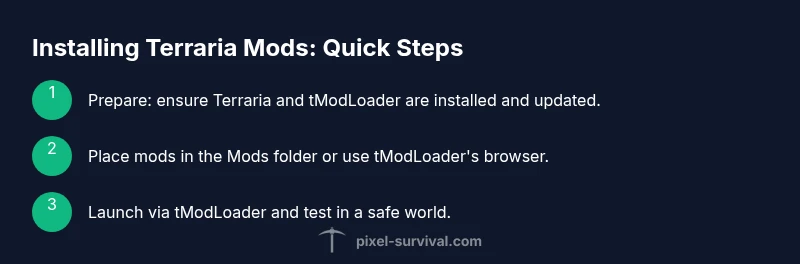
- 1
Prepare your setup
Verify you have Terraria and tModLoader installed and that your system meets the basics for modding. Create a quick backup of your worlds and configs before proceeding.
Tip: Back up World and Player files before any mod changes. - 2
Install or update tModLoader
Download the latest compatible tModLoader for your Terraria version from a trusted source, install it, and run once to verify it loads without mods.
Tip: Run as administrator on Windows to avoid permission issues. - 3
Locate the Mods folder
Open tModLoader and use the built-in option to reveal the Mods folder path. If it doesn’t exist, create it manually inside your Terraria config directory.
Tip: Ensure you’re editing the same Mods folder that tModLoader loads from. - 4
Download and place mods responsibly
Download mods from trusted sources, then drop the DLLs into the Mods folder or use the tModLoader browser to install. Check for required dependencies first.
Tip: Install one module at a time to identify conflicts quickly. - 5
Launch and test in a controlled world
Start Terraria via tModLoader, enable the mods, and load into a safe test world to observe behavior. If crashes occur, disable the most recently added mod and re-test.
Tip: Document any crashes to track potential conflicts. - 6
Back up and maintain
After adding or updating mods, back up your new world and config. Keep a brief log of changes to help with future updates.
Tip: Regularly update mods and tModLoader to maintain compatibility.
Got Questions?
Where should I install Terraria mods?
Install mods through tModLoader in the Mods folder. Do not modify core game files, and always launch Terraria through tModLoader to load mods.
Install mods through tModLoader in the Mods folder, and always launch via tModLoader.
Do I need to back up files before modding?
Yes. Back up worlds, character data, and configuration files before adding or removing mods. This helps you recover quickly if something goes wrong.
Back up your saves before modding; it saves time and trouble later.
Can mods break my world or cause crashes?
Mods can conflict or crash if not compatible. Start with one mod, test in a fresh world, and gradually add more while monitoring performance.
Mods can crash; test one by one to find the culprit.
Where can I find trusted mod sources?
Use the official tModLoader browser or reputable mod pages. Avoid downloads from unknown sites to reduce risk of malware or incompatible files.
Stick to trusted sources for mods.
What if Terraria updates break mods?
After game updates, verify mod compatibility, update tModLoader, and confirm mod versions before loading to avoid post-update crashes.
Check mod compatibility after updates.
Is it possible to run multiple mods at once?
Many mods work together, but some may conflict. Use a staged approach and verify load order when adding new mods.
Mods can conflict; test in sequence to find a stable set.
Watch Video
Key Points
- Back up saves before modding
- Use trusted sources for downloads
- Check compatibility before loading mods
- Test mods in a safe world
- Keep a restore plan and changelog