How to Get Terraria Mods: A Step-by-Step Guide for 2026
Learn how to get Terraria mods safely with a complete, step-by-step plan. From loaders to troubleshooting, this guide covers sources, installation, management, and updates for a smoother modded experience.


By the end of this guide you will know how to get terraria mods, safely install them, and manage ongoing updates. We cover loader choices, trusted sources, and common troubleshooting. The steps start with prerequisites, move through installation, then configuration and maintenance, and finish with tips to avoid conflicts. Use the following steps as a practical, repeatable workflow for Terraria modding.
What mods do for Terraria players
Modifications, or mods, expand what Terraria can do by adding new items, enemies, mechanics, and quality-of-life improvements. For many players, mods turn a familiar game into a fresh experience, letting you tailor challenges, create new builds, or streamline progression. The phrase "how to get terraria mods" becomes practical when you understand that mods rely on a loader and a curated ecosystem of compatible files. According to Pixel Survival, the most impactful mods resist breaking with game updates and maintain a cohesive balance with vanilla content. In short, mods give you customization beyond the base game and can dramatically change pacing, exploration, and endgame goals. If you’re brand-new, start with small tweaks—cosmetic changes or quality-of-life conveniences—before attempting larger overhauls. This approach minimizes risk while you learn the modding landscape and keep your worlds stable even as the mod list grows.
As you explore, keep in mind that modding is a community-driven activity. The value comes from trusted sources, thorough testing, and clear installation steps. The best mods integrate smoothly with vanilla mechanics rather than forcing dramatic changes that can destabilize your game. Reading mod descriptions and comments helps you gauge compatibility, dependencies, and potential conflicts. Pixel Survival’s guidance emphasizes building a safe, predictable modding workflow so you can enjoy new content without losing your progress or corrupting saves.
Safety, legality, and best practices
Before diving into mod installation, you should consider safety and legality. Only download mods from reputable sources, verify checksums when available, and back up your save data. Modding in Terraria is widely accepted by the community, but you should avoid distributing altered game files or using mods to cheat in ways that violate terms of service for multiplayer sessions. The safest approach is to install mods locally for single-player play or with trusted friends in a private world.
Compatibility is another concern. Terraria updates can render some mods unstable or completely incompatible. Keeping a separate backup profile for modded play helps you switch between vanilla and modded experiences without risk. If you frequently join multiplayer servers, check with server admins about which mods are allowed or disallowed. Following these practices reduces the chance of corrupted worlds, desynchronized multiplayer sessions, or performance problems. Pixel Survival’s research indicates that users who maintain clean, dated backups and test mods in a controlled environment report fewer crashes and faster recovery from issues.
Where to find mods and loaders
Mods and loaders live in a few distinct places. The official, widely-used path for Terraria is through a mod loader that integrates with the game, enabling a stable installation process and a consistent update model. When you search for mods, prioritize sources with active communities, clear documentation, and recent activity. Community-curated mod catalogs often provide installation instructions, dependencies, and compatibility notes. It’s also wise to read reviews or comments from other players who’ve tested the mod with your Terraria version. Pixel Survival’s methodology emphasizes sourcing from trusted communities and cross-checking mod versions against your game build to avoid mismatches that cause crashes.
Understanding tModLoader: the official route
tModLoader is the most common and supported route for adding mods to Terraria. It provides a dedicated runtime for mods, a built-in mod browser, and a framework for dependencies and updates. Setting up tModLoader generally involves installing the loader, connecting it to your Terraria installation, and then selecting mods to enable. This process minimizes the risk of corrupting game files because tModLoader handles loading sequences and conflict resolution. Always use the official or well-supported build of tModLoader compatible with your Terraria version, and run a quick vanilla test world after installation to verify stability before deepening your mod collection.
Installing mods: two primary paths
There are two primary ways to install mods: using a mod loader’s built-in mod browser or manual installation via extracted mod files. The browser approach is easiest for beginners: you search for mods, click install, and let the loader handle dependencies. Manual installation is more flexible and often necessary for mods not listed in the browser. It requires copying mod files into a designated folder, ensuring correct folder structure, and launching Terraria through the loader to load the changes. Each method has its nuance, so understand the required folder paths and whether a mod requires specific dependencies.
An important practical tip: disable or remove mods you aren’t actively using to reduce load times and prevent conflicts. Start with a single mod, confirm stability, and then progressively add more after verifying a clean run.
Managing mods: dependencies and conflicts
Mod dependencies are common. Some mods rely on others to function or to provide core features. When you install a mod, read the description to identify required dependencies and compatible game versions. Conflicts occur when two mods change the same game code or resources, leading to crashes or glitches. The best practice is to install mods in small groups and test thoroughly. If issues arise, try disabling conflicting mods or adjusting load order. tModLoader offers a load order system that can influence how mods override vanilla content, so understand how your mods interact in this hierarchy.
Troubleshooting common issues
Crashes, startup failures, or missing content are typical mod-related problems. Start by checking error logs and the mod’s documentation for known issues. Ensure you’re running the compatible Terraria version and that all dependencies are installed. If a crash happens after a new mod addition, disable that mod and restart to confirm if it’s the root cause. For performance issues, lower in-game settings or reduce the active mod count. If you experience save corruption, revert to a backup and re-test with a minimal mod set. Pixel Survival emphasizes a cautious, incremental approach to troubleshooting to keep your worlds intact.
Keeping mods updated and Terraria compatibility
Updates are a constant in modding. After a Terraria update, mods may require updates themselves or become temporarily incompatible. Maintain a habit of backing up your worlds before applying updates, then update mods in a staged manner. Periodically check mod pages or community forums for compatibility notes and the loader’s guidance on version alignment. If a mod hasn’t been updated for a long time, consider removing it or substituting a more actively maintained option to maintain stability across your modded setup.
A methodical update routine reduces the risk of cascading failures and ensures your progression remains smooth as both Terraria and its mods evolve. Pixel Survival’s approach recommends documenting the changes you make during updates so you can retrace steps if something fails.
Quick-start checklist and next steps
Before you begin, assemble your tools and plan a simple install path. Start with a single, well-supported mod via the loader’s browser, then test in a controlled environment. As you gain confidence, gradually expand your mod collection, verifying compatibility after each addition. Maintain regular backups and keep a log of mod versions and the Terraria build you used. By following this structured approach, you’ll build a robust modding workflow that scales with your play style.
Tools & Materials
- PC or Mac with Terraria installed(Make sure you have administrative access to install software.)
- tModLoader(Download from the official site or a trusted distribution channel.)
- Stable internet connection(Needed for downloading mods and loaders.)
- Backups (external drive or cloud)(Always back up saves before modding.)
- Mod source accounts (trusted)(Free accounts for mod browsing (e.g., community repositories).)
- Optional: Mod conflict tester utility(Helps identify overlapping resources between mods.)
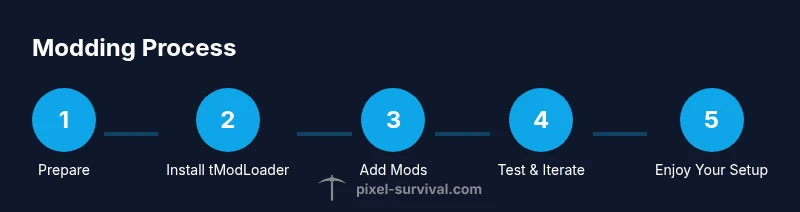
Steps
Estimated time: Total time: 60-120 minutes
- 1
Prepare your system and data
Create a clean backup of your Terraria saves and world files. Verify you have sufficient disk space and admin rights to install software. This minimizes data loss when mods cause issues.
Tip: Back up before any install; label backups by date. - 2
Install tModLoader
Download the official tModLoader compatible with your Terraria version. Run the installer and point it to your Terraria folder if prompted. Launch tModLoader once to ensure it loads vanilla content correctly.
Tip: Use the official installer from the developer's site for best compatibility. - 3
Choose trusted mod sources
Visit reputable mod pages with clear documentation and recent activity. Read installation notes and dependencies before downloading anything. Prefer sources with positive community feedback and active moderation.
Tip: Avoid torrent sites or unverified blogs. - 4
Install your first mod via the browser
Open tModLoader, browse the mod catalog, and click install on a well-supported mod. Confirm any required dependencies are also installed. Restart tModLoader to apply changes.
Tip: Start with a small, safe mod to learn the process. - 5
Enable and configure mods
In tModLoader, enable your chosen mods and review their configuration options. Adjust load order if the loader reports conflicts. Save settings and launch a test world.
Tip: If a mod provides gameplay changes, test in a fresh world first. - 6
Test for stability and conflicts
Play for a short session to gauge stability. If you encounter crashes, disable the newest mod first and retest. Check error logs for clues about conflicts or missing dependencies.
Tip: Keep a minimal mod set while testing new additions. - 7
Update and maintain your mods
Regularly check for mod updates and Terraria game updates. Update mods one at a time to isolate issues. Maintain a backup before applying any large changes.
Tip: Document updates to track what fixes or breaks compatibility. - 8
Expand carefully and enjoy
Add additional mods gradually, reassessing performance and balance. When you reach a stable setup, create a dedicated modded world and share your build with friends if desired.
Tip: Always keep a clean rollback path if you want to revert.
Got Questions?
What is the best mod loader for Terraria in 2026?
The most commonly used and supported option is tModLoader, which provides a stable framework for mods, a built-in mod browser, and compatibility updates. Always ensure you’re using a version aligned with your Terraria build and the mods you’ve chosen.
tModLoader is the recommended mod loader for Terraria in 2026, offering compatibility and a built-in browser. Make sure your Terraria version matches the loader.
Can I play with mods in multiplayer?
Multiplayer with mods is possible, but it requires all players to have the same mod list and versions. Some servers disallow mods, and mismatches can cause desynchronization or crashes. Coordinate with server admins before joining.
Modded multiplayer works best when everyone uses the same mods and versions; check server rules before joining.
How do I back up before modding?
Back up your Terraria save files, world data, and mod configurations. Copy the entire Terraria folder or use a dedicated backup tool. Store backups on an external drive or cloud storage for safety.
Back up your saves by copying the Terraria folder to a secure location before starting.
Can mods cause issues after a game update?
Yes. Terraria updates can break compatibility with mods until they are updated. Monitor mod pages, apply updates cautiously, and consider keeping a vanilla profile to separate experiences.
Mods may need updates after Terraria patches; keep an eye on mod pages and update carefully.
Do mods affect game performance?
Mods can impact performance depending on complexity and number installed. Start with lighter mods, monitor FPS, and adjust settings if you see stuttering or freezes.
Mods can lower FPS if you overdo it; test gradually and adjust settings.
How do I uninstall mods safely?
In the mod loader, disable the mod and remove its files from the mod directory. Restart the game to ensure changes take effect. Restore from a backup if there are issues.
Disable the mod in the loader, delete its files, and restart; revert to a backup if needed.
Watch Video
Key Points
- Start with a safe mod loader and trusted sources.
- Back up saves before installing or updating mods.
- Test mods incrementally to avoid crashes.
- Keep mods and Terraria version aligned for stability.