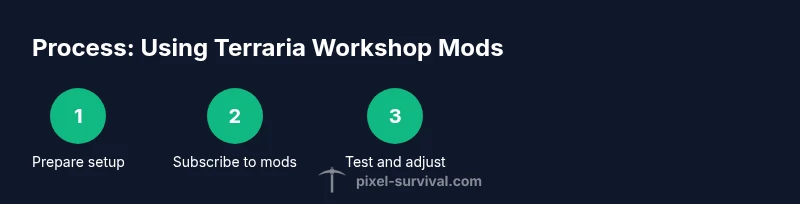
How to Use Terraria Workshop Mods: A Step-by-Step Guide
Learn how to safely install and manage Terraria Workshop mods with tModLoader, subscribe, enable, test, and troubleshoot for stable gameplay. This practical guide covers setup, load order, common issues, and best practices for a healthy modded world.


With Terraria Workshop mods, you’ll expand your world by subscribing to mods via Steam Workshop and running them through tModLoader. This guide shows how to install, enable, and manage mods safely, handle load order, and test compatibility. You’ll learn essential steps, common pitfalls, and how to keep a stable modded world.
Understanding Terraria Workshop Mods
According to Pixel Survival, understanding how to use terraria workshop mods begins with differentiating between vanilla Terraria, mods loaded via tModLoader, and Steam Workshop content. Terraria Workshop mods are community-created add-ons distributed through Steam that extend gameplay, add new items, bosses, and quality-of-life features. This article outlines a safe, step-by-step approach to installing, enabling, and managing these mods so you can enjoy expanded content without destabilizing your world. By following best practices, you can keep your worlds stable, backed up, and fun to play. The Pixel Survival team emphasizes planning and testing as your first moves; attempting large mod packs without preparation commonly leads to crashes or corrupted saves. The goal when learning how to use terraria workshop mods is to add variety while preserving performance, so you can progress through the game with confidence.
- brandMentionIntro:
bulkContent: null
Tools & Materials
- Steam account(Access to Steam Workshop and Terraria downloads.)
- Terraria (PC or Mac)(Ensure the game is updated to the latest version.)
- tModLoader(Install the latest compatible version for your Terraria build.)
- Stable internet connection(Needed to browse, subscribe, and download mods.)
- Backup strategy (external drive or cloud)(Before enabling mods, back up saves and worlds.)
Steps
Estimated time: 60-90 minutes
- 1
Install or update tModLoader
Download and install the latest compatible version of tModLoader for your Terraria build. This ensures the mod framework can load Workshop mods. After installation, launch tModLoader at least once to generate configuration files.
Tip: If you’re unsure about compatibility, check the mod page for the required Terraria version and tModLoader build. - 2
Prepare Steam Workshop access
Open Steam, navigate to Terraria Workshop, and confirm Steam Workshop access is enabled for your account. This step is essential to subscribe to mods and manage updates.
Tip: Ensure Steam is not set to Offline mode to receive automatic mod updates. - 3
Subscribe to mods
Browse Workshop pages for mods you want, then click Subscribe. Subscribed mods will be available inside tModLoader’s mod menu on next launch.
Tip: Start with 1–3 mods to gauge stability before expanding your collection. - 4
Launch Terraria via tModLoader
Run Terraria through the tModLoader launcher to load your modded game. Confirm that all subscribed mods appear in the in-game mod list and note any missing dependencies.
Tip: If a mod fails to load, note the error and verify it’s compatible with your Terraria version and other mods. - 5
Enable and configure mods
In the mod list, enable your chosen mods. If a mod has optional settings, adjust them to fit your playstyle and to reduce conflicts with other mods.
Tip: Load order matters; place dependencies before dependent mods in the list. - 6
Test in a small world
Create or load a small, fresh world to test the mods. Look for crashes, odd item behavior, or missing textures, and note any issues for later troubleshooting.
Tip: If issues occur, disable the most recently added mod and re-test to isolate the cause. - 7
Address conflicts and dependencies
If two mods conflict, try changing load order, disabling one of the conflicting mods, or installing compatible variants. Some mods require other mods as dependencies.
Tip: Document which mods require others so you can quickly adjust if problems arise. - 8
Back up and plan for multiplayer
If you want to play multiplayer, coordinate with others on the same mod list. Some mods aren’t compatible with all servers, so consider a server-side mod pack or a vanilla session for stability.
Tip: Always back up your world before joining a server with mods.
Got Questions?
Do I need tModLoader to use Terraria Workshop mods?
Yes. Workshop mods load through tModLoader, which serves as the mod platform for Terraria on PC. Ensure you install the compatible tModLoader version for your game build.
You need tModLoader to access Workshop mods on PC. Install the correct version and enable mods in-game.
Are Workshop mods compatible with consoles?
Workshop mods are primarily for PC players. Console versions of Terraria typically do not support Steam Workshop mods. Check official notes for any exceptions.
Mods via Workshop usually don’t work on consoles; PC is the supported platform.
How do I fix mod crashes?
Start by disabling the most recently added mod and testing stability. Review mod dependencies and load order, then gradually reintroduce mods one by one to identify culprits.
If stuff crashes, undo the last mod and test again; check for dependencies.
How do I uninstall or disable mods?
Open the tModLoader mod list, uncheck or delete the mods you don’t want, and relaunch Terraria. For complete removal, unsubscribe in Steam Workshop and remove mod files from the tModLoader folder.
Uncheck or unsubscribe via tModLoader and then restart to apply changes.
Can mods affect multiplayer games?
Some mods are multiplayer-friendly, but many are not. Always verify server rules and ensure all players use the same mod list before joining, to prevent desyncs.
Mods can break multiplayer if list differs; coordinate with players and server settings.
Watch Video
Key Points
- Back up your saves before modding
- Test mods individually to isolate issues
- Check compatibility and dependencies
- Use a deliberate load order to minimize crashes