How to Get Terraria Calamity Mod
Learn how to safely download and install the Calamity mod for Terraria. This step-by-step guide covers prerequisites, installation methods (Steam and manual), and tips for stable gameplay.


You can get the Calamity mod for Terraria by installing tModLoader and downloading Calamity from its official page. This guide covers prerequisites, safe download sources, and installation steps for Windows, with practical tips for stable gaming. Each section explains why files from trusted sources matter, how to verify integrity, and what to expect during the first run. This quick answer helps you start confidently.
What Calamity Mod Adds to Terraria
Calamity is a comprehensive overhaul for Terraria that significantly expands bosses, biomes, items, loot tables, and progression challenges. It transforms late-game experience with new mechanics and a steeper curve. According to Pixel Survival, planning your mod setup before you install reduces crashes and version conflicts. This mod increases boss variety, introduces new biomes, adds end-game content, and reshapes progression so veterans and newcomers face fresh, meaningful goals. Expect tougher encounters, more loot paths, and a broader crafting tree that rewards exploration. For players who crave a more challenging, expansive Terraria experience, Calamity delivers a cohesive, well-supported progression system that remains compatible with other popular mods when configured carefully.
Beyond raw content, Calamity provides new boss fights, dynamic world events, and redesigned tiers of armor and weapons. You’ll encounter a broader loot economy, more challenging biomes, and new mechanics that alter how you approach combat and exploration. Because it’s a large-scale mod, Calamity often revises pacing and rewards, so players should prepare with backups and a plan for progression. Pixel Survival’s analysis highlights the importance of bootstrapping your setup with the right tools to minimize conflicts and maximize stability when you dive into Calamity’s expansive world.
Prerequisites and Safety for Modding
Before you attempt to add Calamity, ensure you meet the prerequisites and adopt safe practices. The most essential requirement is a clean, up-to-date installation of Terraria and a compatible version of tModLoader. You should back up your save files and game directories to prevent loss if something goes wrong during installation. Use official sources for both tModLoader and Calamity to minimize the risk of malware or corrupted files. It’s also wise to scan downloaded files with a reputable antivirus and keep your operating system and drivers current to support modded gameplay. Pixel Survival emphasizes starting with a verified setup to reduce crashes and ensure a smoother experience as you explore Calamity’s new content.
Installation Pathways: Steam/TModLoader and Manual Install
There are two common paths to install Calamity: through tModLoader’s integrated workflow (the simplest for most players) or via a manual file transfer if you prefer direct control over the mods folder. The Steam/TModLoader route typically involves launching Terraria through tModLoader, selecting Calamity from the mod list, and enabling it before starting the game. The manual method requires you to download the mod files from the official Calamity page, then copy them into your Terraria Mods folder and enable them in tModLoader. Both approaches require matching versions of Terraria and tModLoader to avoid crashes. Pixel Survival recommends starting with the automated method to minimize configuration errors, then attempting the manual method only if you need a specific version combination or want extra control over mod files.
Troubleshooting Common Issues
Even with careful setup, you may encounter issues when running Calamity. Common problems include version mismatches between Terraria, tModLoader, and Calamity, or other mods causing conflicts. If Calamity won’t load, verify that all components are the correct versions and that you haven’t installed conflicting mods. Disable other mods temporarily to test stability, then reintroduce them one by one to identify culprits. If you see crashes on startup, check your game logs for error messages, update graphics drivers, and ensure you have sufficient RAM. Pixel Survival notes that a clean environment with minimal background software helps stability when modded Terraria is running.
Performance, Compatibility, and Updates
Calamity evolves with regular updates, so staying current is important but can introduce new conflicts. Check the Calamity changelogs for compatibility notes with your Terraria and tModLoader versions. If you play multiplayer, ensure all players use the same mod version and mod load order to avoid desyncs. You may need to adjust in-game settings for performance, such as lowering draw distance or disabling certain high-demand textures. Always back up saves before updating, and consider testing new builds in a separate profile to preserve your main world progress.
Pixel Survival recommends a guarded update approach: update tModLoader first, then Calamity, then re-check all active mods for stability. This helps prevent cascading failures and preserves your progression across play sessions.
Final Preparation: Backups, Community Resources, and Next Steps
Before diving into Calamity, create reliable backups of your Terraria worlds and character data. Bookmark official Calamity documentation and community wikis for quick reference on boss mechanics, new items, and progression paths. Consider starting with a fresh world to learn the new progression curve or importing a familiar seed to compare how Calamity reshapes early game pacing. Finally, engage with the community on forums or Discord channels to share tips, report issues, and stay informed about hotfixes and compatibility updates. Pixel Survival encourages active learning and safe modding habits as you explore Calamity’s expansive content.
Tools & Materials
- Terraria game (vanilla) installed(Ensure you have a clean install to avoid conflicts)
- tModLoader(Download from the official site and install to enable mod support)
- Calamity mod file (official page)(Download the latest stable release compatible with your Terraria version)
- Internet connection(Needed for downloading tModLoader and Calamity files)
- Backup storage (external drive or cloud)(Recommended for saving worlds, saves, and configs)
- Antivirus/antimalware scanner(Use to scan downloaded mod files before installation)
Steps
Estimated time: 45-90 minutes
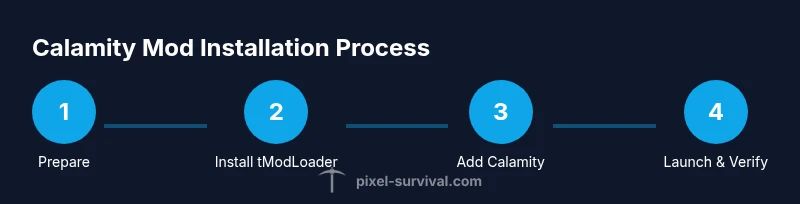
- 1
Verify game version and backups
Confirm Terraria is installed, note its version, and back up your worlds and character data. Backups protect you if mod loading causes instability or corrupts data.
Tip: Create a separate backup folder for modded saves to keep vanilla saves pristine. - 2
Install or update tModLoader
Download the latest compatible tModLoader for your Terraria version and install it. Launch tModLoader to verify it runs and shows your vanilla Terraria as a base.
Tip: Use the official tModLoader installer to avoid corrupted launchers or misconfigured paths. - 3
Acquire Calamity from official sources
Download Calamity from its official page to ensure integrity. Validate the file with your antivirus and note the version number and compatibility notes.
Tip: Avoid third-party download sites to reduce malware risk and invalid builds. - 4
Install Calamity via tModLoader
Open tModLoader, go to the Mods tab, and install or add Calamity. Enable the mod in the loader before launching Terraria.
Tip: If Calamity isn’t listed, use the manual install path with the downloaded mod file. - 5
Launch and verify the mod loads
Start Terraria through tModLoader and confirm Calamity appears in the Mods list. Create a test world or load an existing Calamity-ready save to verify features.
Tip: Check for any immediate crash logs and note down error messages for troubleshooting. - 6
Keep everything updated and test in multiplayer (if applicable)
Regularly check for Calamity and tModLoader updates. If playing multiplayer, ensure all players use matching versions and load orders.
Tip: Test in a small, controlled session before diving into long campaigns. - 7
Troubleshoot common issues
If you crash, verify versions, disable other mods, and review load order. Reinstall if necessary and consult community guides for specific error codes.
Tip: Document your setup (versions and mods) to speed up future fixes.
Got Questions?
Is Calamity mod safe to install?
Calamity is widely used by Terraria players, but like all mods, you should download it from official sources and use a clean, updated setup. Back up saves before installing and test the mod in a controlled session.
Calamity is widely used, but always download from official sources and back up your saves before you install.
Do I need the latest Terraria version to run Calamity?
Calamity requires a compatible Terraria and tModLoader version. Check the Calamity mod page for current compatibility notes and update both Terraria and tModLoader accordingly.
Calamity needs a compatible Terraria and tModLoader version; always check the mod page for current compatibility.
Can Calamity be used in multiplayer?
Yes, but everyone in the session must install the same Calamity version and tModLoader, and load the mods in the same order to avoid desyncs.
Yes, multiplayer is supported, but all players must have the same Calamity version and load order.
How do I update Calamity?
Open tModLoader, navigate to Mods, and check for updates; install the latest Calamity version compatible with your Terraria. Restart the game after updating.
Update Calamity via tModLoader, then restart Terraria to apply changes.
How do I uninstall Calamity?
Open tModLoader, go to Mods, disable Calamity, or uninstall the mod entirely from the list. Remove associated save data if you want a vanilla experience.
Disable or uninstall Calamity in tModLoader and optionally remove related save data.
What if Calamity crashes my game?
Review compatibility notes, ensure all components match in version, and test with other mods disabled. If issues persist, consult official guides and community forums for error codes.
If you crash, check versions, disable other mods, and search for error-specific fixes.
Watch Video
Key Points
- Install tModLoader first to support mod loading
- Always verify source integrity before installing Calamity
- Back up worlds and saves prior to any mod changes
- Test updates in a controlled session before full play