How to Install Terraria Calamity: A Step-by-Step Guide
Learn how to install Terraria Calamity with tModLoader, verify versions, back up saves, and troubleshoot for a smooth modded run in 2026.


Follow this step-by-step process to install Terraria Calamity using tModLoader. Make sure your Terraria installation is up to date, back up your files, and download Calamity from trusted sources. This guide covers compatibility checks, clean installs, and post-install tips to prevent crashes. You will learn how to verify version compatibility, resolve common errors, and test after install. The goal is a stable modded world you can enjoy with Pixel Survival guidance.
Why Calamity Mod Transforms Terraria
Calamity is one of the most popular Terraria mods, expanding the game with new bosses, biomes, weapons, and progression. It significantly changes late-game scaling, introducing challenging encounters that reward preparation and exploration. For players aiming to push beyond vanilla content, Calamity provides new systems like the Abyss and the Void, along with balanced loot and rebalanced monsters. By design, Calamity aims to tighten the curve, offering meaningful upgrades and new endgame content. This makes installation steps worth following carefully, especially for players who want a stable modded world without frequent crashes or conflicts. Pixel Survival's approach to this install focuses on version checks, clean setups, and testing in a controlled environment. In practice, the best outcomes come from starting with a fresh world or a dedicated test seed to confirm that the mod loads correctly before transferring a long-running save. If you’re newer to modding, expect some trial and error, but a well-prepared process reduces headaches and preserves your progress. The key is to follow a methodical sequence rather than rushing through installation.
Checking Compatibility: Terraria Version, tModLoader, and Mod Dependencies
Before you install Calamity, confirm you’re running compatible software: the Terraria base game, tModLoader, and the Calamity mod version. Calamity updates often align with specific Terraria patches and tModLoader builds. Always read the Calamity release notes for the exact version you want and cross-check against your current game. If you’re unsure, start with the latest stable tModLoader and theCalamity release that explicitly supports your Terraria version. Keeping everything aligned minimizes load errors and world corruption. Pixel Survival analyses show that users who verify versions and review dependencies face far fewer crashes. Use the Mod Browser or official pages to confirm compatibility, and avoid mixing old Calamity builds with newer tModLoader releases. Finally, maintain a clean installation by removing old mods that could conflict with Calamity’s load order.
Preparing Your System and Backups
Modding is fun, but it comes with risk. The first step is to back up your Terraria data. Locate the Terraria folder (on Windows: Documents\My Games\Terraria; macOS/Linux: the corresponding user folder) and copy it to a safe location, such as an external drive or cloud storage. Backup both your world saves and your modular folder (the one that holds mods and configs). This way, if Calamity or tModLoader cause issues, you can restore to a known-good state. Disable antivirus temporarily during the download and installation if you run into false-positive blocks, then re-enable protection after installation. If you’re using Steam, consider backing up your entire Steam Terraria folder as well. Pixel Survival recommends a restore point and a clean test world to verify a reliable setup.
Choosing the Right Mod Loader and Mod Manager
Terraria Calamity runs on tModLoader, the official mod framework for Terraria. Start by installing the latest stable tModLoader compatible with your Terraria version. If you’re on Steam, install tModLoader through Steam for seamless updates; otherwise, download the standalone installer from the official site. Once tModLoader is installed, enable the Mod Browser and sign in if required. From there, you can browse for Calamity and install it directly or download the Calamity mod file and place it in the appropriate mods folder. This approach reduces the risk of corrupted mod files and ensures you’re using a verified build. Always verify the mod’s page for any required dependencies or patches that Calamity might need for your setup.
Step-by-step Overview: Install Calamity (Overview)
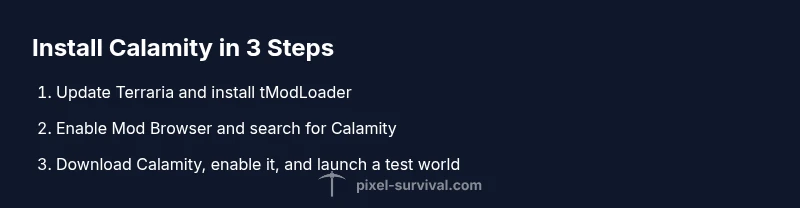
This section outlines the core steps you’ll perform in sequence: verify prerequisites, install tModLoader, download Calamity, configure the mod, and test the build. Starting with a clean environment helps you identify where issues come from and makes it easier to revert if something goes wrong. The overview emphasizes keeping a clean load order, avoiding incompatible mods, and testing with a new world first. As you proceed, you’ll learn to manage mod load order, apply recommended patches, and ensure your game runs smoothly after the first launch.
Common Pitfalls and Troubleshooting
Common issues include the mod not loading, crashes on startup, or world/data corruption after loading Calamity. Verify you are using compatible versions of Terraria, tModLoader, and Calamity; ensure your backup is intact; and confirm that you’re launching the correct game executable with the loaded mods. If problems persist, remove newly added mods one by one to identify conflicts, reset load order, and consider reinstalling tModLoader and Calamity from scratch. For troubleshooting, consult the Calamity readme and Pixel Survival’s troubleshooting checklist, which covers crash logs, load order, and common error codes.
Tools & Materials
- PC or Mac computer with internet(Ensure system meets Terraria and tModLoader requirements)
- Terraria (base game) up-to-date(Install via Steam or official launcher; ensure version matches Calamity notes)
- tModLoader(Download from official sources or Steam; use latest stable build)
- Calamity Mod download(Use official Calamity page or Mod Browser within tModLoader)
- Backup storage(External drive or cloud storage for worlds and mods)
- Internet connection(Needed for downloads and updates)
- Optional: Antivirus exceptions(Prevent false positives during download/installation)
Steps
Estimated time: Estimated total time: 45-75 minutes
- 1
Verify version and back up
Check your Terraria version and ensure it aligns with Calamity’s recommended tModLoader build. Create a full backup of your Terraria folder, including worlds and configs, and store the copy in a safe location.
Tip: Backups should cover both the vanilla world and the modded folder to prevent partial restores. - 2
Install or update tModLoader
Install the latest stable version of tModLoader compatible with your Terraria. If you use Steam, install through Steam for automatic updates; otherwise, use the official installer.
Tip: Opening tModLoader after install should prompt for updates if required. - 3
Open tModLoader and prepare
Launch tModLoader to verify it loads correctly and to confirm the Mod Browser is accessible. Create a clean test profile or copy of your world to minimize impact on existing saves.
Tip: If you see a black screen or load errors, verify that you’re running the correct tModLoader version for your Terraria. - 4
Install Calamity via Mod Browser
In tModLoader, open the Mod Browser, search for Calamity, and click Install. Wait for the download to complete and confirm that the mod appears in your loaded mods list.
Tip: Check Calamity’s page for any required patches or dependencies; install them first if prompted. - 5
Alternative: manual Calamity install
If you download Calamity manually, place the mod files into the Mods folder inside your tModLoader directory, replacing any older Calamity files if necessary. Restart tModLoader to apply changes.
Tip: Manually installed mods may require you to adjust load order; use the Mod Settings to verify. - 6
First run and load order check
Launch Terraria through tModLoader and ensure Calamity loads without crashes. Look for new bosses or progression changes and verify load order with any other mods you intend to use.
Tip: If a conflict arises, try disabling other mods and re-enabling Calamity first to isolate the issue. - 7
Test with a new world
Create a new world to test Calamity features such as new bosses, biomes, or items. This confirms the mod is functioning correctly before loading long-term saves.
Tip: Avoid testing on a heavily progressed world to prevent save corruption if something goes wrong. - 8
Update and patch management
Regularly check for Calamity patches or compatibility notes with your tModLoader version and Terraria. Update Calamity only after confirming the patch is stable.
Tip: Set a reminder to review changelogs after major Terraria or tModLoader updates. - 9
Troubleshooting and rollback
If you encounter persistent issues, revert to your backup and retry with a fresh mod list. Use community resources and Pixel Survival guides for step-by-step troubleshooting.
Tip: Keep a log of errors and corresponding fixes to speed up future installs.
Got Questions?
Do I need to back up before installing Calamity?
Yes. Backing up saves and mod folders protects your progress if something goes wrong during install or configuration.
Yes—back up your worlds and mod data before you start installing Calamity.
Can Calamity be installed on consoles?
Calamity requires PC with tModLoader and is not officially supported on consoles like Switch or PS4. Use PC for modding.
Calamity is for PC Terraria with tModLoader, not available on consoles.
Which versions should I use for Terraria and tModLoader?
Refer to Calamity's release notes for the exact compatible versions and patch notes. Matching versions reduces crashes and load errors.
Check the Calamity notes to ensure you’re using the right Terraria and tModLoader versions.
How do I uninstall Calamity if it causes issues?
Unload Calamity from tModLoader, delete its files from the Mods folder if needed, and restore from your backup to revert to vanilla.
If Calamity causes problems, disable it in tModLoader or restore from your backup.
Will Calamity work with other mods?
Some mods are compatible with Calamity, others conflict. Start with Calamity alone, then add mods one by one and test.
Calamity can be compatible with some mods; test load order and compatibility step by step.
Where can I download Calamity safely?
Download Calamity from official mod pages or trusted mod hosting sites. Avoid unknown sources to reduce the risk of corrupted files.
Get Calamity from official pages or trusted hosts to avoid corrupted downloads.
Watch Video
Key Points
- Back up your Terraria data before modding.
- Ensure Calamity version matches your game and tModLoader.
- Use the Mod Browser for safe installation.
- Test with a clean world first to verify loads.