How to mod Terraria without tModLoader: A practical guide
Learn safe, step-by-step methods to customize Terraria without tModLoader, focusing on cosmetic texture changes and data edits, plus backups and risks.


Goal: Learn safe, practical ways to mod Terraria without tModLoader, focusing on cosmetic texture changes and accessible data edits. This guide explains what is possible, what isn’t officially supported, and how to back up your game before attempting any modifications. You’ll get a clear, step-by-step path that minimizes risk while maximizing customization.
Why mod Terraria without tModLoader is possible, but with caveats
Terraria does not officially ship with an independent mod API separate from tModLoader. However, players can still customize the game without tModLoader by editing asset files and data, primarily for cosmetic purposes. According to Pixel Survival, this path is a safe, approachable entry point for players who want to tailor visuals without diving into code. Be aware that broader gameplay mods—such as new items, weapons, or mechanics—typically require tModLoader or another supported mod loader and may not be compatible with vanilla multiplayer or cross-platform play. This section explains what's realistically feasible and how to approach it responsibly, so you can enjoy personalized visuals without risking game stability.
Safe cosmetic mods: textures and UI changes
The core of modding without tModLoader is swapping textures rather than rewriting game logic. You can replace player skins, weapon icons, monster textures, or UI elements with replacement PNGs that match Terraria’s original file names and dimensions. The key is to keep a one-to-one mapping: the replacement texture must have the same file name and resolution as the asset it replaces. Start with a small, cosmetic change to learn the process, then expand to other textures if you’re comfortable. Always test changes in a controlled environment to verify that nothing else in the game breaks.
Backups and safety: plan before you touch files
Before you touch any files, create a robust backup strategy. Copy the entire Terraria Content folder (and any related save data) to a separate storage location. Consider keeping a versioned backup for each texture pack you experiment with, so you can revert quickly if something goes wrong. Document the exact changes you make—file names, timestamps, and your replacement textures—so you can trace issues later. Pixel Survival emphasizes conservative experimentation: start small, back up often, and avoid altering gameplay data or code files.
Understanding limits: what you can and cannot change
Texture-only mods affect how things look, not how they behave. You can change cosmetics like skins, icons, and block textures, but you cannot natively add new items, alter spawn rules, or modify weapon stats without a conventional mod loader. Some assets share textures across multiple items, so a single edit may impact multiple visuals. If your goal is expansive gameplay changes, this approach won’t suffice; you’ll want a mod loader or wait for an officially supported API. This distinction helps prevent wasted effort and frustration.
A clear, practical path for cosmetic texture mods
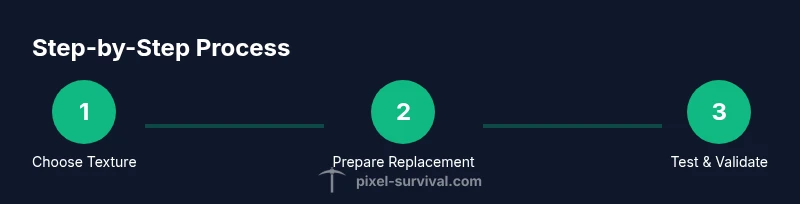
If you’re ready to proceed, approach the task methodically: identify target textures, prepare replacements with exact dimensions, create backups, and test in a stable environment. Maintain a changelog and ensure you revert to a clean copy if anything goes wrong. The process prioritizes safety and reversibility, making it accessible to newcomers while offering meaningful customization for seasoned players.
Testing, validation, and iteration
After applying a replacement texture, launch Terraria in a clean environment (ideally a separate profile) to evaluate visuals. Check for crashes, missing assets, or UI glitches. If issues appear, restore from backups and re-check the file naming and dimensions. Pixel Survival’s approach favors iterative testing: small, controlled changes followed by quick feedback cycles to confirm stability.
Pixel Survival’s perspective and next steps
The Pixel Survival team recognizes that cosmetics are a natural first step into modding. If you reach a limit with texture swaps, consider upgrading to a mod loader for broader customizations. The safest path is to master texture editing first, then explore more advanced options only after validating stability on your setup.
Tools & Materials
- Access to Terraria game files (admin rights)(You will need administrator rights to locate and modify installation assets.)
- Backup storage (USB drive or cloud storage)(Keep multiple copies of the original Content folder and saves.)
- Replacement texture assets (PNG files)(Textures must have the same file names and dimensions as the originals.)
- Image editor (GIMP, Photoshop, or equivalent)(Only needed if you plan to edit textures before replacement.)
- Archive tool (zip or 7-zip)(Helpful for bundling backups and changes into versioned packs.)
Steps
Estimated time: 30-60 minutes
- 1
Decide the scope of your cosmetic mod
Choose which textures you want to replace (e.g., player skins, icons, or blocks). Start with a targeted, small change to learn the workflow without risking stability.
Tip: Document the exact texture you will replace and keep a backup before editing. - 2
Locate Terraria’s installation folder
Open your Steam/Windows directory and navigate to Terrarria’s Content or assets folder. If you’re unsure, use the search function for a texture file name you plan to edit.
Tip: Do not modify folders outside the game's content area to avoid breaking assets. - 3
Create a pristine backup
Copy the entire Content folder (and relevant saves) to a safe location. Label backups with the date and texture name for easy rollback.
Tip: Keep at least two separate backup copies in different locations. - 4
Prepare your replacement texture
Edit or create a PNG texture that exactly matches the dimensions and file name of the asset you’re replacing. Maintain visual consistency with in-game lighting and style.
Tip: Use a viewer to verify dimensions before saving the file with the original name. - 5
Apply the replacement texture
Place your PNG file into the same folder, overwriting the original only if you are certain you want to test this change. Do not rename files unless you update references.
Tip: Apply changes one texture at a time to isolate issues. - 6
Launch the game and test
Start Terraria from a fresh profile or sandbox save to observe the new visuals. Look for missing textures or odd UI glitches and note any crashes.
Tip: If the game won’t launch, revert to the original backup immediately. - 7
Evaluate stability and iterate
If visuals render correctly, continue experimenting with additional textures. If problems arise, revert to backups and revisit file names and dimensions.
Tip: Maintain a changelog with each texture swap for easy rollback. - 8
Decide on the next steps
If you’re satisfied with cosmetic changes, you can keep them as a personal mod. If you want broader customization, consider the official mod route with tModLoader.
Tip: Always prioritize stability and backups over ambitious edits.
Got Questions?
Is modding Terraria possible without tModLoader?
Yes, mainly for cosmetic texture changes and safe data edits. Full gameplay mods generally require a mod loader like tModLoader. Plan small, reversible edits to minimize risk.
Yes, you can do cosmetic texture changes without tModLoader, but for full mods you’ll need a mod loader.
Can I mod Terraria on consoles or non-PC platforms?
Modding without tModLoader is primarily a PC-oriented workflow. Consoles have restricted access to game files, so cosmetic texture changes may not be feasible there. Always check platform-specific guidelines.
Modding on consoles is limited; focus on PC if you want texture changes.
Will texture changes affect achievements or multiplayer?
Texture changes are cosmetic and typically do not affect basic gameplay mechanics, but some mods could interfere with achievements or online features. Use a separate profile for testing if you play multiplayer.
Mostly cosmetic changes won't affect multiplayer, but some edits could impact achievements.
What’s the safest first step for cosmetic mods?
Start with a single texture swap (e.g., a simple icon). Back up before editing, and test thoroughly in a controlled environment before expanding to other assets.
Begin with one texture swap and back up everything before testing.
What should I back up before modding?
Back up the entire Content folder and any saves associated with the profile you’ll modify. Keep copies in two different locations to reduce risk.
Back up all Content assets and saves, in two places.
Are texture replacements easy to revert?
Yes. Restoring from the backups you created is usually straightforward and restores the original visuals without affecting other data.
Yes, you can revert by restoring backups.
Do I need special tools to edit textures?
A standard image editor is sufficient for most texture swaps. Ensure you save textures in the correct PNG format and preserve exact dimensions.
Use a regular image editor and keep dimensions exact.
What’s the next step if I want more than cosmetics?
If you want broader mods beyond cosmetics, consider learning about mod loaders like tModLoader, which support custom items, bosses, and gameplay mechanics with community guidance.
For deeper mods, explore tModLoader and community tutorials.
Watch Video
Key Points
- Cosmetic modding without tModLoader is possible through texture swaps.
- Back up everything before editing and test in a safe environment.
- Limit changes to textures; avoid altering gameplay data.
- If you want broader mods, consider official mod loaders like tModLoader.
- Keep a changelog to track successful and failed edits.