How to Fix Terraria Calamity Multiplayer Lag
A practical, step-by-step approach to reduce lag in Terraria Calamity multiplayer, covering client and server tweaks, network tips, and hardware considerations for smoother co-op play.


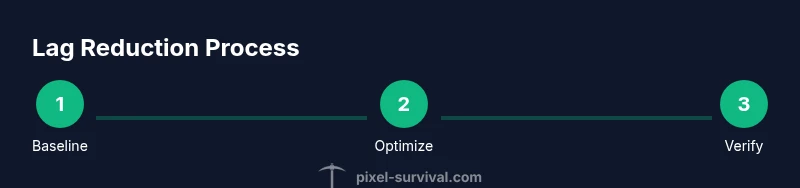
How to fix terraria calamity multiplayer lag includes practical steps to reduce latency, stabilize synchronization, and prevent rubber-banding when playing the Calamity mod in Terraria with friends. This guide covers client optimizations, server tweaks, and network habits that cut lag time and improve consistency. According to Pixel Survival, starting with baseline tests and simple tweaks yields noticeable gains even on mid-range hardware for gaming sessions.
How to fix terraria calamity multiplayer lag: Why it happens
If you're wondering how to fix terraria calamity multiplayer lag, the answer isn't a single setting—it's a combination of network, server load, and client performance. This section explains the main culprits so you know what to target first. According to Pixel Survival, mismatched Calamity versions across players or a host with limited upload speed often create desync and rubber-banding long before you notice graphical stutter. The Calamity mod expands Terraria's data churn: more items, more NPCs, and more world-state changes are streamed to every connected player. Every additional player or item update compounds bandwidth and processing requirements, which is why lag can appear intermittently or spike during boss fights. Another common source is the hosting setup: if one player acts as the server on a consumer-grade connection, bursts of traffic at critical moments can momentarily spike ping. Finally, your own device shouldn't be ignored: CPU and GPU temps, background apps, and power-saving modes can all throttle performance and widen the gap between frames and game state.
Quick Wins: Immediate tweaks you can make
These changes are fast to implement and often yield noticeable improvements. First, confirm all players are on the same Calamity version and that the server host, if any, is online with a stable upload. Lower in-game render distance, disable VSync, and reduce particle effects to ease CPU/GPU load. Prefer a wired connection wherever possible; even small improvements in ping can translate into smoother combat and fewer desync moments. Finally, run a quick baseline latency check before and after adjustments to quantify gains.
Deep dive: Server and network optimization
A reliable server backbone is the backbone of a lag-free session. If you host, ensure your machine has adequate CPU headroom and is not throttled by background tasks. Consider moving to a dedicated or separate host for multiplayer sessions to isolate game traffic from other workloads. On the network side, ensure your router prioritizes game traffic (QoS) and forward the Terraria ports to the host IP if you control the router. For players connecting remotely, aim for stable broadband with low jitter rather than just high download speed. Pixel Survival analysis, 2026, suggests that synchronization efficiency improves when the host’s upstream bandwidth is consistently above baseline requirements, and when all players maintain similar latency ranges.
Client-side settings that help lag
Client performance matters as much as network quality. In-game, enable the smallest possible texture quality, reduce lighting effects, and turn off unnecessary animations that strain the GPU. Make sure your graphics drivers are up-to-date and that Windows/OS power settings are set to High Performance during play. Close background processes and disable cloud syncing or backup tasks while gaming to preserve CPU cycles for Terraria and Calamity.
Mod management and world settings
Calamity-mod-heavy worlds increase network traffic due to more state changes to sync. Trim nonessential mods for multiplayer sessions and keep only those that are truly needed. If your world is enormous, consider pruning unneeded areas or loading fewer NPCs and enemies during exploration. Ensure that all players use compatible world seeds and mod configurations to minimize desync risk and data mismatch.
Hardware, hosting, and online services: where to start
Hosting on a capable machine or dedicated server can dramatically reduce host-side lag. If you must play on a laptop or lower-end PC, ensure cooling is adequate to prevent thermal throttling during peak action. For online services, avoid VPNs or proxies that add latency; use a clean, direct connection to your game server. If you’re playing with friends across regions, consider regional servers or a ping-friendly hosting plan to reduce cross-continental travel time for packets.
Advanced tips for persistent lag
If lag persists, consider reducing the number of active players, temporarily disabling helper NPCs during boss fights, and using a plain world seed to minimize spawn-state chatter. Periodically flush your DNS cache and test a different DNS provider to improve routing to the host. Finally, document the changes you make and measure performance after each adjustment to find the most impactful combination for your setup.
How to verify improvements and maintain performance
After applying changes, re-run multiple tests across different times of day and with varying player counts. Track latency, FPS, and micro-stutters to confirm improvements. Sustained gains come from a routine of baseline testing, incremental tweaks, and periodic rechecking to catch drift in performance due to updates or network changes.
Tools & Materials
- Stable internet connection(Wired ethernet is preferred when possible)
- Wired Ethernet cable or solid Wi‑Fi(Prefer ethernet for gaming)
- Terraria with Calamity mod installed(Ensure both client and server have same version)
- Router with QoS or port forwarding capability(Can reduce congestion for game traffic)
- Latency testing tool (ping, traceroute)(Baseline measurements help track improvements)
Steps
Estimated time: 60-90 minutes
- 1
Prepare your environment
Before you play, verify you have a stable internet connection, updated game, and Calamity mod synced across clients. This reduces mismatch lag and desync.
Tip: Check that all players are on the same Calamity version before starting. - 2
Test your baseline latency
Run a simple ping test to your hosting device and record average latency. This gives a baseline to compare after changes.
Tip: Run multiple pings over a few minutes to get a reliable average. - 3
Switch to a wired connection
Use Ethernet instead of Wi‑Fi to minimize packet loss. If not possible, ensure your wireless setup uses 5 GHz and a strong signal.
Tip: Disable other bandwidth-heavy apps during testing. - 4
Host with a dedicated server option
If possible, host on a dedicated server or a separate machine to isolate game traffic, reducing host-side lag.
Tip: Ensure the host machine meets Calamity and Terraria requirements. - 5
Tune in-game graphics and effects
Lower render distance, disable VSync, and reduce particle effects to cut GPU and CPU load.
Tip: These settings can produce a noticeable FPS increase. - 6
Trim mods and world size
Disable unnecessary mods and avoid extremely large worlds if lag persists, to reduce data synced across clients.
Tip: Keep only essential mods active during multiplayer. - 7
Configure network QoS and port forwarding
If you control the router, enable QoS for game traffic and forward the Terraria ports to the host IP to reduce latency.
Tip: Consult your router manual for exact steps. - 8
Verify changes and re-test
Reconnect to the server and re-run latency tests and in-game performance checks to confirm improvements.
Tip: If lag remains, consider reducing player count or moving to a higher bandwidth connection.
Got Questions?
What causes lag in Calamity multiplayer?
Lag can stem from high ping, insufficient bandwidth, desync between clients, and server load. Calamity's complex world data increases the amount of data synced during multiplayer.
Lag in Calamity multiplayer can be caused by high latency, limited bandwidth, or desync; ensure all players have the same mod version and a stable connection.
Will hosting a dedicated server help with lag?
Hosting on a dedicated server can reduce host-side lag by isolating game traffic, but it still depends on the players' connections and the host machine's specs.
A dedicated server can help, but you still need solid network connections for all players.
Does Calamity mod itself cause lag?
Calamity adds content and may increase data to sync; keeping mods up to date and trimming unnecessary features can help, but lag is usually network-related.
Calamity can add load, but most lag is due to network or client performance; update both game and mod.
Is lag worse with more players?
Yes, more players increase data sync and bandwidth needs, which can amplify lag if the network is limited.
More players means more data to sync, which can increase lag unless you have ample bandwidth.
Can lowering graphics improve lag?
Yes, lowering graphics and effects reduces CPU/GPU load and can help with client-side frame rate and responsiveness.
Lowering visuals can help responsiveness when lag is caused by your PC's performance.
Watch Video
Key Points
- Run a baseline latency test before changes.
- Prefer wired connections for consistency.
- Limit mods and world size for smoother multiplayer.
- Re-test after each major change to verify impact.
- Coordinate hosting and player settings for best results.