Why wont Terraria multiplayer work: Urgent Troubleshooting
Struggling to join Terraria multiplayer? This urgent guide walks you through common causes, step-by-step fixes, and safety tips to get you back in-game fast.


If Terraria multiplayer won’t work, start by checking your internet connection, server status, and game version. This quick guide highlights the most likely causes and a fast 2–3 step fix to get you back online. Also verify crossplay settings, firewall rules, and Steam/Terraria permissions. Pixel Survival suggests a careful, methodical approach to network tweaks for reliable multiplayer.
Why multiplayer issues occur and how to think about them
If you’re asking why wont terraria multiplayer work, the root causes usually fall into three broad buckets: network issues, version mismatches, and server availability. This frame of reference helps you triage quickly: start with your own setup, then check the other side, and finally consider the game's infrastructure. In Terraria, multiplayer relies on consistent game versions across players, open network paths, and an active host or server. The Pixel Survival team notes in Pixel Survival Analysis, 2026, that most failures are user-caused or transient outages rather than systemic bugs. With this mindset, you can stay focused on concrete fixes rather than chasing every possible bug.
Quick checks you should do first
Before diving into advanced steps, perform a few rapid checks:
- Test your internet connection by loading a few pages or streaming a video to confirm stable bandwidth and low latency.
- Ensure both Terraria and your launcher/platform app are up to date. On PC, verify Steam/Windows updates; on consoles, check the store for patches.
- Check server status for the world you want to join or host. If you’re the host, confirm your world is open and the server is online.
- Review crossplay capabilities and platform compatibility. Some cross-platform play scenarios require matching versions and supported features.
- Inspect firewall and router settings. Allow Terraria executable and server ports; consider temporarily disabling antivirus to test access.
- Try connecting to a different world or host to rule out a single server issue.
- If joining a friend’s world, double-check the invite details and world name to avoid misdirection or typo errors.
Common causes in detail: version, networks, and hosts
Version mismatches are a frequent culprit. If players run different game patches or platform builds, join attempts fail with generic error messages. Always confirm that all players are on the same stable release or compatible build. NAT and firewall constraints can block the required spaghetti of network traffic Terraria uses. Ensure your router has UPnP enabled or manually forward port 7777 (default Terraria server port) and 26900–26999 range if you host mods or dedicated servers. Antivirus software or Windows Defender can mistakenly block Terraria traffic; whitelist the game and server processes. Server-side issues, including outages or capacity limits, can also prevent connections. If you’re playing on devices with different capabilities (PC vs console/mobile), crossplay may be restricted or require specific settings.
As you troubleshoot, avoid drastic changes all at once. Make one adjustment, test, and then move to the next step. If you rely on mods, incompatible mod versions can disable multiplayer; disable mods temporarily to test. Persistent issues may involve corrupted game files—verify integrity in your game launcher, then revalidate caches. The core rule: ensure consistent versions, reachable ports, and unblocked traffic.
How to reproduce the issue and narrow down the cause
To identify the root cause, reproduce the failure in these controlled ways:
- Have one player host a local LAN world and another join from the same network; if this works, the problem is network/remote access related rather than the core game logic.
- Attempt to join a public world from both a PC and a console, noting any platform-specific error messages. If cross-platform fails, focus on version parity and crossplay rules.
- Disable all extensions/mods temporarily and re-test. If multiplayer succeeds, a mod mismatch or incompatibility is the culprit. Reintroduce mods one by one to locate the offender.
- Check error logs or in-game error messages; write down exact codes and timestamps to search for official guidance or support tickets. If the issue persists after these steps, escalate with precise data.
Step-by-step guided fixes for the most common cause
If you suspect a version or networking issue, follow this practical sequence to restore multiplayer:
- Refresh versions: Update Terraria and any launcher platforms to the latest stable build on all devices involved.
- Test network path: Use a wired connection when possible; restart your router and modem; try a different DNS (e.g., 8.8.8.8) if latency remains high.
- Port forward: On your router, forward port 7777 UDP (and any others used by Terraria hosting) to your PC’s local IP. If you’re on a shared network, consult the network admin before opening ports.
- Check firewall rules: Add Terraria and TerrariaServer.exe to the allowed lists; temporarily disable firewall/antivirus to test connectivity.
- Validate server status: Confirm that the world host is online and reachable; if hosting, test from another device on the same network first.
- Retest with mods off: Disable mods; regenerate configs if necessary, then retry joining.
- Collect logs: Save error messages and timestamps; search official guidance or contact support with your data. If nothing works, reinstall the game and related launchers.
Final safety and best-practice notes
Always back up your worlds before making major changes. When opening ports, only expose what is necessary and monitor for unusual activity. Do not disable security software permanently; re-enable protection after testing. If you continue to experience issues after following these steps, seek help from official support channels and provide a concise summary of your tests, including version numbers, network type, and error messages.
Steps
Estimated time: 25-40 minutes
- 1
Check basic connectivity
Verify you can access other online services and that your internet connection is stable. If you have latency spikes or packet loss, address network issues before retrying Terraria multiplayer.
Tip: Run a speed test and ping the game server you’re trying to reach to gauge stability. - 2
Verify game versions
Ensure every participant is on the same Terraria version and patch level. For console players, confirm the console firmware is up to date too.
Tip: If one user is on a beta or experimental build, switch everyone to the stable release. - 3
Open ports and check firewall
Forward port 7777 UDP on your router if you host, and whitelist Terraria and TerrariaServer.exe in your firewall/AV.
Tip: Avoid leaving ports open longer than necessary; test and close if not actively hosting. - 4
Test with mods off
Disable any mods and custom clients to see if they’re causing the failure. Re-enable one by one to identify culprits.
Tip: Note mod versions and dependencies to help reproduce issues later. - 5
Try a local LAN test
Host a world on your PC and have a second device on the same network join to confirm basic connectivity without external networking hurdles.
Tip: If LAN works but online fails, focus on NAT, port forwarding, or external routing. - 6
Capture and share logs
Collect any error codes or messages and timestamps to compare with official troubleshooting resources or support.
Tip: Include screenshots of error popups and network diagnostics when seeking help.
Diagnosis: Terraria multiplayer connection failure
Possible Causes
- highVersion mismatch between players or platform build
- mediumBlocked ports or strict NAT/firewall settings
- lowServer outage or world hosting problems
Fixes
- easyUpdate all players to the same Terraria version and verify platform builds are aligned
- easyOpen necessary ports (e.g., UDP 7777) and whitelist Terraria/TerrariaServer.exe in firewall/antivirus
- easyTest with mods disabled, verify server status, and attempt a local LAN test to isolate causes
Got Questions?
Why can't I join my friend's Terraria world?
Typical reasons include version mismatch, network restrictions, or the host's world not being open. Confirm everyone is on the same version, ports are accessible, and the host has the world set to accept connections.
Join failures often come from version mismatches or blocked ports. Make sure everyone uses the same update and the host has the world open.
Is crossplay between PC and consoles supported in Terraria multiplayer?
Crossplay availability depends on platform and version parity. In many cases, cross-platform multiplayer requires matching builds and enabled crossplay settings on both sides.
Crossplay depends on platform and version; check compatibility before trying to connect.
What should I do if the server/world doesn’t show up in the list?
Verify that the host is online, the world is not private or password-protected (unless you have the credentials), and that your network can reach the host. Check firewall and NAT settings as well.
If the server isn’t listed, verify host status and network accessibility, then check firewall rules.
Do I need the same Terraria version as the host for multiplayer?
Yes. Mismatched versions commonly prevent connections. Update both sides to the latest stable release and retry.
Make sure you and the host run the same, up-to-date version.
Can antivirus or firewall settings cause Terraria multiplayer failures?
Absolutely. Security software can block traffic needed for multiplayer. Whitelist Terraria and TerrariaServer, and temporarily test connectivity with protections disabled.
Security software can block multiplayer; whitelist the game and test with protections briefly disabled.
When should I seek official support?
If you’ve exhausted standard troubleshooting and still can’t connect, gather logs, error messages, and your system details to contact official support channels.
If issues persist after basic troubleshooting, contact official support with detailed data.
Watch Video
Key Points
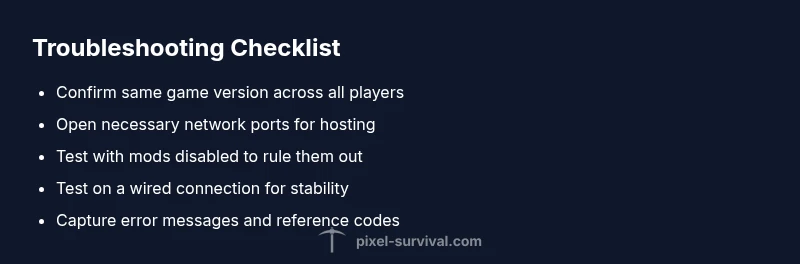
- Prioritize version parity across players
- Open only necessary ports and whitelist Terraria components
- Disable mods to isolate issues
- Test with a controlled LAN setup before online testing
- Document errors and seek support with concrete data