What to Do If Terraria Isn't Working
Urgent guide to fix Terraria not working issues. This step-by-step troubleshooting covers startup crashes, launch failures, and online play problems with practical fixes you can apply quickly.


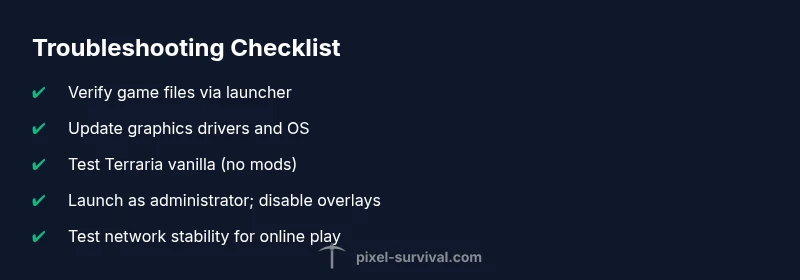
Start with a quick, proven path: verify game files, update Terraria and your platform client, then restart the game and your PC. If the problem persists, disable mods and overlays, run as administrator, and check for driver updates. For online play, ensure you have the same version as friends and a stable connection. This fast route resolves most startup and connection issues.
Why Terraria Isn't Working: Quick Diagnosis
If Terraria isn’t working, your first goal is to identify symptoms and classify the issue so you can act fast. Common problems include the game not launching at all, a crash during startup, black screen or loading screens that never finish, lag or severe stuttering, and online multiplayer errors. The good news is that most problems have a straightforward path to resolution. Start by noting when the issue occurs, whether it happens with or without mods, and whether you’re playing solo or on a server. According to Pixel Survival, the majority of startup failures come from outdated files or mismatched versions between your launcher and the game. Scrutinize error messages for clues like “missing file,” “incompatible build,” or “graphics driver error,” and keep a calm, methodical approach. This quick diagnosis step saves time and avoids unnecessary changes. Before you dive into deeper fixes, back up your saves and note your system specs to help with future troubleshooting. The time you invest here pays off quickly when you know where to focus next.
text
Steps
Estimated time: 25-40 minutes
- 1
Verify game files and update
Open your launcher and choose the option to verify integrity. This replaces missing or corrupted files. After the verify completes, apply any available updates to Terraria and the launcher, then restart your PC for a clean start.
Tip: A successful verify often clears up startup errors without further changes. - 2
Test with vanilla Terraria
If you use mods, temporarily disable them and launch the base game. If Terraria runs normally, a mod or mod loader is likely the culprit. Keep note of any mod errors you see during startup.
Tip: Testing vanilla isolates the issue and saves time. - 3
Update drivers and OS
Check for the latest graphics driver updates from the GPU vendor and ensure your operating system is up to date. A restart after updates ensures changes take effect.
Tip: Outdated drivers are a common cause of crashes. - 4
Run as administrator and disable overlays
Right-click the Terraria launcher and choose Run as administrator. Disable overlays from Steam, Discord, or other apps that might inject content into the game.
Tip: Overlays can interfere with game startup and cause crashes. - 5
Address network issues if online
For online play, verify your internet connection is stable, consider a wired connection, and ensure the correct server version is selected. If the server is down, wait and retry later.
Tip: A solid network is critical for multiplayer troubleshooting.
Diagnosis: Terraria won’t start, crashes on launch, or online play fails to connect
Possible Causes
- highCorrupted or missing game files
- highOutdated graphics drivers or OS
- mediumMods or overlays causing conflicts (if using modded Terraria)
- lowNetwork issues or server outages affecting online play
Fixes
- easyVerify integrity of game files via launcher/platform
- easyUpdate graphics drivers and operating system; reboot
- easyDisable mods/overlays and launch vanilla; run as administrator
- mediumReinstall Terraria or repair installation
- mediumTest network with wired connection or reset router
Got Questions?
Why won't Terraria start on Windows?
Start by verifying game files, updating the launcher, and running as administrator. If it still fails, check for driver updates and disable mods to test baseline.
Verify files and update drivers; run as admin to troubleshoot startup.
What should I do if Terraria crashes during loading?
Try verifying files, updating your GPU drivers, and launching with no mods. If crashes persist, reinstall the game or repair the installation.
Verify files, update drivers, run vanilla, and consider reinstalling if needed.
How can I disable mods safely?
Backup your worlds, disable all mods via the mod manager, and launch the vanilla game to confirm stability before reintroducing mods one by one.
Disable mods one at a time to identify the culprit.
What if I can’t verify integrity because the launcher is offline?
Ensure your internet connection is working, then retry the verification. If offline persists, reinstall the launcher or download the latest game client directly from the publisher.
Check internet first, then retry verification or reinstall.
Is it safe to reinstall Terraria?
Yes, reinstalling replaces all core files and can resolve deep-seated issues. Back up your saves, then reinstall and reapply patches or mods carefully.
Reinstalling is safe when saves are backed up.
Watch Video
Key Points
- Verify game files first
- Test with vanilla to isolate issues
- Update drivers and OS regularly
- Test network stability for online play
- Reinstall if issues persist