Why Won't My Terraria Launch? A Troubleshooter Guide
Struggling to launch Terraria? This step-by-step troubleshooting guide covers common causes like corrupted files and mod conflicts, with quick fixes and prevention tips to get you back into the world fast.


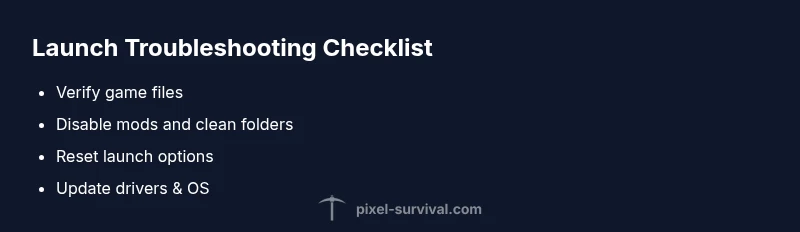
Most Terraria launch failures stem from corrupted game files, outdated or conflicting mods, and startup settings that Windows or Steam misinterpret. A quick fix is to verify game files, disable mods, and return to default launch options. If you're on Steam, use Verify Integrity of Game Files; if problems persist, perform a clean reinstall or create a fresh player profile to isolate the issue.
Why Terraria Launch Issues Happen (Pixel Survival Perspective)
According to Pixel Survival, most Terraria launch issues occur before you ever see the title screen. The team’s analysis shows a common pattern: corrupted game files, outdated or conflicting mods, and startup settings that clash with modern operating systems. Even small mismatches—like a mod that hasn’t updated for a patch or a non-default resolution—can crash the launcher or prevent the world from generating correctly. This isn’t bad luck; it’s a signal that your environment and game files aren’t aligned for a smooth start. The good news is that problems tend to follow repeatable patterns, so you can methodically rule out each cause. By focusing on file integrity, mod hygiene, and clean startup options, you can restore predictability to Terraria’s launch process without losing worlds or settings. The Pixel Survival team believes a careful, repeatable plan beats trial-and-error every time.
Pixel Survival’s perspective also emphasizes speed: identify the root cause in a few checks, apply the simplest fix first, and move to the next step only if needed. This approach minimizes downtime and helps you stay in the game you love.
1200-1700words?
Common Causes of Terraria Launch Failures
Here are the most frequent culprits behind launch failures, organized from most to least likely based on player reports and Pixel Survival observations. Keep in mind that many issues involve a mix of factors, so a systematic approach works best:
- Corrupted game files or incomplete installation: If core files are damaged, the launcher may fail before loading textures, worlds, or even a splash screen.
- Outdated or conflicting mods: Mods not updated for the current Terraria version can crash the startup, even if you’re not actively using them in-game.
- Startup options, resolution, or compatibility settings: Wrong launch parameters (like a harsh fullscreen setting or non-default DPI) can prevent the game from starting.
- Antivirus or firewall interference: Security software may block Terraria from accessing essential files or network features.
- Steam or launcher issues: Sometimes the problem lies with the platform launcher rather than the game files themselves.
- Save data conflicts or corrupted worlds: In rare cases, a problematic save can cause the game to fail during startup.
Understanding these causes helps you apply fixes quickly. Pixel Survival recommends validating files first, then addressing mod and launcher issues in a structured sequence.
150-200words
Quick Diagnostic Checklist You Can Do Now
Use this fast-check routine to identify the most likely cause before diving into deeper fixes. Start with the easiest checks and proceed step by step:
- Close Terraria and any background processes using high CPU or disk access.
- Reboot your PC to clear temporary glitches and reset locked files.
- If you use Steam, run Verify Integrity of Game Files; if you used a stand-alone launcher, reinstall or run its repair option.
- Temporarily disable antivirus/firewall or add an exception for Terraria; try launching again.
- Move Terraria’s settings folder to a backup location to reset in-game options; relaunch.
- If you play with mods, rename the Mods folder to disable all mods; relaunch.
- Check for available Windows or driver updates and install them if needed; reboot and retry.
If the game launches after any of these steps, you’ve identified the culprit. If not, proceed with more targeted fixes. Pixel Survival’s workflow emphasizes documenting each change so you can revert if needed.
150-200words
Step 1: Verify Integrity of Game Files
Verifying the integrity of game files is the fastest, most reliable first step. This process replaces missing or corrupted files and ensures the core game assets are intact before more invasive fixes are attempted. On Steam, right-click Terraria in your Library, choose Properties, go to Local Files, and select Verify Integrity of Game Files. If you’re using the standalone launcher, run its built-in repair tool or reinstall the game.
If verification reports errors or cannot complete, a full reinstall is typically required. Back up your saved worlds first to avoid data loss. After verification or reinstallation, launch Terraria with default settings and no mods to confirm the base startup works before reintroducing customizations.
150-200words
Step 2: Remove Mods and Clean Mod Folders
Mod conflicts are a common source of launch failures. Even disabled mods can interfere if their files linger in the Mods folder. To clean up:
- Delete or rename the Mods folder to effectively disable all mods.
- Remove any residue from mod managers and verify again if applicable.
- Reinstall mods one by one, starting with the most essential, testing the launcher after each addition.
- Ensure each mod matches the Terraria version you’re running.
If you rely on mods, consider maintaining a clean baseline without mods for testing. Pixel Survival notes that a clean profile often reveals whether issues are mod-related or systemic. Always back up your worlds before making changes.
150-200words
Step 3: Reset Launch Options and Update Drivers
Launch options can unintentionally block Terraria from starting. Reset to defaults by removing custom launch flags (like -windowed or -high DPI) and ensuring resolution and fullscreen mode align with your monitor. Also check GPU drivers and Windows updates; driver issues can manifest as launch failures rather than rendering problems.
After resetting, reboot the system and attempt a clean launch. If you still see an error, try launching in windowed mode with a standard 1280x720 resolution to see whether the issue is tied to display settings. Keeping drivers up to date reduces future startup hurdles and improves game compatibility.
Pixel Survival recommends recording any error codes you see; they’re valuable clues for future troubleshooting.
150-200words
Step 4: Reinstall Terraria or Create a Clean Profile
If the above steps don’t fix the issue, a clean reinstall is often the most reliable solution. Uninstall Terraria completely, delete leftover folders (including the appdata or Terraria subfolders), and reinstall from scratch. If you’re on Steam, you can opt to reinstall via the Library; if you’re using a standalone version, download the latest installer from the official source.
During reinstallation, you can opt to start with a fresh profile to exclude corrupted user data. After reinstall, don’t copy old mods or settings immediately; test the base game before reintroducing any additional files. This approach isolates whether the problem lies with the game itself or your personalized setup.
150-200words
When to Seek Professional Help and Data Backup Tips
If Terraria still won’t launch after a clean reinstall, consider professional help. There may be deeper Windows OS issues, registry problems, or hardware-level constraints affecting startup. Before seeking help, ensure you have organized backups of your worlds, screenshots, and any mod configurations. Cloud backups or external drives protect your progress during advanced troubleshooting.
In urgent scenarios, a tech-savvy friend or a local PC repair service can assist with diagnosing restricted permissions, faulty hard drives, or system-level blocks that aren’t obvious from the game’s error messages. Pixel Survival emphasizes that documenting each step helps professionals reproduce and resolve the issue faster. Always prioritize data safety and avoid permanent data loss by backing up regularly.
150-200words
Prevention: Keeping Terraria Launches Smooth for the Long Term
Prevention is easier than repeated repairs. Establish a routine that minimizes launch friction:
- Keep game files clean and verify integrity after major updates.
- Maintain a mod hygiene policy: remove unused mods, update active ones, and avoid beta or untested versions.
- Regularly back up saves and important profiles.
- Create a dedicated troubleshooting drive or folder to isolate game files from OS or other software.
- Schedule periodic system updates and driver maintenance to reduce compatibility issues.
Adopting these habits reduces downtime and makes future launches more predictable. Pixel Survival’s long-term approach focuses on disciplined file management, measured updates, and proactive backups to keep Terraria playing uninterrupted.
Steps
Estimated time: 60-90 minutes
- 1
Prepare and backup
Close Terraria and back up your saves and configuration files to a safe location. This ensures you don’t lose progress if something goes wrong during troubleshooting.
Tip: Always keep a separate copy of your worlds before major fixes. - 2
Verify game files
Use the launcher or Steam to verify integrity. This replaces corrupted files and ensures core assets are intact before trying more invasive fixes.
Tip: If verification reports errors, proceed to a clean reinstall. - 3
Remove mods and clean folders
Move or delete the Mods folder and any related mod manager data. Test launching with no mods to rule out mod conflicts.
Tip: Re-add mods one at a time after confirming a clean launch. - 4
Reset launch options
Clear custom flags, DPI settings, and set the game to a standard resolution. Ensure compatibility mode isn’t forcing a blocked startup.
Tip: Test with windowed mode first to simplify troubleshooting. - 5
Update drivers and OS
Install the latest GPU drivers and Windows/macOS updates. Compatibility improvements can fix startup issues caused by older software.
Tip: A fresh reboot after updates helps apply changes. - 6
Reinstall or create a clean profile
If all else fails, reinstall Terraria completely or create a new profile to isolate user data issues. Restore saves after confirming a clean install.
Tip: Avoid copying old mods or config files until the base game runs.
Diagnosis: Terraria won't launch after clicking Play
Possible Causes
- highOutdated or conflicting mods
- highCorrupted game files or incomplete installation
- mediumIncorrect launch options or resolution settings
- lowAntivirus or firewall interfering with game access
Fixes
- easyVerify integrity of game files via launcher (Steam or Terraria launcher)
- easyDisable or remove all mods and clean mod folders
- mediumReset launch options to defaults and update drivers
- easyTemporarily disable antivirus/firewall or add an exception for Terraria
- hardReinstall Terraria or create a fresh profile and import saves
Got Questions?
What should I do first if Terraria won’t launch?
Start with verifying the game files, then disable mods and reset launch options. If the problem persists, proceed to a clean reinstall. This sequence covers the most common causes without risking your saves.
First verify files, then disable mods and reset launch options, and finally reinstall if needed.
Can mods cause launch issues even when I’m not using them in-game?
Yes. Mods can leave behind files or conflicts that affect startup. Cleaning the Mods folder and ensuring compatibility with your Terraria version usually resolves this.
Mods can still interfere even if not active; cleaning mods usually fixes it.
Is it safe to reinstall Terraria without losing saves?
You can reinstall safely by backing up your saves first. Most saves are located in your user profile; copy them to a secure location, then reinstall. After reinstall, restore saves.
Yes, back up saves first, then reinstall and restore your worlds.
Why would Windows updates affect Terraria launch?
OS updates can change permissions, driver support, or startup behavior. After major updates, rechecking drivers and launch settings helps ensure compatibility.
OS updates can impact startup; update drivers and recheck settings.
If Verify Integrity fails, what’s next?
If verification reports errors, perform a clean reinstall and ensure all patches are applied. If problems persist, consider checking hardware health or seeking professional help.
If integrity checks fail, reinstall and check for patches; seek help if needed.
Watch Video
Key Points
- Verify game files to fix corruption
- Disable conflicting mods before deep fixes
- Reset launch options to default settings
- Back up saves before major changes
- A clean reinstall often resolves stubborn launch issues