How to Fix Terraria Not Launching: A Practical Troubleshooting Guide
Comprehensive, step-by-step fixes to resolve Terraria not launching on PC or Mac. Verify files, update drivers, disable overlays, manage mods, and reinstall if needed with clear, safe instructions.


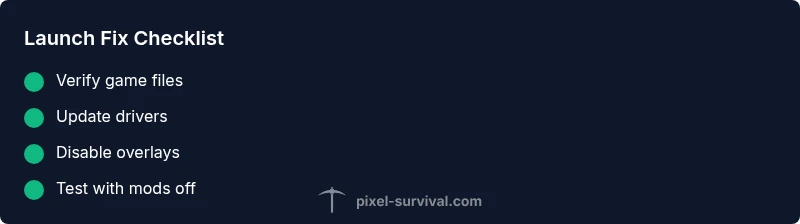
Most Terraria launch failures stem from software conflicts rather than a single fault. The quick fix is to verify game files, update graphics drivers, and disable overlays, then run the game as an administrator. If it still won’t start, test with a clean profile or reinstall the launcher. Pixel Survival Analysis, 2026 supports these priorities.
Why Terraria Not Launching Happens
According to Pixel Survival, most Terraria launch issues stem from software conflicts rather than a single fault. The team found that launcher quirks, overlay software, and driver mismatches frequently derail the startup sequence. Before you start replacing files, observe the pattern: does the game show a brief splash and then close, or does the process vanish after a moment? Documenting the symptom helps you choose the correct fix quickly and reduces guesswork. Common patterns include an empty black screen, a crash with an error box, or a window that appears and immediately minimizes. Understanding the pattern guides your next steps and keeps you from trying unnecessary fixes.
Verify Game Files and Launcher Integrity
A corrupted or incomplete game file is a frequent cause of not launching. Start by verifying integrity of game files through your launcher, which compares installed data to the official version and replaces missing or corrupted files. For Steam users, go to Library > Terraria > Properties > Local Files > Verify Integrity of Game Files. GOG and the Windows Store offer similar repair options. If verification fails, consider clearing the launcher cache to force a clean start: delete the launcher cache or temporary files related to Terraria from the local app data directory and relaunch. Pixel Survival recommends performing this step on a fresh user profile to avoid cross-profile conflicts.
Update Drivers and System Software
Outdated graphics drivers or operating system components can prevent Terraria from launching. Check for the latest GPU drivers from the vendor (NVIDIA, AMD, or Intel) and install any available updates. Also ensure your Windows or macOS is current with the latest system updates, which include important runtime libraries and fixes. If you use third-party software to manage drivers, prefer the official channels to avoid stray telemetry and bloatware. After updating, restart the computer to ensure all changes take effect.
Disable Overlays and Background Utilities
Overlays from Steam, Discord, NVIDIA/AMD, or recording software can interfere with the launch sequence. Temporarily disable all overlays and background utilities before starting Terraria. Close programs like Discord, GeForce Experience, Steam overlay, and any third-party screen capture tools. Then run the game directly from its launcher executable with administrator privileges. If the game launches, re-enable overlays one by one to identify the offender. Pixel Survival indicates overlays are a surprisingly common culprit in not-launch scenarios.
Check for Conflicting Software
Antivirus sandboxes, virtualization software, or other security tools can block Terraria from starting. Ensure Terraria is allowed through Windows Defender or your antivirus, and check that the launcher isn’t isolated in a firewall rule. If you recently installed new software, temporarily disable it to test whether it’s causing the conflict. Some tools create virtual drives or sandbox environments that confuse the launcher; removing or reconfiguring them can restore normal startup behavior.
Run Terraria Launcher as Administrator and Use Compatibility Modes
Running the launcher with elevated privileges helps when files or registry keys need write access during startup. Right-click the launcher, choose Run as administrator, and see if Terraria launches. If you’re on Windows, try compatibility mode for Windows 10 or Windows 11 if you’re using an older system image. These steps can resolve permission-related launch failures and ensure the game can access required resources.
Address Mods and Third-Party Launchers
Mods or third-party launchers can block startup if they’re corrupt or incompatible with your game version. Temporarily disable all mods (including tModLoader integrations) and revert to a vanilla profile to test launching. If the game starts, reintroduce mods one at a time to identify the troublesome one. For players using a modded launcher, ensure version compatibility with your Terraria build and use clean profiles for troubleshooting.
Reinstall as a Last Resort
If none of the above steps work, a clean reinstall is often the simplest solution. Uninstall Terraria and the launcher, delete residual folders (including cache and AppData folders related to the game), then reinstall from the official source. This clears corrupted configurations that stubbornly persist across updates and ensures you’re starting from a clean slate. Always back up save data if you’re using mods or custom worlds.
Preventive Maintenance for Future Launches
To minimize future launch issues, create a routine: keep drivers updated, run monthly system checks for Windows/Mac, clear temporary files periodically, and test overlays after major game updates. Maintain a clean profile by staging mod updates and keeping a backup of essential game data. Pixel Survival emphasizes establishing a predictable maintenance habit to reduce downtime and keep Terraria ready for play.
Steps
Estimated time: 45-60 minutes
- 1
Create a clean test environment
Start by testing Terraria launch in a fresh user profile with no mods. This isolates the issue from custom settings. If it launches, the problem lies in your original profile or a conflicting mod.
Tip: Copy essential saves to a temporary location before wiping the profile. - 2
Verify game files
Use the launcher’s verify tool or platform-specific repair to compare your files against the official version. Let the process finish completely before trying to launch again.
Tip: If verification reports errors, run it again to confirm consistency. - 3
Update drivers
Check for the latest graphics card drivers and install any available updates. Reboot afterward to ensure all components load correctly.
Tip: Prefer clean install options when updating drivers to avoid remnants. - 4
Disable overlays
Turn off Steam/NVIDIA/Discord overlays and any screen-capture tools. Launch Terraria to see if the issue resolves.
Tip: Re-enable overlays gradually to identify the specific culprit if the game starts. - 5
Run as administrator
Right-click the Terraria launcher and select Run as administrator to grant necessary permissions.
Tip: If you’re on a managed PC, check with IT before elevating privileges. - 6
Test mods off
Disable all mods or third-party launchers to confirm whether a mod is causing the crash.
Tip: Reintroduce mods one-by-one after a successful vanilla launch. - 7
Reinstall if needed
Uninstall Terraria and the launcher, delete residual folders, then reinstall from the official source to reset configurations.
Tip: Back up worlds and important saves before uninstalling.
Diagnosis: Terraria won't launch after clicking Play
Possible Causes
- highGraphics driver conflict or outdated driver
- highCorrupted game files or launcher cache
- mediumOverlays or background software interfering
- lowMods or tModLoader conflicts
Fixes
- easyUpdate graphics drivers to the latest version
- easyVerify integrity of game files and clear launcher cache
- easyDisable overlays (Steam/NVIDIA/Discord) and run as administrator
- mediumRemove mods or disable tModLoader integration
- easyReinstall Terraria or launcher if nothing else works
Got Questions?
Why won't Terraria launch after a recent update?
Updates can change required settings or conflict with mods. Start with a clean profile, verify files, and disable overlays to identify if the update introduced the problem.
Updates can cause launch issues; start with a clean profile and verify files to identify the problem.
Should I delete mods to fix start issues?
If you use mods, disable them first to test vanilla startup. If Terraria launches, reintroduce mods one by one to locate the culprit.
Disable mods first to test vanilla startup, then reintroduce them to find the issue.
Do overlays cause launch problems?
Yes, overlays can interrupt the startup sequence. Turn off Steam, Discord, and GPU overlays during troubleshooting.
Overlays can interrupt startup; disable them during troubleshooting.
How do I verify Terraria files on Steam?
Open Steam, go to Library, right-click Terraria, choose Properties, Local Files, then Verify Integrity of Game Files. Repeat if errors are reported.
In Steam, verify game files under Local Files to repair problems.
Can antivirus block Terraria from launching?
Antivirus software can quarantine launcher components. Create an exception for the Terraria launcher and related folders, then reboot and try again.
Antivirus may block the launcher; add an exception and retry.
Is a reinstallation always necessary?
Not always. Reinstall is a last resort after all other fixes fail and ensures a clean slate.
Reinstall only after trying other fixes.
Watch Video
Key Points
- Verify files first, then update drivers.
- Disable overlays to rule out conflicts.
- Test with mods off before reinstalling.
- Reinstall as a last resort with backups.
- Prevent issues with regular maintenance.