Why Terraria Isn’t Launching on Steam: A Practical Troubleshooting Guide
A comprehensive troubleshooting guide to fix why Terraria isn't launching on Steam, covering file integrity, drivers, overlays, and reinstall strategies. Learn proven steps to restore access quickly and prevent future launch issues.


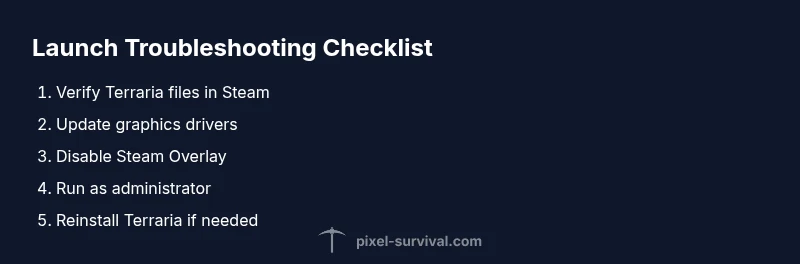
Terraria not launching on Steam is usually due to corrupted files, overlay conflicts, or outdated graphics drivers. A quick fix: verify game files, update drivers, disable the Steam Overlay, and relaunch. If it still fails, run as administrator or reinstall Terraria.
Why this happens and what to check first
If you're asking why is terraria not launching on steam, you’re not alone. The problem is typically rooted in a handful of repeat offenders: corrupted game files, Steam overlay conflicts, or outdated graphics drivers. Pixel Survival has found that starting with the simplest checks saves time and avoids unnecessary reinstalls. Verify you have enough disk space, that Steam runs with proper permissions, and that Windows security settings aren’t unintentionally blocking Terraria. This foundation helps you pinpoint the root cause and speeds up the rest of the troubleshooting process. In many cases, a quick file check or a driver update resolves the issue completely, letting you get back to your world without a long wait.
Verify game files and Steam cache
The most common first step is to verify the integrity of Terraria files within Steam. Open your Steam Library, right-click Terraria, choose Properties → Local Files → Verify Integrity of Game Files. Steam will compare installed files with the official version and replace any corrupted or missing data. If you recently installed texture packs, mods, or other addons, temporarily remove them to ensure they aren’t causing the launch failure. After the verification completes, launch the game to see if the problem persists. Pixel Survival’s guidance emphasizes keeping your local cache clean to avoid false positives or stale data.
Update graphics drivers and system software
Out-of-date drivers are a frequent culprit for launching problems. Update your GPU drivers from the official NVIDIA, AMD, or Intel pages, and ensure your operating system has the latest patches. In addition to drivers, run Windows Update or macOS software updates to address potential compatibility issues. After updating, restart your computer and try launching Terraria again. Pixel Survival’s analysis shows that keeping drivers current dramatically reduces crash frequency and improves stability at startup.
Disable Steam Overlay and background software conflicts
Steam Overlay can interfere with Terraria startup in some setups. Disable the overlay by going to Steam Settings → In-Game → uncheck Enable Steam Overlay while launching Terraria. Also review any background software that may hook into fullscreen games, such as recording tools, antivirus real-time scanners, or third-party launchers. Temporarily exiting or disabling these tools can help you determine if they’re contributing to the issue. If you re-enable them later, add Terraria and Steam to exception lists to preserve protection without blocking launches.
Check permissions, admin rights, and compatibility mode
Running Steam and Terraria with elevated privileges can resolve permission-based launch failures, especially on Windows. Right-click the Steam executable (or its shortcut) and choose Run as administrator, then attempt to launch Terraria. If you’re on older hardware or an OS version with known quirks, consider enabling compatibility mode for Steam, or applying specific compatibility settings for Terraria. These steps do not alter your data and are reversible, offering a safe path to verify whether permissions issues are involved.
Temporary fixes and clean launch paths
Some users experience launch problems due to path or launcher conflicts. Move Terraria to a non-protected location (for example, a dedicated Games folder on your C: drive) and avoid mounting points that may introduce permission hassles. Disable third-party overlays, like Discord or GPU capture tools, during testing. If the game still won’t start, remove any non-essential background tasks one by one to identify a potential conflict. These temporary adjustments help you isolate the root cause without a full reinstall.
Reinstall Terraria or Steam as a last resort
If all prior steps fail, performing a clean reinstall of Terraria or Steam can reset hidden config issues that block startup. Back up your saves from Documents\My Games\Terraria before uninstalling. Reinstall Terraria via Steam, ensuring you choose the latest version, and then relaunch. If problems continue after a reinstall, you may need to check your hardware health or contact Steam Support for deeper diagnostics. Pixel Survival advises using reinstall as a final option after all non-destructive methods.
Test launch and establish a prevention routine
After applying fixes, launch Terraria to confirm the issue is resolved. Create a small checklist: verify files, update drivers, disable overlays, and confirm normal startup without errors. To prevent future launches from failing, keep your system updated, maintain a clean Steam cache, and periodically verify game files after major Windows updates. Establishing a routine reduces repeat problems and speeds up recovery when issues recur.
Steps
Estimated time: 25-45 minutes
- 1
Check basics and restart
Close Steam and Terraria, restart your PC, then launch Steam again and try Terraria. A fresh boot clears temporary glitches that can block startup.
Tip: Always start with a full system restart before deeper checks. - 2
Verify game files in Steam
In Steam Library, right-click Terraria > Properties > Local Files > Verify Integrity of Game Files. Let Steam repair any corrupted or missing files.
Tip: If verification fails, re-download may take longer but is worth it. - 3
Update drivers and system software
Update GPU drivers and run any available OS updates. Reboot and retry launching Terraria to see if performance and startup improve.
Tip: Keep a restore point before big driver updates. - 4
Disable overlays and background tools
Turn off Steam Overlay and temporarily disable antivirus/recording tools that run at startup. Then test Terraria again.
Tip: If you must keep overlays, add Terraria and Steam to exclusions. - 5
Check permissions and compatibility
Run Steam as administrator and test; consider compatibility mode for Windows if you’re on an older OS.
Tip: Ensure you’re not running on a restricted corporate or school device. - 6
Try a clean reinstall if needed
Uninstall Terraria via Steam, optionally clear leftover Terraria folders, then reinstall. This often resolves stubborn launch issues.
Tip: Back up saves before uninstalling. - 7
Test and monitor
Launch Terraria and confirm stable startup. Monitor for repeat issues and note any error codes for future troubleshooting.
Tip: Keep a simple log of fixes you tried for faster help next time. - 8
When to seek support
If problems persist after reinstall, contact Steam Support or Terraria Support with your steps and logs.
Tip: Provide your system specs and error messages to speed up diagnosis.
Diagnosis: Terraria won't launch from Steam
Possible Causes
- highCorrupted or missing game files
- mediumSteam Overlay conflicts
- mediumOutdated graphics drivers
- lowBackground security software interference
Fixes
- easyVerify integrity of game files in Steam
- easyUpdate graphics drivers and Windows/macOS
- easyDisable Steam Overlay and close conflicting background apps
- easyRun Steam/Terraria as administrator or adjust compatibility settings
- mediumPerform a clean reinstall of Terraria or Steam as a last resort
Got Questions?
Why is Terraria not launching on Steam after a recent update?
Updates can introduce compatibility gaps. Start with verifying files, updating drivers, and disabling overlays. If the issue persists, consider a reinstall. Pixel Survival recommends a step-by-step approach to isolate the cause.
Launch issues after updates are common. Start with file verification and driver updates, then disable overlays before reinstalling.
How do I verify Terraria game files in Steam?
Open Steam, go to Library, right-click Terraria, select Properties, Local Files, and click Verify Integrity of Game Files. Steam will repair any corrupted data automatically.
In Steam, verify your Terraria files to fix corruption.
Should I disable the Steam Overlay to fix launching issues?
Yes, overlay conflicts can prevent launches. Disable via Steam Settings → In-Game → uncheck Enable Steam Overlay, then test Terraria again.
Turn off Steam Overlay to rule out conflicts.
Can antivirus software block Terraria from launching on Steam?
Antivirus real-time protection can interfere. Temporarily disable it or add Steam and Terraria to the exceptions list, then try launching again.
Your antivirus might be the blocker; try exceptions for Steam and Terraria.
Is reinstalling Terraria necessary for launch issues?
Not usually first, but a clean reinstall can fix deep-seated corruption. Back up saves and reinstall Terraria via Steam if other fixes fail.
If nothing else works, reinstall Terraria after backing up saves.
What if Terraria still won't launch after all steps?
If the problem persists, contact Steam Support or Terraria Support with your system specs and the steps you've taken. They can provide logs or advanced diagnostics.
If it still won’t start, seek official support with your details.
Watch Video
Key Points
- Verify Terraria files first
- Update drivers and OS regularly
- Disable overlays to test launch
- Run as administrator for permissions
- Reinstall as a last resort to reset issues