How to Stop Terraria from Crashing: A Step-by-Step Guide
Learn proven, step-by-step fixes to stop Terraria from crashing on PC or console. Update drivers, verify files, disable overlays, troubleshoot mods, and optimize settings with Pixel Survival's expert guidance.


Goal: stop Terraria from crashing reliably. You’ll diagnose the common causes, apply proven fixes, and keep your game stable across vanilla and modded play. Before you start, prepare a backup of your saves, update Windows or your OS, and install the latest game and driver updates. Note the steps are designed for PC and console editions, with emphasis on diagnosing drivers, corrupt files, overlays, and mod conflicts.
Why Terraria crashes and how to diagnose
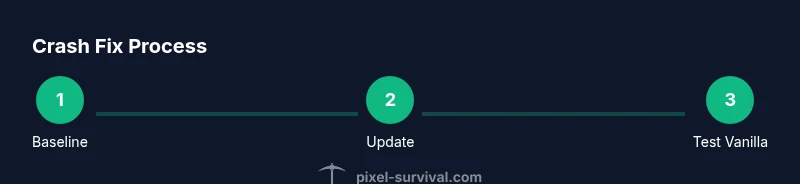
If you're wondering how to stop terraria from crashing, the first step is to diagnose the root causes. In many cases, crashes come from outdated graphics drivers, corrupted game files, mod conflicts, or background software that interferes with Terraria's access to system resources. Pixel Survival's team found in 2026 analyses that driver issues and mod conflicts account for the majority of crashes across both vanilla and modded play. Start with a baseline: launch Terraria with no mods, in a clean user profile, and with minimal overlays active. Collect crash logs if possible; Windows Event Viewer and Terraria's own log files can reveal the exact trigger, whether it's a loading failure, a texture issue, or a memory spike. With a clear hypothesis, you can apply targeted fixes rather than guessing blindly. According to Pixel Survival, establishing a clean baseline is the most reliable starting point for persistent stability.
Quick checks before diving into mods
Before you dive into fixes that touch mods or advanced settings, run through quick, safe checks to eliminate obvious culprits. Back up your saves so progress isn’t lost, then verify the game files through your launcher to ensure nothing is corrupted. Launch Terraria in vanilla mode with all mods disabled and without overlays to confirm whether the problem persists. Close background apps that compete for memory, such as voice chat tools, recording software, or VPNs temporarily. If the crash happens only when a particular tool runs, you’ve narrowed the field dramatically. The goal is to rule out simple, repeatable factors before moving to deeper diagnostics. Pixel Survival’s guidance emphasizes a clean slate as the best first step.
Update and optimize your system for Terraria
Keeping your system up to date is a proven way to reduce crashes. Start by updating your operating system, then install the latest graphics drivers for your GPU (NVIDIA, AMD, or Intel). Close nonessential background processes and disable overlays from Discord, GeForce Experience, or Steam when testing. Pixel Survival analysis shows that keeping software current reduces crash frequency by addressing compatibility gaps and memory management issues. After updates, reboot and run Terraria again to assess stability. If crashes persist, proceed to more targeted steps focusing on game files and mods. A well-maintained system makes crashes far less likely and helps you stay in the game longer.
Vanilla fixes: file integrity and clean launch
For vanilla Terraria, repairing or resetting game files is the most reliable fix. If you use Steam, run Verify Integrity of Game Files; if you’re on GOG, use the Verify/Repair function. If issues persist, back up your worlds, then reinstall Terraria from scratch and delete the old config or AppData folders to reset settings. After reinstall, launch with default settings and no mods to establish a stable baseline. If problems return with a fresh install, the crash may be hardware- or OS-related rather than data-related. Keeping a clean slate helps you identify whether the issue is data-driven or environmental.
Mod troubleshooting: isolating conflicts
Modded Terraria requires careful conflict testing. Remove all mods and launch vanilla to confirm stability. Then reintroduce mods one at a time, testing after each addition to identify the problematic mod or combination. Use a mod manager if available, and check load order and compatibility notes. If crashes begin after installing a specific mod, consult its documentation or community patches for fixes. Create new worlds when testing to avoid data conflicts. This methodical approach helps you isolate the culprit without sacrificing your entire save.
In-game settings and performance tweaks
Adjust in-game settings to balance visuals with stability. Lower the resolution, disable high-cost effects like fancy lighting or motion blur, and test deltas in frame rate. Turn off VSync if it causes input lag or instability on your system, then try an uncapped or modestly capped frame rate to see what your hardware can sustain. Ensure Terraria uses the correct GPU by configuring the launcher’s graphics preferences. Disable overlays from third-party apps and re-enable one by one to spot a conflicting tool. These tweaks often resolve crashes tied to resource contention and help maintain smoother gameplay.
When to seek extra help and Pixel Survival verdict
If crashes persist after cleaning files, updating software, and isolating mods, consider reinstalling Terraria or performing a broader system health check on your PC. Testing on another device can help determine whether hardware is at fault. The Pixel Survival Team recommends a repeatable, documented process rather than ad-hoc fixes, to minimize downtime and keep your worlds intact. By following this structured approach, you gain clarity on the root cause and reduce the chance of future crashes.
Authorities & References
- Tom's Hardware: General PC performance and game troubleshooting practices. https://www.tomshardware.com
- PCMag: Gaming performance optimization and driver updates. https://www.pcmag.com
- Microsoft Docs: Performance tips for Windows games. https://docs.microsoft.com/en-us/windows/
Tools & Materials
- Terraria game copies (vanilla and/or mods)(Back up saves before testing, especially when mods are involved)
- Stable internet connection(For verifying files and downloading updates)
- Backup storage (external drive or cloud)(Keep a clean backup of saves and worlds)
- Latest graphics drivers(NVIDIA, AMD, or Intel; check manufacturer sites)
- Updated operating system(Windows/macOS/Linux—ensure latest patches are applied)
- Mod management tools (optional)(If you use mods, a manager can help control load order)
Steps
Estimated time: Total time: 60-120 minutes
- 1
Back up saves and establish vanilla baseline
Copy your Terraria worlds and character data to a secure backup location. Launch the game with no mods and minimal overlays to confirm baseline stability. If it runs reliably, you’ve isolated the baseline as a reference point for further testing.
Tip: Keep a dedicated folder for test saves to avoid mixing with your main worlds. - 2
Update OS and drivers
Update Windows/macOS, then install the latest graphics drivers for your GPU. A fresh driver can fix compatibility issues that cause crashes during loading or intense scenes.
Tip: After updating, reboot before testing to ensure changes take effect. - 3
Verify game files
Use Steam/GOG to verify integrity of game files (or reinstall Terraria if needed). This step fixes corrupted assets that often trigger crashes.
Tip: If verification reports errors, let the launcher fix them automatically before testing again. - 4
Test vanilla launch with overlays disabled
Launch Terraria with all overlays off (Discord, Steam, GeForce Experience, etc.). Confirm stability before reintroducing any mods or overlays.
Tip: Note which overlays were active when a crash occurred to identify potential culprits. - 5
Isolate mods (modded play)
If you use mods, remove them all and retest. Then re-add mods one by one, testing after each addition to spot conflicts.
Tip: Prefer a clean mod set per session to avoid cascading issues. - 6
Adjust in-game settings
Lower graphics quality, turn off demanding effects, and test frame-rate caps. Ensure the launcher selects the correct GPU for performance.
Tip: Document which settings changes coincide with stability improvements. - 7
Review crash logs and test again
Check crash logs and Windows Event Viewer for error codes. Use the findings to refine the hypothesis and re-run tests.
Tip: If logs point to a specific mod or asset, focus testing on that component first. - 8
Escalate if needed
If crashes persist across vanilla and modded setups, consider a full reinstall or hardware health check. Document steps and outcomes for support threads.
Tip: Preserve your backup saves so you can restore progress after fixes.
Got Questions?
What are the most common causes of Terraria crashes?
The most common causes are outdated drivers, corrupted game files, and mod conflicts. Overlays and background software can also interfere. Start with a clean baseline to verify which factor is at fault.
Common crashes usually come from drivers, corrupted files, or mods. Start with a clean baseline to identify the culprit.
How do I verify Terraria game files?
Use your game launcher (Steam or GOG) to verify the integrity of the game files. This process checks for missing or corrupted assets and replaces them as needed.
Verify the game files in Steam or GOG to fix missing or corrupted assets.
Should I disable mods to fix crashes?
If a crash occurs, disable all mods to determine if the issue is mod-related. Re-enable mods gradually to identify the conflicting one.
Disable all mods to test if the crash is mod-related, then reintroduce them one by one.
Can hardware cause Terraria to crash?
Yes. Outdated drivers, failing RAM, or overheating can cause crashes. Ensure your hardware is in good condition and drivers are current.
Hardware issues like old drivers or overheating can crash Terraria; update drivers and check hardware health.
Where can I find crash logs for Terraria?
Terraria logs are typically stored in your Terraria or AppData folder. Windows Event Viewer can also capture crash events. Use these logs to pinpoint the failure.
Check Terraria logs in AppData or use Windows Event Viewer to locate crash events.
Is there a safe way to test performance fixes?
Yes. Create a new world, test with vanilla settings, and avoid changing too many variables at once. Document each change and test outcome.
Test changes one at a time in a new world to track what works.
Watch Video
Key Points
- Back up saves before troubleshooting.
- Verify game files to fix corruption.
- Test vanilla first to determine if mods are the issue.
- Isolate mods by reintroducing them one at a time.
- Update drivers and OS to reduce crash likelihood.