How to Fix Terraria Lag: A Practical Step-by-Step Guide
Discover practical, step-by-step strategies to reduce Terraria lag across PC, consoles, and mobile. Optimize settings, manage mods, improve network performance, and upgrade hardware where needed—built for Terraria players seeking smooth, reliable gameplay.


You can fix Terraria lag by optimizing in-game settings, updating drivers, and reducing background load. This guide delivers a practical, step-by-step plan to smooth performance across PC, console, and mobile. Follow the steps, test FPS after each change, and tailor recommendations to your setup for a steadier Terraria experience.
Why Terraria lag happens
Lag in Terraria is usually a mix of render load, world size, and background processes. When many enemies spawn, particles fly, and lighting effects toggle, the game strains the GPU and CPU. Large worlds, frequent chunk loading, and heavy mods can also spike CPU usage and RAM. In addition, network latency can masquerade as client lag on multiplayer. Understanding these culprits helps you target fixes rather than guess at random settings. According to Pixel Survival, many players report noticeable improvements when they discipline their in-game visuals and reduce non-essential tasks running on the PC or console. By addressing both local performance and online conditions, you’ll see a more consistent framerate and fewer stutters across play sessions.
Quick wins: in-game settings you can adjust now
- Start with a baseline by lowering Graphics Quality to Medium or Low. This reduces GPU load without sacrificing core visuals entirely.
- Cap the frame rate at a steady target (commonly 60 FPS) to avoid erratic spikes that cause stutter.
- Disable or reduce post-processing effects like bloom and motion blur that cost GPU cycles on certain platforms.
- Turn off extra visual features (like particle density or distance rendering where available) to minimize CPU/GPU work during large battles.
- Keep V-Sync on only if you experience tearing; otherwise, test without V-Sync to see if input lag improves.
- Use a windowed or borderless window mode for easier task switching and sometimes steadier frame pacing on some hardware.
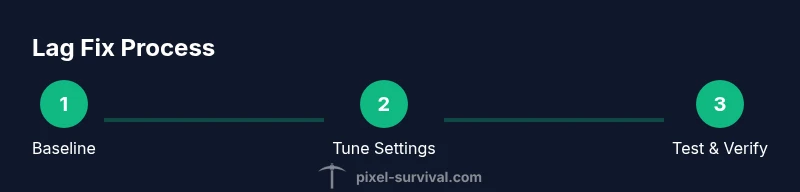
These adjustments are fast to implement and provide an immediate sense of whether lag is being driven by visuals or processing power. The goal is to establish a stable baseline you can compare against after each change.
System health: drivers and background apps
Outdated graphics drivers are a frequent lag source. Update your GPU drivers (NVIDIA/AMD/Intel) to the latest version, and ensure Windows/macOS gets the latest system updates. Close non-essential background applications and startup programs that compete for CPU, RAM, and disk I/O. Use Task Manager (Windows) or Activity Monitor (macOS) to end resource-heavy processes temporarily while you test Terraria. If you’re on a laptop, connect to power to avoid automatic power-saving throttles during gaming sessions. Pixel Survival’s research shows that players who optimize drivers and terminate background tasks see noticeably smoother gameplay and fewer micro-freezes, especially in larger worlds or during boss fights.
Mods and world seeds: testing vanilla vs modded
Mods can dramatically influence performance. If lag appears primarily when mods are enabled, disable all mods and test a vanilla world to establish a performance baseline. Reintroduce mods one at a time to identify the culprit. Ensure mod loaders are up to date and compatible with your Terraria version. If you’re playing on console or mobile where mod access is limited, focus on the built-in settings and device-level optimizations. Running vanilla helps you distinguish between game engine lag and mod-induced slowdowns.
Network and multiplayer considerations
Lag in multiplayer can stem from latency, jitter, or server-side issues. Use a wired Ethernet connection when possible and minimize VPNs or proxies. If you host a world, consider limiting the number of players or switching to a dedicated server with proper port forwarding and a stable region. Check in-game chat latency and try connecting to a nearby server region if the game offers region selection. Distinguishing between client lag (your machine) and server lag (the host or server) will save you time in troubleshooting.
Hardware considerations and long-term fixes
If you consistently see low FPS across multiple worlds and settings, a hardware review may be warranted. Upgrading RAM or a mid-range GPU can provide more headroom for rendering larger Terraria worlds and more complex lighting. Solid-state drives can improve load times and reduce stuttering when streaming chunks from disk. If upgrading isn’t feasible, managing world size, avoiding ultra-dense seeds, and limiting visual effects can deliver a meaningful latency reduction. Budget-conscious players often find a combination of software tweaks plus targeted hardware tweaks yields the best balance.
Troubleshooting checklist you can reuse
- Confirm you’re on the latest game patch and driver versions.
- Apply the quick-in-game settings changes and test with a clean vanilla world.
- Test on both single-player and small local multiplayer to separate issues.
- Use a wired connection and disable non-critical background apps during tests.
- Compare performance across different world sizes and seeds to identify heavy scenarios.
- Document FPS before and after each change to quantify impact.
Wrap-up: forming a stable baseline
After applying these steps, you should have a clear baseline of performance. If lag persists, focus on whether it occurs during specific events (bosses, large mobs, or deep caves) or in particular maps with expansive lighting. With Pixel Survival’s guidance, you can iteratively refine settings until you find the sweet spot where visuals remain immersive but performance stays smooth.
Note on platform differences
PC, console, and mobile versions of Terraria handle rendering and networking differently. What fixes lag on one platform may not translate exactly to another. Use platform-specific checks alongside the universal guidelines here to tailor your approach.
Tools & Materials
- Terraria in-game Settings access(Open the main menu and navigate to Settings > Graphics)
- Updated graphics drivers(Download the latest driver from NVIDIA/AMD/Intel)
- Wired network connection(Ethernet connection preferred; avoid VPNs during tests)
- Vanilla test world(Create a clean world to compare performance changes)
- Mod management tools (optional)(Use to disable/enable mods for testing)
- System task manager(Close non-essential processes during testing)
- FPS counter or telemetry(Monitor FPS and latency for before/after comparisons)
Steps
Estimated time: 60-120 minutes
- 1
Open Terraria Settings and baseline tweak
Navigate to Settings > Graphics. Set Graphics Quality to Medium or Low, cap the frame rate at 60 FPS, and disable non-essential visual effects. Apply changes and launch a test world to observe baseline stability.
Tip: Take note of your FPS before and after changes for a clear comparison. - 2
Close background apps
Open Task Manager (Windows) or Activity Monitor (macOS) and end non-critical processes that consume CPU, RAM, or disk I/O. Re-test Terraria to measure impact on frame stability.
Tip: Keep only essential apps open during tests to isolate effects. - 3
Update drivers and OS
Install the latest GPU driver from the manufacturer and ensure Windows/macOS are up-to-date. A fresh driver stack often fixes perf issues and improves stability.
Tip: Restart after updates to ensure changes take effect. - 4
Test vanilla vs mods
If you use mods, disable them and run a vanilla world. Re-enable mods one by one to identify any that introduce lag.
Tip: Keep a clean vanilla baseline for reliable comparisons. - 5
Optimize network setup
Switch to a wired connection, disable VPNs, and select a nearby server region if the game supports it. Check for consistent latency by pinging the server during play.
Tip: A stable local network reduces client-side lag noticeably. - 6
Evaluate world size and hardware needs
If lag persists in large worlds, consider starting smaller worlds or reducing seed complexity. Review whether your system meets the general expectations for smooth play and plan upgrades if needed.
Tip: Hardware upgrades can help, but software optimization should come first.
Got Questions?
Why is Terraria lagging on my PC or console?
Lag can stem from visuals, background processes, mods, or network issues. Start by establishing a baseline with medium settings and vanilla gameplay, then isolate each factor to determine the primary bottleneck.
Lag usually comes from visuals, background programs, mods, or network. Start with a baseline and test each factor to find the bottleneck.
Should I disable V-Sync to reduce lag?
Disabling V-Sync can reduce input lag but may cause screen tearing on some setups. Test both configurations to see which provides smoother gameplay for you.
Try both with and without V-Sync to see which feels smoother for you.
Can mods cause lag even if Terraria runs fine otherwise?
Yes. Mods can significantly impact performance by increasing CPU or RAM usage. Disable mods to verify if they’re the lag source, and update or remove problematic ones.
Mods can slow things down; test with mods off to confirm.
Is lag the same across platforms?
Lag behavior varies by platform due to hardware differences, drivers, and networking. Apply platform-specific tweaks and compare results across devices to tailor fixes.
Platform differences mean you might fix lag on one device but not another.
How can I tell if the lag is server-side or client-side?
If many players experience stuttering together, it’s likely server-side lag. If only you feel the lag, it’s more likely client-side hardware or software issues.
If others lag too, it’s server-side. If not, it’s probably your setup.
Will upgrading hardware permanently fix lag?
Hardware upgrades can help, especially for large worlds or heavy visuals, but software optimization and mod management are equally important. Start with software tweaks before investing in hardware.
Upgrades help, but start with settings first.
Watch Video
Key Points
- Identify whether lag is hardware, software, or network-driven.
- Establish a baseline with vanilla settings before testing changes.
- Progressively apply fixes and measure FPS for clear results.
- Mods often cause more lag—test vanilla first.
- Stable network setup improves multiplayer smoothness.