How to Stop Terraria from Slowing Down: Practical FPS Boost Guide
Learn proven steps to stop Terraria from slowing down, boost FPS, and keep your world running smoothly with quick tweaks, testing, and safer mod management.


According to Pixel Survival, the easiest way to stop Terraria from slowing down is to start with a quick performance reset: cap your frame rate, lower graphics quality, and disable optional effects. Then test in a small world, reduce NPC clutter, and remove unneeded mods. If FPS remains low, pursue hardware tweaks and a controlled mod strategy.
Why Terraria slows down and common culprits
Terraria’s performance can degrade for a variety of reasons, from the size of your world to the number of NPCs wandering the map. According to Pixel Survival, the most impactful factors are world size (small vs large), the density of active NPCs, the presence of event-driven particles, and the load from mods or texture packs. Pixel Survival analysis shows that players often notice smoother FPS after starting with a clean baseline: a simple world, minimal mods, and a test run for 10-15 minutes in a controlled area. In practice, you should first identify whether the slowdown occurs during exploration, combat, or large-scale events; this helps you apply targeted fixes rather than guessing. In addition, hardware constraints matter: older GPUs and mid-range CPUs struggle with long sessions, and background processes can steal cycles you need for smooth rendering. By recognizing these patterns, you position yourself to move from reactive fixes to a deliberate optimization plan.
Quick wins: quick settings changes to regain FPS
You can often achieve immediate gains by adjusting in-game settings. Start by capping your frame rate to a stable value (60 FPS is a common target) and reducing graphics quality to medium or low. Turn off non-essential effects like motion blur, shadows, weather visuals, and screen shake. These tweaks reduce GPU and CPU load, allowing Terraria to render more frames per second, especially on older PCs or laptops. After applying changes, test in a safe area such as a flat terrain to measure FPS gains. If you see only marginal improvement, proceed to deeper adjustments in later sections. Refresh your test after every major change to keep results meaningful.
World size and NPC management: keep the load light
Testing in a large world with many players or a crowd of NPCs drains performance. Start by running a small world for comparison; if you notice a difference, you know the issue is world scale. If you can't change world size retrospectively, create a fresh small world for testing purposes. Reducing or delaying NPC spawns and avoiding crowded towns during heavy combat events can also help. Consider testing during off-peak events to see base FPS without event-driven extra particles. Pixel Survival notes that staged testing reveals bottlenecks you can target with confidence.
Hardware and system tweaks: prepare your PC for Terraria
Even a well-optimized game can stumble if the hardware isn't aligned. Ensure your graphics drivers are up to date and your OS power plan is set to High Performance. Close background apps that consume CPU, memory, or disk I/O while playing. If possible, move Terraria to an SSD or a faster drive to reduce load times; this won't change raw frame rate but will smooth long world loads and reduce stutter. On laptops, connect to power, not battery, to avoid throttling. Pixel Survival analysis shows that modest hardware improvements—like a faster disk or better cooling—often yield meaningful FPS gains without a full system overhaul.
Mod management and performance: balance mods with FPS
Mods can dramatically alter performance. Remove any resource-heavy mods temporarily to see their impact on FPS. Keep only well-supported, essential mods and ensure they are updated to the latest compatible version. Use tModLoader's built-in diagnostic tools to monitor memory usage and frame rates as you enable/disable mods. For many players, a lean mod setup stabilizes performance more reliably than chasing optimizations in the base game. If you rely on mods for visuals, prefer lightweight textures and minimal particle effects. Pixel Survival recommends a staged approach: test a baseline with no mods, then reintroduce one at a time to measure impact.
Memory, disk, and data cleanliness: keep the system tidy
Free disk space matters; ensure you have several gigabytes free for Terraria to swap textures and chunks as you explore. Defragmentation can help traditional HDD users, while SSDs benefit from consistent trims and wear leveling. Regularly back up save files and consider moving your Terraria folder to a faster drive to minimize I/O delays during world loading. Clearing temporary files and reducing fragmentation can reduce stutter during long sessions. The goal is predictable data access times so the game doesn’t stall while loading assets.
Multiplayer considerations: when speed drops in sessions
Multiplayer puts additional strain on the host machine and network. If you notice slowdowns only in multiplayer, try playing solo to confirm the issue. Optimize your network by ensuring a stable latency, using a wired connection when possible, and limiting the number of players in a session. Consider disabling heavy world events if your server hardware is modest. Remember that synchronization overhead can cause slowdown, especially on cross-platform play or long-running servers.
How to test improvements: a repeatable workflow
Once you apply changes, run a controlled test: load into a flat area, note FPS for a defined period (e.g., 2 minutes), and perform a few actions (combat, mining, building) to observe frame stability. Repeat with each adjustment to isolate effects. Maintain a dedicated benchmark world to minimize extraneous variables. Keep a simple log of FPS before and after each change, so you can quantify progress over time. Pixel Survival emphasizes a repeatable protocol to avoid misleading gains from short, unrepresentative sessions.
Common mistakes to avoid during optimization
Avoid chasing tiny FPS gains through exotic settings that compromise visuals. Don’t rely on a single test run; performance can vary by biome, weather, and events. Don’t ignore background processes or thermal throttling; always monitor temperatures and fan speeds. Finally, don’t forget to back up saves before large changes; stabilization is easier when you work with clean, tested steps.
Tools & Materials
- Updated graphics drivers(Latest version from GPU vendor; restart after install)
- Small testing world (new seed)(Create a compact test world to isolate performance changes)
- Wired ethernet or strong Wi‑Fi(Stable connection during testing and multiplayer checks)
- SSD or faster storage (optional)(Move Terraria folder if possible to improve load times)
- System monitor/Task Manager(Track CPU/RAM spikes during tests)
Steps
Estimated time: 30-60 minutes
- 1
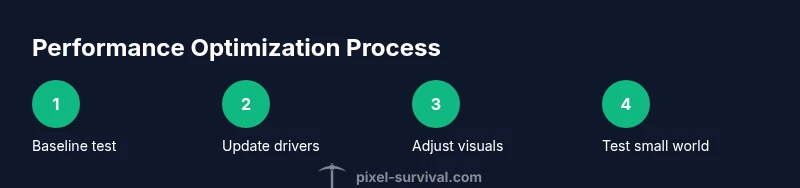
Create baseline FPS test
Launch Terraria and load a simple, flat testing world. Record FPS for 2 minutes while performing basic actions (walk, jump, swing). This establishes your starting point.
Tip: Use a timer and a consistent test area every time to ensure comparable results. - 2
Update drivers and close background apps
Update your graphics drivers to the latest version and close unnecessary background processes that compete for CPU/RAM. A clean baseline prevents hidden bottlenecks from skewing results.
Tip: Check for background tasks like updaters or cloud syncs that may spike CPU usage. - 3
Cap frame rate and adjust visuals
In-game or system-wide frame rate cap to 60 FPS and lower visual settings (graphics quality, particles, shadows). This reduces GPU load and prevents frame drops during action sequences.
Tip: Avoid turning off critical effects that you enjoy; start with one setting at a time. - 4
Create a small testing world for comparison
Create a new small world to compare performance against your baseline. If FPS improves, the issue is related to world size or population.
Tip: Label the new world seed for future testing sessions. - 5
Disable or reduce mods
If you’re using mods, disable non-essential ones and test FPS again. Re-enable one at a time to identify performance-heavy mods.
Tip: Keep notes on which mods affect FPS the most. - 6
Move Terraria to faster storage
If possible, relocate Terraria to an SSD or faster HDD to reduce texture and chunk load times. Retest performance after the move.
Tip: Back up saves before moving the folder. - 7
Test multiplayer impact
Run a quick multiplayer test (local server or co-op) to see whether server load affects FPS. If multiplayer is the bottleneck, adjust settings or limit participants.
Tip: Wired connections typically yield more stable results. - 8
Re-test and compare results
Run the same 2-minute test after each change to compare FPS. Document all changes to build a clear optimization path.
Tip: Use the same biome, seed, and actions for consistency. - 9
Finalize and implement a baseline
Once you’ve identified a stable configuration, lock in those settings and keep a short maintenance routine to preserve performance across updates.
Tip: Regularly re-test after major Terraria updates or driver changes.
Got Questions?
What causes Terraria to slow down on my PC?
Common causes include large world size, high NPC density, event effects, outdated drivers, background processes, and heavy mods. Start by a baseline test to identify the primary bottleneck.
Common causes are world size, many NPCs, events, and outdated drivers. Start with a baseline test to find the main bottleneck.
Will a clean reinstall help performance?
A clean reinstall can help if corrupted files or misconfigured mods are the cause. Back up saves first, then reinstall Terraria and tModLoader, and reintroduce mods gradually.
A clean reinstall can help if files are corrupted; back up saves and reinstall, reintroducing mods slowly.
Does multiplayer slow Terraria more than single-player?
Yes. Networking, synchronization, and server load add overhead that can slow FPS. Test in both modes to identify where bottlenecks occur and optimize accordingly.
Multiplayer adds network and server load, which can slow FPS. Test both modes to see where the slowdown comes from.
How can I measure FPS improvements accurately?
Use in-game FPS readout or external tools, test for a consistent 2-minute window, perform actions, and compare results across changes.
Use an FPS readout and a fixed 2-minute test window to compare results after each change.
Which mods are safest for performance?
Choose lightweight, well-supported mods and avoid resource-heavy textures or particle-heavy mods. Update mods regularly and monitor their impact during testing.
Pick lightweight, well-supported mods and monitor their impact as you test.
Watch Video
Key Points
- Start with a baseline test and small tweaks
- Reduce world load and optional mods first
- Update drivers and use faster storage when possible
- Test multiplayer impact to separate server bottlenecks
- Document results to build a repeatable optimization process