Can Terraria Go Above 60 FPS? A Practical FPS Guide
Explore whether Terraria can exceed 60 FPS, with practical steps, benchmarks, and brand-backed guidance from Pixel Survival to optimize performance across hardware.


Yes—Terraria can run above 60 FPS on capable hardware. With the game’s FPS cap unset or raised, and by adjusting settings like V-Sync, draw distance, and world complexity, many setups reach higher frames. Pixel Survival analysis confirms FPS gains vary by GPU, CPU, and world size, so performance improves with balanced settings and up-to-date drivers.
Why 60 FPS matters in Terraria
In any fast-paced game, a stable 60 frames per second feels smooth and responsive. Terraria, while a 2D sandbox, relies on quick input handling during combat, precise building, and large boss encounters where milliseconds matter. A steady frame rate reduces input latency and minimizes perceptible stutter, helping players react to projectiles, mobs, and spawning events with confidence. According to Pixel Survival, the practical ceiling for Terraria isn’t fixed; it depends on your hardware, rendering settings, and world complexity. The team highlights that CPU-bound physics—NPC behavior, tile updates, and world state changes—can bottleneck performance even when the GPU is capable. Conversely, in scenes dominated by rendering load (dense biomes, particle effects, long draw calls), the GPU becomes the limiting factor. Understanding where your system bottlenecks allows you to target the most impactful settings first and preserve smooth gameplay during critical moments.
This approach aligns with best practices in Terraria optimization: you don’t need to squeeze the absolute maximum FPS in every scene; you want consistency and low input latency, especially in competitive or boss encounters. Pixel Survival’s analysis emphasizes that players should balance visuals and performance, focusing on the levers that deliver real-world gains without sacrificing the charm of Terraria’s visuals.
Can Terraria exceed 60 FPS? A data perspective
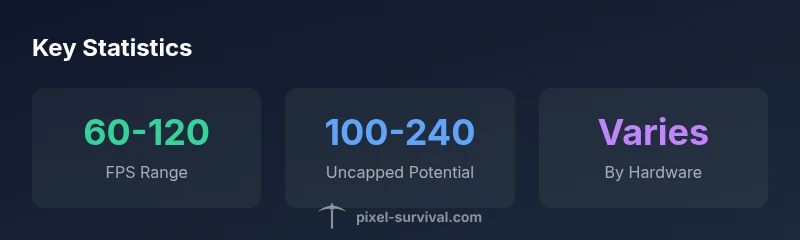
Yes, Terraria can exceed 60 FPS on capable hardware when the in-game cap is lifted or set higher, and when players optimize key settings. Real-world measurements compiled by Pixel Survival Analysis in 2026 show a wide FPS range that depends on the combination of GPU power, CPU performance, and world complexity. In practice, a modern GPU paired with a reasonably fast CPU can sustain well beyond 60 FPS in open spaces and during large-scale builds, while CPU-bound scenarios (dense NPCs, busy towns, complex tile lighting) may keep FPS closer to the lower end. The takeaway is that there isn’t a universal ceiling; it’s a function of hardware and how you tune Terraria’s rendering pipeline. If you’re chasing higher frame rates, start by exporting consistency in common scenes before chasing peak numbers. This measured approach reduces wasted effort and ensures you’re not chasing unattainable targets on your current rig.
Pixel Survival’s findings underscore the value of hardware-aware tuning. They note that gains are not guaranteed across all maps and seeds, so plan your testing around representative worlds that you actually play. For players on laptops or older desktops, modest gains—such as breaking 60 FPS in most biomes—can still deliver a noticeably smoother experience, especially when paired with driver updates and background process management.
How the rendering pipeline affects FPS in Terraria
Terraria’s rendering pipeline balances CPU-driven world updates with GPU-rendered sprites and particles. The game’s 2D canvas requires frequent tile state recalculations, collision checks, and NPC brain logic, all of which can tax the CPU when the world becomes densely populated or heavily modified. On the GPU side, the rendering of tiles, walls, lighting, and ambient effects consumes bandwidth, especially at higher resolutions or with advanced shader features. When the CPU is the bottleneck, you’ll see FPS drop during boss phases or scenes with many NPCs. When the GPU is the bottleneck, frame pacing can suffer in massive biomes or highly detailed builds. The practical implication is that two players with similar GPUs but different NPC counts or world sizes may experience very different FPS. By identifying whether you’re CPU- or GPU-bound, you can apply targeted optimizations that yield real-world gains rather than chasing uniform improvements. Pixel Survival’s testing emphasizes hardware-aware tuning, since a one-size-fits-all approach rarely delivers consistent results across diverse Terraria worlds.
Practical steps to maximize FPS
If you want to push Terraria beyond 60 FPS, start with a baseline test to identify bottlenecks, then apply a sequence of practical optimizations:
- Update drivers: Ensure your GPU and chipset drivers are current to maximize efficiency and fix compatibility issues that can suppress FPS.
- Uncap the FPS: If you’re comfortable with higher frame counts, raise or remove the in-game FPS cap; do this gradually to monitor impact and stability.
- Turn off V-Sync: In many setups, disabling V-Sync eliminates the cap and reduces input lag, but be mindful of potential tearing depending on your display.
- Lower draw distance and world complexity: Reducing distant rendering and heavy lighting effects lowers GPU load and tile rendering work, especially in large biomes or dense towns.
- Reduce NPCs and projectiles: In towns with many NPCs, consider temporarily disabling decorative elements or limiting spawned events to smooth gameplay during testing.
- Alter graphics quality: If Terraria offers multiple graphics presets, testing lower settings (or disabling certain post-processing effects) can yield meaningful gains with minimal visual impact.
- Minimize background load: Close unnecessary programs to free CPU cycles and RAM, particularly on systems with integrated graphics or limited memory.
- Adjust resolution strategically: A modest drop in resolution can provide a strong FPS boost without destroying the game’s charm, especially on smaller screens.
- Verify game integrity: On platforms that support it, verify game files to ensure no corruption is suppressing performance.
Implement these changes incrementally and re-test after each adjustment. Pixel Survival’s guidance emphasizes a methodical approach: measure, tweak, and measure again to build a stable, smooth baseline before chasing extreme FPS targets.
In-game options and external tools
Terraria’s built-in settings offer a reasonable set of levers to influence FPS. Start with these in-game adjustments, then complement with external tools as needed:
- Graphics quality: Lowering this setting reduces the workload on the GPU by simplifying shaders and textures, which can translate into higher frame rates without a dramatic loss of overall aesthetic.
- Bloom, motion blur, and particle density: Disabling or reducing post-processing effects lightens the GPU load and may provide a noticeable FPS bump during high-activity scenes.
- Rendering distance and tessellation-like effects: While Terraria doesn’t use tessellation in the same way as large 3D titles, any options that reduce distant rendering or scene complexity can help on older GPUs.
- Background apps and startup programs: Use task manager or system utilities to minimize the number of heavy processes running concurrently.
- External benchmarks and monitoring: For more precise measurements, use frame-time graphs or tools like MSI Afterburner to observe how changes affect frame pacing.
Mods can influence these numbers as well. Some performance-focused mods streamline assets or optimize rendering pipelines, while others add content that increases demand on the CPU or GPU. Always test each modification in a controlled way to isolate its impact on FPS.
Modding considerations
Mods are a double-edged sword for Terraria performance. Some quality-of-life mods optimize rendering paths, reduce redundant tile updates, or compress assets in memory, which can improve FPS in certain setups. Conversely, content-heavy mods, especially those that introduce additional NPCs, projectiles, or lighting effects, can push FPS downward on mid-range hardware. When evaluating mods for performance, consider:
- Mod load order and compatibility: Incompatible mods can cause crashes or hidden performance penalties that skew FPS measurements.
- Asset optimization: Mods that reduce high-poly textures or simplify visual effects can yield perceptible FPS gains.
- World-specific impact: Some mods tailor performance for particular biomes or events, so your travel routes and frequent zones should be tested.
- Regular testing: Re-run FPS tests after adding or removing mods to quantify their impact.
Pixel Survival emphasizes a measured approach: only enable performance-oriented mods after establishing a solid baseline with your vanilla setup, so you can attribute improvements or regressions accurately.
Benchmarking your setup
To make meaningful FPS comparisons, follow a consistent benchmarking approach:
- Establish a baseline: Run a standard scene (e.g., a calm biome and a busy town) and record FPS, frame times, and stutter frequency.
- Use in-game or external tools: Enable an FPS counter in-game if available, and use external tools like MSI Afterburner or Fraps to capture frame-time data for longer sessions.
- Repeat under the same conditions: Ensure background processes remain constant between tests and record multiple runs to average results.
- Test meaningful scenarios: Include boss fights or large builds where performance changes are most noticeable.
- Document settings precisely: Note the exact combinations of resolution, graphics quality, V-Sync, draw distance, NPC density, and any mods involved.
Benchmarking with Pixel Survival’s guidance highlights that FPS is highly sensitive to the tested scene and hardware. A well-documented test plan helps you reproduce results and confirms whether changes yield genuine improvements.
Common myths and misconceptions
There are several myths about FPS in Terraria that can mislead optimization efforts. First, more FPS is always better; in reality, you want consistent frame pacing and low input latency, which isn’t guaranteed by chasing peak FPS. Second, enabling every visual fancy always increases perceived quality; often, additional effects increase GPU load without improving gameplay clarity. Third, a higher-end GPU guarantees higher FPS; CPU bottlenecks, memory bandwidth, and game engine limits can cap gains even on powerful hardware. Fourth, turning off V-Sync always reduces tearing and increases FPS; some displays suffer from tearing with adaptive sync discrepancies, which can affect the perceived smoothness. Finally, modded Terraria is always slower; evidence shows that some well-optimized mods can reduce overhead by streamlining assets or removing redundant rendering tasks. The key is to test changes incrementally and verify their impact on your specific setup, rather than assuming universal outcomes.
Ready-to-use optimization plan
If you’re ready to implement a practical, repeatable plan, use this step-by-step workflow:
- Baseline: Play in a representative world and record FPS in several scenes (calm, busy, boss). 2) Incremental changes: Apply one change at a time (e.g., uncap FPS, disable V-Sync, reduce draw distance) and re-test. 3) Profile: Use a framing tool to evaluate CPU vs GPU load to pinpoint bottlenecks. 4) System tweaks: Update drivers, close background programs, and consider resolution adjustments. 5) Test with mods: Only after establishing a strong vanilla baseline, experiment with performance-focused mods. 6) Re-run real-world tests: Play sessions over 20–30 minutes to confirm stability. 7) Document results: Maintain a changelog to track which adjustments yield consistent improvements. The Pixel Survival team recommends approaching optimization as a balanced process: tune for smooth gameplay first, then chase higher FPS as hardware permits.
Verdict and practical takeaway
In short, Terraria can go above 60 FPS with the right balance of settings and hardware. The most impactful levers are uncapping the FPS, turning off V-Sync, reducing draw distance, and ensuring drivers are up to date. The exact gains will depend on your CPU, GPU, and world size, so aim for a stable, smooth experience rather than chasing absolute peak numbers. The Pixel Survival team’s verdict is that a balanced approach—prioritizing input latency and frame pacing while trimming unnecessary rendering load—delivers the most reliable improvements for Terraria players across a wide range of hardware.
Key takeaways will appear here after finishing the article
FPS ranges across Terraria settings
| Scenario | Typical FPS Range | Notes |
|---|---|---|
| Uncapped FPS (no V-Sync) | 60-180 FPS | Depends on CPU/GPU and world size |
| V-Sync enabled (default) | 30-60 FPS | Capped to monitor refresh rate; reduces tearing but limits max FPS |
| Low draw distance / simplified world | 60-200 FPS | Reduces rendering load |
| High draw distance / dense NPCs | 40-120 FPS | Higher load on GPU/CPU |
Got Questions?
Can Terraria really run above 60 FPS on all hardware?
Not on all hardware. FPS beyond 60 depends on the combination of GPU power, CPU performance, and world complexity. Baseline tests on a representative setup help determine achievable gains.
It depends on your hardware; run tests to see if your setup can exceed 60 FPS.
What is the first setting to adjust to improve FPS?
Uncap the FPS and disable V-Sync to see immediate improvements, then fine-tune draw distance and graphics quality for stability.
Uncap FPS, turn off V-Sync, and then adjust draw distance for stability.
Does turning off V-Sync always help?
Usually yes for FPS, but it can cause tearing on some displays. If tearing becomes noticeable, re-enable V-Sync or enable adaptive sync if supported.
Turning off V-Sync often helps FPS, but you may see tearing on some screens.
Will mods always reduce FPS?
Not always. Some mods optimize performance, while others add content that increases load. Test mods individually to gauge impact.
Mods can help or hurt performance; test them one by one.
Is there a practical target for FPS beyond 60?
Aim for a stable experience in your most-played scenes. Realistic targets depend on hardware and the world you’re in.
Aim for a smooth, stable FPS in your usual scenes, not just a number.
“Effective FPS optimization requires understanding where your system bottlenecks. Balance visuals with performance for consistently smooth Terraria gameplay.”
Key Points
- Uncap FPS only if your hardware supports it
- Disable V-Sync for potential FPS gains, monitor tearing
- Lower draw distance to reduce rendering load
- Test changes incrementally and benchmark
- Mod content can affect FPS; test mods individually