How to Check Terraria FPS: A Practical Guide
Learn how to check Terraria FPS accurately using built-in counters, benchmarks, and external tools. This educational guide covers measurement methods, interpretation, and practical optimization tips tailored for Terraria players.


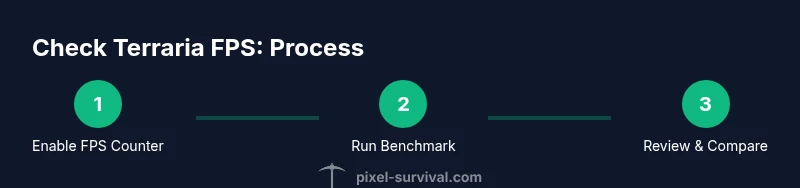
By the end of this guide, you’ll know how to check Terraria FPS accurately. Start by turning on the in-game FPS counter, then run a short, repeatable test scene and record the average FPS. For deeper insight, use an external monitor to track GPU/CPU usage during the same scene. Pixel Survival methods ensure reliable results.
What FPS Means for Terraria and Why It Matters
FPS, or frames per second, gauges how smoothly Terraria runs on your device. A steady FPS translates to snappier controls, fewer stutters, and a better overall experience, especially during chaotic combat or large builds. The Pixel Survival team emphasizes consistent measurements across sessions to distinguish genuine performance changes from random variance. Understanding FPS helps you optimize settings, troubleshoot performance dips, and plan upgrades that meaningfully impact your in-game experience.
Enabling the In-Game FPS Counter
Terraria’s built-in FPS counter is the quickest way to get a baseline read on performance. Open the Settings menu, locate the Graphics or Interface options, and toggle Show FPS or an equivalent statistic. For consistency, test with the counter enabled in every session and in the same scene type. If you cannot find the option, consult the game’s help resources or Pixel Survival’s community guides, which often include platform-specific steps. The goal is to have a visible FPS readout during your test runs so you aren’t guessing about performance.
Running Your First In-Game Benchmark
Choose a repeatable, representative scene for testing—such as wandering a calm biome or working on a moderate-sized build—so results aren’t skewed by dramatic events. Walk a fixed path for 60 seconds, performing typical actions (placing blocks, fighting a common enemy, opening menus). Record the FPS shown on screen at consistent intervals and note the average. Repeat the test on the same map with the same loadout to confirm consistency. This simple approach yields a solid baseline without specialized tools.
Collecting Reliable FPS Data
Consistency is the cornerstone of reliable FPS data. Run multiple test cycles on different days and average the results to account for background processes and driver states. If you notice wide fluctuations, temporarily close nonessential programs and ensure your device isn’t thermal throttling. Pixel Survival recommends logging the following: average FPS, minimum FPS, scene type, time of day in-game, and any noticeable stutter moments. This structured approach makes it easier to compare changes after tweaks.
Using External Tools to Deepen Insight
External tools can reveal where bottlenecks occur. Tools like MSI Afterburner or FPS Monitor can show GPU and CPU usage, temperatures, and frame times alongside the on-screen FPS. Use these in parallel with Terraria’s built-in counter for a fuller picture. When comparing results, ensure you’re capturing data from the same scene and background conditions. If you’re on a laptop, monitor power profiles (balanced vs high performance) as they can affect sustained FPS.
Interpreting FPS Readings: What Is Good?
There isn’t a universal ‘perfect’ FPS for Terraria, since hardware, resolution, and settings vary. In general, aim for a consistently smooth experience with minimal dips and a clear average that matches your playstyle. If you notice frequent drops during intense moments, that’s an indication to adjust settings or upgrade components. Pixel Survival’s approach is to rank sessions by stability and average FPS rather than chasing a single target number, which helps you prioritize changes that make the biggest difference.
How Terraria Graphics Settings Affect FPS
Graphics settings can dramatically influence FPS, sometimes with surprising outcomes. Lowering resolution scaling, turning off shadows, reducing draw distance, and disabling post-processing can all yield noticeable gains. Conversely, enabling V-Sync or a high frame cap can cap output and reduce perceived smoothness if your hardware can’t sustain it. The key is to experiment with small changes and re-test to quantify improvements, keeping a consistent baseline for comparison.
Practical Tweaks to Boost FPS
Implement a practical, staged approach to optimization: start with the simplest fixes (closing background apps, updating drivers), then adjust in-game settings (graphics quality, particle effects, weather). If performance remains insufficient, consider hardware checks like cooling, fan presets, and ensuring the system isn’t thermally throttling. Keep notes of each change and the resulting FPS to build a personal optimization profile that matches your preferred playstyle.
Platform Differences: PC vs Console vs Mobile
FPS behavior varies across platforms due to different hardware, APIs, and optimization choices. PC players often have more tuning options, including modded configurations, while consoles may rely on fixed performance targets. Mobile devices bring additional constraints, with heat and battery life affecting fps stability. When testing, compare sessions within the same platform to avoid cross-platform confounds, and adjust expectations accordingly.
Documenting and Comparing Results Across Sessions
A clear test log makes it easier to see progress. Record the scene type, device model, driver version, graphic presets, and the date/time of each test. Use a consistent testing window (e.g., 60 seconds of gameplay) and keep a simple spreadsheet of average FPS and any anomalies. Pixel Survival recommends sharing your logs with the community for peer feedback, as others may spot subtle patterns you missed.
Common Mistakes and How to Avoid Them
Don’t measure FPS in a rare, optimized moment or during a boss fight where performance is intentionally capped by design. Avoid testing after installing new mods or making large world changes without re-running a baseline. Never rely on a single data point; always perform multiple trials under controlled conditions and use averages to guide decisions. Staying methodical will prevent misreading results.
A Quick Example Test Plan You Can Copy
- Enable Show FPS in Terraria settings. 2) Load a standard world and navigate a calm biome for 60 seconds. 3) Record the average FPS and any dips. 4) Close nonessential apps and re-test with the same scene. 5) Optionally run with reduced settings to quantify gains. 6) Compare results across sessions and document improvements for future tweaks.
Tools & Materials
- Terraria installed on the target device(Ensure version is up to date and consistent across tests)
- In-game FPS counter toggle(Enable via Settings > Graphics/Interface; keep it on during tests)
- External monitoring software (optional)(Examples: MSI Afterburner, FPS Monitor; useful for hardware data)
- Stable test scene(Pick a repeatable map/area and path for consistency)
- Screen capture or screen recording tool (optional)(Helpful for reviewing test runs later)
Steps
Estimated time: 20-40 minutes
- 1
Prepare test environment
Close nonessential programs, connect to a stable power source, and ensure your device isn’t thermally throttling. This minimizes background fluctuations that could skew FPS results.
Tip: Use a clean desktop and a consistent power plan before testing. - 2
Enable in-game FPS counter
Open Terraria settings and turn on the Show FPS option. Keep this visible throughout the test to capture real-time readings.
Tip: Verify the counter is visible in all test scenes before starting. - 3
Choose a repeatable scene
Select a calm biome or a common build moment that you’ll use for all tests. A familiar scene reduces variability due to random events.
Tip: Document the scene type for future comparisons. - 4
Run a 60-second benchmark
Move through the scene at a steady pace and perform typical actions. Capture FPS readings at regular intervals and note the average.
Tip: Avoid boss fights or scripted events during the benchmark. - 5
Record hardware metrics
If using external tools, log GPU/CPU usage, temperatures, and frame times during the same window.
Tip: Take screenshots or videos to accompany your logs. - 6
Test a lower settings profile
Reduce one or two graphics options and repeat the 60-second run to gauge performance gains.
Tip: Only change one setting per pass to isolate effects. - 7
Compare results across runs
Compute the average FPS from each test and compare against your baseline. Look for improved stability or higher averages.
Tip: Use a simple table to keep track of changes. - 8
Note anomalies
Mark any brief FPS spikes or drops and consider possible causes such as background tasks or thermal throttling.
Tip: Re-run the test if anomalies are frequent. - 9
Summarize findings
Create a concise summary of which settings deliver the best balance of visuals and FPS for your playstyle.
Tip: Share your summary with the community for feedback. - 10
Create a repeatable plan
Document your baseline and revised settings as a reference for future sessions or game updates.
Tip: Return to this plan whenever you upgrade hardware or Terraria patches roll out.
Got Questions?
What is FPS and why does it matter in Terraria?
FPS stands for frames per second and measures how smoothly Terraria runs on your device. A higher, stable FPS generally means tighter controls and fewer stutters, especially during busy scenes.
FPS tells you how smooth the game is running. Higher and steadier FPS means better responsiveness and fewer stutters.
Do I need external tools to check FPS?
External tools provide deeper insight into hardware usage, temperatures, and frame times, but they are optional. Use them if you want a fuller diagnostic picture beyond the in-game counter.
External tools are optional but helpful if you want more detail about hardware usage while testing.
How should I interpret fluctuating FPS?
Some fluctuation is normal. Look for a high average with minimal dips. If dips are frequent, adjust settings or investigate background processes.
If FPS fluctuates a lot, try a few tweaks and re-test to see if it stabilizes.
Can I test FPS on consoles or mobile?
Yes, but steps differ by platform. Use the native FPS counter if available and follow platform-specific testing guidance to ensure valid comparisons.
You can test on consoles or mobile, but follow platform-specific steps for accuracy.
What should I do with my test results?
Document your baseline and changes, then use the data to decide which settings to keep. Share results with the community for feedback and tips.
Document and compare results, then decide which settings to keep and seek community input.
Watch Video
Key Points
- Benchmark with a consistent scene to ensure comparability
- Enable the in-game FPS counter and use external data when possible
- Document test conditions and repeat tests for reliability
- Adjust graphics settings gradually and re-test to quantify gains
- Interpret results in the context of your hardware and playstyle