How to Make Terraria Less Laggy
A complete, step-by-step guide to reducing lag in Terraria through in-game tweaks, OS optimizations, and safe troubleshooting. Learn practical, proven methods for smoother gameplay and reliable FPS.


Learn to make Terraria less laggy by combining in-game tweaks, system optimizations, and safe troubleshooting. Start with baseline checks, adjust visuals and frame-rate, disable heavy mods, and verify file integrity. This measured approach reduces stutter, improves FPS, and delivers a smoother world.
Why Terraria lag happens
According to Pixel Survival, lag in Terraria typically arises from rendering load, memory pressure, background processes, and world complexity. Even on modest hardware, a combination of high-resolution textures, large worlds, and simultaneous effects can cause stuttering. The Pixel Survival Team emphasizes that understanding bottlenecks helps you target the right changes rather than random fiddling. In practice, start by establishing a baseline: capture your current FPS in a repeatable scene, and identify where drops occur (exploration, boss battles, or heavy biomes). Lag isn’t caused by a single issue; it’s the result of several interacting factors. By analyzing where stutter happens, you can craft a focused optimization plan that yields consistent gains over time. The goal is steady performance you can rely on in varied worlds and during intense combat.
In-game settings that matter
Terraria’s built-in options directly influence how hard your PC works. Reducing render distance, lowering texture quality, and turning off post-processing dramatically ease GPU and CPU load. Set a stable frame-rate cap near your monitor’s refresh rate, disable motion blur, and minimize shadows to cut unnecessary work for the renderer. Use fullscreen mode for more consistent timing, and consider a modest resolution scale for laptops or desktops with limited horsepower. The objective is a smooth, playable experience rather than ultra-high visuals. Small changes compound: you’ll often notice a bigger difference by combining several tweaks rather than a single drastic setting.
System and OS optimizations
External factors matter as much as in-game settings. Update graphics drivers and keep your operating system current. Use a high-performance power plan and close unnecessary background applications before launching Terraria. Enable Windows Game Mode if available, and disable startup programs that siphon CPU time. If you have antivirus software, consider adding Terraria to exclusions while testing performance; revert afterwards to maintain protection. These steps reduce background contention and help the game access required resources more predictably.
Managing mods, texture packs, and seeds
Mods and texture packs can increase variety but also lag, especially when multiple mods load textures or complex shaders. Start with vanilla Terraria to establish a performance baseline, then gradually reintroduce light mods or minimal texture packs. Avoid packs that significantly raise memory usage or draw calls. For seeds, choose simple worlds to reduce initial load and chunk generation pressure. If you do enable mods, pick ones known for optimization or low-resource texture packs and disable any that duplicate content already in base Terraria.
Disk and memory considerations
Terraria relies on quick disk access for loading chunks and world data. Ensure you have adequate free space and a healthy drive, preferably an SSD for faster I/O. Regularly clean temporary files and verify game files to prevent asset corruption. If memory pressure occurs during long play sessions, consider increasing virtual memory and ensuring other apps aren’t starving RAM. A clean, defragmented drive and ample RAM prevent short stutters caused by IO waits and paging.
Quick baseline tuning plan
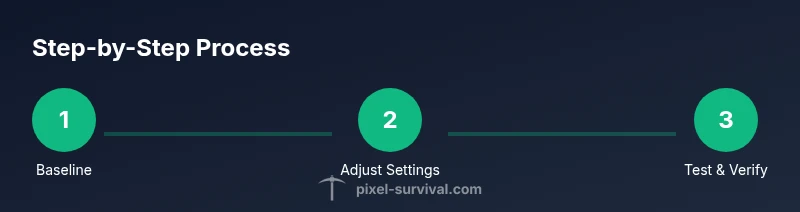
Adopt a practical, incremental approach. Start with a vanilla baseline to gauge current performance, then apply one change at a time and re-test in a consistent scene. Record FPS before and after each tweak to quantify impact. This method helps you identify the most effective tweaks for your exact setup and Terraria world, avoiding guesswork and wasted time. When you reach a stable frame rate, lock in those settings and revisit only if you change mods, worlds, or hardware.
When to upgrade or seek help
If lag persists after thorough tuning, you may need hardware upgrades or network optimizations for multiplayer. A faster CPU, more RAM, or a better GPU can unlock smoother play in large biomes or complex builds. For online play, ensure your connection isn’t the bottleneck—test with a wired connection and closer servers. The Pixel Survival team recommends documenting changes and results so you can make informed next steps and avoid unnecessary upgrades.
Practical quick-start checklist you can use today
- Baseline: record FPS in a calm area with vanilla Terraria.
- In-game: reduce render distance, texture quality, shadows, and post-processing.
- FPS cap: set a fixed target near your monitor refresh.
- System: update drivers, enable Game Mode, and close background apps.
- Mods: run vanilla first, then add one lightweight mod if needed.
- Disk: ensure free space, consider SSD for load times, run file verification.
- Test: re-measure FPS after each change and compare with your baseline.
Tools & Materials
- PC or laptop with admin access(Allows install and configuration changes.)
- Updated graphics drivers(Check manufacturer site or device manager.)
- Current OS version(Keep Windows/macOS up to date for compatibility and performance.)
- Quality display (60 Hz or higher)(Helps observe FPS changes accurately.)
- Wired internet connection (for testing multiplayer)(Reduces network jitter during checks.)
- SSD or fast HDD (optional but recommended)(Improves load times and asset streaming.)
Steps
Estimated time: 45-75 minutes
- 1
Baseline your current performance
Launch Terraria in a controlled scene (flat area, no combat) and record your FPS for several minutes. Note fluctuations during respawns or biomes. Establishing a consistent baseline lets you compare the impact of each change clearly.
Tip: Use a screenshot or a FPS counter plugin to capture data for later review. - 2
Update drivers and OS
Install the latest graphics drivers and ensure the operating system is fully patched. Reboot before testing again to apply changes. This reduces driver-related hiccups and ensures compatibility with Terraria’s rendering pipeline.
Tip: Backup important files before major updates. - 3
Reset in-game settings to vanilla
Return all graphics options to their defaults, then disable nonessential effects like motion blur, shadows, and post-processing. This confirms the baseline impact of each adjustment and prevents cascading changes from masking root causes.
Tip: Document each setting you change for easy backtracking. - 4
Tweak resolution and draw distance
Reduce the resolution scale and draw distance to lighten GPU load. Test in a stable zone to see improvements. Small reductions can yield sizable FPS gains without ruining playability.
Tip: If you must re-expand visuals later, re-test as you re-enable options one by one. - 5
Set a frame-rate cap and switch to fullscreen
Choose a reasonable FPS cap close to your monitor’s refresh rate and run Terraria in fullscreen. This helps stabilize timing and reduces frame-skipping, especially during heavy scenes.
Tip: If tearing occurs, try a different V-Sync option or a modest cap adjustment. - 6
Manage mods and texture packs
Run a vanilla session to establish a performance baseline, then add one lightweight mod or minimal texture pack at a time. Avoid heavy packs that drastically increase memory usage or draw calls.
Tip: Remove unused texture packs to recover RAM and GPU bandwidth. - 7
Optimize disk and memory usage
If possible, install Terraria on an SSD and ensure there is ample free space. Run disk cleanup and verify game files to prevent asset corruption. Close unnecessary background apps to free RAM.
Tip: A clean startup helps ensure changes aren’t masked by other processes. - 8
Verify files and re-test
Use the game launcher to verify integrity of files, which rebuilds missing or corrupted assets. Re-run your baseline test and compare results with your previous measurements.
Tip: If performance drops again, re-test with incremental tweaks to identify the bottleneck.
Got Questions?
Why is Terraria lagging on my PC even after meeting minimum requirements?
Lag can stem from background processes, antivirus interference, or high in-game settings. Start by closing non-essential apps and testing with vanilla Terraria to isolate the issue.
Lag can happen even on a capable PC if other programs hog resources. Close background apps and test with vanilla Terraria.
Do mods or texture packs cause lag in Terraria?
Yes, mods and texture packs can increase memory use and draw calls. Disable non-essential mods and use lighter texture packs to regain performance.
Mods can slow the game; disable unnecessary mods and use lighter textures to improve performance.
Will lowering resolution hurt gameplay too much?
Lowering resolution makes the game look less sharp but can dramatically improve FPS. Balance visuals and performance by testing different scales.
Lower resolutions can improve speed, but you might lose some sharpness. Find a balance that keeps playability.
Is Windows Game Mode worth enabling for Terraria?
Game Mode can help by prioritizing game resources. Enable it, but also verify other tweaks to avoid conflicts.
Game Mode can help, but it’s not a magic fix. Use it along with other optimizations.
What if lag only happens online in multiplayer?
Network lag is separate from client performance. Check your router, test with a wired connection, and try closer servers to minimize latency.
If lag is online-only, focus on your network and server distance rather than graphics alone.
Should I upgrade hardware to fix lag?
Upgrade only after you’ve exhausted optimization steps. A faster CPU, more RAM, or a better GPU can help, but verify bottlenecks first.
Hardware upgrades help, but confirm lag sources first to ensure the upgrade addresses the right bottleneck.
How often should I verify game files when troubleshooting?
Verify files after major changes or if you suspect corruption. This helps ensure a clean, stable game state for testing.
Verify game files after changes or warnings about corruption to keep testing reliable.
Watch Video
Key Points
- Baseline performance matters; start with vanilla settings.
- Lower load before chasing hardware upgrades.
- Mods and texture packs frequently drive lag; test incrementally.
- Verify game files after any major change to ensure reliability.