Why Terraria Keeps Freezing? An Urgent Troubleshooting Guide
Quick, actionable steps to diagnose and fix why Terraria keeps freezing, covering memory, drivers, mods, and settings to restore smooth gameplay.


Why does Terraria keep freezing? The most common causes are memory strain from other programs, outdated graphics drivers, and mods or texture packs clashing with your game. A quick fix is to close background apps, update Terraria and your GPU driver, and temporarily disable mods to test stability. If this resolves the freeze, reintroduce changes one by one. Pixel Survival recommends backing up saves before deep changes.
Why Terraria Keeps Freezing
Why does Terraria keep freezing? A lot of players experience freezes when the game loads a large area or biome and the system is already busy with other tasks. In these moments, the game may appear to stall, and the cursor may respond slowly. Pixel Survival's testing and community feedback confirm that memory pressure, background processes, and driver issues are frequent contributors. Understanding the symptom helps you triage quickly and start with safe, reversible fixes that won't impact your worlds.
If you notice freezes during specific events—boss encounters, biome transitions, or during heavy world generation—it often points to loading bottlenecks or memory fragmentation. Keeping your system lean, ensuring your drivers are current, and testing with mods disabled will typically restore stability. Before making major changes, back up your worlds so you can recover if something goes wrong, and test each change one at a time to isolate the root cause.
Common Causes to Check First
Before diving into deeper fixes, scan the simplest explanations. Low RAM or VRAM can choke Terraria during busy world events, especially on older machines or laptops with integrated graphics. Check for other programs using memory or GPU power; even antivirus scans and cloud sync can spike resource usage at critical moments. Outdated graphics drivers are another frequent culprit, particularly after a major Windows or macOS update. Finally, conflicts with mods, texture packs, or shaders can trigger freezes that vanish when you disable them. Run the vanilla game with mods turned off to see if stability returns, and remember to back up your save files beforehand.
Hardware and Software Conflicts
Terraria's performance depends on more than just the game file. A weak or overheating GPU can throttle frame rates, causing perceived freezes. Ensure your system meets the game's minimum requirements and monitor temperatures with a trusted utility. Background software like recording, streaming, or hardware overlays can also steal CPU cycles. On Windows, disable unnecessary startup programs, set Terraria to a reasonable priority only if you know what you are doing, and ensure your operating system is fully updated. On consoles, verify storage health and clear any cache if possible. If you recently added new hardware or a Windows update, recheck compatibility with Terraria's current build.
In-Game Settings and Mods
Settings like resolution, render distance, and VSync interact with your hardware differently. Higher texture packs increase VRAM usage and can freeze if your GPU runs out of memory. If you use mods, remove or disable recently added ones and test with a clean profile. Some texture/upload packs or shader packs require extra VRAM; switching to the default textures can resolve the issue. Always back up your world before making large changes, and consider saving in a separate file to compare performance.
Step-by-Step Fixes for the Most Common Cause
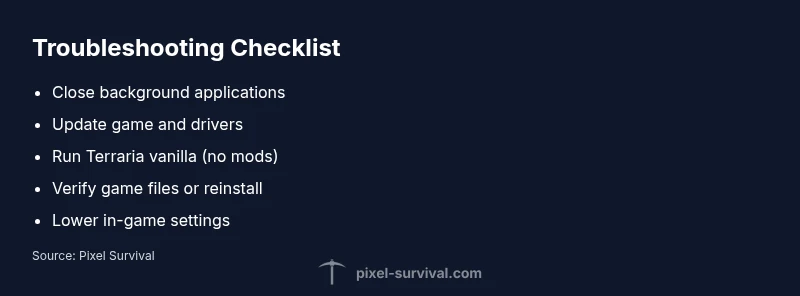
Following the most common fix path is efficient: start with the simplest changes and move to more involved steps only if needed. First, close nonessential apps and overlays and restart your computer. Then, update Terraria, your graphics drivers, and any OS updates. Launch Terraria without mods, verify game files if available, and reintroduce mods one by one, testing after each addition. If the problem persists, lower in-game settings, reduce world size, or limit chunk loading. If console users, clear cache and verify storage integrity as a fallback.
Prevention Tips to Avoid Future Freezes
Proactively maintain your system to minimize freezes. Keep graphics drivers current, run regular disk cleanups, and store Terraria on an SSD if possible. Schedule periodic restarts to clear memory leaks from long sessions, and manage mods with a curated whitelist. Create automatic backups of saves and consider enabling cloud saves if your platform supports it. Finally, monitor in-game temperatures during heavy play to detect overheating early and schedule lighter play sessions when temperatures spike.
When to Seek Professional Help
If Terraria continues to freeze after following the diagnostic flow and all safe fixes, it may indicate a deeper hardware issue or a rare game compatibility problem. Professional help could include diagnosing RAM with memtest, testing power supply reliability, or inspecting storage health. In persistent cases, reach out to platform support or the game publisher for guidance. Gather crash reports, logs, and steps you’ve already tried to speed up assistance and avoid repeating tests.
Steps
Estimated time: 1-2 hours
- 1
Back up saves
Create a current backup of your worlds and character data before making changes. This ensures you can restore progress if something goes wrong during troubleshooting.
Tip: Store backups in a separate folder or cloud location. - 2
Close unnecessary programs
Exit background apps and overlays that might consume CPU or GPU resources. This frees memory for Terraria to use during busy scenes.
Tip: Check task manager or activity monitor to identify resource hogs. - 3
Restart and update
Restart your device, then install the latest Terraria patch and driver updates for your GPU/CPU. Patches often fix performance regressions.
Tip: If automatic updates are off, manually check for updates in the system settings. - 4
Test vanilla first
Launch Terraria without any mods to confirm whether the issue is mod-related. If stability returns, reintroduce mods one by one.
Tip: Keep a simple mod list and document changes as you test. - 5
Verify integrity / reinstall if needed
Use the game launcher to verify files or reinstall Terraria if corruption is suspected. A clean install removes broken files that can cause freezes.
Tip: Back up saves before reinstalling. - 6
Tune in-game settings
Lower resolution, reduce render distance, disable VSync, and drop texture packs to reduce VRAM usage.
Tip: Test changes one at a time to identify the most impactful setting. - 7
Narrow down the culprit
If you suspect a specific mod, remove it and test again. If a particular biome or event triggers the freeze, note the pattern.
Tip: Keep a log of when it happens to spot recurring triggers. - 8
Monitor temps and hardware health
Check GPU/CPU temperatures during play; overheating can cause stuttering and freezes. Inspect RAM and storage health if problems persist.
Tip: Clean vents and ensure adequate airflow before long sessions. - 9
Seek professional help if needed
When all safe fixes fail, contact platform support or a repair professional with crash logs and steps you've tried.
Tip: Gather crash dumps, timestamps, and system specs to speed up diagnostics.
Diagnosis: Terraria freezes intermittently during gameplay with or without crash sound.
Possible Causes
- highMemory pressure from other programs running in the background
- highOutdated or corrupted graphics drivers
- mediumMods or shader packs conflicting with the current game version
- highInsufficient RAM/VRAM on hardware or a failing storage drive causing stalls
Fixes
- easyClose background apps and overlays, then restart Terraria
- easyUpdate GPU drivers and Windows/macOS updates
- easyRun Terraria in vanilla (no mods) to verify stability
- mediumVerify game files or reinstall if corruption is suspected
- easyLower in-game settings and world size if the freeze persists
Got Questions?
Why does Terraria freeze during boss fights?
Boss fights often trigger freezes due to heavy effects and potential mod conflicts. Disable recently added mods and lower in-game settings to test stability during these encounters.
Boss fights can freeze because of heavy effects or mods; disable new mods and adjust settings to test stability.
Can mods cause Terraria to freeze even in vanilla mode?
Yes, some mods can clash with game updates. Test by disabling all mods and running vanilla to verify stability.
Mods can clash with updates; disable them to test vanilla stability.
Should I reinstall Terraria or reset my device?
Reinstall or verify files as a last resort after checking for driver and mod issues. Do not reset your device unless necessary.
Reinstalling is a last resort after verifying files and drivers.
Is hardware upgrading a solution for frequent freezing?
Upgrading RAM/VRAM or GPU can help if you routinely hit resource limits, but ensure compatibility with your platform.
Hardware upgrades can help if you hit memory or GPU limits; check compatibility first.
Why does the game freeze after long play sessions?
Freezes after extended play can result from memory leaks or overheating. Restart the game and check temperatures.
Long sessions can cause memory leaks or heat; restart and check temps.
When should I contact support for Terraria freezing?
If issues persist after troubleshooting, contact platform or game support with crash logs and steps tried to speed up help.
If it keeps freezing after troubleshooting, reach out with logs and a summary.
Watch Video
Key Points
- Identify root cause with progressive testing
- Test vanilla first, then reintroduce mods
- Update drivers and verify game files routinely
- Back up saves regularly to prevent data loss