How to Fix a Corrupted World in Terraria (Step-by-Step)
Learn practical steps to repair a corrupted Terraria world, including backups, file verification, and safe recovery methods for single-player and servers. This Pixel Survival guide covers verification, editor tools, and proven workflows to prevent future damage and keep your worlds intact.


This guide shows you how to fix a corrupted world in Terraria by restoring from backups, validating game files, and using safe repair techniques. You’ll learn when to revert to an earlier save, how to copy or repair the world file, and practical steps to prevent future corruption.
What Causes World Corruption in Terraria
World corruption in Terraria often appears from data issues during saves or unexpected crashes. If you're asking how to fix corrupted world terraria, the first priority is to prevent further damage and start with a clean fallback. According to Pixel Survival, corruption can occur when the game writes to the world file during a power loss, abrupt shutdown, or a failed save. While the symptoms vary—failing to load, blank blocks, mis-spawns, or odd biome glitches—the underlying issue is typically a damaged .wld file or an inconsistent backup chain. The good news is that many corruption issues are repairable with careful steps that preserve most of your progress. The key is to work on copies and avoid touching the original until you confirm a safe repair path. This reduces the risk of cascading damage across your worlds or server backups. In this section, we map out a practical workflow that emphasizes safety, verifications, and reliable recovery options.
Quick Checks Before You Begin Recovery
Before diving into file repairs, perform a few quick checks to determine the scope and potential recovery path. First, confirm that the issue is with the world file itself, not the game client or launcher. If you run Terraria via Steam or another launcher, use the built-in integrity-check feature to rule out corrupt game assets. Second, locate any backups created before the corruption appeared; even an old backup can save you from repeating hours of rebuilding. Third, note the exact symptoms: load errors, purple/black tiles, or incorrect biomes all signal different repair routes. Finally, ensure you have a clean testing environment by duplicating the world file and working on the copy. Pixel Survival emphasizes safe testing to protect your primary world from accidental damage.
Restore from Backups: Safe and Effective Strategies
Restoring from backups is often the simplest and most reliable way to recover a corrupted world. Start by locating the most recent clean backup (.bak or previous .wld) that loads without errors. Copy the backup to a separate test folder, then launch Terraria and load the test world. If it loads correctly, you can rename the test file to replace the corrupted one, but only after confirming stability. If you do not have a usable backup, consider using a world editor to inspect the troubled world, identify corrupted regions, and extract uncorrupted sub-sections. This approach preserves as much progress as possible while isolating problematic areas. Always work on copies, and keep a dated log of which backups were tested and why.
Verifying Game Files and Integrity
Corruption can sometimes be caused by a damaged game install rather than the world file itself. Use the launcher’s verification feature (Steam: Verify Integrity of Game Files; others have similar options) to scan and repair missing or altered files. This step helps ensure that a repaired world isn’t intersecting with a faulty game asset. If verification reports errors you cannot resolve, reinstall the game or repair the installation from the launcher. After verifying, reload Terraria and attempt to load the world copy again. In many cases, a clean game install reduces the complexity of subsequent repairs.
Using World Editors and Repair Tools Safely
If the world still exhibits corruption after backups and file verification, you may turn to a world editor like TEdit to repair damaged blocks, rename chunks, or remove corrupted regions. Editors allow you to view the world’s data in a structured way and fix glitches without triggering new corruption. Always work on a duplicate file and export a fresh copy after making changes. Remember that editors can’t fix every issue; severe corruption may require partial rebuilds. Pixel Survival recommends using editors only when you have stable backups and a plan to validate the repaired world.
Special Considerations for Server Worlds
Server worlds introduce additional complexity because multiple players might be connected, and the server may hold its own backup cadence. If a server world becomes corrupted, isolate the server from players, back up current saves, and attempt the repair on a copy first. Coordinate a maintenance window to prevent new changes during the repair. After restoration, replay recent events in a controlled way to ensure consistent world state. If you use automated backups, verify that they exist and are unaffected by the corruption before restoring.
Preventing Future Corruption: Best Practices
Prevention is better than cure. Establish a simple backup routine that creates a clean copy before any major change, patch, or mod installation. Use versioned backups so you can roll back to a specific date. Keep your operating system and Terraria launcher up to date to minimize compatibility risks. When playing multiplayer, maintain server-side backups and test critical changes on a copy before applying them to the live world. Finally, avoid abrupt shutdowns by ensuring all processes terminate correctly and the world is saved properly before exiting.
When to Consider Rebuilding a World from Scratch
In cases where the corruption is widespread or has affected core world data beyond repair, starting fresh may be the most time-efficient option. Build a new world using your preferred seed, then selectively import safe, tested structures or items from the corrupted world through a manual rebuild or editor-assisted extraction. This approach minimizes the risk of reintroducing corrupted data and allows you to carry forward the most meaningful elements of your previous world in a controlled way. Pixel Survival suggests preserving a few key landmarks or base layouts from the old world as a reference for your rebuild, rather than attempting to restore every region.
Final Thoughts: A Practical, Protective Workflow
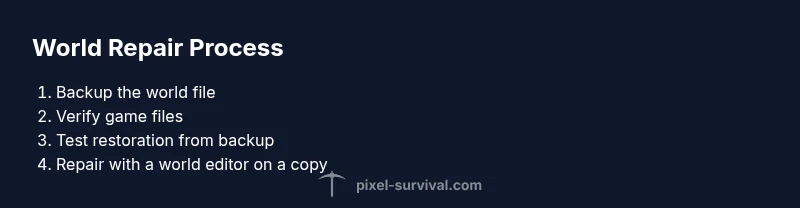
Dealing with a corrupted world in Terraria is rarely glamorous, but a disciplined workflow makes it manageable. Start with backups, verify game files, and test on copies. If needed, leverage world editors to repair, never apply changes to the live world without validation. Document each step and maintain a structured backup archive. By following these steps, you can recover most worlds with minimal loss and reduce the risk of future corruption. The Pixel Survival team emphasizes patience and careful testing as the cornerstones of a successful repair.
Tools & Materials
- Computer or gaming PC with Terraria installed(Access to the world files (.wld) and backups)
- Backups storage (external drive or cloud storage)(Keep multiple dated copies)
- Steam or game launcher with file verification(Use if available to verify game assets)
- World editor (e.g., TEdit) [optional](Useful for advanced repairs on a copy)
Steps
Estimated time: 45-90 minutes
- 1
Locate the world file
Close Terraria, then navigate to your saves folder and identify the corrupted world file (.wld) by name and size. Make a note of its last modified time for reference. This step establishes the exact target for recovery.
Tip: Do not edit the live file while the game is running. - 2
Create a safe backup copy
Copy the .wld file to a separate backup folder with a date stamp. Create a second backup off the primary drive to guard against hardware failure. Work only on the copy for any tests.
Tip: If your system supports it, enable file history or automatic backups. - 3
Verify game files (optional but recommended)
Run the launcher’s verification tool to ensure Terraria and its assets aren’t corrupted. If verification reports issues, repair or reinstall the game before proceeding.
Tip: A clean game install reduces false positives during world repair. - 4
Test load on the backup
Copy the backup world into a test location and try loading it in Terraria. If the test loads without issues, you can attempt to swap the corrupted world with the backup.
Tip: Never replace the live world with a backup until testing confirms stability. - 5
Attempt repair with a world editor (if needed)
Open the copy in a world editor to inspect for corrupted chunks or blocks. Repair as needed, but export a new copy and re-test by loading in-game.
Tip: Only edit on a copy; always verify the repaired copy first. - 6
Test in a safe environment
Load the repaired copy in a clean Terraria session or server snapshot to confirm stability and absence of further corruption.
Tip: Check essential metrics: tile integrity, NPC spawns, and biome consistency. - 7
Decide on restoration or rebuild
If the repaired copy is stable, you can make it the new live world. If corruption recurs, consider rebuilding with assets from the old world.
Tip: Document what was restored and what was rebuilt for future reference. - 8
Document and back up again
Create a fresh backup of the final state and keep it organized. Maintain a log of actions taken for future troubleshooting.
Tip: Name backups clearly and store them chronologically.
Got Questions?
Can a corrupted world be fixed without backups?
Backups greatly simplify recovery; without one, you may rely on editors to salvage uncorrupted zones, but data loss is more likely. Always aim to back up before attempting repairs.
Backups make recovery much easier; without them, repairs may still be possible but riskier.
Is it safe to edit the world file with a tool like a world editor?
Editing with a world editor is safe if you work on a copy and verify the results in-game. Never modify the live file during play.
Yes, but only on a copy and after verifying the results in-game.
What should I do first after a crash during a world load?
Terminate any hung processes, then check for backups and verify the game files. Load a copy to see if the issue recurs before attempting further repairs.
First, stop processes, then verify backups and files.
Do these steps apply to console or mobile versions?
Core principles apply, but file access and repair tools differ by platform. Use platform-specific backups and integrity checks where available.
Principles stay the same, but tools vary by platform.
How do I verify Terraria files on Steam?
Open Steam, right-click Terraria in Library, select Properties > Local Files > Verify Integrity of Game Files. Steam will replace corrupted files.
Use Steam's built-in file verification to fix corrupted assets.
What’s the best long-term practice to prevent corruption?
Maintain regular, dated backups, close the game properly, and avoid abrupt power-offs during saves. Keep software and drivers up to date.
Regular backups and safe shutdowns prevent most issues.
Watch Video
Key Points
- Backups are your safety net
- Verify game files before modifying worlds
- Test repairs on copies, not live worlds
- Document backup dates for server worlds