Why is My Terraria World Gone? Troubleshooting Guide 2026
Urgent guide to recover a lost Terraria world. Learn the top causes, how to restore backups, and prevention steps to keep worlds safe in 2026.


The most likely cause is a corrupted or overwritten world file, often after a crash or improper shutdown. Quick fixes include restoring from a backup or cloud save, then verifying the world file is intact and reloading the proper save. If that doesn’t work, try reloading a recent autosave and rebuilding from your backups.
Why is my Terraria world gone?
Understanding why is my terraria world gone begins with how Terraria stores world data. According to Pixel Survival, world loss frequently happens when a save becomes corrupted, an unintended overwrite occurs, or cloud-saves fail to sync correctly. This guide helps you diagnose the exact cause and walk you through safe recovery steps. If you’re staring at a missing world, stay calm—most issues have recoverable copies or workable workarounds. The Pixel Survival team found that most lost-world cases fall into a few repeatable patterns: local corruption, backup lapses, and cloud-sync problems. By recognizing these patterns, you can tailor your recovery plan to your platform (PC, console, or mobile) and storage setup. As you read, keep in mind that regular backups are your strongest defense against this kind of loss.
Tip: Start by identifying the exact world name and location on your device to streamline the search for backups and recovery options.
Quick checks you can perform now
- Verify the World folder contains the specific WorldName.wld file and confirm it hasn’t been renamed or moved.
- Check for hidden or backup copies (e.g., WorldName.bak or WorldName.bak2) and copy the most recent valid backup into the active Worlds folder.
- Look for recent saves or autosaves that might contain a usable version of the world.
- If you use cloud saves (Steam Cloud or other services), pause other syncing actions and re-sync to see if the lost world reappears.
- Scan your storage for file-system issues or antivirus quarantines that may have moved or blocked the world file.
Pro tip: Work on a duplicate of the suspected world file to prevent accidental data loss during the recovery process.
Common causes of Terraria world disappearance
- World file corruption during a crash or improper shutdown can render the file unreadable. This is the most common cause and often occurs without warning.
- An accidental overwrite can replace your world with a blank or different save, especially if you saved over the wrong file name.
- Storage device errors (bad sectors or failing drives) can corrupt saved data, including world files.
- Cloud save mismatches or disabled cloud sync may result in loading a different world or no world at all.
- Mod conflicts or launcher issues can inadvertently alter or remove world data during updates.
Note: Different platforms have distinct save paths and cloud behavior; understanding your setup helps tailor the remedy.
How to recover a lost world
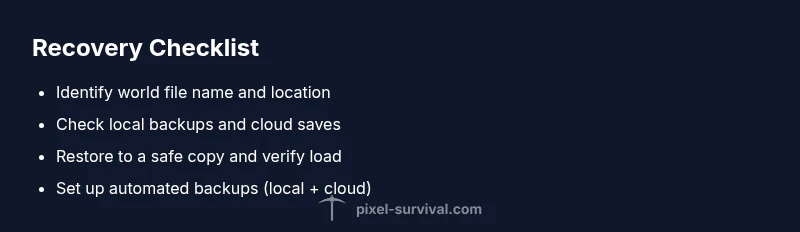
Recovering a lost Terraria world typically follows a tiered approach. Start with the simplest option (local backups) and move toward more advanced methods if needed. First, restore from the most recent backup in your Worlds folder. If backups aren’t available locally, check your cloud saves and restore from the cloud where possible. If neither option yields results, you can attempt to recover data with professional tools or by scanning the drive for deleted.tmp files that may still contain the world data. Always work on a copy of the file to avoid further damage.
Pro tip: After restoring, load the world in Terraria and perform a quick sanity check—save, exit, and reopen to confirm the world loads reliably.
Preventing future world loss
Prevention is easier than recovery. Establish a robust backup routine that covers both local and cloud storage. Schedule automated backups after major builds or at least weekly, and keep multiple restore points across different drives. Disable any auto-overwrite behavior during lengthy saves to reduce the risk of accidental replacement. Regularly verify the integrity of your backups by performing test restores on a separate device.
Tip: Maintain at least three restore points: one recent, one mid-range, and one older baseline. This gives you flexibility if newer backups are corrupted.
When to seek professional help
If you’ve exhausted standard recovery steps and the world remains missing, consider reaching out to platform support or a Terraria-focused community expert. Provide a detailed log of steps you’ve taken, including backup locations, cloud-synced status, and any recent updates or mods installed. In rare cases, file-system corruption on the storage drive may require professional data-recovery services. Documenting your process speeds up assistance and improves your odds of recovering the world.
Data recovery and safety tips
- Regular backups are essential: keep a local backup and a cloud backup if possible.
- Avoid writing new data to the drive when attempting recovery; this reduces the chance of overwriting the lost world.
- Use reputable recovery tools and always recover to a separate drive or folder before confirming a restoration.
- Keep a log of all backup and restore actions to track what worked and what didn’t. This helps you replicate successful procedures in the future.
Important: Never rely on a single backup; redundancy is your best defense against future loss.
Steps
Estimated time: 30-60 minutes
- 1
Stop and locate the world file
Close Terraria completely to prevent any writes to disk. Navigate to your saves folder and locate the WorldName.wld. Make a secure copy to a separate location before doing anything else.
Tip: Always work on a duplicate to avoid accidental damage. - 2
Check for backups
Look for .bak backups or previous world versions in the same folder. Copy the most recent valid backup to the active Worlds folder, preserving the original as a fallback.
Tip: Sort by date to identify the latest usable backup. - 3
Restore from cloud save
If cloud saves are enabled on your platform, re-sync and attempt to restore the world from the cloud. This can often retrieve a version you didn’t realize was backed up.
Tip: Ensure cloud syncing is enabled before attempting restoration. - 4
Attempt data recovery tools
If backups are unavailable, run reputable data-recovery software to locate the world file on the drive. Use a different drive for recovered data to avoid overwriting existing files.
Tip: Follow the tool’s guidance and avoid writing new data to the source drive. - 5
Test load and verify
Launch Terraria, load the restored world, and play a test segment to ensure it’s stable. If successful, immediately create a new backup.
Tip: Test load after each restoration attempt. - 6
Set up ongoing backups
Configure automatic backups to a secondary drive or cloud storage. Schedule backups after significant builds and at least weekly.
Tip: Keep at least three restore points. - 7
Prevent overwrite during saves
Be cautious during long save operations. If possible, avoid saving on the same filename during critical moments to prevent accidental overwrites.
Tip: Maintain separate save slots for experimentation. - 8
Escalate if necessary
If the world remains missing, contact platform support or a Terraria-focused community for guided help, providing a detailed action log.
Tip: Document all steps taken to speed up assistance.
Diagnosis: Terraria world disappears or loads as a different world, with a missing or corrupted world file
Possible Causes
- highWorld file accidentally deleted or overwritten
- highWorld file corrupted during save or crash
- mediumStorage device errors or file system issues
- lowCloud save mismatch or disabled cloud sync
- lowMod or launcher conflicts overwriting world data
Fixes
- easyCheck backup folders and restore from a recent good copy
- easyRestore from cloud save if available and enabled
- mediumVerify game files or reinstall to fix corrupted assets
- mediumRun disk checks and ensure storage health to prevent future losses
- easyEstablish a regular backup routine (local + cloud)
Got Questions?
How can I tell if the world file is corrupted?
Signs of corruption include failure to load a world, error messages during load, or missing world data after a save. Checking the WorldName.wld file size and comparing with a backup can help identify corruption. If corruption is confirmed, restore from a backup or cloud save.
If your world won't load and you see errors, the file may be corrupted. Try restoring from a backup or cloud save.
Can I recover a world from Steam Cloud?
Yes, if Steam Cloud is enabled for Terraria, you can re-download or revert to the last synced version of your world. Make sure cloud sync is active, then launch Terraria and select the cloud-restored world.
Steam Cloud can restore your world if cloud syncing was active. Re-enable syncing and reload the world.
Do mods cause world loss?
Mods and launchers can modify world data and create conflicts. If you recently added or updated mods, try launching with mods disabled to verify integrity and then reintroduce them carefully.
Mods can cause conflicts that affect your save. Disable them to test the world load.
How often should I back up Terraria worlds?
Aim for at least weekly backups, with additional backups after major builds. If you play daily, consider daily backups or after each significant session.
Back up at least weekly, more often if you build a lot.
What if I have no backup available?
Without backups, use cloud restore if possible, and then try data-recovery tools as a last resort. If all else fails, seek professional help and document every step you tried.
If you have no backups, try cloud restore first and consider recovery tools as a final option.
Watch Video
Key Points
- Back up your worlds regularly to prevent loss
- Check local and cloud backups for fastest recovery
- Corrupted saves are common—verify integrity before loading
- Create an automated backup habit for future play sessions