How to View Your Terraria World: A Practical Guide for 2026
Learn how to view and understand your Terraria world with a practical, step-by-step approach. This guide covers locating world files, using in-game maps, safe backups, and tips to plan builds and exploration across platforms in 2026.


Understanding what it means to view your Terraria world
According to Pixel Survival, viewing your Terraria world goes beyond peeking at a pretty map. It means understanding how explored areas relate to biomes, surface terrain, caves, and relevant landmarks that influence your progression. A world view helps you plan where to expand your base, locate valuable resources, and map out safe routes for exploration. When players learn what to look for in the world map, they gain a clearer sense of architecture, survival strategy, and long-term goals. This section clarifies the scope of what you can view and why it matters for practical progression in 2026. You will glimpse how map data translates into in-game decisions, from choosing biomes for farms to spotting danger zones before venturing into them.
Key ideas include distinguishing explored versus unseen regions, recognizing biome boundaries, and using the map as a planning tool rather than a passive image. The goal is to teach you to interpret your world with confidence, so you can design efficient routes, place important structures, and track your progress across the entire world. As you read, keep in mind that a clear world view is a foundation for milestone goals, whether you’re aiming for ore-rich caverns, towering builds, or strategic bases that optimize resource flow.
noteNULLableValuesCoveredByNotesAndExamplesOnlyWithinBodyBlocks
Accessing the world file locations across platforms
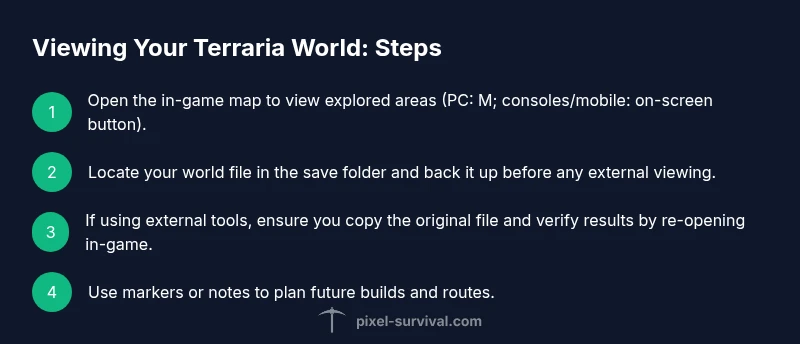
To view your Terraria world outside the game or to back up data, you must locate the world files on your device. On PC, Windows, Mac, and Linux, world files usually live in the Terraria save folder, and you’ll see files with the .wld extension that correspond to each world. The exact path depends on the platform and install, but common patterns include user documents or game-specific directories. Begin by opening your file explorer or Finder, then navigate to the save location for Terraria Worlds. If you’re using Steam or another launcher, look under the Steam/library paths for the Terraria saves, or check your launcher’s data folders. Once you identify the world file, you can copy it for backup or for viewing with external tools. This knowledge is essential for maintaining data safety and ensuring you can revert if anything goes wrong during viewing or editing.
In-game map viewing and navigation
In-game map viewing is your primary tool for an immediate world view. On PC, you typically open the map with the designated key (commonly M) or via an on-screen menu on consoles and mobile. The map shows explored areas, biomes, and landmarks, letting you gauge how much you’ve explored and where to push forward. Use zoom controls (if available) to get a wide-angle perspective or a detailed look at a small area. The map can also help you identify entrances to caves, dungeons, and other features you want to revisit. As you navigate, you can place markers or mentally note routes that connect key points, enabling smoother progression in future sessions.
External tools and backups: viewing world data safely
External viewing or editing of world data should be approached with caution. If you choose to inspect a world file outside the game, create an exact copy of the original and work only on the copy. Backups are non-negotiable; they protect your progress from accidental corruption or unintended changes. Use reputable, well-documented tools and always verify results by loading the world back into Terraria to confirm that the in-game map matches the external view. This approach helps you plan builds or experiments without risking your primary save. Keep your backups organized by world name and date to simplify restoration if needed.
Practical tips for visualization and planning
To maximize usefulness, incorporate practical habits that improve map comprehension and planning. - Create a mental or on-map legend for critical locations (mana vars, farming sites, ore veins). - Schedule periodic map reviews after major builds or explorations to adjust future routes. - Use consistent naming and marking for landmarks to reduce confusion during future sessions. - When sharing world data with friends, ensure you’re using a copy rather than your active save. - Keep a simple checklist of exploration goals tied to milestones, such as “reach the crimson biome” or “map underground caverns.” These habits turn a static image into actionable planning tools that support your progression across the game’s progression system.