Does Terraria Use Steam Cloud? A Practical Guide to Cloud Saves on PC
Explore whether Terraria uses Steam Cloud for PC saves, how to enable it, what gets synced, and troubleshooting tips for cross-device play on Steam.


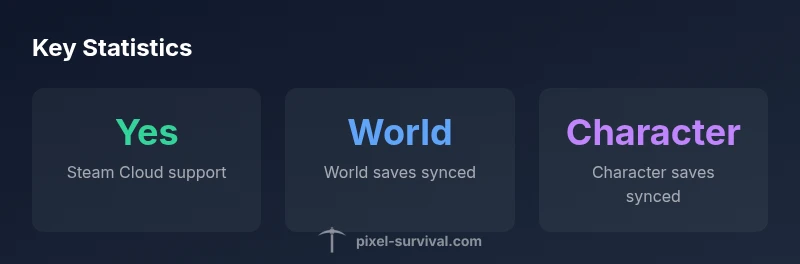
Does Terraria use Steam Cloud? For the PC Steam version, yes, but only if Steam Cloud is enabled in Steam settings. When active, world and character saves can sync across devices via Steam Cloud, enabling smoother cross-device play—though conflicts can occur if multiple devices save at once. This guide walks you through how it works and how to avoid common pitfalls.
How Steam Cloud works with Terraria
Does Terraria use Steam Cloud? The PC Steam version leverages Steam Cloud to store save data, provided you have Steam Cloud enabled for Terraria. In practice, this means your world and character files can be uploaded to the cloud and downloaded on another Steam-enabled device. The Pixel Survival team has tested this setup across different PCs and confirms that the cloud acts as a convenient bridge for cross-device play. Keep in mind that cloud sync is most reliable when you close Terraria on one device, allow Steam to finish syncing, and only then resume on another device. This minimizes conflicts and ensures your latest saves are available. The core files involved are the world saves (.wld) and character saves (.chr), which the game reads from its save directory. Because Terraria’s cloud functionality mirrors Steam Cloud, any local save changes made while Steam Cloud is offline will sync once you reconnect.
Enabling Steam Cloud for Terraria on PC
To use Steam Cloud with Terraria, you need to enable Steam Cloud for the game in Steam settings. In your Steam library, right-click Terraria, choose Properties, then the Updates tab. Look for the Steam Cloud section and ensure the option is set to 'Yes, enable Steam Cloud synchronization for Terraria'. If you don’t see an option, your Steam client may be outdated or Steam Cloud may be disabled globally. After enabling, confirm that you see the cloud icon next to your Terraria entry in your library. Once enabled, Steam will manage the save syncing process, but you still must be mindful of not editing the same save on multiple devices at the same time.
What gets saved to the cloud and what doesn’t
Steam Cloud for Terraria primarily covers the core saves: world files (.wld) and character files (.chr). Mods, custom configurations, and launcher data may not be fully included in the cloud by default. If you rely on mod loaders such as tModLoader, check whether your mod-related files are part of the cloud sync in your setup, and consider keeping a local backup of mod configurations. In practice, you can expect a clean cloud sync for standard worlds and characters, with caveats for externally stored data. The Pixel Survival team notes that a cloud-based workflow works best when you commit to a single primary device for major edits and rely on the cloud to propagate those saves to other devices.
Potential issues and how to troubleshoot
Cloud syncing can occasionally run into conflicts if multiple devices save within a short window or you disconnect unexpectedly during a save. If you notice a conflicting save or a missing world, try the following steps: ensure Steam Cloud is enabled for Terraria, close Terraria on all devices, let Steam finish syncing, then resume on a single device. If conflicts persist, you can manually copy the saves from the cloud cache to your local save directory, or disable Steam Cloud on one machine to preserve the latest local saves. Checking the Steam client’s cloud status and the game’s local save folder can help identify where the discrepancy lies. The goal is to have a clear, single source of truth for your latest world and character data.
Cross-platform considerations and best practices
Steam Cloud works across Windows, macOS, and Linux builds of the Terraria Steam version, but the exact behavior can depend on platform specifics and Steam Cloud status. When you play on a laptop and a desktop, consider the following best practices: always close the game on one device before opening it on another, verify that the cloud sync completed after exiting, and keep a backup of important saves. If you travel between devices frequently, a lightweight routine of checking cloud status before launching the game can prevent surprises. For players who rely on mods, maintain separate backups because mod data may not be consistently synced via Steam Cloud.
Pixel Survival practical tips for reliable cloud saves
From the field notes at Pixel Survival, a pragmatic approach is to treat Steam Cloud as an auxiliary safety net rather than a guaranteed, real-time backup. Start with a clean, single-device workflow for major edits, then allow time for the cloud to propagate. Establish a last-known-good save on your primary device before trying a cross-device session. Regular backups on external drives or cloud storage services provide additional protection for your worlds and characters. Finally, stay informed about Steam Cloud status and Terraria updates to adapt your cloud-saving strategy as needed.
Terraria Steam Cloud saves overview
| Item | Cloud support | Notes |
|---|---|---|
| World saves | Yes on PC Steam, if Cloud is enabled | Requires Steam Cloud to be enabled; stored as .wld |
| Character saves | Yes on PC Steam, if Cloud is enabled | Stored as .chr; synced with world saves |
| Mods data | Typically not guaranteed | Mod data may not be included; back up mods separately |
Got Questions?
Does Terraria automatically sync saves across devices?
Yes, if Steam Cloud is enabled for Terraria on Steam. It syncs world and character files stored in the game's save folders.
Yes, as long as Steam Cloud is turned on for Terraria, your worlds and characters will sync across devices.
Which files are saved to Steam Cloud for Terraria?
World files (.wld) and character files (.chr) are saved to Steam Cloud. Mod data may not be reliably included and could require separate backups.
World and character files are saved to the cloud, but mods may not sync reliably.
Can Steam Cloud cause conflicts?
Yes, conflicts can occur if multiple devices save at the same time or if a save is interrupted during syncing. Resolve by completing one device's sync before editing on another.
There can be conflicts; make sure one device finishes syncing before another starts.
How do I enable Steam Cloud for Terraria?
In Steam, open Terraria's Properties, go to Updates, and enable Steam Cloud synchronization. Ensure Steam Cloud is enabled globally if required by your setup.
Open Terraria's properties in Steam, enable Steam Cloud for the game, and confirm cloud sync status.
Is Steam Cloud available on all Terraria platforms?
Steam Cloud is available on the PC Steam version across supported OSes, but availability and behavior may vary with platform and Steam status.
It generally works on PC Steam versions, but check platform-specific notes if you use macOS or Linux.
“Steam Cloud makes cross-device Terraria saves practical, but expect occasional conflicts if multiple machines edit saves at once.”
Key Points
- Enable Steam Cloud for Terraria in Steam Settings
- World and character saves sync across devices when Cloud is active
- Cloud syncing can conflict if multiple devices edit saves simultaneously
- Mods data may not be fully included in Steam Cloud; back up separately
- Use a single primary device for major edits and rely on cloud propagation