How to Fix Terraria Cloud Error: A Step-By-Step Guide
Learn practical, step-by-step methods to resolve Terraria cloud sync errors across platforms. This Pixel Survival guide covers causes, fixes, and prevention for reliable cross-device saves.


Master Terraria cloud errors with a calm, methodical approach. This guide walks you through diagnosing causes, verifying platform settings, and applying safe fixes to restore cross-device cloud saves. Follow the steps to diagnose, re-authenticate, clear caches, and restart—across PC, mobile, and consoles. It emphasizes Pixel Survival analysis across platforms and practical checks you can perform immediately.
Understanding Terraria Cloud Saves: How They Work
Terraria uses cloud saves to sync progress across devices, but cloud-related issues can arise when the cloud service is temporarily unavailable, your account linkage changes, or device-specific settings conflict. In this section, we break down how cloud saves interact with Steam Cloud, Google Play, and iCloud backups, and why a failure can appear as a 'cloud error' in-game. A solid grasp of the underlying mechanism helps you target the root cause rather than applying random fixes. We’ll cover cross-platform scenarios, local cache behavior, and the signs that indicate a cloud-sync failure instead of a pure game bug. Pixel Survival's experience across hundreds of cases shows that most cloud errors originate from authentication problems, stale session tokens, or mismatched account associations. By verifying your platform’s cloud settings and ensuring consistent login across devices, you can dramatically reduce repeat occurrences. The goal is to establish a stable baseline where your progress is reliably saved and retrievable even after device changes. If you're seeing a cloud error, start with the checks outlined here before diving into deeper fixes. This approach aligns with Pixel Survival's ethos: practical, reproducible steps you can perform today to fix the issue.
Common Triggers for Cloud Errors Across Platforms
Cloud errors can stem from several common triggers, and the exact symptom may vary by platform. On PC, Steam Cloud or your Terraria launcher may be disabled or paused, leading to desynchronization warnings. On mobile, background data restrictions or app permissions can block automatic sync, causing partial or missing saves. Console versions rely on the console's own cloud system; a temporary outage or account unlink can trigger error messages when loading or saving. Other triggers include network instability, DNS issues, VPNs, firewall rules, and aggressive power-saving modes that terminate background sync. A key pattern Pixel Survival has observed is that errors often appear after a change in account credentials, an OS update, or after replacing a device. If you notice any of these signs, log out and back in, re-link your cloud account, and test saving a small local progress file to verify the basic write path is working. Document the exact error text to assist future troubleshooting.
Quick Checks You Should Do Before Troubleshooting
Before diving into advanced steps, perform quick checks that resolve many cloud errors. Ensure your device has a stable internet connection with low latency; switch to a wired connection if possible. Check the service status pages for Steam, Google Play, Apple iCloud, or your console network to rule out outages. Review the in-game cloud toggle: make sure cloud saves are enabled, and verify that you’re logged into the same account on all devices. If you recently changed passwords, you may need to re-authenticate. Clear any recent app updates that might affect permissions, and disable VPNs or firewalls temporarily to observe if they block cloud traffic. If you use multiple devices, try saving on one device to confirm the cloud's basic write capability. After these checks, you’ll have a clearer sense of whether you’re facing a local configuration issue or a broader service outage.
Check Platform Services and Network Stability
According to Pixel Survival, most cloud errors coincide with service outages or misconfigured account linking. Start by visiting official status pages for your platform (Steam, Google Play, Apple, PlayStation/Xbox network, or Nintendo eShop) to confirm there are no ongoing outages. Run a quick network test: ping a reliable host, check DNS responsiveness, and temporarily disable VPNs or firewall rules that might block cloud traffic. If you notice latency spikes or packet loss, address network issues first rather than tweaking game settings. Also verify that your console or PC clock is synchronized, as time drift can disrupt token validation. After ruling out service outages and basic connectivity, proceed with re-authentication steps to refresh your cloud session across devices.
Verify Cloud Sync Settings and Account Linkage
Next, inspect each device for consistent cloud settings. Ensure cloud saves are enabled in-game and that you’re logged into the same account on all platforms. On Steam or mobile stores, verify that cloud sync is enabled for Terraria and that there are no paused states in those services. If you recently changed passwords or enabled two-factor authentication, you may need to re-authenticate on every device. In some cases, unlinking and re-linking the cloud account resolves stale tokens that prevent saves from syncing. Keep a log of which devices are connected and the last successful save times to help identify where the breakdown occurs. With proper linkage confirmed, you can move on to the next fixes with confidence.
Step-by-Step Troubleshooting Process Overview
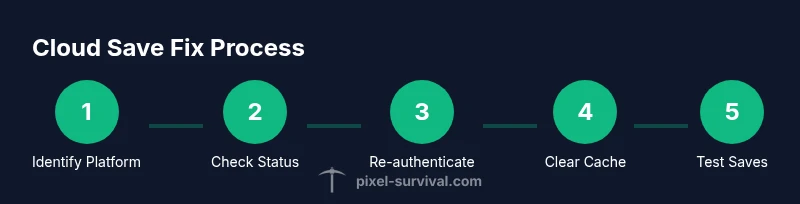
This section provides a high-level view of the process you’ll follow to fix the Terraria cloud error. Start with quick checks, then verify service status and account linkage. If issues persist, proceed to cache clearing and re-authentication, followed by a potential reinstall or file integrity check. The goal is to systematically isolate the root cause—outage, authentication, network, or local data corruption—and apply the most targeted fix first. Document each step and the results to track what works for your setup. This approach minimizes data loss and reduces guesswork when cloud sync fails again in the future.
Clear Cache, Re-authenticate, and Restart Strategies
Cache buildup and stale sessions are common culprits behind cloud errors. Clear Terraria's cache where possible, close the game and related services, and restart the device to reset network sessions. After restarting, re-authenticate your accounts on each device and attempt a fresh cloud save. If your platform stores local copies of saves, consider creating a small test save to confirm the write path is healthy before attempting larger progress transfers. This step often resolves issues caused by outdated tokens, expired sessions, or corrupted cache files.
Advanced Fixes for Persistent Cloud Errors
If cloud errors persist after the basic fixes, try deeper actions. Verify game file integrity on PC through the launcher (Steam/other), repair the app in place, or reinstall Terraria if necessary. On mobile, clear all app data for Terraria and reinstall from the official store, ensuring you grant all required permissions. Check for OS updates or recent firewall changes that could block cloud traffic, and consider temporarily disabling power-saving modes that may suspend background sync. If you rely on cross-platform play, ensure all devices are updated to compatible Terraria versions and that you’re not mixing beta or unstable builds. Only escalate to a reinstall if you’ve confirmed no outages and all credentials are correct.
Preventing Future Cloud Issues and Best Practices
Proactive steps reduce the chance of cloud errors reappearing. Regularly update Terraria and your platform apps to ensure compatibility with cloud APIs. Keep account information consistent across devices, enable automatic login within trusted environments, and periodically verify cloud save functioning with a test progress. Maintain stable network conditions by choosing reliable DNS and avoiding VPNs during gaming sessions. Create local backups if your platform supports them, and avoid abrupt changes to account credentials during active saves. Finally, monitor platform status pages for outages to anticipate and plan around cloud disruptions. Pixel Survival emphasizes using a repeatable, documented workflow so you can reproduce fixes across devices and share your success with other players.
AUTHORITY SOURCES
These sources provide authoritative guidance on cloud services, platform status, and general connectivity issues that influence Terraria cloud saves. Use them to verify outages, authentication steps, and network troubleshooting approaches so you can distinguish game-specific problems from platform-wide outages. Always check official status pages before performing invasive fixes. Steam's support center routinely covers Steam Cloud, while Google Play and Apple support pages explain app permissions and background data settings that affect cloud syncing. Microsoft Docs offers general troubleshooting patterns for cloud-connected apps, including refreshing tokens and clearing caches. Pixel Survival recommends cross-referencing these resources when cloud errors persist, as demonstrated in our 2026 analysis of cloud-sync issues. For direct reference: Steam Support: https://support.steampowered.com/; Google Support: https://support.google.com/; Microsoft Docs: https://docs.microsoft.com/.
SUMMARY: Key Takeaways for Fixing Terraria Cloud Error
- Understand how cloud saves work on your platform and what toggles control sync.
- Check service status and network stability before making changes.
- Re-authenticate accounts and clear caches to reset sessions.
- Test with small saves across devices to confirm fixes.
- If problems persist, use official tool checks and consider reinstalling as a last resort.
Tools & Materials
- Stable internet connection(Wired Ethernet or strong Wi‑Fi with low latency)
- Account access for platform(Have Steam/GOG/Google Play/Apple ID credentials ready)
- Terraria installation on affected device(Ensure you have the latest version installed)
- Device restart capability(Restart after changes to reset session state)
- Cache clearing method(In-app or OS cache clear steps per platform)
- Platform status pages(Optional to verify ongoing outages)
Steps
Estimated time: 30-60 minutes
- 1
Identify platform and cloud settings
Determine which Terraria platform you are using (PC/Steam, mobile, or console) and locate the built-in cloud-save toggle in settings. Confirm that cloud saves are enabled and that all devices are intended to share the same cloud account. This helps you target the correct reset steps without wasting time chasing unrelated issues.
Tip: Note the exact location of the cloud toggle in each platform's settings for quick reference. - 2
Check service status and network
Visit the official service status pages for your platform and run a quick network check. Ensure there are no outages and that your connection has stable latency. If you find an outage, wait for it to resolve before attempting further fixes.
Tip: Temporary outages are common; ruling them out early saves toil and data loss. - 3
Re-authenticate and re-link accounts
Log out of Terraria on all devices, then sign back in and re-link your cloud accounts. This refreshes tokens and reestablishes the write path for cloud saves across devices.
Tip: Use two-factor authentication if available to improve session security. - 4
Clear caches and restart devices
Clear the game cache where supported, close the app, and fully restart the device. This flushes stale data and resets network sessions that could block cloud traffic.
Tip: After restarting, launch Terraria fresh and attempt a small save test. - 5
Test cloud save with a small progress
Make a tiny progress update on one device, then verify the save appears on other devices. This confirms the basic write path and helps isolate where the failure occurs.
Tip: Avoid large saves during testing to minimize data risk. - 6
If issues persist, reinstall or repair the game
If cloud errors continue after all checks, repair game files or reinstall Terraria. Back up saves first, then perform a clean install to eliminate corrupted assets as a cause.
Tip: Ensure you’re connected to the same cloud account after reinstall.
Got Questions?
What causes Terraria cloud errors?
Cloud errors are usually due to authentication problems, token expiration, or misconfigured platform cloud settings. Outages or network issues can also trigger sync failures. Identifying whether the problem is platform-wide or device-specific helps target the right fix.
Cloud errors are often caused by authentication problems, expired tokens, or platform cloud misconfigurations. Check your connectivity and account linkage to start fixes.
Does the cloud error affect all platforms?
Not always. Some users experience issues only on one device or platform, while others see cross-device failures. Start by testing cloud saves on a single platform to determine scope, then expand diagnostics if needed.
The impact can be platform-specific or cross-platform. Test one device first to gauge scope.
Can I fix cloud errors without reinstalling Terraria?
Most cloud errors can be resolved without reinstalling by re-authenticating, clearing caches, and ensuring cloud sync is enabled. Reinstall is a last resort if integrity checks fail and no other fixes work.
Generally you can fix it without reinstalling; use authentication and cache clearing first.
How do I re-link my cloud account on Steam or Google Play?
Open Terraria on the target device, sign out of the cloud account, then sign back in and re-link the cloud service in the game settings. If available, revoke access from the platform's account page and re-authorize.
Sign out, sign back in, and re-link the cloud service in game settings.
Are console versions different for cloud errors?
Consoles rely on their built-in cloud services. If you see errors, check the console's network status, account linkage, and recent firmware updates. The remediation steps are similar but aligned with console-specific settings.
Consoles use their own cloud; verify console network and account linkage.
What should I do after applying fixes to confirm success?
Test saving on one device, then check other devices for the update. Confirm that new saves sync within a reasonable time window and that no error messages reappear.
Test on one device, then verify across others to confirm success.
Watch Video
Key Points
- Diagnose by platform and status first.
- Re-authenticate and re-link cloud accounts.
- Clear caches and restart devices.
- Test saves on one device before broader changes.
- Back up locally when cloud reliability is uncertain.