How to Check Terraria Server Port: A Practical Guide
Learn how to check your Terraria server port, diagnose port-forwarding issues, and verify local and external connectivity with safe, step-by-step instructions. Includes troubleshooting tips and tested methods to ensure players can join your world.


By default, Terraria uses port 7777, but servers can run on a custom port. To check your Terraria server port, verify the port in your server configuration, confirm it’s open on your router, and test both local and external reachability. This guide walks you through quick checks, common pitfalls, and safe testing methods.
Why checking the Terraria server port matters
For multiplayer to work smoothly, the correct port must be open and reachable both inside your local network and from the wider internet. A port that is closed, blocked by a firewall, or misrouted by your router will prevent friends from joining your world even if the server is running correctly. According to Pixel Survival, many players underestimate the role of network ports in multiplayer success, and our team has seen recurring issues when ports aren’t properly configured. Understanding which port your Terraria server uses, how to open it in your router, and how to verify connectivity will save hours of troubleshooting. This quick, practical guide is designed for PC players and home networks, but the principles apply to laptops, servers, or dedicated hosting. By mastering port checks, you’ll reduce join problems and enjoy more reliable play sessions with friends.
What is a Terraria server port?
A server port is a numeric endpoint that helps data reach the correct service on a device. Terraria communicates over a specific port, so clients connect to that port to join a world. The port can be the default (7777) or a custom value set in your server configuration. When you connect, your game client sends data to your router’s public address on that port, which is then forwarded to your Terraria server. If the port is the wrong number, closed by a firewall, or not forwarded correctly, players won’t be able to connect.
Default ports and custom ports: how to identify yours
Terraria’s default multiplayer port is 7777, but server administrators sometimes choose a different port for security or network reasons. To identify your port, check the server’s configuration file (often named serverconfig.txt, config.json, or a similar file in your Terraria server folder). Look for a line that specifies the port value. If you’re using a hosting service or a managed server, consult the provider’s dashboard or documentation to confirm the port. Remember that the port must be consistently open in your firewall and correctly forwarded on your router for external players to reach the server.
Step-by-step overview
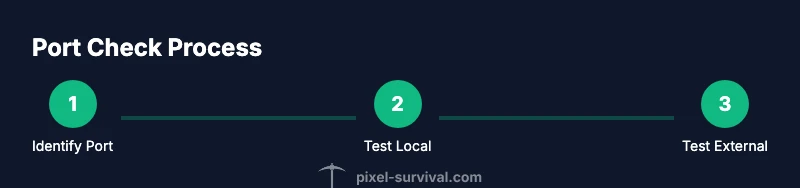
To systematically verify the port, you’ll confirm the server port, test internal connectivity, and test external reachability. This section provides a high-level map of the steps, which are implemented in detail in the STEP-BY-STEP block below. Keeping a running checklist helps prevent missing a crucial test, such as validating port forwarding or checking the firewall on the host machine. Consistency is key: use the same port everywhere (server config, router, firewall rules) to avoid confusion and connection failures.
Testing port reachability from inside and outside your network
Testing from inside your network is usually simple: you can use a local IP address and a local port test to verify the server is listening. For external reachability, you’ll need to test from a device outside your network to ensure the port is forwarded correctly and accessible through your public IP. Tools range from built-in OS commands to dedicated network utilities. In all cases, ensure the Terraria server is running while you test, and confirm you’re testing the same port configured in the server file.
Troubleshooting and common issues
If the port check fails, start with the basics: confirm the port in the server config matches the port you’re testing, verify your firewall allows inbound connections on that port, and ensure port forwarding on the router points to the server’s local IP. Dynamic IPs can complicate things; setting a static local IP for the server helps. Some ISPs or router firmware implementations may block certain ports, so testing multiple ports or enabling UPnP can help diagnose the issue. Finally, ensure there are no other services listening on the same port, which could cause conflicts.
Pro tips for Terraria server port management
- Always document the port you use and keep a consistent value in server config, firewall rules, and port forwarding.
- Reserve a static local IP for the server to prevent IP changes that break port forwarding.
- If possible, test from an external network using a mobile hotspot or a different ISP to confirm external reachability.
- Regularly review firewall logs to identify blocked attempts and adjust rules accordingly.
- Consider enabling UPnP only if you’re comfortable with the security implications and have a router that supports it well.
Authoritative sources
- Authoritative port-forwarding guidance: https://www.fcc.gov/consumers/guides/port-forwarding
- Security/handling tips: https://us-cert.cisa.gov/ncas/tips/ST04-004
- Network testing and connectivity: https://learn.microsoft.com/en-us/powershell/module/nettcpip/test-netconnection?view=windowsserver2022-ps
Tools & Materials
- Computer or server machine hosting Terraria(Admin access to install or modify server configuration)
- Router with admin access(Ability to set port forwarding and UPnP if desired)
- Terraria server software(Ensure it's the latest compatible version)
- Network testing tools(PowerShell (Test-NetConnection) or netcat equivalents)
- Firewall access or rules editor(Open the chosen port for inbound traffic)
- A second device for external testing(Optional but recommended to test from outside your network)
Steps
Estimated time: 45-60 minutes
- 1
Identify the port in server config
Open the Terraria server config file and locate the port setting. Note the exact number used for inbound connections. If a custom value isn’t set, the default is 7777.
Tip: If you’re unsure where the config file is, search the server folder for files named config or serverconfig and check the port line. - 2
Confirm the server is listening on that port
On the host machine, run a command to verify the server is listening on the specified port (for example, netstat -an | findstr LISTENING or a similar command in your OS).
Tip: Ensure you run the command while the Terraria server is actively running. - 3
Test local connectivity
From another device on the same LAN, connect to the server using the local IP and port to verify internal reachability.
Tip: If local tests fail, recheck firewall rules on the host and ensure the port is open locally. - 4
Configure router port forwarding
Access the router’s admin interface and set up port forwarding for the chosen port to the server’s local IP address. If your router supports UPnP, you can enable it for automatic handling.
Tip: Use a bookmark or note to record the forwarded port and the local IP address it points to. - 5
Test external reachability
From an external network, test if the port is accessible. You can use online port checkers or run a Test-NetConnection from outside the LAN.
Tip: Be mindful of your ISP’s policies; some networks restrict certain ports. - 6
Validate firewall rules
Ensure Windows Defender Firewall, macOS firewall, or Linux iptables/ufw allows inbound traffic on the port.
Tip: Create a temporary test rule to confirm the port is open, then tighten rules afterward. - 7
Document and verify repeatedly
Keep a record of the port, router rule, and server setting. Re-test after any network change and after rebooting devices.
Tip: Regular checks prevent surprises when friends try to join. - 8
Plan for dynamic IPs
If your external IP changes, set up a dynamic DNS service or use a static external address if available from your ISP.
Tip: Dynamic DNS reduces join failures when your public IP shifts.
Got Questions?
What is the default Terraria server port?
The default port for Terraria multiplayer is 7777, unless you’ve configured a custom port in the server settings. Always verify the number in your server configuration.
The Terraria default port is 7777 unless you’ve set something different in your server settings.
How do I test if my port is open on my network?
Run a local port check on the server host and an external check from a device outside your network. Use commands like Test-NetConnection or a reputable port tester, and verify the results align with your router’s forwarding rules.
Test the port locally and from outside your network to confirm it’s open and reachable.
What should I do if the port is blocked by my firewall?
Add an inbound rule for the Terraria port in your firewall, or temporarily disable the firewall to test. If the port opens, tighten rules to only allow Terraria traffic.
Open the port in your firewall, then verify connectivity again.
Is UPnP safe to enable for port forwarding?
UPnP can simplify forwarding but may introduce security risks if misused. If you enable UPnP, limit it to trusted devices and monitor router logs.
UPnP makes forwarding easier but watch for security concerns and monitor access.
What if my external IP changes?
Use a dynamic DNS service or a static external IP if your ISP provides one. This keeps the join address stable for players.
Use dynamic DNS or static IP to keep join addresses stable.
Can multiple ports be used for Terraria servers on the same network?
Yes, you can run more than one server on different ports by specifying different port values in each server’s config and forwarding them separately on the router.
Yes, but you must configure each server with its own port and port-forwarding rules.
Watch Video
Key Points
- Identify and confirm the port in the server config.
- Test both internal and external reachability to verify openness.
- Ensure firewall and router forwarding align with the server port.
- Use static IP and documentation to prevent future failures.