How to Check Your Terraria World IP
Learn how to check your Terraria world IP for hosting multiplayer. This guide covers locating local LAN IPs, your public IP, router settings, and safe port-forwarding practices to get friends into your world.


You're going to learn how to check your terraria world ip to host multiplayer sessions. This guide covers when you should use a local LAN IP versus a public IP, how to locate each address on Windows, macOS, or via your router, and safe port-forwarding steps. By following these steps, you can connect friends reliably while minimizing security risks. Pixel Survival's team emphasizes clear, practical instructions.
What the Terraria world IP means and why it matters
In Terraria, the world IP (Internet Protocol) is the address that clients use to connect to your game session when you host a multiplayer world. Understanding IPs helps you decide whether you should host locally for friends on the same network or publish a public server so players join from anywhere. If you’re wondering how to check your terraria world ip, you’re in the right place. This guide breaks down the concepts and walks you through safe, practical steps. According to Pixel Survival, most players start with identifying whether they need a local LAN connection or a public internet connection, because the steps to obtain the IP differ significantly. While the local IP stays the same for devices on your home network, your public IP is assigned by your ISP and can change—potentially requiring you to update port-forwarding rules or dynamic DNS settings. Pixel Survival’s approach emphasizes clarity, minimal disruption to your existing setup, and secure sharing practices. By the end, you’ll know how to locate the IP, verify connectivity with friends, and mitigate common issues that block multiplayer sessions. Remember: IP handling should be done with consent from other players, and you should avoid exposing sensitive network information beyond what is necessary for gameplay.
Local vs external IP: quick definitions
An IP address is like a street address for your devices. A local IP is used inside your home network and is not reachable from the internet unless you port-forward or enable network sharing. A public IP is what the rest of the internet sees when you host a server. For Terraria, you’ll typically need both depending on how you connect players: local friends use the LAN IP, while players from outside your network need your public IP. Pixel Survival highlights that many players confuse these two and end up with failed connections or misrouted traffic. The goal is to choose the right address for the session type and configure your router accordingly.
To avoid surprises, check whether your hosting device gets a consistent local IP (static or DHCP reservation) and whether your external IP changes when you reboot your modem. If your public IP changes frequently, consider dynamic DNS services to keep a stable hostname. Keeping network details private until you’re ready to invite friends reduces risk of unwanted access. When you understand the distinction between local and public IPs, you’ll have a clear map of where to look first and what to adjust in your Terraria server setup. This simple knowledge lays a strong foundation for reliable multiplayer sessions and reduces firewalls/port confusion. Pixel Survival also reminds players to verify permissions and respect others’ privacy when sharing IPs.
Methods to find the IP: Overview
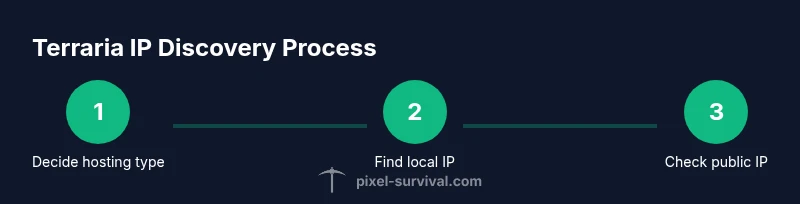
There are three primary paths to discover your Terraria world IP: (1) locate your local IP on the host device to enable LAN play, (2) read your router’s status page to identify the public IP assigned by your ISP, and (3) configure port-forwarding or a dynamic DNS if you want friends from outside your network to join. The choice depends on whether you’re sharing a session with nearby friends on the same router or inviting players from far away. The steps involve network settings in your operating system, router admin tools, and a quick connectivity test. Pixel Survival shares that many players save time by deciding upfront whether they’re hosting on a LAN or online, then following a consistent procedure for IP discovery and sharing. By following this approach, you’ll reduce back-and-forth troubleshooting and create a smoother multiplayer experience for your Terraria world. The key is to proceed in small, verifiable steps and verify the IPs on another device to confirm reachability.
Method A: Find your local LAN IP on Windows
Windows users typically find the local LAN IP by checking the active network adapter. Start by opening Command Prompt, then type ipconfig and press Enter. Look for the IPv4 address under the active connection. That IPv4 address is the local IP other players on your LAN will use to connect to your Terraria world. If your device uses multiple adapters (VPN, wireless, wired), identify the one connected to your home network first. Repeat the check if you switch networks. For a calm setup, consider assigning a static local IP or a DHCP reservation so the address does not change after reboots. This minimizes confusion for players who join via LAN. If you’re unsure which adapter is active, disable unused connections temporarily and rerun ipconfig to confirm. Pixel Survival suggests testing with a second device on the same network to ensure the IP you recorded is indeed reachable from another machine.
Method B: Find your local IP on macOS and Linux
Mac users can find their local IP by opening System Preferences > Network, selecting the active Ethernet or Wi‑Fi connection, and noting the IP address displayed for IPv4. Alternatively, you can open Terminal and type ifconfig | grep 'inet ' on macOS, then look for the en0 or en1 entry. Linux users typically run ip a or ifconfig to list interfaces; locate the address under the active interface (often eth0 or wlan0). The goal is to identify the same local IP address that Windows uses, so other players on the same LAN can connect to your Terraria world. If you use VPNs or virtual adapters, make sure you’re reviewing the correct network interface. For consistency, set a static internal IP in your router’s DHCP settings or reserve it for your device so you don’t lose the address after reboot. After you capture the local IP, you’ll be ready to test with a friend on the same network and move to external access if desired. Pixel Survival encourages validating the local IP by connecting from another computer nearby.
Method C: Find your public IP and set up port forwarding (for online play)
Your public IP is what players outside your home network will use to connect, so you’ll need to view it from a device on your network. The simplest method is to visit a site like whatismyipaddress or ipinfo.io to see the address your ISP assigns. If you plan to host a Terraria world for players across the internet, you’ll also need to forward the appropriate port on your router to your host PC. Refer to your router’s admin page, locate the Port Forwarding or NAT section, and enter the local IP you captured earlier as the destination for the game port. Use a descriptive name so you can audit rules later. Keep in mind that many ISPs assign dynamic public IPs that change over time; if this is the case, you may want to set up a dynamic DNS hostname. Also note firewalls on your computer can block inbound connections, so ensure the Terraria server process is allowed. This step yields a reachable public IP but requires careful coordination with your firewall and router. Pixel Survival’s analysis shows that proper port forwarding dramatically improves connectivity for remote players, provided you don’t overlook security considerations.
Testing connectivity and sharing IP safely
With local and public IPs identified, test each scenario before inviting friends. On a LAN test, have another computer join your Terraria world using the local IP you recorded. For online testing, have a friend attempt to connect via your public IP and the forwarded port from a different network (for example, via mobile data). If the connection fails, recheck your IP values, ensure the port is open on the router, and verify that your firewall permits the Terraria server. Use a trusted tool to confirm the port status and watch for errors in the Terraria server logs. When sharing addresses, share only the necessary information and avoid posting your IP publicly in forums or public chats. If you use dynamic DNS, share a hostname rather than a changing IP to simplify access for friends. Pixel Survival emphasizes that systematic testing saves hours of debugging and makes multiplayer more enjoyable.
Security, privacy, and best practices
Exposing your IP to others creates a potential attack surface, so follow basic security practices. Use strong, unique passwords for your router and keep firmware up to date. Only enable port forwarding for the Terraria server port you actually need and disable it when not in use. Consider limiting access to trusted friends and periodically rotating credentials. If you’re behind CGNAT or mobile hotspots, external access may be limited or blocked; in those cases, focus on LAN play or set up a remote access solution with caution. For families and shared networks, maintain network hygiene by isolating the gaming device from sensitive devices. Pixel Survival’s verdict is that hosting securely matters as much as accessibility; the Pixel Survival team recommends documenting your port rules and using a dynamic DNS hostname to avoid IP churn, which helps keep your world accessible without exposing unnecessary network details.
Tools & Materials
- PC or Mac with Terraria installed(Ensure you’re connected to your home network)
- Router with admin access(Know your router login credentials)
- Smartphone or tablet(For testing external access from a different network)
- Ethernet cable(Useful for a stable wired connection during testing)
- Notepad or notes app(Record IPs, ports, and changes)
- Port checking tool(Optional utility to verify port openness)
Steps
Estimated time: Estimated total time: 25-40 minutes
- 1
Decide hosting type
Clarify whether you’ll host on a local LAN for friends on the same router or host online for players across the internet. This choice determines whether you’ll rely on a local IP and a clean LAN test, or a public IP with port forwarding and potential dynamic DNS.
Tip: Decide early to avoid mixing approaches mid-session. - 2
Gather required data
Have your host device ready, note its network interfaces, and prepare a place to record IP addresses. You’ll need both the local IP and the router’s public IP for online hosting.
Tip: Keeping a single sheet of paper or note app open helps prevent data loss. - 3
Find local IP on Windows
Open Command Prompt, type ipconfig, and press Enter. Identify the IPv4 address under the active network adapter. This is the LAN IP other players on your network will use.
Tip: If multiple adapters exist, disable unused ones and recheck. - 4
Find local IP on macOS/Linux
On macOS, go to System Preferences > Network and view the IPv4 address. On Linux, run ip a or ifconfig to locate the active interface’s address.
Tip: Record whether you’re on Wi‑Fi or wired; IPs differ between interfaces. - 5
Identify public IP
From any device on the same network, open a browser and visit whatismyipaddress.com or ipinfo.io to view your public IP. This is what players outside your network will use.
Tip: If you have a smartphone on mobile data, reuse its browser to test external connectivity. - 6
Set up port forwarding
Log in to your router, find Port Forwarding/NAT, and forward the Terraria server port to your local IP. Use a descriptive rule name and test after saving.
Tip: Label rules clearly so you can audit them later. - 7
Test LAN connectivity
From another device on the same network, connect to the Terraria world using the local IP to confirm LAN play works.
Tip: If it fails, recheck IP and firewall permissions. - 8
Test remote connectivity
Ask a friend on a different network to join using your public IP and the forwarded port. Troubleshoot if there’s no connection.
Tip: Consider using a dynamic DNS hostname if your public IP changes frequently. - 9
Share IP details securely
Provide the necessary IP or hostname to friends privately. Avoid posting IPs in public forums.
Tip: If you’re sharing with many players, use a hostname rather than a changing IP.
Got Questions?
What is the Terraria world IP used for?
The Terraria world IP identifies where players connect to your hosted game session. Local IPs enable LAN play, while the public IP is needed for online hosting with port forwarding. Understanding both helps you tailor hosting to your friends’ locations.
Your Terraria world IP is the address players connect to. Use it for LAN or online hosting depending on where your friends are.
Do I need port forwarding to play with friends online?
Yes, for online play you typically forward the game’s port on your router to your host PC. This opens a path from the internet to your game. Without it, friends outside your local network may not reach your world.
Port forwarding is usually required for online Terraria hosting. Without it, friends outside your network can’t connect.
How can I find my local IP on Windows if I have multiple networks?
Identify the active adapter driving your home network, run ipconfig, and note the IPv4 address under that adapter. Disable other connections if needed to avoid confusion.
Check the active network in ipconfig and note its IPv4 address. Disable unused networks to be sure.
What if my IP changes over time?
If your public IP changes, consider a dynamic DNS hostname so friends can connect via a stable address. For internal IPs, set a DHCP reservation or static IP to avoid changes.
Use a dynamic DNS name for changing IPs, and static internal IPs to keep LAN addresses stable.
Can I host Terraria on a school or corporate network?
Many schools block inbound connections or limit port forwarding. If hosting is blocked, you may be limited to LAN play with classmates on the same network.
School networks often block external hosting. You may be limited to LAN play.
Is it safe to share my IP with friends?
Share only with trusted players and avoid posting publicly. Use a hostname when possible and review your router rules to minimize exposure.
Share IPs only with trusted players and use a hostname if you can.
Watch Video
Key Points
- Define hosting goals before IP discovery
- Differentiate local LAN IP from public IP
- Test connectivity from multiple networks
- Securely share IP details and maintain privacy