Terraria Port Guide: Default and Custom Ports
Learn how Terraria uses ports for multiplayer, how to open and forward ports, test connectivity, and troubleshoot common port-forwarding issues. Includes step-by-step router instructions and best practices for Pixel Survival readers.


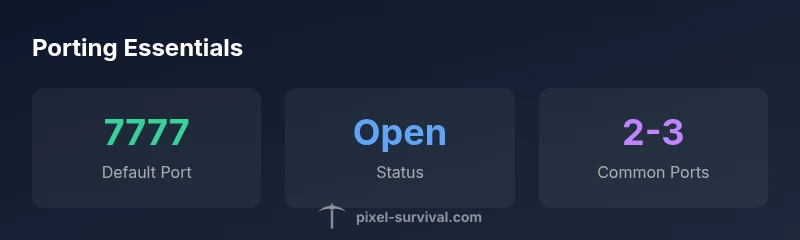
For Terraria, the default multiplayer port is 7777. To host or join a world, forward UDP and TCP port 7777 on your router and ensure Terraria traffic is allowed by your firewall. If you run a non-default port, adjust your server configuration accordingly and communicate the port to your players.
Why Port Planning Impacts Terraria Multiplayer
The question that often starts with the phrase terraria what port is not just about numbers; it’s about reliable connectivity. The port you choose can influence who can join your world, how stable the connection is, and whether you encounter lag, host-side disconnects, or join-time delays. In Terraria, the default PC multiplayer port is 7777, which most players and hosting guides use as a baseline. When you start manipulating ports, you introduce variables like NAT type, UPnP behavior, and router-specific firewall rules. Pixel Survival recommends starting with the standard port to minimize troubleshooting later. If you must deviate from 7777, document the change clearly for your friends, and confirm everyone is using the same port in their server settings.
The Default Terraria Port: What It Is and Why It Matters
The default port for Terraria PC multiplayer is 7777. This port is what many servers listen on by default, and it’s the one most players expect to open in their routers. Using the default port simplifies compatibility with guides, friends, and community servers. It also makes it easier to test connectivity with basic port-check tools. Whether you’re hosting a small world for friends or a public server, starting with 7777 minimizes the friction of initial setup and lets you focus on in-game progression rather than networking quirks.
How to Test If Your Terraria Port Is Open
Testing your port is a crucial step before inviting players. Start by confirming your server is actually listening on the intended port and that your router forwards traffic to the correct internal IP. You can use online services to check port status, or run a local test with command-line utilities. If the port shows as closed, recheck firewall rules, confirm the correct local IP, and ensure no other service blocks the port. Regular testing, especially after network changes, helps you validate that players can connect without delay.
Step-by-Step: Forwarding Terraria's Port on Common Routers
Forwarding a port generally involves: 1) logging into your router’s admin page, 2) locating the Port Forwarding or NAT section, 3) adding a new rule for the chosen port (default 7777), 4) selecting UDP and TCP protocols, 5) entering the local IP of the host machine, and 6) saving and rebooting if required. While the UI varies by brand (TP-Link, Netgear, ASUS), the basic concept remains the same. After saving, test from a device outside your LAN to verify accessibility. If you plan to host public servers, set up a static local IP for reliability.
Security and Firewall Considerations
Opening a port creates an entry point on your network, so security matters. Ensure your Windows Defender (or other firewall) allows Terraria traffic on the port, and keep your server software up to date. Use strong local network security practices, such as a separate guest network for visitors and regular router firmware updates. If your ISP blocks certain ports or imposes CGNAT, you may need to use alternative hosting arrangements or VPN-based solutions to maintain accessibility without compromising security.
Hosting on Different Platforms: PC, Console, Mobile
Terraria supports PC hosting with dedicated server setups, but console and mobile experiences differ in how ports are managed and whether direct hosting is supported. On PC, you can host a world from Terraria or a dedicated server application, forwarding the port to your machine. Console ports, if applicable, are typically handled by the platform and may not permit any manual port forwarding. Mobile devices often rely on the host network’s NAT, which can complicate direct hosting. In all cases, understanding your network topology and platform limitations will guide you toward the most reliable configuration.
Troubleshooting Common Port-Forwarding Issues
If connections fail, revisit the basics: confirm the port, confirm IP addressing, and verify firewall exemptions. Check for double NAT scenarios, ensure UPnP is enabled if you rely on it, and confirm there are no conflicting applications using the same port. If you still can’t connect, test from multiple networks, consider temporarily disabling security software for a controlled test, and consult router logs for blocked attempts. Persistent issues may indicate CGNAT or ISP restrictions, at which point contacting the provider or switching hosting strategies becomes necessary.
Terraria port usage scenarios
| Scenario | Port(s) | Notes |
|---|---|---|
| PC Host | 7777 | Default PC Terraria server port |
| Non-default Port | Custom | Requires server config and router rule |
| Behind CGNAT | Various | Hosting is challenging without special arrangements |
Got Questions?
What port does Terraria use for PC servers?
Terraria uses port 7777 by default for PC multiplayer. If needed, you can run on a different port by changing the server configuration, but you must forward that port on your router.
Terraria uses port 7777 by default for PC multiplayer; you may use another port if you configure it and forward that port.
Do I need to forward both UDP and TCP for Terraria?
Yes. Terraria multiplayer typically requires both UDP and TCP traffic to reach the host reliably. Forwarding both ensures better connectivity for joiners and reduces connection issues.
Forward both UDP and TCP for Terraria to improve connectivity.
Can I host Terraria without port forwarding?
Hosting without port forwarding is possible only in very restricted scenarios, such as using a VPN-based hosting or a third-party game server service. In most home networks, port forwarding is needed to allow external connections.
Usually you need port forwarding unless you use a hosting service.
What should I do if my network uses CGNAT?
CGNAT can prevent direct hosting. If you’re behind CGNAT, consider a hosted Terraria server or a VPN-based solution that provides a public-facing IP and port forwarding capability.
CGNAT can block hosting; consider a hosted server or VPN workaround.
How can I test if my port is open for Terraria?
Use external port-check tools or a test from a device outside your LAN. Ensure the host is listening on the port and that firewall rules allow inbound traffic. Revalidate after changes.
Test from outside your network to confirm the port is reachable.
What is a quick best practice for securing Terraria hosting?
Keep your server and router firmware up to date, use strong local network segmentation, and limit direct exposure by using a dedicated hosting machine or a reputable hosting service when possible.
Keep software updated and segment your network for security.
“Port configuration is often the single biggest factor in stable Terraria multiplayer sessions.”
Key Points
- Start with the default port 7777 to simplify troubleshooting
- Forward UDP and TCP on the chosen port for hosting
- Test connectivity from an external network after setup
- Document any non-default port changes for players
- Be mindful of CGNAT and ISP restrictions when hosting